Some screenshots show mcp-s.com, which some existing organizations still use. New organizations use withwillow.ai. Copy the URLs shown in your own organization.
Microsoft OneDrive
Microsoft OneDrive is the file storage in Microsoft 365 and in personal Microsoft accounts. The Willow connector browses, searches, uploads, copies, moves, shares, and versions files in the signed-in user's OneDrive through the Microsoft Graph API.
Authentication types
OneDrive supports one authentication method:
- OAuth: Register your own app in Microsoft Entra. You control the app and its scopes. Each user connects with their Microsoft account. Microsoft Entra setup is required.
Before you start
You will need:
- A Microsoft account that can register apps in the Microsoft Entra admin center. A personal Microsoft account is enough for testing if it has a directory in the Entra admin center.
- Your Willow Redirect URL, from the connector's Setup tab.
Users can connect with a personal Microsoft account or a work or school account (OneDrive for Business). In most work or school tenants, an admin must grant consent for Willow's default OneDrive scope. See Choosing the right OneDrive scope.
The Add MCP Server catalog also lists Microsoft Work IQ ODSP Remote, Microsoft's own OneDrive and SharePoint MCP server. It's a separate integration that needs a work tenant, and this page doesn't cover it.
Setting up OAuth
1. Register the app in Microsoft Entra
Sign in to the Microsoft Entra admin center and go to Entra ID → App registrations → New registration. You can also use Microsoft Entra ID → App registrations in the Azure portal. Both open the same form.
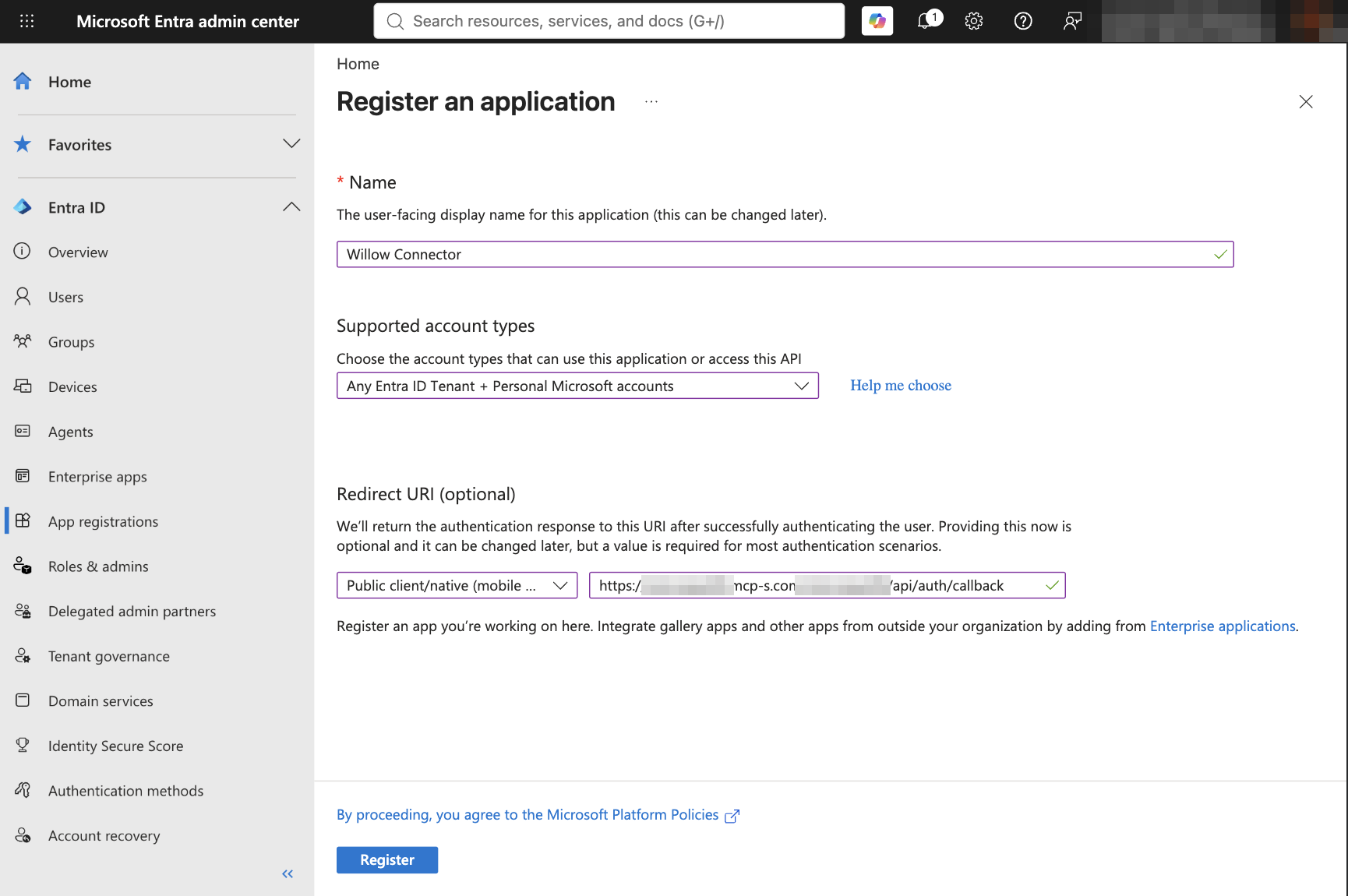
- Name: Enter a name users will recognize on the consent screen. Microsoft rejects names that contain "Microsoft" for apps that allow personal accounts, so use something like "Willow Connector".
- Supported account types: Select Any Entra ID Tenant + Personal Microsoft accounts. If only work or school accounts will connect, Multiple Entra ID tenants also works.
- Redirect URI: Set the platform to Public client/native (mobile & desktop) and enter your Willow redirect URL:
- For SaaS deployments:
https://{org}.withwillow.ai/{org}/api/auth/callback - For On-Premise deployments:
{connectUrl}/{org}/api/auth/callback
- For SaaS deployments:
- Click Register.
Copy the Application (client) ID from the app's Overview page. You will paste it into Willow in step 3.
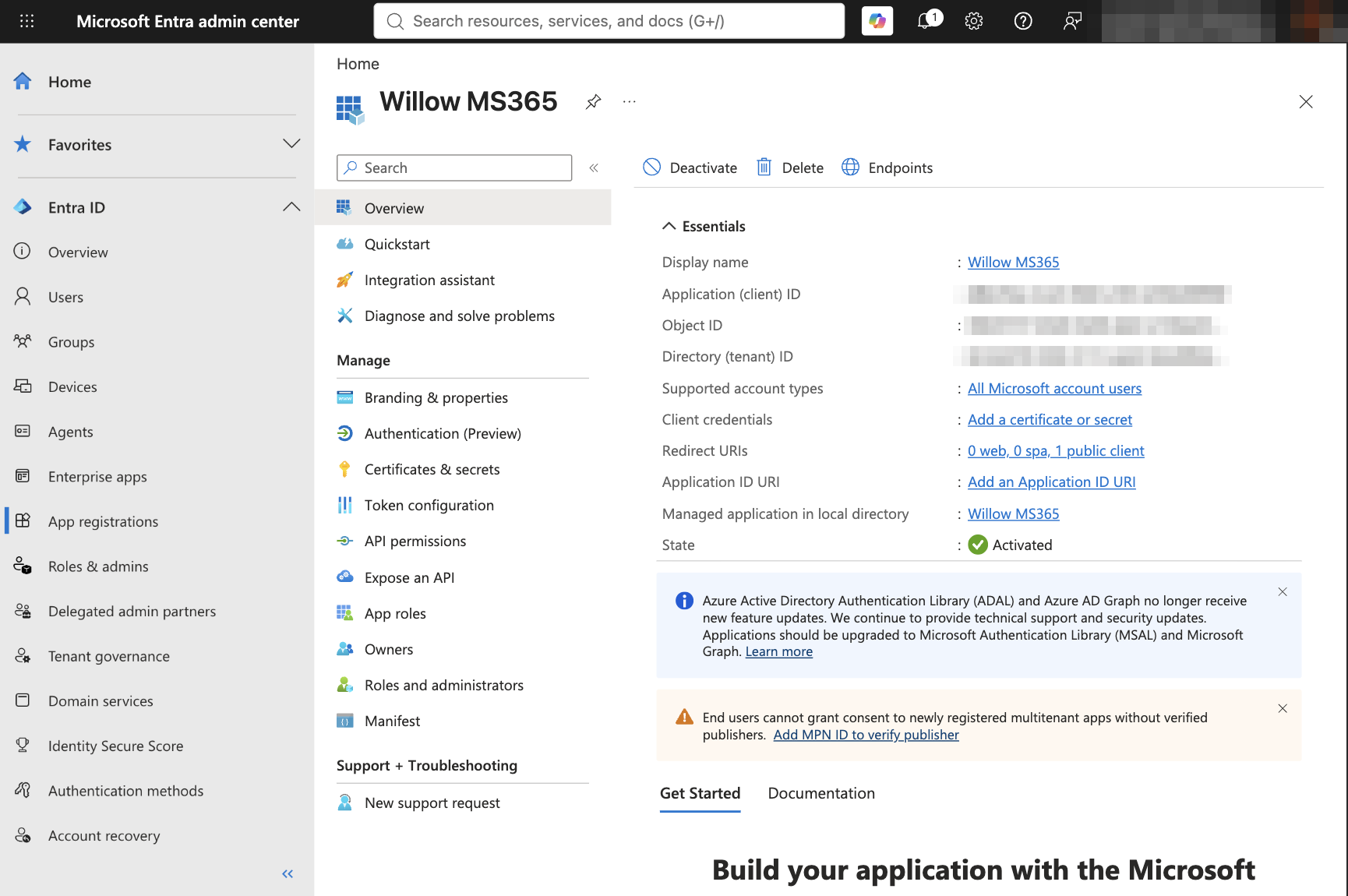
By default Willow signs users in through Microsoft's shared /common endpoint, so a single-tenant app fails at sign-in with AADSTS50194: ... isn't configured as a multitenant application. Choose one of the multitenant options above. If your organization requires a single-tenant app, copy the Directory (tenant) ID from the app's Overview page and paste it into the connector's Setup → Configuration → Tenant ID in Willow. Willow then signs users in through that tenant's endpoint.
Why the public client platform
Willow's Microsoft connectors use PKCE and do not send a client secret, so the app must be registered as a public client. With the redirect URI under Mobile and desktop applications, you do not need a client secret, and you can leave Allow public client flows (under Authentication → Settings) turned off.
The Web platform is for confidential clients, which must send a client secret when they exchange the authorization code. A redirect URI registered under Web without a secret in Willow fails with AADSTS7000218: The request body must contain ... 'client_assertion' or 'client_secret'.
To check or change the platform later, open the app's Authentication page. The Redirect URI configuration tab lists each URI with its platform type.
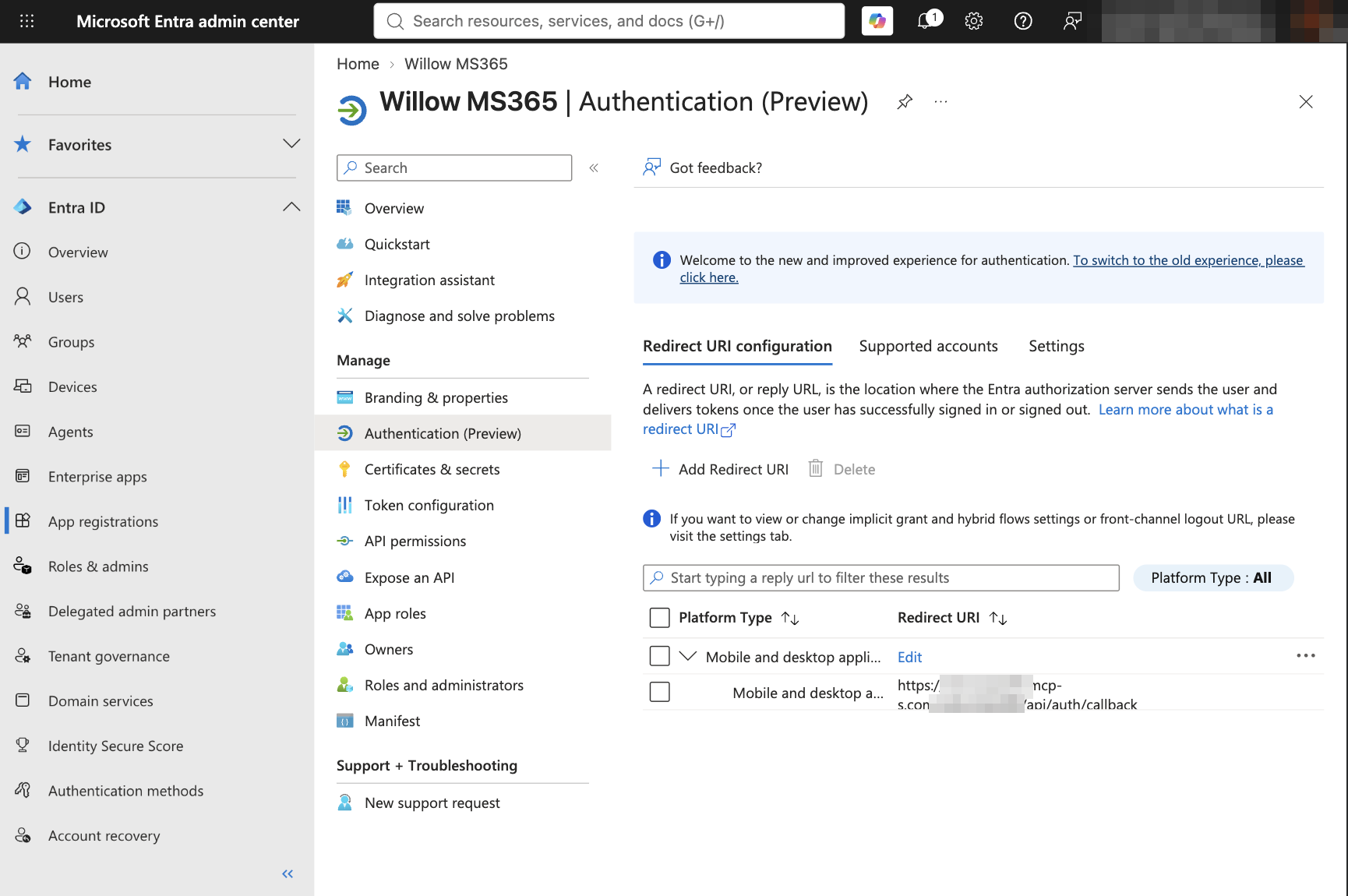
Every connector in a Willow organization shares the same Redirect URL, so one app registration works for Outlook Mail, Outlook Calendar, and OneDrive. Paste the same Client ID into each connector, then select only the scopes each one needs.
2. Add Microsoft Graph permissions
Open the app's API permissions page. Microsoft Graph → User.Read is already listed.
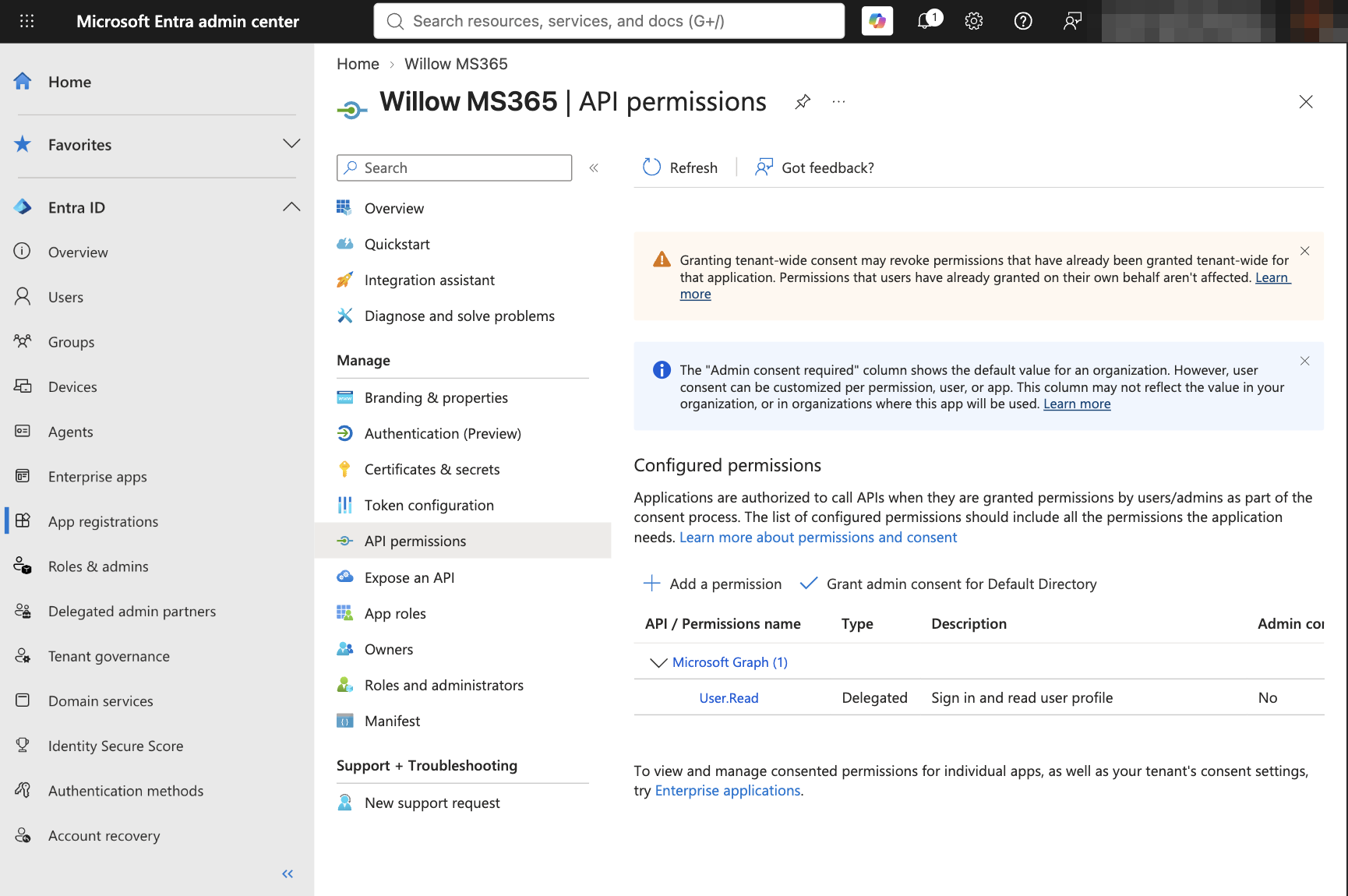
- Click Add a permission → Microsoft Graph → Delegated permissions
- Type a permission name in the filter, expand its group, and select it
- Repeat for each scope you need, then click Add permissions
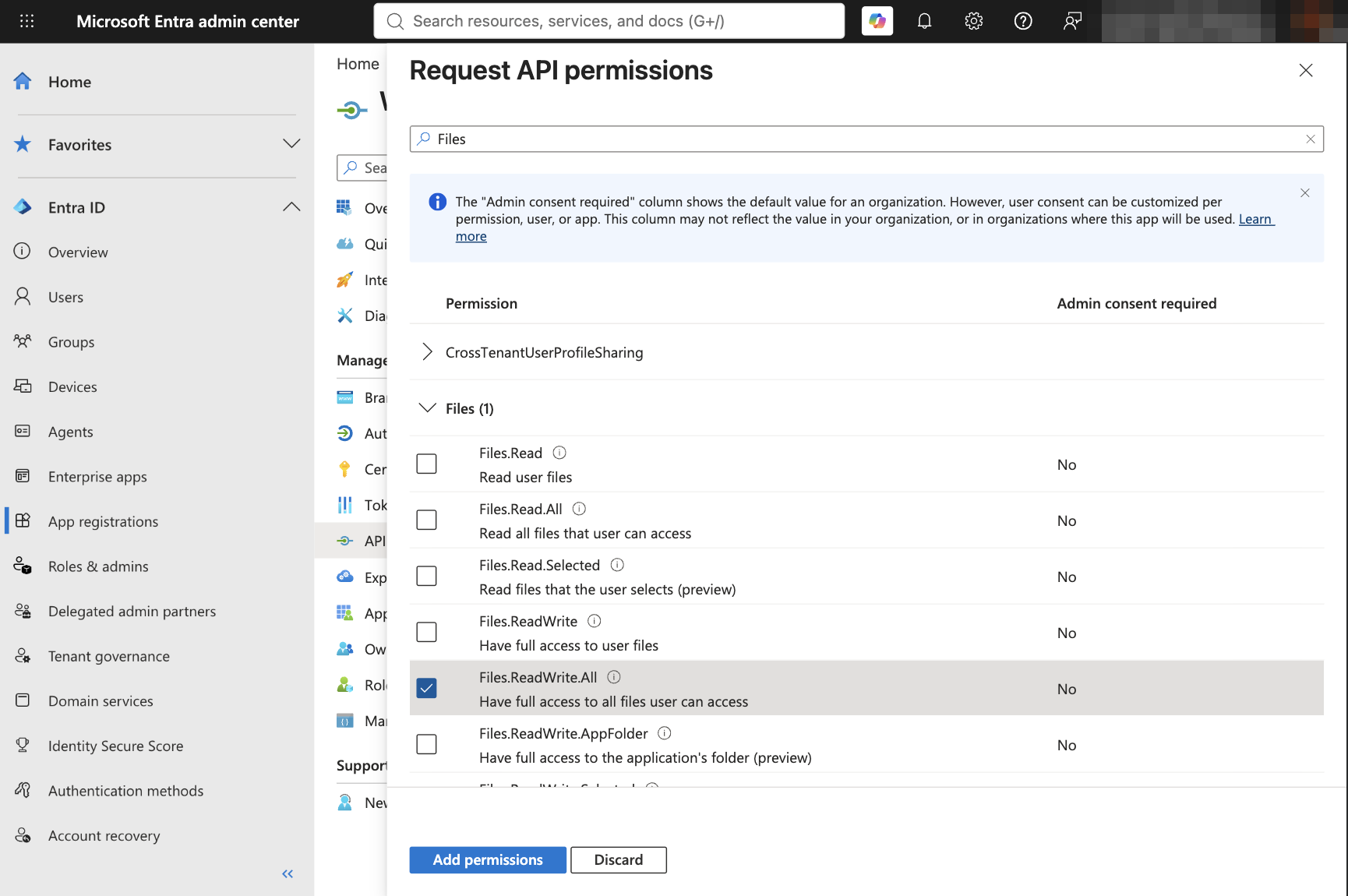
Willow's OneDrive connector offers these scopes:
| Scope | Use it when |
|---|---|
offline_access | Always. Lets Willow refresh the token without asking the user to reconnect. It's under OpenId permissions. |
Files.Read | The connector only browses, searches, and reads the user's own files, versions, and permissions. |
Files.ReadWrite | Tools also upload, update, copy, move, rename, delete, share, or restore the user's own files. |
Files.Read.All | Tools also read files other people shared with the user, as List Shared With Me does. |
Files.ReadWrite.All | Tools also change files other people shared with the user. |
User.Read | Tools read the signed-in user's profile. |
Willow selects offline_access and Files.ReadWrite.All by default.
Adding permissions here doesn't change what users are asked for. Willow requests the scopes selected in step 3 every time a user connects. The list here is what an admin grants when consenting for the organization, so keep it the same as the scopes you select in Willow.
Choosing the right OneDrive scope
Microsoft lists every scope above as Admin consent required: No, but that column is only Microsoft's default. Under the default Let Microsoft manage your consent settings policy, users in a work or school tenant can't consent to the .All scopes:
| Scope | Can users consent under Microsoft's default policy? | What it reaches |
|---|---|---|
Files.Read | Yes | The user's own files |
Files.ReadWrite | Yes | The user's own files |
Files.Read.All | No, an admin must consent | Every file the user can access, including files shared with them |
Files.ReadWrite.All | No, an admin must consent | Every file the user can access, including files shared with them |
To avoid admin consent, replace Willow's default Files.ReadWrite.All with Files.ReadWrite and turn off List Shared With Me. Every other tool works with Files.ReadWrite.
This only helps when the app is registered in the users' own tenant. Users can't consent to an unverified app registered in a different tenant, whatever the scope. Your tenant's consent policy may also be stricter than Microsoft's default, so check User consent settings first.
3. Finish in Willow
Open your Microsoft connector in Willow and go to the Setup tab.
- Under Authentication, select OAuth.
- Paste the Application (client) ID into Client ID.
- Leave Client Secret empty. The connector uses PKCE, so a public client app does not need one.
- Confirm the Redirect URL shown here exactly matches the URI you registered in step 1.
- Under Scopes, click Edit and select the scopes you need. Keep
offline_accessselected. - Click Save Changes.
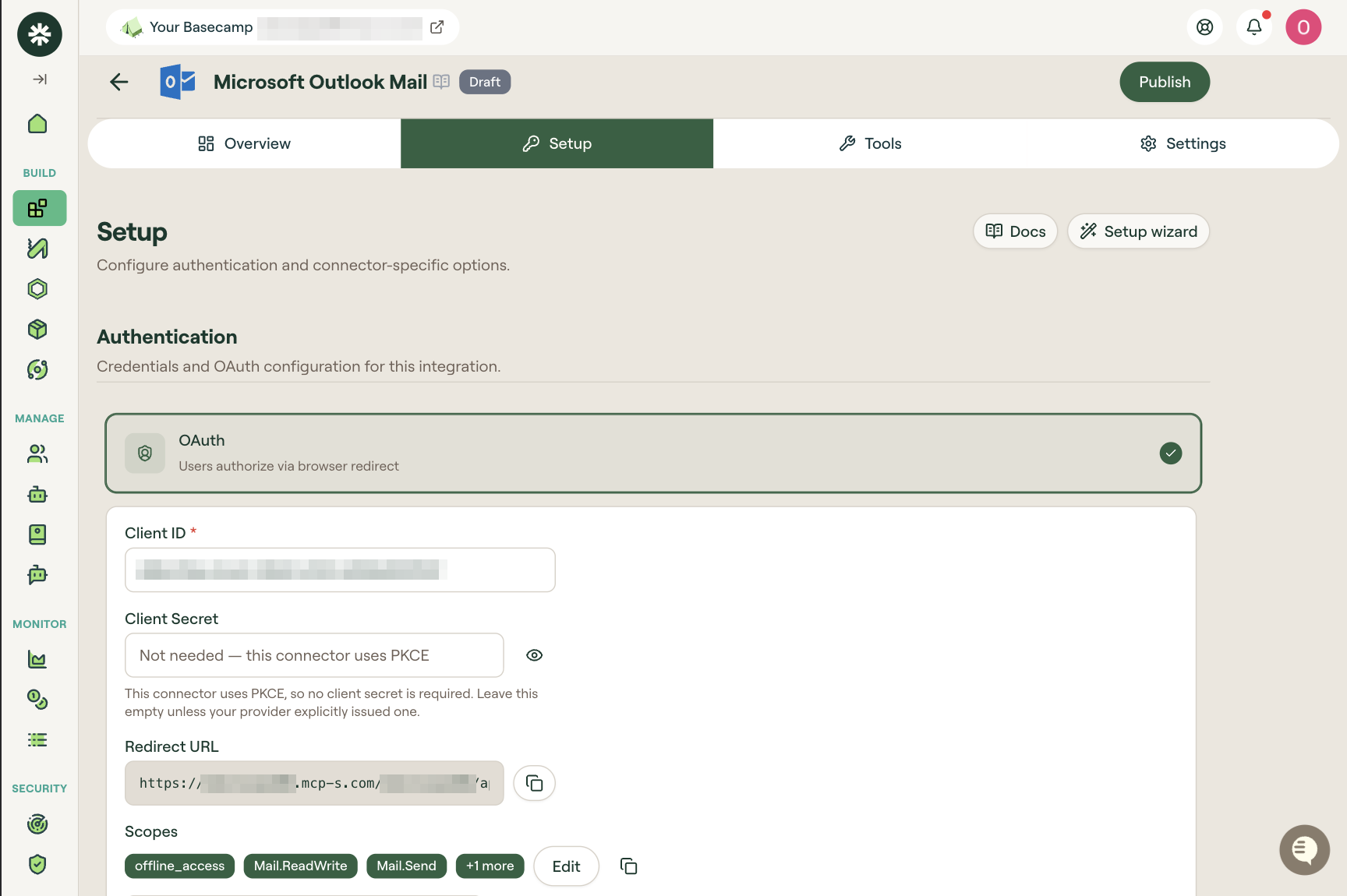
Willow requests the scopes selected here each time a user connects. Microsoft shows them on the consent screen even if you did not add them to the app in step 2. Adding them in step 2 matters when an admin has to grant consent for the organization. See Granting admin consent for your organization.
offline_access lets Willow get a refresh token. Without it, users have to reconnect each time their short-lived access token expires.
4. Authorize the connection
Click Check connection. It stays disabled until the credentials are saved.
Willow opens Microsoft's sign-in window. It also shows an Authenticate your MCP dialog with the authorization URL and an Authenticate button in case your browser blocks the window. Sign in, review the permissions, and click Accept. The window shows Authentication Successful when Willow has the tokens. Then click I've authenticated.
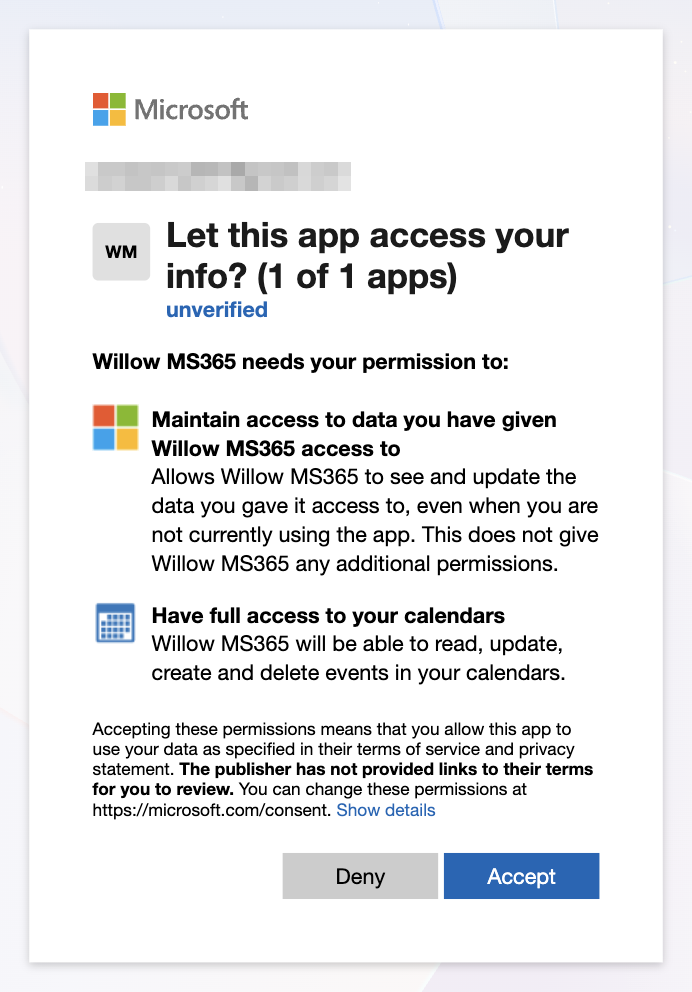
Microsoft labels an app unverified until its publisher completes publisher verification, which requires a partner (MPN) ID. The app's Overview page links to it under Add MPN ID to verify publisher. Users with personal Microsoft accounts can still accept. In work or school tenants, an unverified multitenant app usually needs an admin to grant consent. See Granting admin consent for your organization.
Microsoft does not always show a consent screen. If the window goes straight to Authentication Successful, the connection still worked.
Test a read-only tool
To test the connection, go to the Tools tab, open the row menu for a read-only tool, and choose Test Tool → Run test. A successful run returns data from Microsoft Graph as JSON.
Use a resource that the signed-in account can access. A 401 response indicates an authentication problem; a 403 or 404 can also indicate a missing scope or an inaccessible resource, so an error alone does not confirm a working connection.
If a tool returns Tool blocked by organization's guardrails, a Willow Guard blocked the call; changing scopes will not fix it. Microsoft Graph responses often include email addresses, and some tools take them as input, so an Email Address Detection guard set to block will stop those calls. Check Guards for the matching rule.
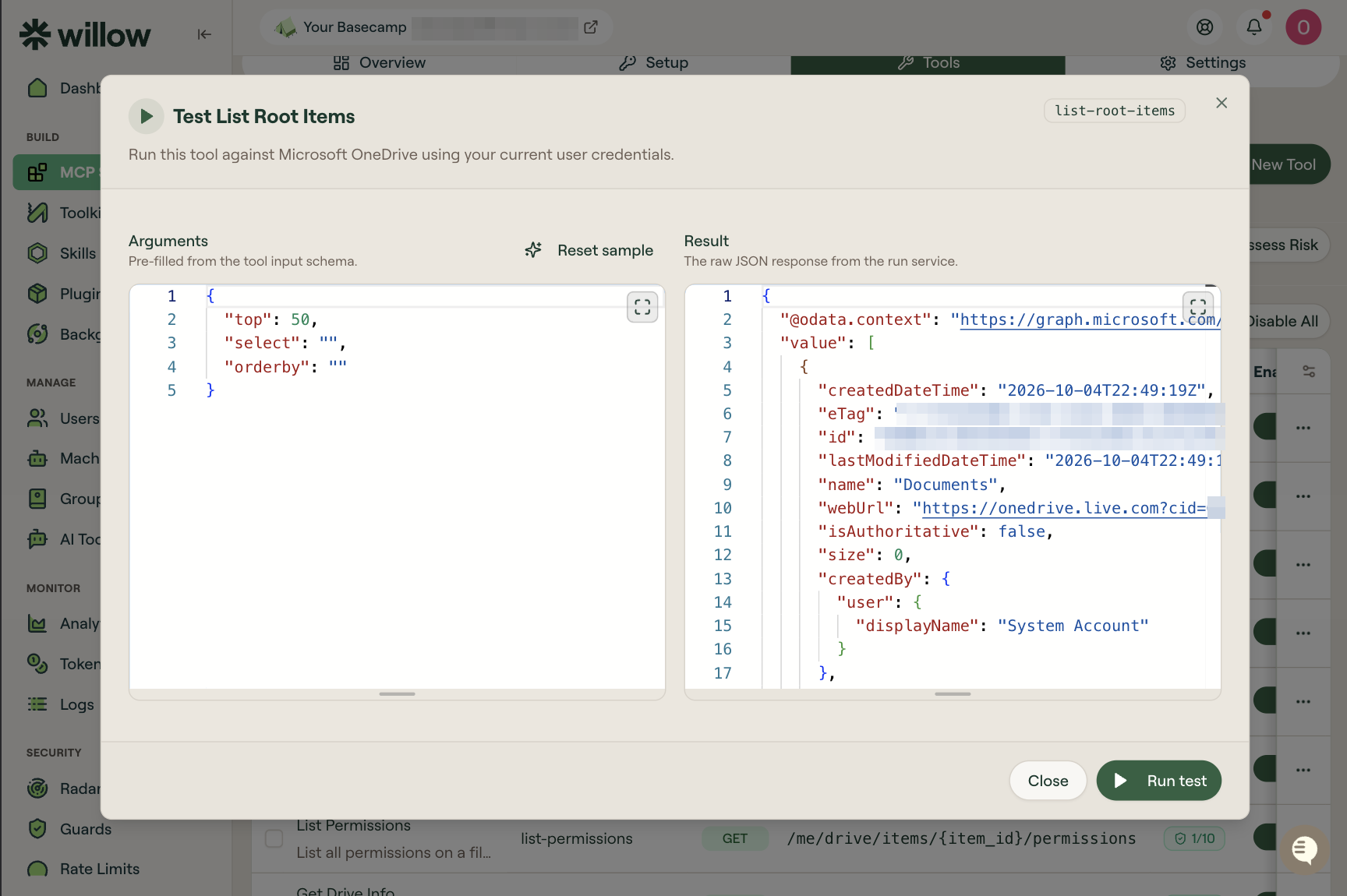
Get Drive Info returns the drive owner's email address, so an Email Address Detection guard set to block will stop it. List Root Items is a good first test.
Tools
The connector has 20 tools.
| Group | Tools |
|---|---|
| Read | List Root Items, List Folder Contents, Get Item Metadata, Search Files, List Recent Files, List File Versions, List Permissions, Get Drive Info, List Shared With Me, Get File Download URL |
| Change | Upload File, Update File Content, Create Folder, Copy Item, Move or Rename Item, Restore File Version |
| Share | Create Sharing Link, Share with Users |
| Delete | Delete Item, Remove Permission |
Review the Tools tab before you publish the connector, and turn off the tools your users don't need, especially the share and delete tools.
Granting admin consent for your organization
Personal Microsoft accounts accept the permissions themselves. Work or school accounts follow their tenant's user consent policy, and the default policy blocks most of the scopes Microsoft 365 connectors use. In that case users see Need admin approval at sign-in, and an admin has to grant consent once for the whole organization.
New tenants use Let Microsoft manage your consent settings (Recommended). Under that setting, users can't consent to Microsoft Graph permissions such as Mail.Read, Mail.ReadWrite, MailboxSettings.Read, MailboxSettings.ReadWrite, all Calendars.* permissions, Files.Read.All, and Files.ReadWrite.All. Microsoft updates the list over time; see Microsoft recommended user consent policy for the current one. To see which setting your tenant uses, go to Entra ID → Enterprise apps → Consent and permissions → User consent settings.
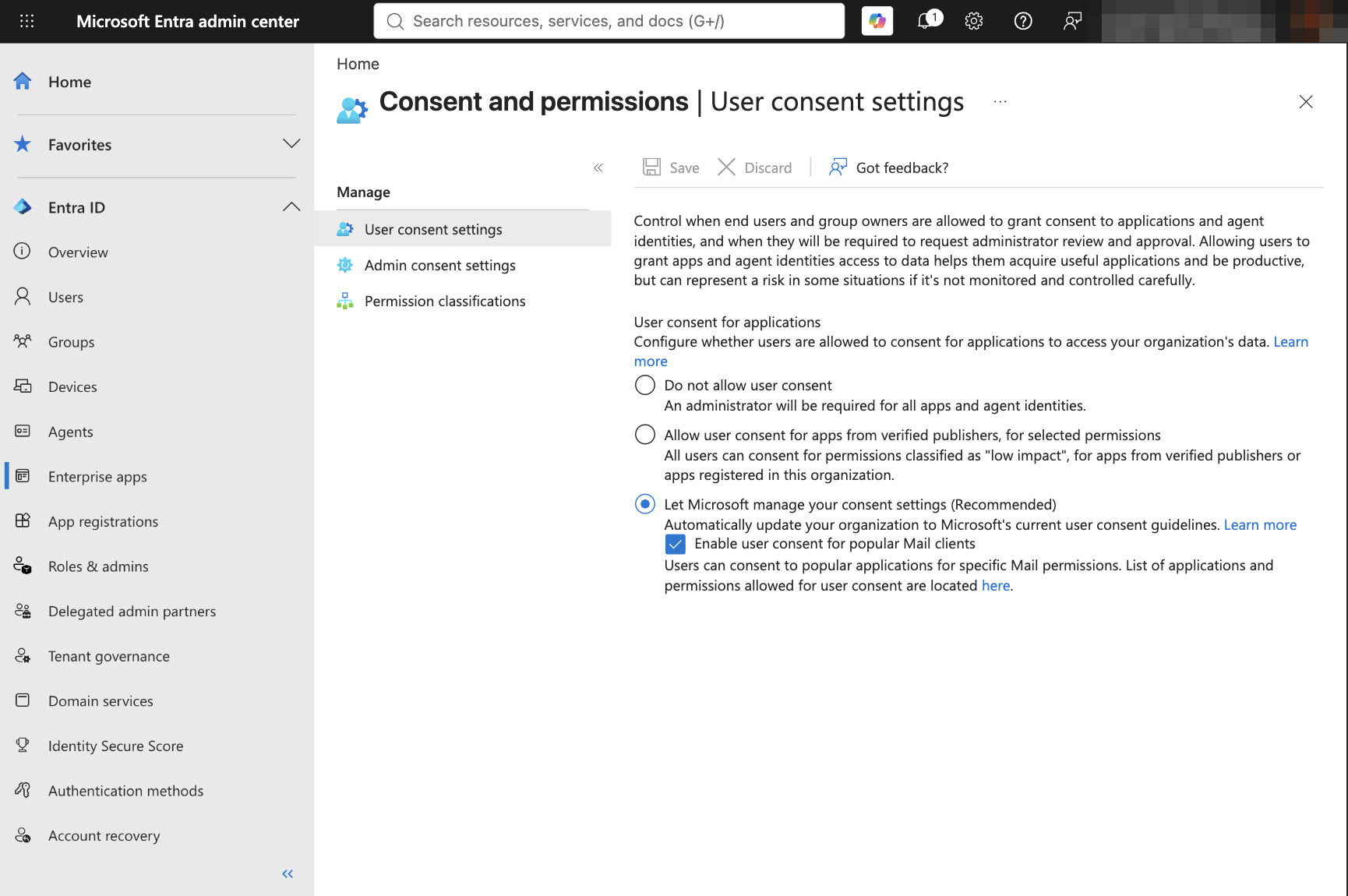
Granting consent needs a Cloud Application Administrator, Application Administrator, or Privileged Role Administrator. Pick the option that matches where the app is registered.
The app is registered in your own tenant. Make sure step 2 lists every scope the connector requests, then on the app's API permissions page click Grant admin consent for your tenant, and confirm. Each permission's Status changes to Granted.
The app is registered in another tenant, for example by a partner. The admin consent URL grants the permissions listed on the app's API permissions page, so the app owner must complete step 2 first. Then an admin of your tenant opens this URL, signs in, and accepts:
https://login.microsoftonline.com/{your-tenant-id}/adminconsent?client_id={client-id}
After consent, the app appears under Entra ID → Enterprise apps. To review or re-grant later, open it there and go to Security → Permissions.
If you would rather approve requests one by one than consent up front, turn on the admin consent workflow. Users can then ask for approval from the sign-in screen.
For the full procedure, see Microsoft's guide, Grant tenant-wide admin consent to an application.
Troubleshooting
| Symptom | Cause |
|---|---|
AADSTS50011: The redirect URI ... does not match the redirect URIs configured for the application | The Redirect URI in the app registration does not exactly match Willow's Redirect URL. |
AADSTS50194: ... isn't configured as a multitenant application | The app's supported account types is Single tenant only. Either change it to a multitenant option under Authentication → Supported accounts, or paste the app's Directory (tenant) ID into the connector's Setup → Configuration → Tenant ID in Willow. |
AADSTS7000218: The request body must contain ... 'client_assertion' or 'client_secret' | The redirect URI is registered under the Web platform, so Microsoft expects a client secret. Move it to Mobile and desktop applications. |
| A personal Microsoft account can't sign in | The app's supported account types excludes personal accounts. Choose Any Entra ID Tenant + Personal Microsoft accounts. |
Need admin approval, or AADSTS90094 / AADSTS65001 | The tenant's user consent policy doesn't let users accept these scopes. See Granting admin consent for your organization. |
| The app name is rejected at registration | Names containing "Microsoft" aren't allowed for apps that support personal accounts. Choose another name. |
A tool returns 403 for data the user can see in Outlook or OneDrive | The scope that tool needs isn't selected in Willow. Add it under Scopes, save, and reconnect. |
Tool call returns {"error":{"type":"Tool Error","message":"Tool blocked by organization's guardrails"}} | A Willow Guard blocked the call. Check Guards for the matching rule and result. |