Machine Users
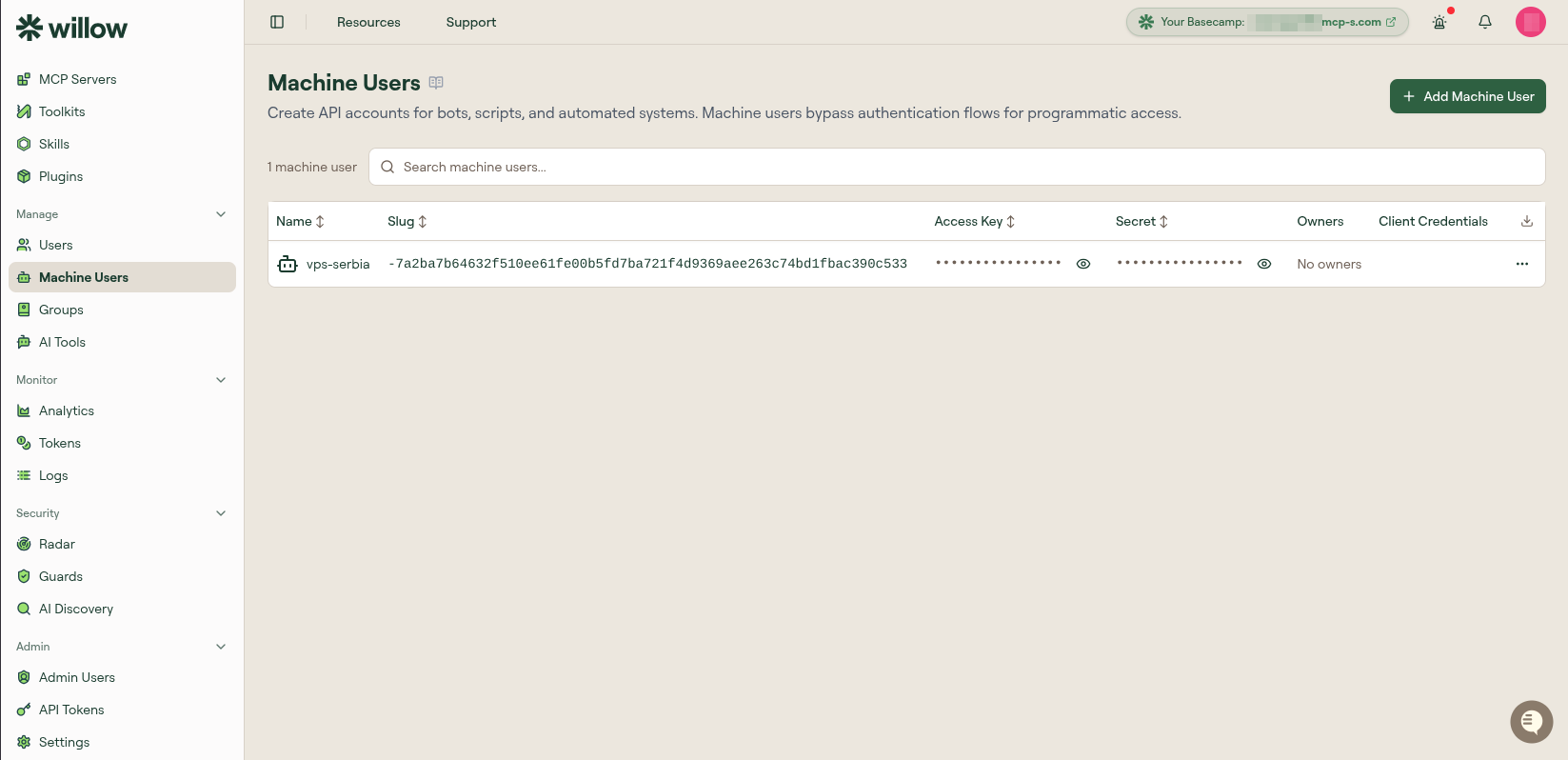
Create API accounts for bots, scripts, and automations. Machine users enable programmatic access to Willow without requiring a human identity.
The Background Agents tab on this page holds a different kind of identity. Where a machine user is a credential for code you already run, a background agent is an agent Willow provisions onto a runtime, with its own scoped tools and skills. See Background Agents.
What you can do here
- Create and manage machine users for programmatic access
- Rotate a machine user's secret from the row menu
- Configure OAuth2 client credentials so a machine user can reach internal MCP servers that use proxy passthrough
Add a machine user
- Select Add Machine User.
- Enter a name.
- Select Save to provision the credentials.
Each machine user has an Access Key and a Secret for authentication, and a Slug used as a prefix for its toolkits. The slug defaults to a value derived from the access key, but you can change it from the row menu's Edit action; it must be unique within the organization.
client_id in the APICreating a machine user with POST /api/users returns the same pair under different names: the Access Key shown here is credentials.client_id, and the Secret is credentials.secret. Joined with a colon, they are the bearer token.
Do not confuse credentials.client_id with the client credentials used for proxy passthrough, described below. Those are a separate pair for a different purpose.
The secret is returned only in that create response and cannot be read back through the API afterwards. Store it when you receive it, or reveal it later with the eye icon on the machine user's row.
Owners
An owner is the person accountable for a machine user — who to ask about a credential that shows up in an audit log months later. The Owners column lists them, and the row menu's Manage Owners action changes them. Only regular users can be owners; a machine user cannot own another machine user.
Owners are also available from the Admin API. Pass owner_ids when creating a machine user:
curl -X POST https://your-org.mcp-s.com/api/users \
  -H "Authorization: Bearer <API_TOKEN>" \
  -H "Content-Type: application/json" \
  -d '{"is_machine_user": true, "name": "CI Bot", "owner_ids": ["<USER_ID>"]}'
To change them later, PATCH /api/users?email=<machine user email> with an owner_ids array. It replaces the whole set rather than adding to it, so include every owner you want to keep and send [] to clear them all. User IDs come from GET /api/users.
Authenticate to the gateway
A machine user authenticates to the Willow gateway with its Access Key and Secret, joined with a colon and sent as a bearer token. Reveal each value with the eye icon on the machine user's row.
curl -X POST https://your-org.mcp-s.com/mcp \
  -H "Authorization: Bearer <ACCESS_KEY>:<SECRET>" \
  -H "Content-Type: application/json" \
  -H "Accept: application/json, text/event-stream" \
  -d '{"jsonrpc":"2.0","id":1,"method":"tools/list","params":{}}'
Your gateway URL is the Your Basecamp link in the top bar of the admin app, with /mcp appended.
Both halves of the credential are required. The access key on its own, or the secret on its own, returns 401 Unauthorized with {"error": "invalid_token"}.
A machine user only reaches tools from the MCP servers assigned to the groups it belongs to. Add it to a group from Manage → Groups, the same way you would a person.
To replace a leaked or expired secret, select the three-dot menu (⋮) on the machine user's row and select Rotate Secret. The access key stays the same, so callers only update the value after the colon.
Client credentials for internal MCP servers
Client credentials are not an alternative way to sign in to the gateway. A machine user always authenticates with its access key and secret, as above. Client credentials serve a different purpose: they let a machine user reach internal MCP servers configured with Proxy Passthrough.
When a machine user calls an internal MCP server that uses proxy passthrough, Willow requests an OAuth token from your identity provider using these client credentials and forwards that token to the MCP server behind the scenes. This is the machine-user counterpart to JWT passthrough for human SSO users: a machine user has no interactive login, so the client-credentials grant provides the token instead.
Setup has two parts: enable client credentials for the organization, then configure each machine user.
Step 1: Enable client credentials
Client credentials are available only when your organization's SSO provider supports them, which today means Okta or Keycloak.
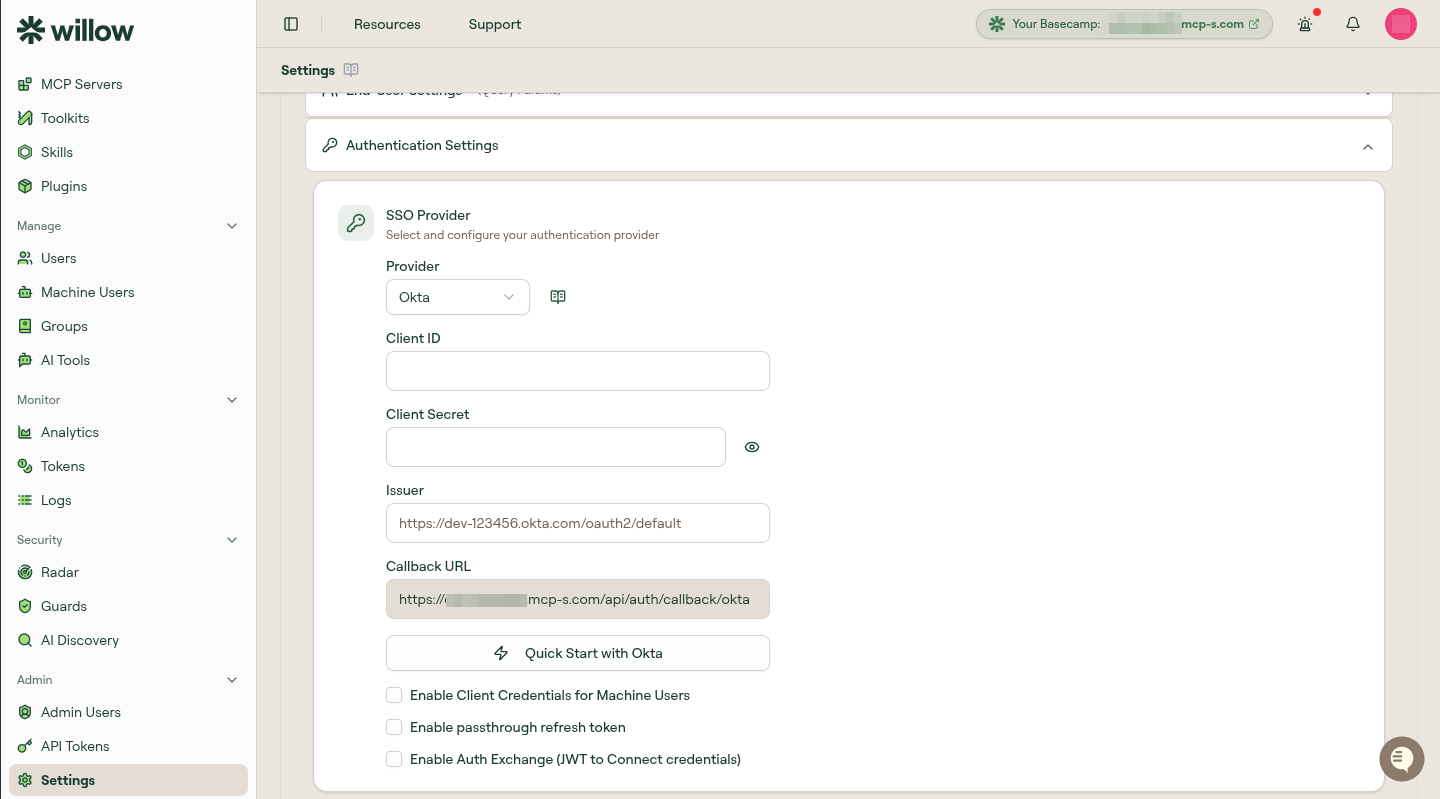
- Go to Settings → Authentication Settings.
- With Okta or Keycloak selected as the provider, check Enable Client Credentials for Machine Users.
- A Token Endpoint field appears, auto-discovered from your issuer's
.well-known/openid-configuration. - Select Save Changes.
Client-credentials tokens are minted by the authorization server that hosts your client-credentials scope, which is usually not the same server as your SSO issuer. With Okta, sign-in uses the org authorization server (your bare domain), but a client-credentials scope such as api.access lives on a custom authorization server, whose token endpoint is https://{your-domain}/oauth2/default/v1/token.
The auto-discovered value is taken from your SSO issuer, so on a fresh setup it points at the org server and the grant fails with "Failed to generate access token". Set the Token Endpoint here (or the per-machine-user Token URL in Step 2) to the custom authorization server explicitly.
Step 2: Configure a machine user
- On the Machine Users page, find the Client Credentials column. A machine user with no credentials shows Not configured.
- Select Not configured to open the Client Credentials dialog.
- Enter the Client ID and Client Secret from your identity provider.
- Set a Token URL to the authorization server that hosts your client-credentials scope (for Okta,
https://{your-domain}/oauth2/default/v1/token). Leave it blank only when the organization default token endpoint already points there. - Select Save.
The Client Credentials column then shows the configured Client ID.
To set up the identity-provider side, follow Set Up Client-Credentials Auth for a Machine User with Okta. It covers the Okta API Services app, the scope and access policy, both halves of the Willow configuration, and the common token errors. Keycloak follows the same sequence.