Identity and Permissions
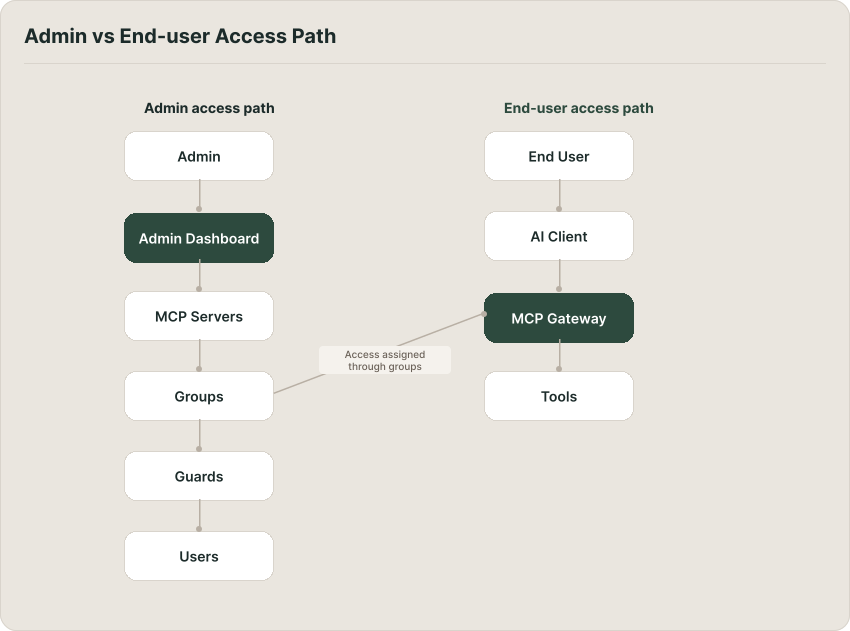
Willow separates permission into two paths.
The first path controls who can operate Willow: add MCP servers, invite users, publish toolkits, configure guards, view logs, and change organization settings. This is admin RBAC, and it is controlled by roles.
The second path controls what an AI client can use at runtime. Admin users are automatically users too, so they can connect AI clients and use MCPs. When Cursor, Claude, Codex, or another client calls a tool through Willow, the gateway evaluates the caller as a user and checks the resources available through their groups.
Those paths often meet in the same account. A platform engineer might be an Owner in the dashboard and also use Willow from their own AI client. In that case, their Owner role lets them manage Willow, while their runtime access comes from the user side of the account: the MCP servers, toolkits, and skills available through group membership and organization policy.
Admin roles
Admin roles answer one question: what is this admin allowed to manage in Willow?
Willow includes four predefined roles:
- Owner: full access to all features and settings.
- Security: security-focused access for publishing artifacts, managing guards, monitoring, and audit work, without general artifact creation or editing.
- IT: operational access for integrations, toolkits, skills, and users, without billing or role management.
- Read-only: view-only access across resources.
Owners can also create custom roles. A custom role is made from permission scopes across Willow resource families: Integrations (MCPs), Toolkits, Skills, Commands, Rules, Hooks, Plugins, Guards, and End Users. Most resource families use the same verbs: View, Create, Edit, and Delete. Integrations, toolkits, and skills also include Publish, because publishing changes what can be distributed to users. End-user management uses View, Invite, Edit, and Delete.
Use admin roles to keep operating responsibility narrow. A security team can manage guards and audit activity without owning billing. An IT team can manage integrations and users without changing roles. A read-only stakeholder can inspect configuration without changing it.
Admin roles control dashboard capabilities. The same admin account can still use MCPs, but runtime access is evaluated through that account's user identity rather than through the admin role itself.
Runtime access
Runtime access answers a different question: what can this identity use through an AI client or automation?
That access flows through groups. A group links users or machine users to the MCP servers, toolkits, and skills they are allowed to use. If a user belongs to multiple groups, Willow combines the assignments from all of them. There is no deny rule; access is the union of the user's groups.
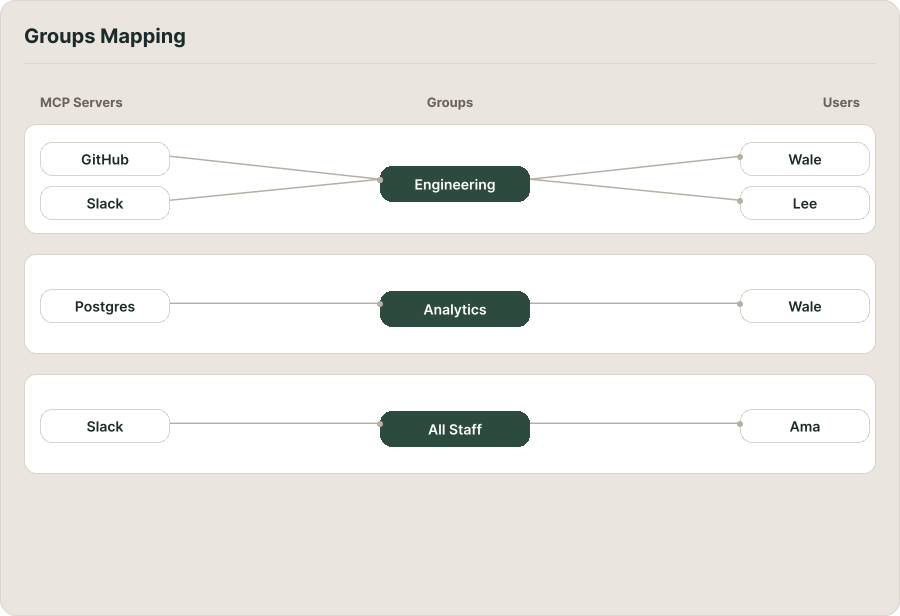
Groups are the normal way to model teams, departments, environments, or workflows. A Finance group might receive finance MCP servers and reporting toolkits. An Engineering group might receive GitHub, CI, incident response, and code-search tools. A contractor group might receive only the small set of servers needed for a project.
Groups can also define how new and draft resources appear. For example, a group can automatically receive new MCP servers, toolkits, or skills, or show draft MCPs, draft toolkits, and draft skills to members. This lets admins choose between tightly curated access and groups that stay synchronized with new organization resources.
When a tool is missing from an AI client, check runtime access first. The most common causes: the user is not in a group that includes the MCP server; the MCP server is not published or enabled; the toolkit or skill is org-scoped but not assigned to the user's group; or the underlying MCP server is unavailable even though the toolkit is visible.
Users and machine users
Willow has two kinds of runtime identities.
Users are people. They sign in, connect an AI client, and inherit access from their groups. Admin accounts appear in the Users list as well, because every admin is also a user for MCP and runtime access.
Machine users are API accounts for bots, scripts, and automated systems. They bypass the interactive authentication flow and use generated credentials instead. Machine users can have owners, credentials can be copied into automation, and secrets can be rotated.
Both types still depend on groups for access. Rotating a user's key or a machine user's secret invalidates the old credential, but it does not change what the identity is allowed to access.
User scope and org scope
Scope sits underneath group access. It controls where an object comes from and who can see it by default; it does not replace RBAC.
Some objects, including toolkits and skills, can be created in user scope or organization scope.
User-scoped objects are created by an individual and visible only to that user's AI client. They are useful for personal workflows, experiments, and private agent context.
Org-scoped objects are created or published by an admin and made available through groups or organization-level assignment. They are useful when a team should receive the same toolkit, skill, command, or rule without each person creating it manually.
The important point is that scope is about visibility and distribution. It is not enough for an org-scoped toolkit to appear in a user's workspace. The user also needs group access to the underlying MCP server before the gateway will allow the tool call.
User MCP policy
Admins can decide whether end users may connect their own MCP servers. This is controlled by the organization-level User MCP Policy:
- None: users cannot add their own MCP servers.
- Needs Approval: user-added MCP servers require admin approval before activation.
- Allow: users can freely connect their own MCP servers.
This policy applies to user-created MCP connections. Organization-managed MCP servers still flow through the normal group model.
- Admins: to manage roles, see Roles. To configure runtime access, start with Groups or the Invite Users and Manage Access with Groups tutorial. For the full path from first MCP server to a working AI client, see Set Up Willow for the First Time.
- End users: your runtime access comes from the groups your admin has assigned you to. If a tool is missing from your AI client, contact your admin to check group membership and MCP server access.