Settings
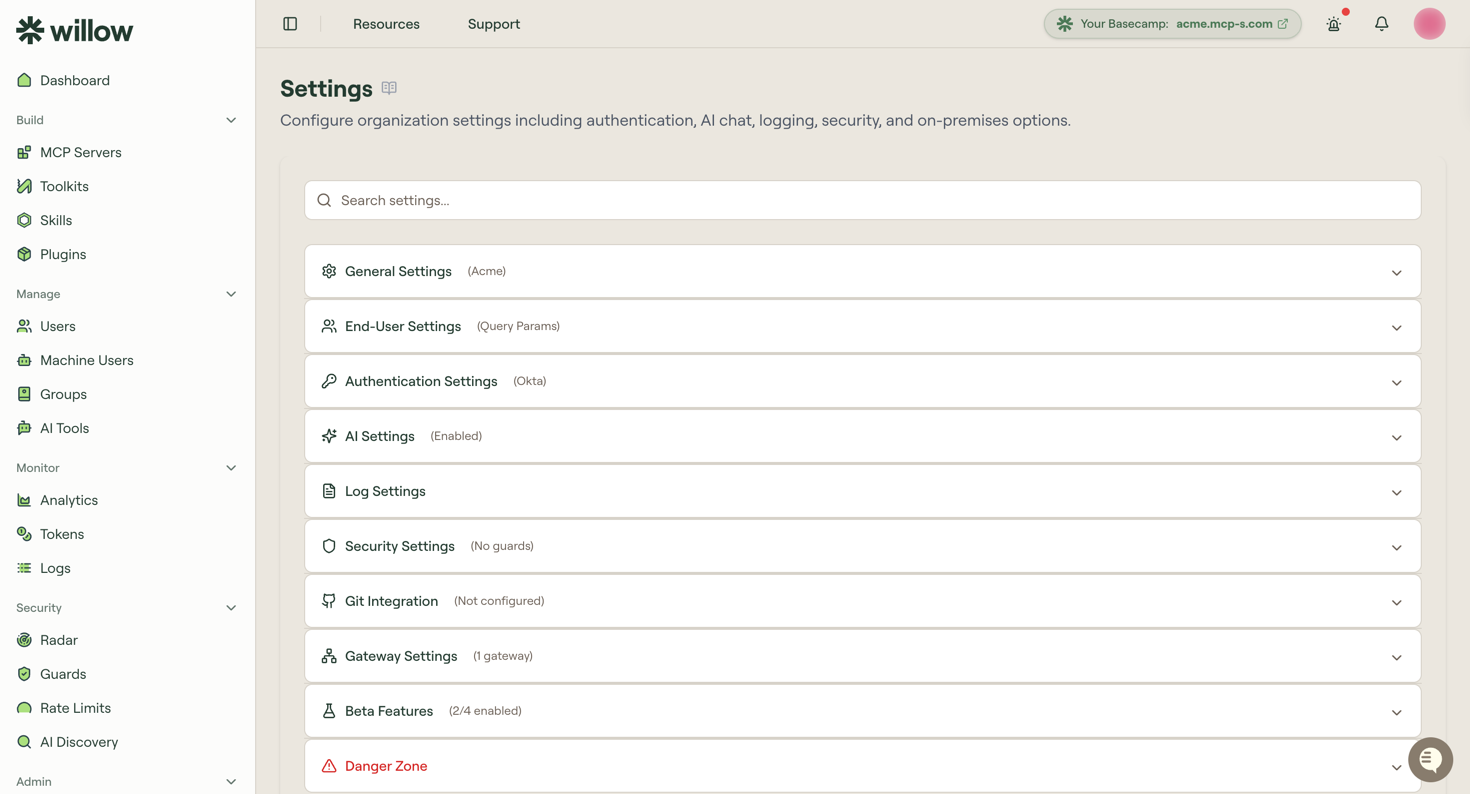
Configure your organization in one place.
Settings is a single page of collapsible sections. Open it from Settings in the admin sidebar, then expand the section you need. Each section header carries a status hint, so you can see what is already configured without expanding anything: (1 gateway), (No guards), (Not configured), (2/4 enabled).
If you know the name of a setting, type it into Search settings at the top of the page rather than hunting through the sections.
Sections
- General Settings: organization name and slug
- End-User Settings: MCP connection format, permission to add personal skills and plugins, custom install commands, and Connect portal sidebar visibility
- Authentication Settings: connect SSO (Default, Google, GitHub, Auth0, Okta, Entra, Keycloak, JumpCloud, ADFS). Documented under Access & Identity.
- AI Settings: connect your own AI provider to power AI toolkit generation
- Log Settings: content logging, retention, and log forwarding options
- Security Settings: client access, enforcement defaults, OAuth and web AI agent policy, and token expiry
- Gateway Settings: your connect and run URLs, and the gateways users connect through. To put a gateway on your own domain, see Configure a Custom Gateway Domain.
- Beta Features: turn experimental capabilities on for your organization
- On‑Prem: gated per organization; see Gateway Settings for your URLs
Git Integration and a Danger Zone sit alongside these. On‑Prem appears only for organizations it is enabled for, so most dashboards show one section fewer than this list.
Some things reached from this screen are documented elsewhere, because that is where you use them:
- Alert rules send guard events and MCP requests to Slack, Teams, email, or a webhook, and sit alongside the rest of Monitor.
- Git Integration connects GitHub or Bitbucket. See GitHub Integration and Bitbucket Integration.
- Token Optimization is its own page under Monitor > Tokens, not a Settings section. See Token Optimization and Analytics.
- Chat is generally available and no longer has its own Settings section. Show or hide it per organization from End-User Settings > Sidebar Pages. See Online AI Chat.
Tip
Authentication shows the exact callback URL for your SSO. Copy it into your identity provider.
If a feature described in these docs is missing from your dashboard, check Beta Features first.