Security Settings
Security Settings is where you set organization-wide security defaults: which clients may reach your MCP, what happens to unapproved MCP servers and skills found on developer devices, how OAuth flows and web AI agents are treated, and how long user tokens stay valid.
Open Settings in the admin sidebar, then expand Security Settings.
The section header summarizes your guard status, for example (No guards).
Most blocks in this section are a control plus a link into the feature that owns it. The settings you change here are defaults; the linked pages are where you manage individual servers, secrets, guards, and rules.
What you can do
- Require authenticated clients to reach your MCP, and turn off STDIO access
- Make group assignment binding on toolkits, so a slug alone is not enough to use one
- Restrict MCP access to an allowlist of IP addresses and CIDR ranges
- Reach the Vault, where encrypted secrets for MCP configurations live
- Inspect the MCP registry Willow serves to clients like GitHub Copilot
- Score users on identity risk and block the riskiest ones
- See guard status and open Guards
- Set enforcement defaults for unapproved MCP servers and skills on developer devices
- Set the default action for OAuth flows and web AI agents detected by the browser extension
- Set how long user access tokens remain valid
Approved Clients Only
A toggle. When enabled, only authenticated clients can access the MCP.
Enabling Approved Clients Only disables STDIO access. Confirm your users are not relying on STDIO connections before you turn it on.
Select Manage AI Agents to work with the individual clients.
Restrict Toolkit Access
A toggle that decides whether group assignment on a toolkit is binding.
A toolkit is addressed by its slug (?toolkit=<slug>), and that slug resolves organization-wide. By default, assigning a toolkit to a group only decides who sees it listed in the portal — anyone who knows the slug can connect through it. Enable this setting to make the assignment authoritative: a user can then only use toolkits assigned to one of their groups, toolkits they own, or toolkits shared with them. Any other toolkit is refused, even if the user knows its slug.
The restriction applies to the toolkit's tools, prompts, and resources alike.
Access to the MCP servers themselves is always evaluated separately, and this setting does not change that. See Toolkits › How access is evaluated.
Select Manage Group Toolkits to assign toolkits to groups.
IP Access Filter
A toggle that restricts MCP access to a trusted allowlist of IP addresses and CIDR ranges. Requests from any other address are rejected.
Where Approved Clients Only asks which client is this, the IP Access Filter asks where is it calling from. Use it when your MCP traffic should only ever originate from known networks — an office range, a VPN egress address, or the static IP of a build system.
Turning the switch on reveals the allowlist. Each entry has two fields:
| Field | Description |
|---|---|
| IP address or CIDR range | A single address (203.0.113.7) or a range in CIDR notation (10.0.0.0/8). Both IPv4 and IPv6 are supported. |
| Label | Optional note describing the entry, such as HQ VPN. |
Select Add for each entry, then Save Changes.
An enabled filter with an empty allowlist restricts nothing, and the card says so: The allowlist is empty, so no addresses are being restricted yet. Add at least one entry to start filtering. The filter only begins rejecting traffic once it has at least one entry.
Confirm your own address is covered before saving. An allowlist that omits the network you are calling from will lock you out of your own MCP.
Vault
Store and manage encrypted secrets for MCP configurations. Select Manage Vault Secrets to open it.
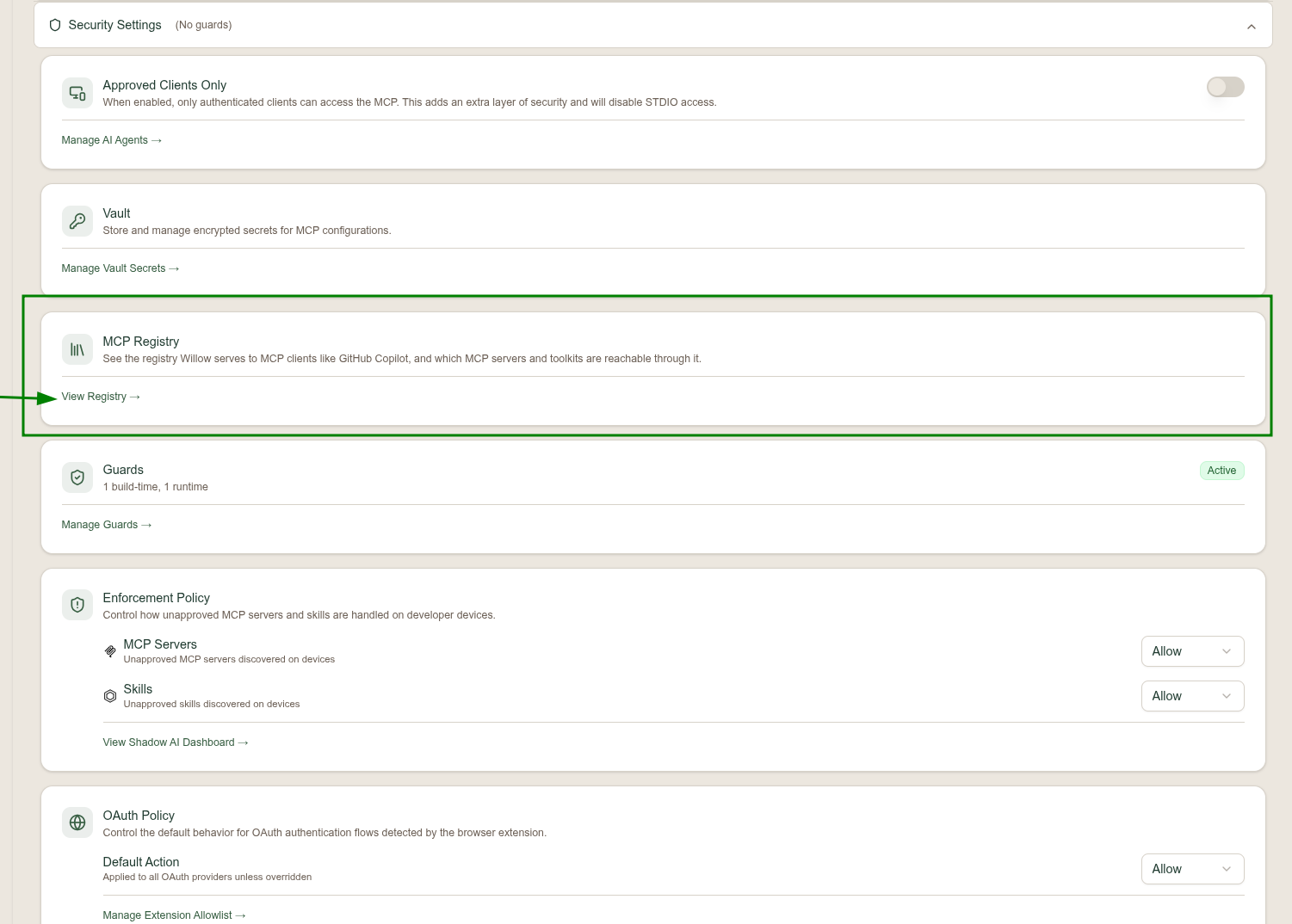
MCP Registry
Shows the registry Willow serves to MCP clients, and what they can reach through it. Select View Registry to open it.
This card appears only when the MCP Registry Viewer flag is on under Beta Features.
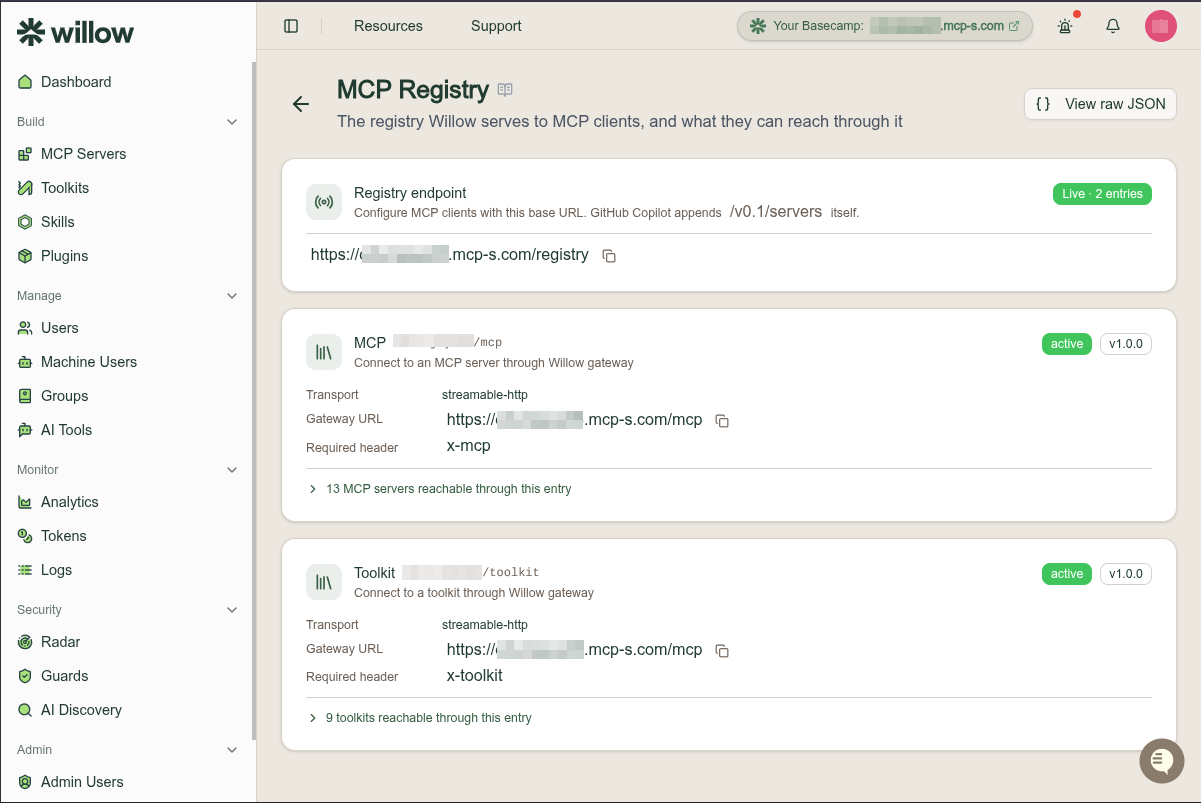
The page opens with the registry endpoint — the base URL you give a client, such as https://your-org.mcp-s.com/registry. GitHub Copilot appends /v0.1/servers itself, so the base URL is all you enter. A badge reports whether the registry is Live and how many entries it serves. View raw JSON returns the registry document itself.
Beneath it, one card per registry entry:
| Entry | Required header | What it reaches |
|---|---|---|
MCP (your-org/mcp) | x-mcp | Your organization's MCP servers. |
Toolkit (your-org/toolkit) | x-toolkit | Your organization's toolkits. |
Each card lists the transport (streamable-http), the gateway URL clients connect to, and its version and status.
What each entry reaches
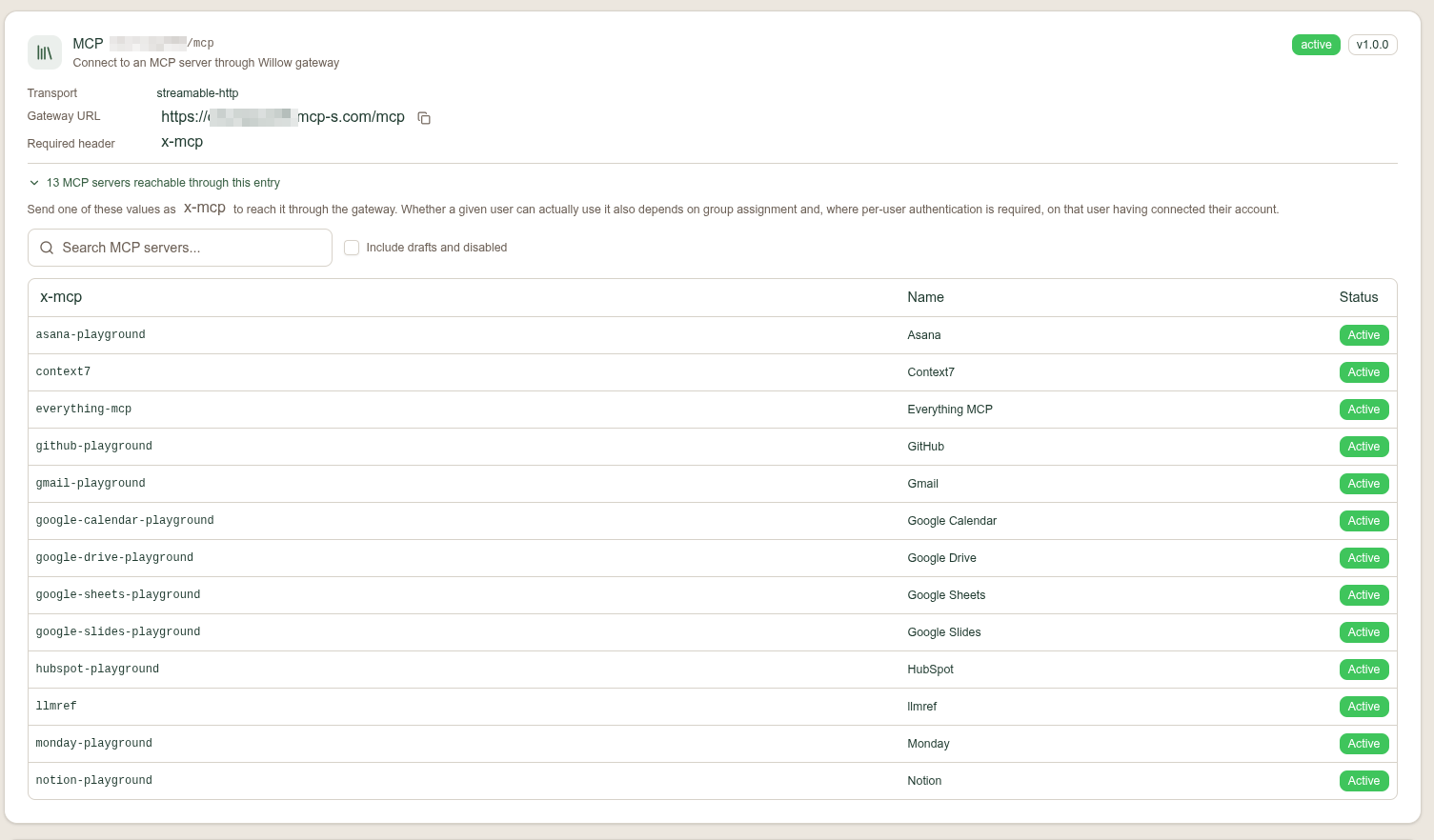
Each entry has a row reporting how many MCP servers, or how many toolkits, are reachable through it. Expand that row to see exactly which slugs a client can reach. The table lists the slug to send as the header, the display name, and the status. A search box filters it, and Include drafts and disabled widens the list beyond published entries.
Toolkits work the same way, and personal toolkits are marked with a Personal badge.
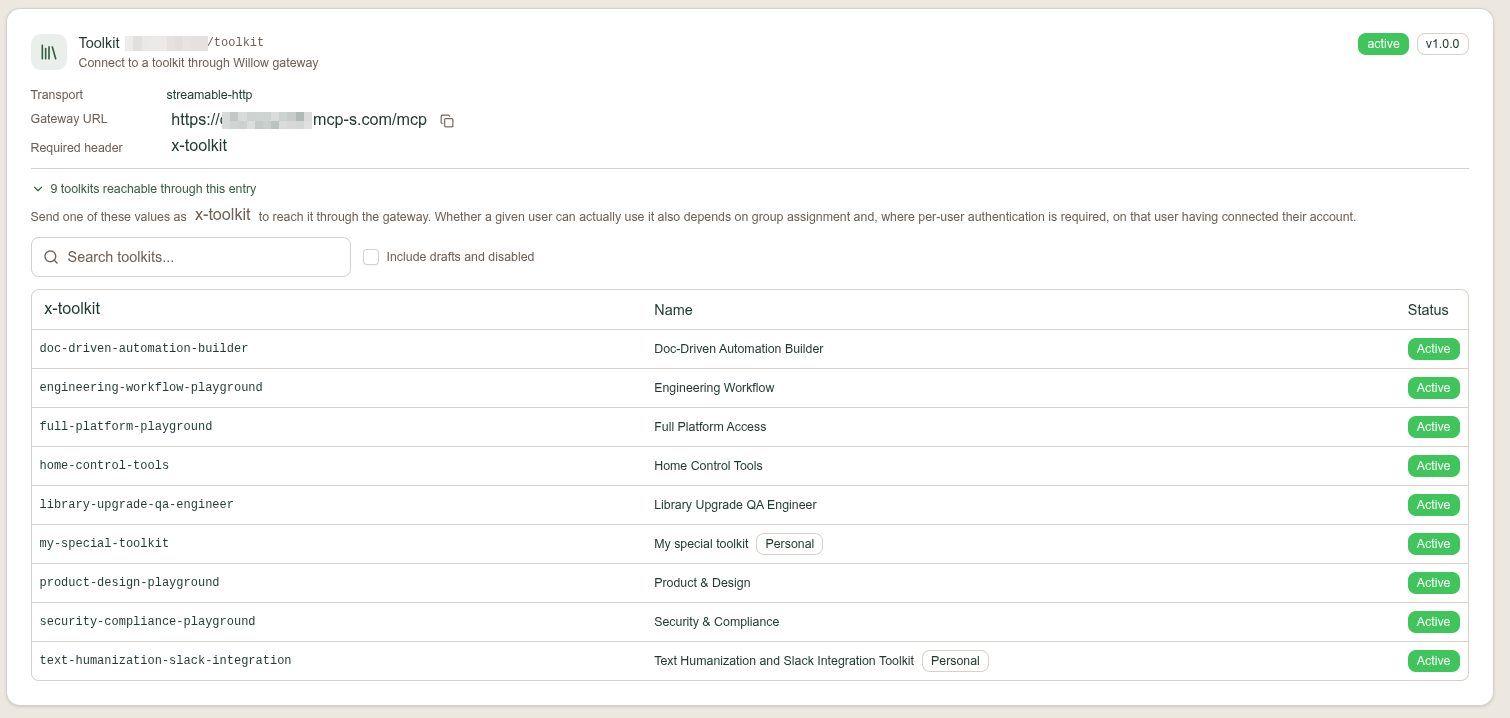
Being listed here means the slug is reachable through the registry. Whether a given user can actually use it also depends on group assignment and, where per-user authentication is required, on that user having connected their account.
This page is read-only — it reflects your MCP servers, toolkits, and gateway configuration rather than defining them. To enforce that Copilot uses only this registry, see Restrict GitHub Copilot to the Willow Gateway.
User Risk Score
Scores every user from 0 to 100 on identity risk, so you can target guards at the risky ones or refuse their tool calls entirely. Badges on the card report whether the CrowdStrike sync is on and what threshold, if any, is blocking. Select Manage User Risk Score to open the page.
This card appears only when the User Risk Score flag is on under Beta Features.
Scores can come from an admin editing a user, the Admin API, or a daily import from CrowdStrike Falcon Identity Protection. The page itself carries the score distribution, the CrowdStrike configuration, and the blocking threshold — see User Risk Score.
Guards
Shows whether guards are configured, along with a status badge such as Inactive. Select Manage Guards to create or edit them.
Guards are documented in full under Guards.
Databricks AI Gateway
Connects Databricks Unity AI Gateway to your runtime guards, so an External service policy in Databricks asks Willow for an allow/deny decision on every governed model and MCP tool call.
Select Enable to mint the OAuth M2M credential and reveal the host, API path, and token endpoint the Unity Catalog connection needs. Expand Setup afterwards to see those values again, add a credential, or revoke one.
The feature is in Private Preview at Databricks, so it also has to be enabled on your Databricks workspace. Setup and the fail-closed behavior are documented in Databricks AI Gateway.
Enforcement Policy
Controls how unapproved MCP servers and skills are handled on developer devices. The two settings are independent:
| Setting | Applies to |
|---|---|
| MCP Servers | Unapproved MCP servers discovered on devices |
| Skills | Unapproved skills discovered on devices |
Select View Shadow AI Dashboard to see what has been discovered.
OAuth Policy
Sets the Default Action for OAuth authentication flows detected by the browser extension. It applies to all OAuth providers unless a provider overrides it.
Select Manage Extension Allowlist to set the overrides.
Web AI Agent Policy
Sets the Default Action for web-based AI agents such as ChatGPT, Claude, and Gemini when the browser extension detects them. It applies to all web AI agents unless an agent overrides it.
Select Manage Web AI Agent Rules to set per-agent rules.
Token Expiration Time
Sets how long user access tokens remain valid before they expire, through the Expires after field.
Shorter expiry limits the window in which a leaked token is useful, at the cost of users reauthenticating more often.
After changing it, select Save Changes. Your change does not take effect until you save.