Alerts
Alerts is the in-app inbox for security and discovery events raised across your organization. When a guard blocks, warns, or redacts, when a device scan turns up an AI capability nobody had seen before, or when a user requests a new MCP integration, the event lands here.
Willow records events in the alert history. Configure alert rules to send notifications through Slack, Teams, email, browser push, or webhooks.
The two halves
| Where | What it does | |
|---|---|---|
| Alert history | /alerts | Security and discovery events raised across your organization. |
| Alert rules | Control > Alerts | Recipients, channels, and message templates for notifications. |
If events appear in the inbox but notifications are missing, check the event's rule, enabled deliveries, and channels. See Alert rules troubleshooting.
To keep the same history in your SIEM, select Alerts under Events to Send on a log provider. Every alert is forwarded there, rules or not. See the alert log schema.
Where to find the inbox
Open Inbox in the top-right corner, select Alerts, then select View all alerts to open /alerts.
The Inbox's Notifications tab contains work items, such as approval requests. Select View all notifications to open /notifications, where Mark All as Read clears unread status. See Which inbox an event lands in.
The Alerts page
The page lists alerts newest first, with four filters and a bulk action.
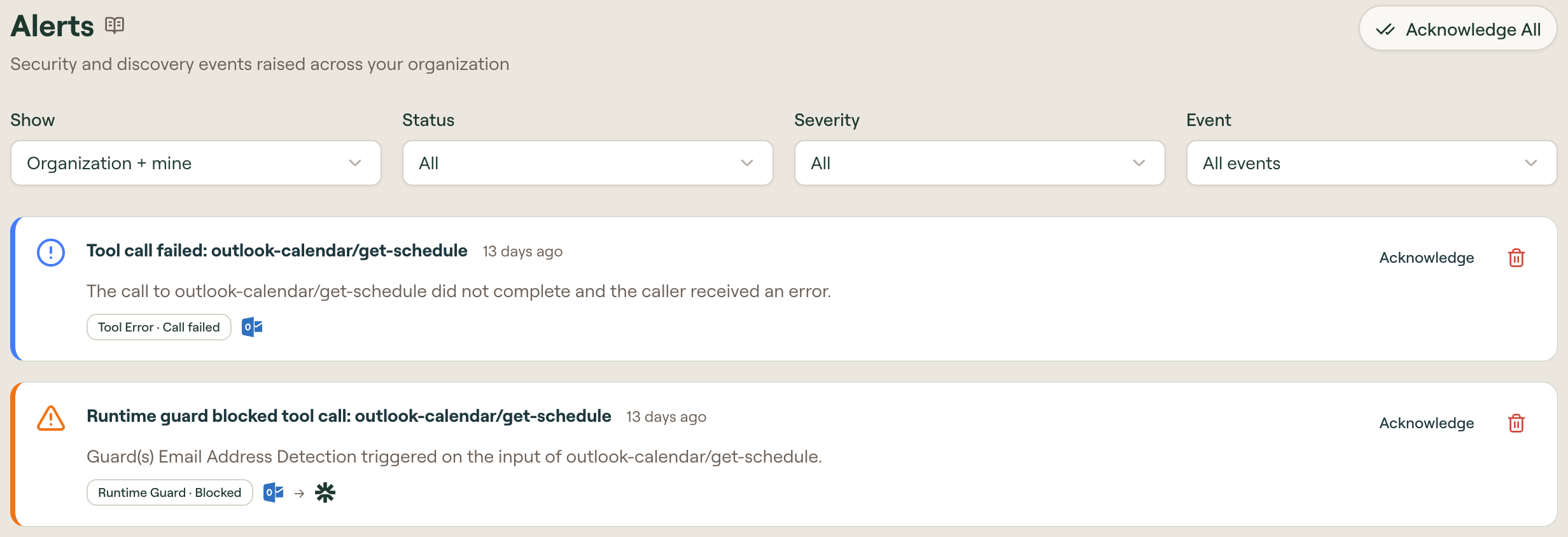
| Control | Values |
|---|---|
| Show | Organization + mine, Organization only, Addressed to me |
| Status | All, Unacknowledged, Acknowledged |
| Severity | All, Critical, High, Medium, Low |
| Event | Any event type from the catalog |
| Acknowledge All | Marks every currently unacknowledged alert as acknowledged, within the current Show scope |
Show distinguishes the org-wide history from alerts a rule addressed to you personally over the Willow Admin channel. Addressed to me is your own inbox; Organization only is the full org feed.
Severity matches the severity field delivered to webhooks, so an alert shown as High here arrives as "severity": "high" in the payload. A rule can override an event's default severity for your org — see severity.
Scroll to load more alerts.
What an alert card shows
Each card carries a title, how long ago it fired, and a description of what happened. A badge names the event that raised it, for example AI Discovery · New capability discovered. Discovery alerts list each capability found and whether it is allowed.
On the right of every card are an Acknowledge action and a delete icon. Select the card itself to open the detail panel.
Acknowledging alerts
Acknowledge an alert from its card, or use Acknowledge All to clear the inbox after triaging a burst of events. Opening an alert acknowledges it automatically.
Acknowledging clears an alert from the Inbox dropdown but does not remove it. Switch Status to Acknowledged or All to see previously acknowledged alerts. To remove an alert entirely, use the delete icon on its card.
Deep links
/alerts?alert=<id> opens the page with that alert's detail panel already open, and works even when the alert is not in the currently loaded page of results. This is what the View alert button on a Slack message or Teams card points at.
If no alerts ever appear
Check both sources. All guards ship disabled, so a new organization raises no guard alerts until you enable one — see Enable a Guard and See It Fire. Discovery alerts require the scan agent to be deployed; see AI Discovery.
Related
- Alert rules — who gets notified, and how
- Channels — Willow Admin, Email, Browser, Slack, Teams, Webhook
- Guards
- Monitor Logs