AI Discovery
AI Discovery helps admins discover and govern MCP servers, skills, and AI tools running on developer machines across the organization.
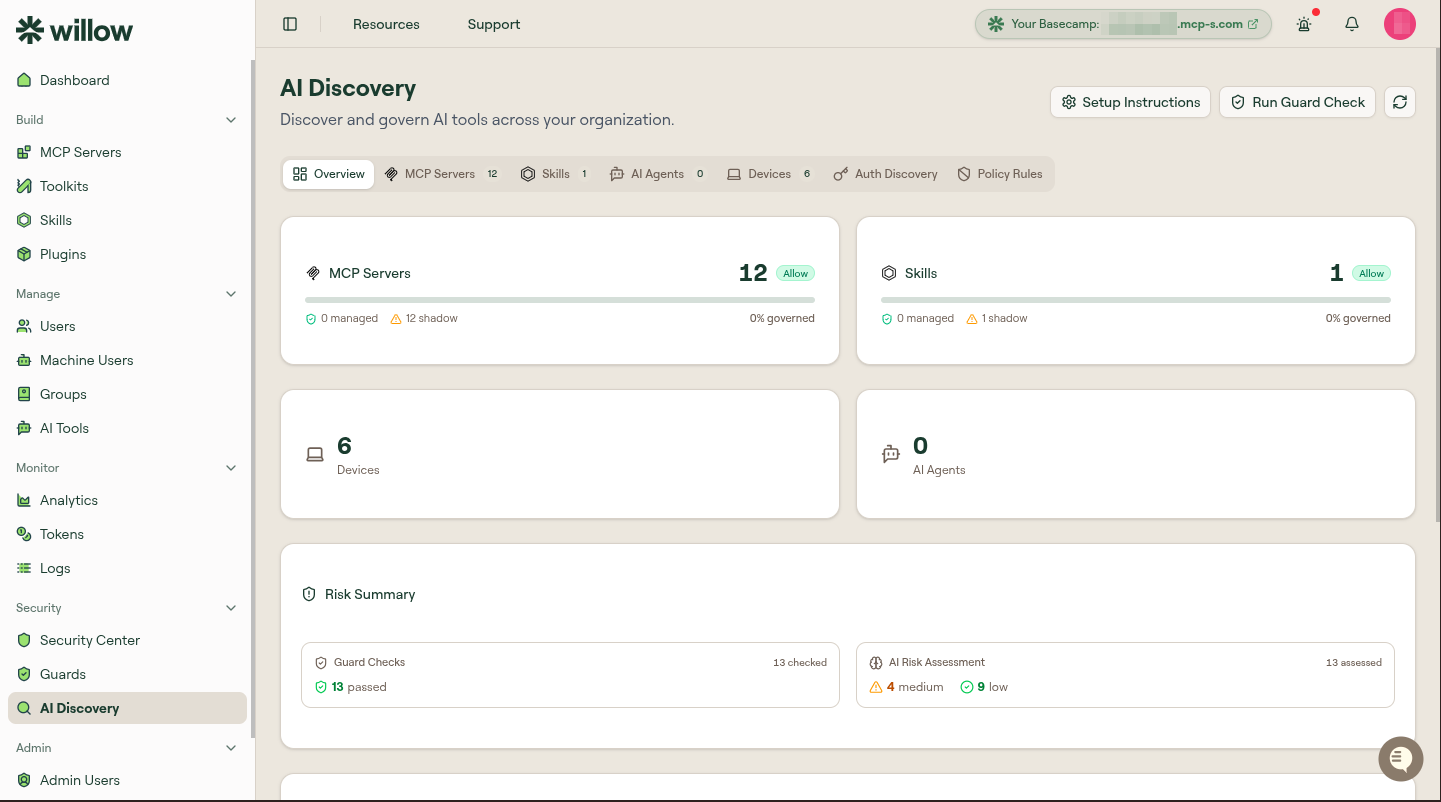
Overview
AI Discovery deploys a lightweight Willow Scan Agent to managed devices. The agent periodically scans for MCP server configurations, AI coding tool skills, and AI agent installations, then reports findings back to Willow.
Admins can use AI Discovery to inventory developer AI usage, identify unmanaged capabilities, review AI Usage Signals, and approve or remediate findings from one dashboard.
Willow Scan Agent
The Willow Scan Agent runs as a background service on macOS and Windows. It discovers:
| Signal | Description |
|---|---|
| MCP servers | stdio, SSE, and HTTP servers configured in Cursor, Claude Desktop, VS Code, Windsurf, and other AI coding tools |
| Skills | Claude Code SKILL.md files, Cursor rules, and other AI skill definitions |
| AI agents | AI coding tools installed on each machine |
Willow Guard browser extension
Willow Guard is a browser extension for monitoring and governing OAuth flows and web AI agent access in the browser. Deploy it when you need visibility into browser-based AI usage in addition to local developer tool configuration.
The extension reads serverUrl and authToken from Chrome managed storage when deployed through a managed Chrome policy.
Downloads
Download the latest AI Discovery packages from the Scan Agent Setup flow in the Willow dashboard.
| Platform | Files |
|---|---|
| macOS | .pkg installer and .mobileconfig profile, pre-filled for your organization |
| Windows x64 | .zip package and .reg registry policy, pre-filled for your organization |
| Browser extension | Chrome Web Store install and Chrome policy .mobileconfig, pre-filled for your organization |
The generated profiles and registry policy contain the connection details for your Willow organization. Do not edit the generated values unless Willow Support asks you to.
Connection details
The Scan Agent Setup modal also shows Server URL and Auth Token values.
These values are pre-filled in the downloaded macOS configuration profile, Windows registry policy, and Willow Guard Chrome policy. Use them only when you are doing manual or CLI-based installation, converting the policy into another MDM format, or validating what the generated files contain.
| Field | Description |
|---|---|
| Server URL | Your Willow organization URL, such as https://your-org.mcp-s.com. |
| Auth Token | Organization token used by the Scan Agent or Willow Guard to report discovery data to Willow. |
Treat the auth token as sensitive. Do not paste it into tickets, screenshots, or shared docs.
Deployment options
| Option | Use when |
|---|---|
| MDM deployment | You manage employee devices through Jamf, JumpCloud, Iru, Intune, GPO, or another device management platform. |
| Browser extension deployment | You need to deploy Willow Guard through Chrome managed policy for browser-based AI visibility. |
| Manual installation | You are testing on a small number of devices or validating the package before broad deployment. |
| Webhook API | You already collect device scan data through another system and want to send findings directly to Willow. |
For provider-specific MDM steps, see Deploy Scan Agent with MDM. For browser extension deployment, see Deploy Willow Guard Browser Extension.
Manual installation
Use manual installation to test on a few devices before an MDM rollout. The exact commands are pre-filled and copyable in the Scan Agent Setup modal under Manual deployment (without MDM) — copy them from there so the connection values match your organization.
macOS
-
Install the package — double-click the
.pkg, or run:sudo installer -pkg mcp-s-scan.pkg -target / -
Apply the config. Do not double-click the
.mobileconfigfor a manual install. A manually-approved profile installs at user scope, and the Scan Agent runs as a system LaunchDaemon that cannot read it. Instead, write your organization's connection details to the device-scope managed preferences file the agent reads. Substitute your own Server URL and Auth Token from the setup modal's Connection Details:sudo mkdir -p "/Library/Managed Preferences" && sudo tee "/Library/Managed Preferences/com.mcp-s-scan.agent.plist" >/dev/null <<'EOF'<?xml version="1.0" encoding="UTF-8"?><!DOCTYPE plist PUBLIC "-//Apple//DTD PLIST 1.0//EN" "http://www.apple.com/DTDs/PropertyList-1.0.dtd"><plist version="1.0"><dict><key>serverUrl</key><string>https://your-org.mcp-s.com</string><key>authToken</key><string>your-org:your-token</string><key>intervalSeconds</key><integer>60</integer></dict></plist>EOF -
Start the service:
sudo launchctl load /Library/LaunchDaemons/com.mcp-s-scan.agent.plist
The .mobileconfig double-click flow is only appropriate when an MDM pushes the profile at device scope. For a manual install, use the device-scope file as above.
Windows
-
Extract the
.zipand double-click the.regfile to import the registry policy. -
Open PowerShell as Administrator and run the installer:
powershell -ExecutionPolicy Bypass -File install.ps1 -
Start the agent if the installer did not start it:
Start-ScheduledTask -TaskName "MCP-S-Scan Agent"
macOS reference
Management commands
# Check status
sudo launchctl print system/com.mcp-s-scan.agent
# View logs
tail -f /var/log/mcp-s-scan/agent-error.log
# Restart
sudo launchctl kickstart -k system/com.mcp-s-scan.agent
# Uninstall
sudo /usr/local/bin/mcp-s-scan-uninstall.sh
Install paths
| Path | Description |
|---|---|
/usr/local/bin/mcp-s-scan-agent | Agent binary |
/Applications/Willow Menubar.app | Menu bar status app |
/Library/LaunchDaemons/com.mcp-s-scan.agent.plist | Launch daemon |
/Library/Managed Preferences/com.mcp-s-scan.agent.plist | Managed preferences from the .mobileconfig profile |
/var/log/mcp-s-scan/ | Log files |
Windows reference
Management commands
# Check status
Get-ScheduledTask -TaskName "MCP-S-Scan Agent" | Select-Object State
# View logs
Get-Content C:\ProgramData\mcp-s-scan\logs\agent.log -Tail 50
# Restart
Stop-ScheduledTask -TaskName "MCP-S-Scan Agent"
Start-ScheduledTask -TaskName "MCP-S-Scan Agent"
# Uninstall
powershell -ExecutionPolicy Bypass -File "C:\Program Files\MCP-S-Scan\uninstall.ps1"
Install paths
| Path | Description |
|---|---|
C:\Program Files\MCP-S-Scan\mcp-s-scan-agent.exe | Agent binary |
C:\Program Files\MCP-S-Scan\willow-menubar.exe | System tray app |
C:\ProgramData\mcp-s-scan\logs\ | Log files |
HKLM\SOFTWARE\Policies\MCP-S-Scan | Registry policy from the .reg file |
Configuration reference
The agent reads its configuration from managed profiles on macOS and registry policy on Windows. Willow Guard reads its configuration from Chrome managed storage. Willow generates these files with your organization values already filled in.
| Field | Type | Description |
|---|---|---|
serverUrl | string | Your Willow Connect URL, such as https://your-org.mcp-s.com. |
authToken | string | Organization token in orgSlug:signature format. |
intervalSeconds | int | Scan Agent interval in seconds. The default is 60. |
Webhook API
As an alternative to the scan agent, you can send device scan data directly through the webhook API. Use this when agent installation is not feasible or when another inventory system already collects equivalent findings.
Find your webhook URL and authorization header in the AI Discovery setup flow.
curl -X POST "https://your-org.mcp-s.com/api/device-scan" \
-H "Authorization: your-org:your-token" \
-H "Content-Type: application/json" \
-d '{"platform":"darwin","scanDate":"...","deviceInfo":{},"foundFiles":[],"capabilities":[]}'
Dashboard features
Once devices report successfully, AI Discovery shows:
| Area | Description |
|---|---|
| Devices | Connected machines with OS, user, and last scan time. |
| MCP servers | Discovered MCP servers grouped by AI agent, with risk status. |
| Skills | Discovered AI skills and their governance status. |
| AI agents | AI coding tools in use across the organization. |
| Governance stats | Managed, shadow, and allowed capability counts. |
| Policy checks | Automated risk assessment for discovered capabilities. |
| Allow lists | Known-good capabilities approved without routing through the gateway. |
| AI Usage Signals | Detected AI usage events, including tool and model usage cards. |
| Signal details | Metadata, related tool information, and configuration or explanation panels for a selected signal. |