Configure a Custom Gateway Domain
This tutorial shows where to start custom-domain setup for a Willow MCP gateway.
Use this when you want users to connect through your organization's own domain instead of a Willow branded .mcp-s.com domain.
Prerequisites
You need:
- admin access to Willow
- a deployed Willow gateway
- a domain your organization controls
- access to whoever manages DNS for that domain
Step 1: Open Gateway Settings
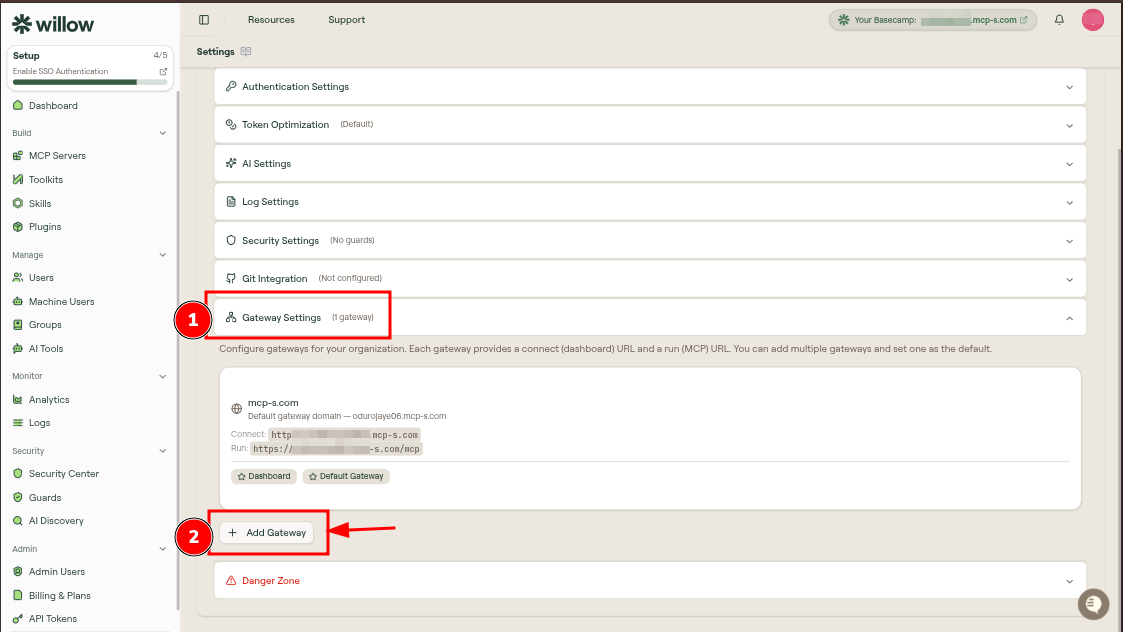
- In the admin dashboard, open Admin.
- Open Settings.
- Find Gateway Settings.
Gateway Settings lists the gateways configured for your organization.
Step 2: Add a gateway
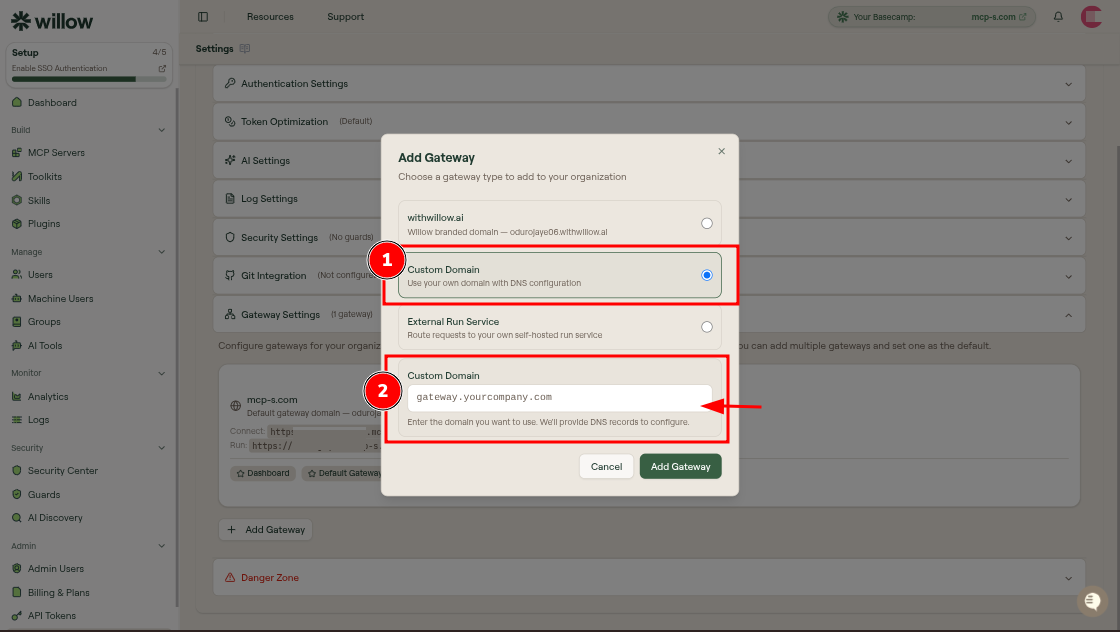
- Select Add Gateway.
- Choose Custom Domain.
- Enter the domain you want to use.
- Select Add Gateway to confirm.
The same modal also supports Willow branded domain and External Run Service. Use Custom Domain when the gateway should be reachable from a domain your organization owns.
Step 3: Configure a CNAME record in your domain registrar
Willow shows you the exact record to add. In your domain registrar's DNS settings, create a CNAME record with the values from the DNS Configuration panel:
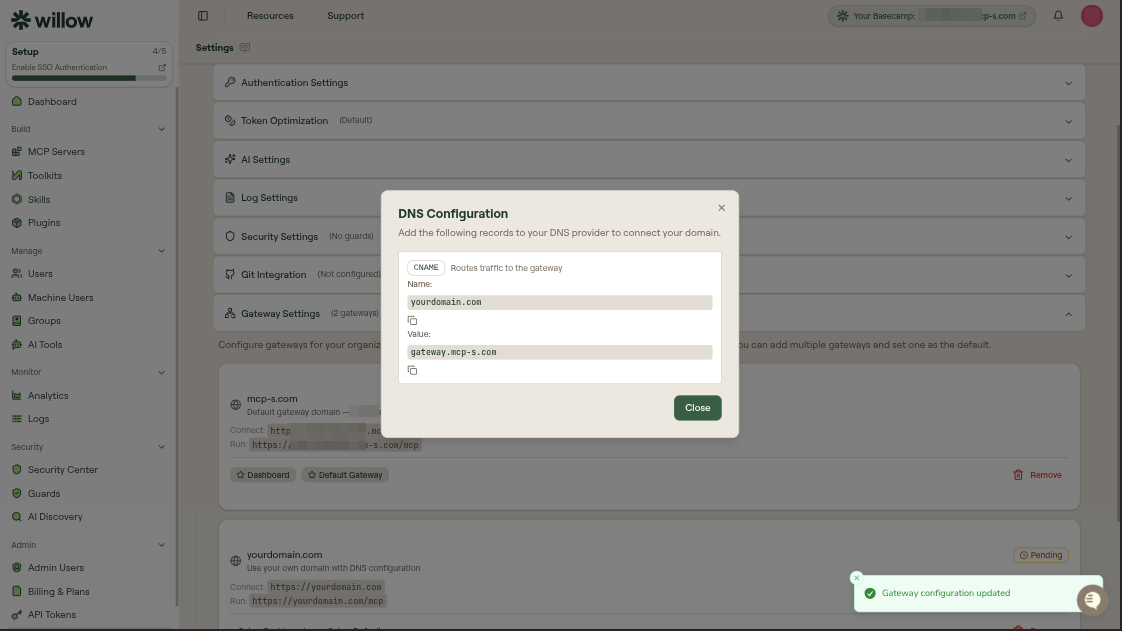
| Field | Value |
|---|---|
| Type | CNAME |
| Name / Host | your domain, e.g. yourdomain.com |
| Value / Target | gateway.mcp-s.com |
| TTL | Automatic or 3600 |
The Name field is the domain you entered when adding the gateway. Some registrars ask for just the subdomain prefix (e.g. mcp) rather than the full domain: enter whichever format your registrar expects.
Step-by-step instructions for the most common registrars:
- GoDaddy: Add a CNAME record
- Namecheap: How to Create a CNAME Record
- Cloudflare: Add DNS records (set Proxy Status to DNS only: do not proxy the CNAME)
- Squarespace: Edit your domain's DNS records
- AWS Route 53: Create a record
For other registrars, the process is the same: find the DNS or Name Servers section, add a new record, set the type to CNAME, enter your domain as the host (or just the subdomain prefix if your registrar uses that format), and set gateway.mcp-s.com as the target value.
Step 4: Wait for DNS to propagate
DNS changes are not instant. After saving the CNAME record, it can take anywhere from a few minutes to 48 hours to propagate globally, depending on your registrar and TTL setting.
While DNS is propagating, the gateway will show a Pending status in Gateway Settings. Once propagation is complete and Willow detects the record, the status changes to active. Return to Gateway Settings to confirm, then connect an AI client using the new domain and verify the tool call appears under Monitor > Logs.
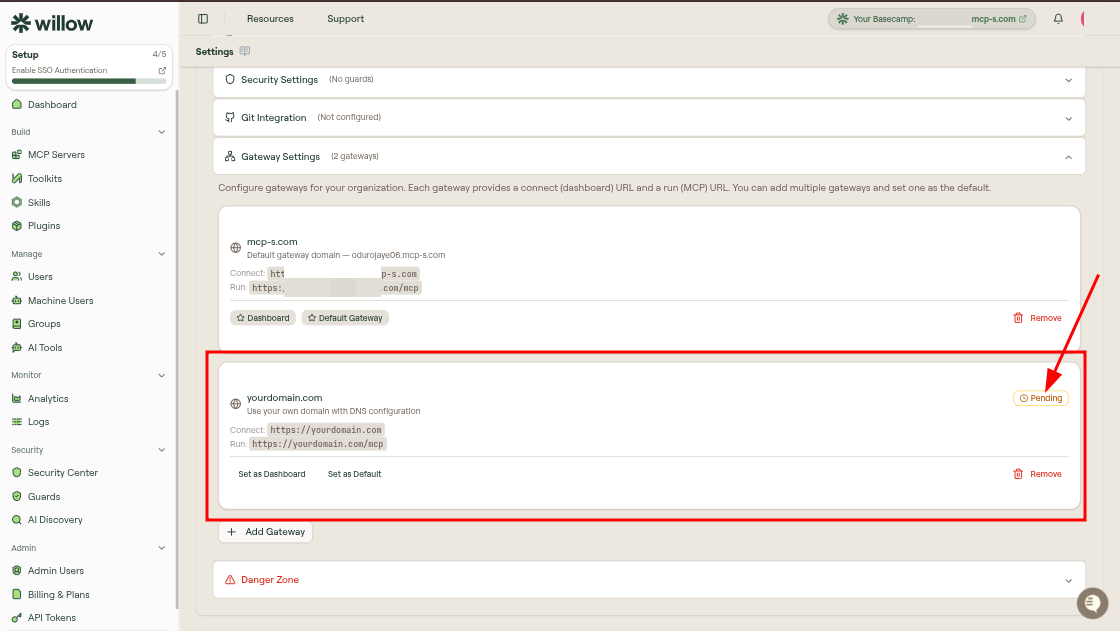
From Gateway Settings, you can choose what role the custom domain plays:
- Set as dashboard domain: the custom domain becomes the URL used to access the Willow admin dashboard.
- Set as default gateway: the custom domain becomes the primary MCP endpoint that users connect to.
- Leave as secondary gateway: the custom domain works alongside your existing
.mcp-s.comdomain. Users can connect through either URL.