Admin Users
The Admin Users page manages the people who can sign in to your organization's admin dashboard. Open it from Admin > Admin Users.
Each admin user is assigned a role that determines what they can see and do. Admin users are separate from the end users who consume integrations through the gateway.
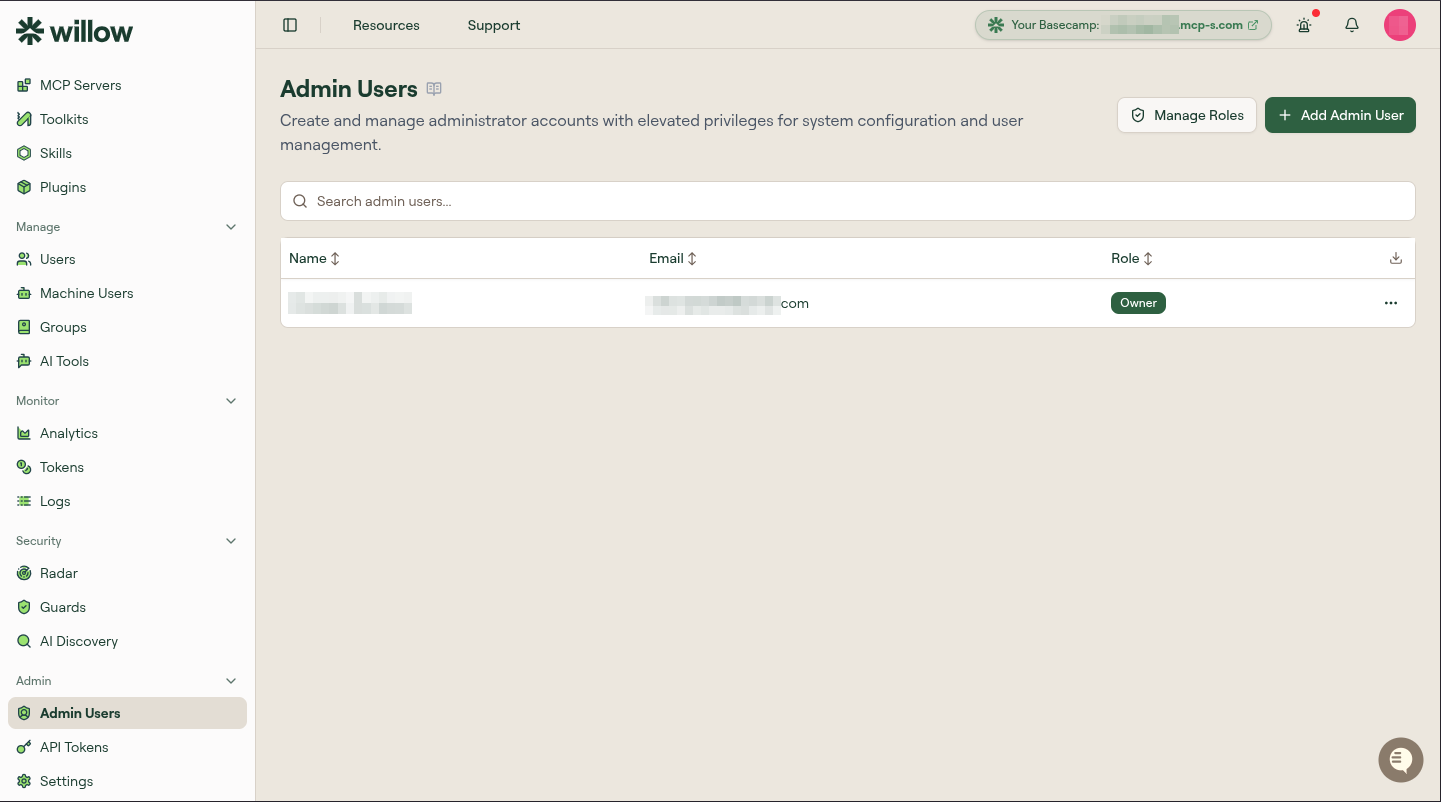
Table columns
The table supports search, and a download icon above it exports the current list as CSV.
| Column | Description |
|---|---|
| Name | The admin user's display name. |
| The address used to sign in and receive the invitation. | |
| Role | The role assigned to the user, shown as a badge (for example Owner). |
Open the three-dot menu on any row to change an admin's role or remove them.
Built-in roles
Every organization ships with four predefined roles:
| Role | Description |
|---|---|
| owner | Full access to all features and settings, including admin user management and billing. |
| security | Security-focused role: publish artifacts; manage guards, monitoring, and audit. Cannot create or edit artifacts. |
| it | IT-focused role: manage integrations, toolkits, skills, and users. No billing or role management. |
| readonly | Read-only access to all resources. |
These roles are marked Predefined on the Roles page and cannot be modified.
Custom roles
You can create custom roles with specific permission scopes tailored to your organization's needs. Custom roles appear alongside the built-in roles when inviting or editing an admin user.
To manage custom roles, select Manage Roles from the Admin Users page (requires the Manage Roles permission). See Roles for details.
Add an admin user
- Select Add Admin User.
- Enter the user's name and email.
- Select a role (built-in or custom).
- Save to send the invitation.
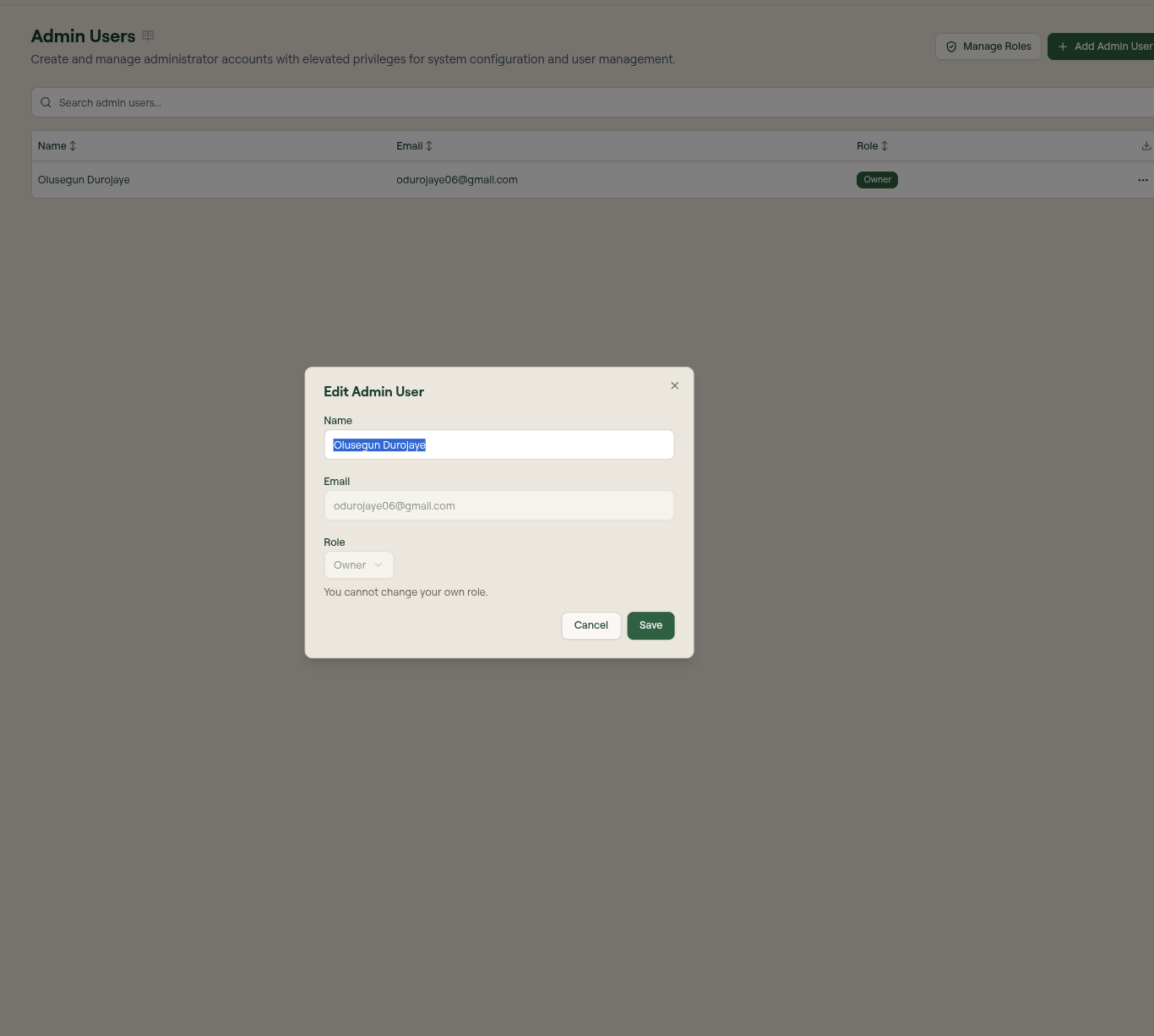
Change an admin's role
- Open the three-dot menu on the admin user's row.
- Select a new role from the dropdown.
- Save. The change takes effect immediately.
You cannot change your own role. Only owners can access the Admin Users page.
What to do next
- Roles: view the built-in roles and create custom roles with fine-grained scopes.
- Billing & Plans: review your plan and its limits.