Rate Limits
A rate-limit policy caps how many tool calls a single user may make through the gateway. Open it from Security > Rate Limits.
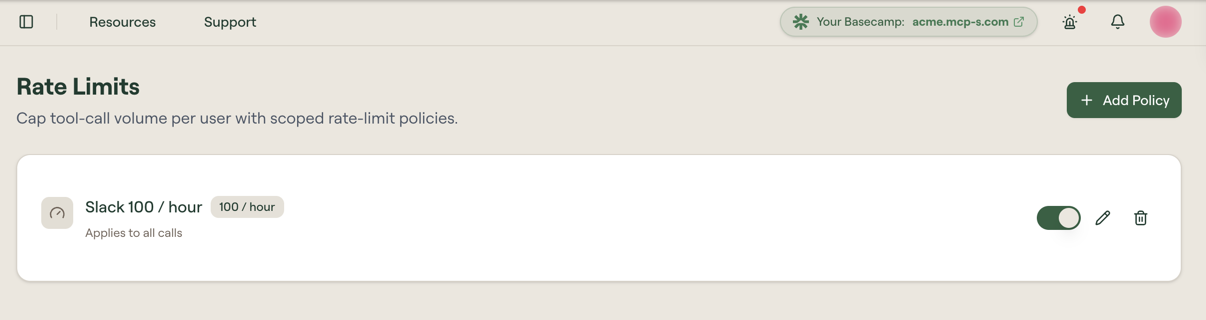
The cap is per user, not per organization. A policy that allows 100 calls per hour gives every user it covers their own 100 — one person's runaway agent cannot spend everyone else's budget.
This is a volume control rather than a content control. Guards decide whether a particular call is allowed to happen at all; rate limits decide how many calls a user gets regardless of what is in them. An agent stuck in a retry loop is the case rate limits are for: nothing it sends is objectionable, there is simply too much of it.
How a policy is put together
Each policy has two parts:
| Part | What it is |
|---|---|
| Limit | How many calls one user may make, and over what window. |
| Filters | The traffic the policy applies to. A policy with no filters covers every call. |
Policies are independent of each other. A call that falls inside two policies has to satisfy both.
Create a policy
- Go to Security > Rate Limits.
- Select Add Policy.
- Give the policy a Policy name. Name it after what it caps, the way the placeholder suggests —
Slack 100 / hourreads better in the list thanPolicy 2. - Set the Limit:
AllowNcalls perminute, hour, or dayper user. - Narrow the policy under Filters, or leave the filters empty to cover everything. See Filters.
- Select Create policy.
The policy takes effect immediately and starts out enabled.
Filters
Two filters scope a policy, each a searchable list you tick:
| Filter | Narrows the policy to |
|---|---|
| Groups | Users in the groups you select. |
| MCP servers | Calls to the MCP servers you select. |
All conditions must match, so a policy filtered to the Engineering Team group and the GitHub MCP server caps only Engineering's calls to GitHub, and leaves Engineering's calls to everything else alone.
Leaving a filter empty matches everything in it. Leaving both empty gives you an organization-wide cap, which the list reports as Applies to all calls.
Manage policies
The list shows one row per policy, with its name, the limit as a badge (for example 100 / hour), and a line summarizing what it covers.
| Control | What it does |
|---|---|
| Toggle | Turns the policy on or off without deleting it. Use this to lift a cap temporarily rather than rebuilding it later. |
| Pencil | Opens Edit Rate-Limit Policy, the same form as the create page, for changing the limit or the filters. A policy's name, limit, and filters can all be edited after the fact. |
| Trash | Deletes the policy. |
Deleting a policy takes effect immediately and asks for no confirmation. Turn the policy off with its toggle if you only want to pause it.
Related
- Guards: content-level enforcement on the same traffic
- Groups: the groups a policy can be scoped to
- MCP Servers
- Analytics: tool-call volume per user, for choosing a limit