Security Center
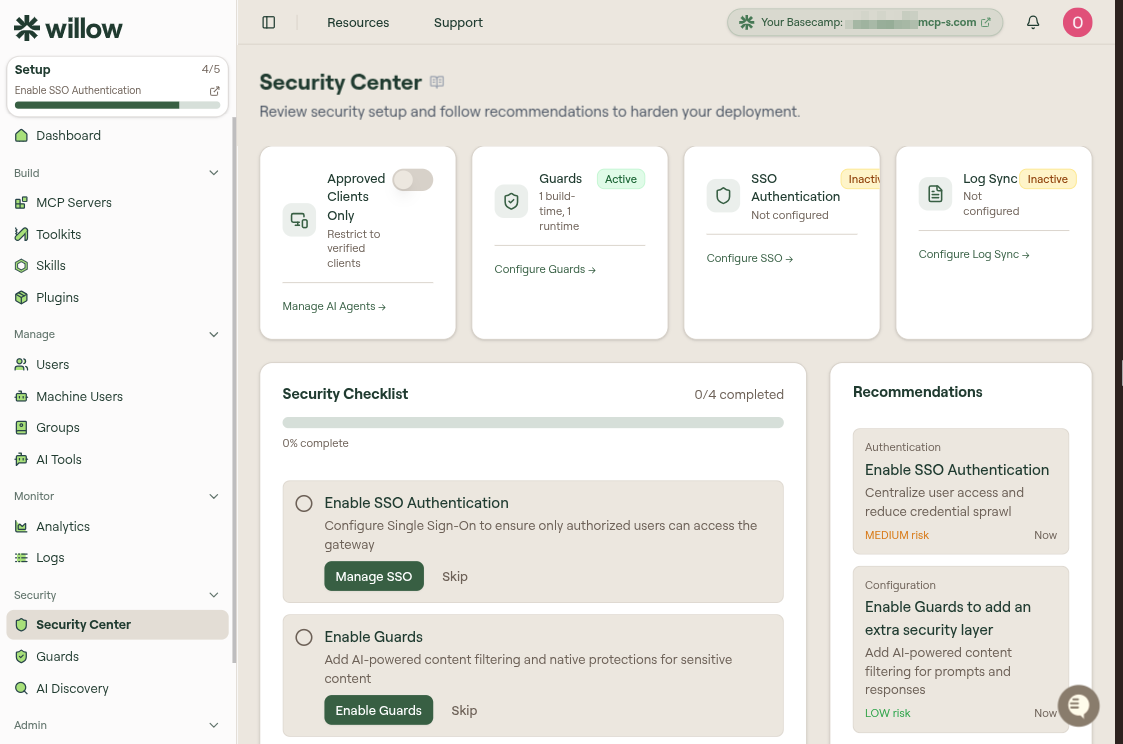
Review your organization's security setup and follow recommendations to harden your deployment. The Security Center brings your posture together in one place: status cards for the core protections, a setup checklist, prioritized recommendations, a per-server scan summary, and quick access to the Vault. There is no Security Center entry in the sidebar; open it at /monitor/security on your admin domain.
What you can do here
- See the status of the core security controls at a glance
- Work through a checklist to harden your deployment
- Act on prioritized recommendations, ranked by risk
- Review connected MCP servers and their scan results
- Open the Vault to manage secrets
Status cards
Four cards summarize your core protections and link to where each is configured:
| Card | What it shows | Action |
|---|---|---|
| Approved Clients Only | Whether gateway access is restricted to verified AI clients | Manage AI Agents |
| Guards | Active guards, split into build-time and runtime counts | Configure Guards |
| SSO Authentication | Whether SSO is configured (Active or Inactive) | Configure SSO |
| Log Sync | Whether audit logs are forwarded to an external destination | Configure Log Sync |
Security checklist
The checklist tracks the high-impact steps to secure your deployment and shows your completion progress (for example, 0/4 completed). Each step has an action button and a Skip option:
- Enable SSO Authentication: configure Single Sign-On so only authorized users can access the gateway.
- Enable Guards: add AI-powered content filtering and native protections for sensitive content.
- Configure Log Sync: sync audit logs to your preferred destination, such as Splunk, Grafana Loki, or a webhook.
Click Show All Steps to expand the full list.
Recommendations
The Recommendations panel lists prioritized, categorized actions to improve your posture. Each recommendation shows a category (such as Authentication, Configuration, Observability, or Access Control), a risk level (LOW, MEDIUM, or HIGH), and when it was surfaced.
Recommendations include over-privileged access warnings. For example, the Security Center flags when a group with non-machine users is linked to an API-key MCP, which may grant broader access than intended.
MCPs
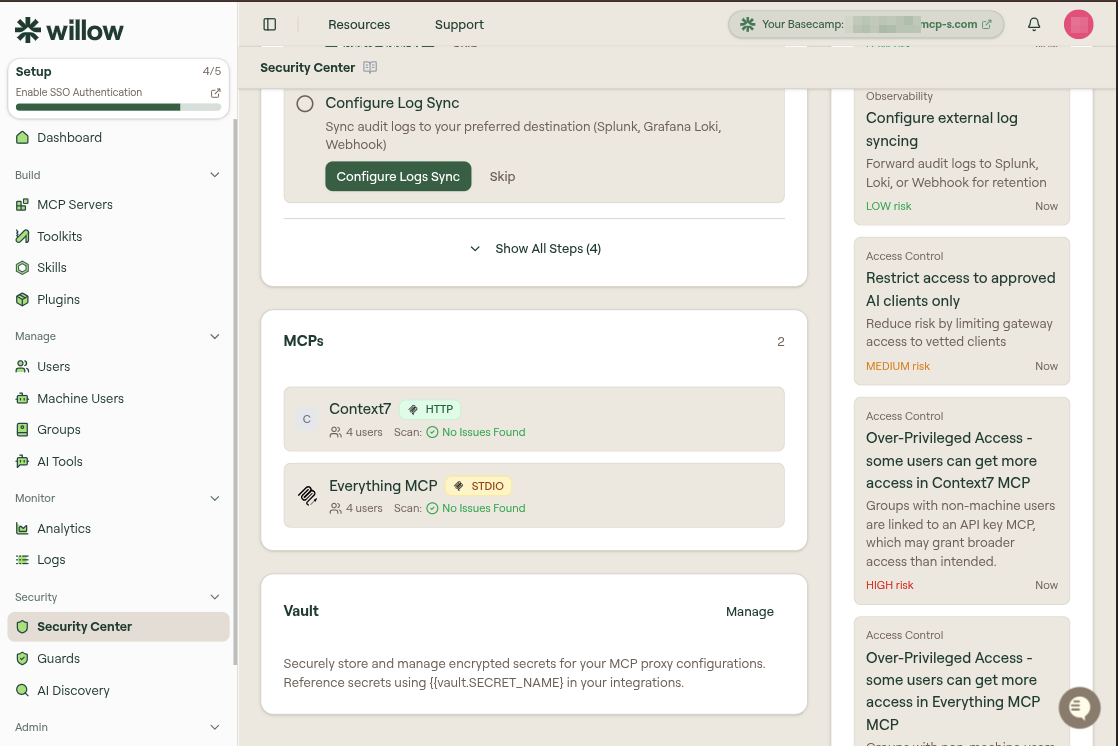
This section lists your connected MCP servers with their transport (HTTP or STDIO), the number of users with access, and the result of the latest security scan (for example, No Issues Found).
Vault
The Vault section is the entry point to encrypted secret storage for your MCP proxy configurations. Reference secrets in any configuration using the {{vault.SECRET_NAME}} syntax. Click Manage to add or edit secrets.
See Vault for the full guide to creating, referencing, and rotating secrets.