User MCP Policy
The User MCP Policy controls whether end users can connect their own personal MCP servers to Willow, separate from the MCP servers your organization manages centrally.
What User MCP Policy controls
By default, only admins can add MCP servers to Willow. The User MCP Policy lets you extend that ability to end users, either fully or with an approval gate before personal servers go live.
This setting applies org-wide. It does not affect admin-managed MCP servers, which are always available to assigned users regardless of this policy.
Policy options
| Option | What users can do |
|---|---|
| None | Users cannot add personal MCP servers. Only admin-managed servers are available. |
| Needs Approval | Users can submit a request to connect a personal MCP server. An admin must approve before it becomes active. |
| Allow | Users can connect personal MCP servers immediately, without admin approval. |
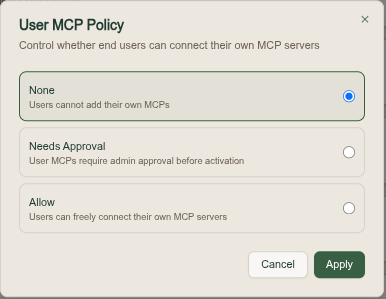
Set the policy
- Go to Admin → Settings
- Expand End-User Settings
- Next to User MCP Policy, select Change
- Select None, Needs Approval, or Allow
- Click Apply
The setting takes effect immediately. Existing approved personal MCP servers are not affected when you change the policy.
How approval requests work (Needs Approval)
When the policy is set to Needs Approval:
- A user navigates to their MCP settings and adds a new personal MCP server
- The server appears as Pending in their view; it is saved but not yet active
- An admin reviews and approves or denies the pending request
Considerations
- Allow is convenient for teams that trust users to manage their own tooling, but gives admins less visibility into what external MCP servers are in use.
- Needs Approval balances user autonomy with oversight, useful for security-conscious organizations.
- None is appropriate when you want full centralized control of all MCP server access.
Personal MCP servers added by users are subject to the same guard policies and logging as admin-managed servers.