Background Agents
A background agent is an autonomous AI agent with its own identity, credentials, and a scoped set of capabilities. It runs on a platform of your choice and calls tools through the Willow gateway using its own access key, so every call is subject to the same guards, policies, and logging as any other traffic.
Where a machine user is a credential for your own scripts and automations, a background agent is an agent Willow provisions onto another platform. For how the two fit alongside Willow's other objects, see The Object Model. To create one, see Create a Background Agent.
How a background agent is put together
Each agent has four parts:
| Part | What it is |
|---|---|
| Identity | A name, slug, description, and an access key / secret pair the agent uses to authenticate to the gateway. |
| Platform | The runtime the agent runs on (Custom, Claude Managed Agents, Claude Tag, AWS AgentCore, and more). |
| Capabilities | The tools, skills, and rules the agent is allowed to use. Capabilities are scoped per agent. |
| Triggers | Optional webhook events that start the agent automatically when something happens in a connected app. |
Capabilities are the agent's permission boundary: an agent can reach only what has been granted to it.
The list page
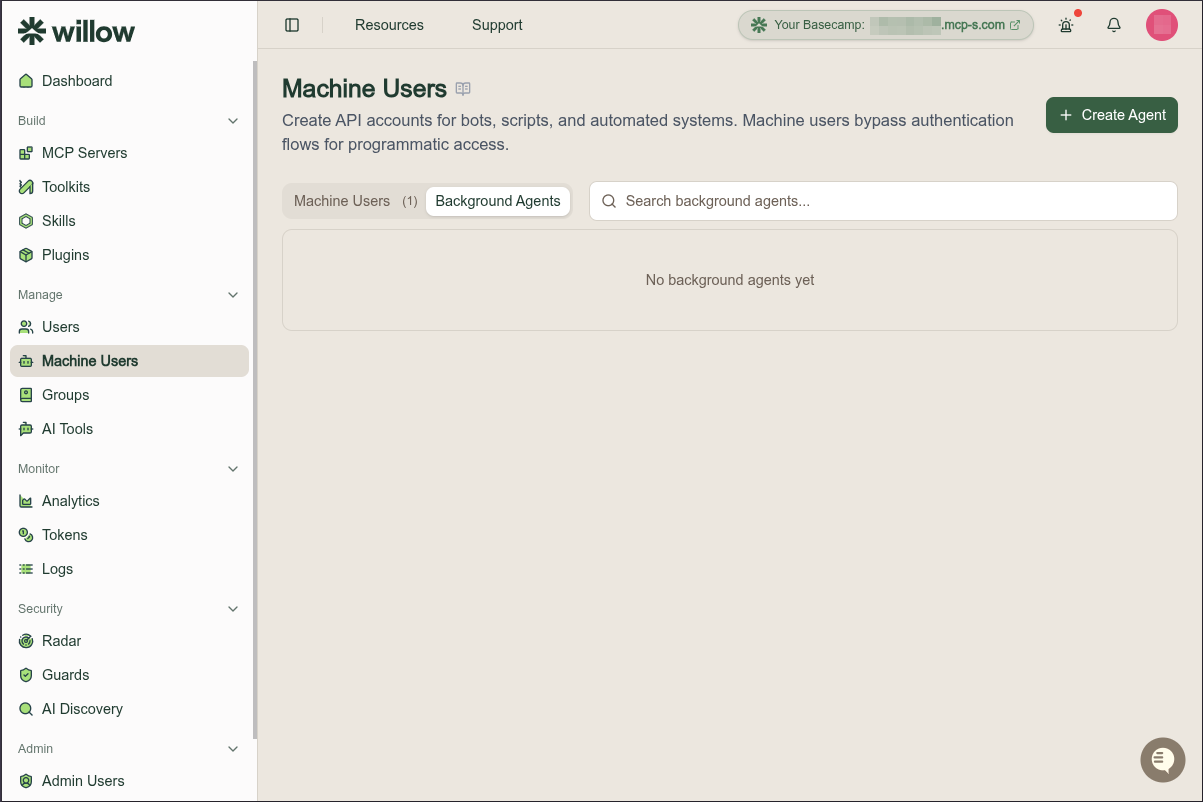
The Background Agents list is your organization's inventory of agents. There is no Background Agents entry in the sidebar: open Manage > Machine Users, select the Background Agents tab, then select Create Agent to reach the full list at /manage/background-agents.
The header has three actions:
| Action | What it does |
|---|---|
| Settings (gear icon) | Opens Background Agent Settings. |
| Refresh | Reloads the list and clears the search. |
| Create Agent | Opens the create dialog. See Create a Background Agent. |
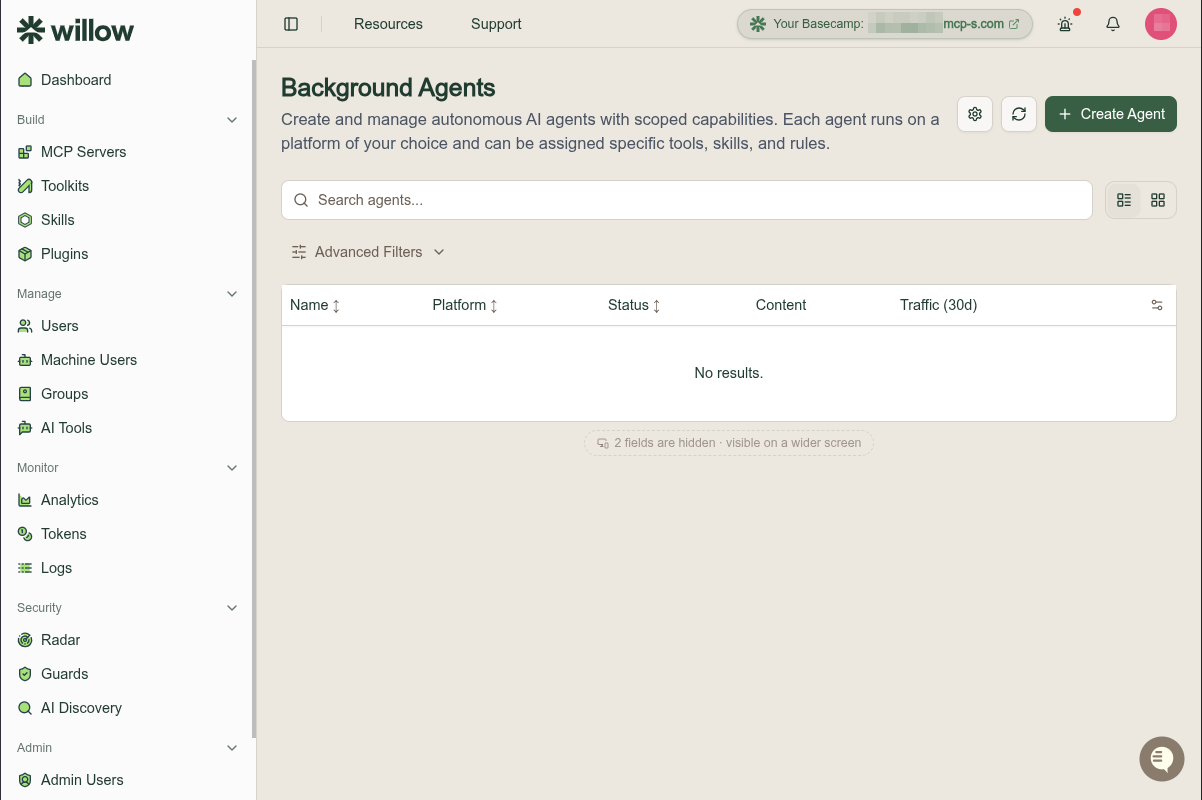
Views
A toggle at the top right switches between two views:
- Table view: one row per agent. This is the default. Columns are Name, Platform, Status, Content, Traffic (30d), Owners, and Created, and the end of the header row carries Export CSV and Customize columns.
- Grid view: one card per agent, showing its name, platform, and owners. The card links to the same detail page as the table row.
Search and Advanced Filters work in both views. Export and the column controls are table-only.
Search and filters
The search box filters by agent name. Select Advanced Filters to narrow the list further:
| Filter | Filters by |
|---|---|
| Owner | Agents assigned to a specific owner. |
| Platform | The runtime the agent runs on. See Platforms. |
| MCP Server | Agents that have at least one tool from the selected server. |
| Status | active or disabled. |
| Risk Level | The highest risk among the agent's capabilities: Critical, High, Medium, Low, or Not Assessed. |
A badge shows how many filters are active, and Clear filters resets them all.
Platforms
The platform is the runtime the agent runs on. Platforms are enabled once under Agent Types; the create dialog then offers only the platforms you have enabled.
| Platform | platform | Setup | Description |
|---|---|---|---|
| Willow Agents | willow-agents | None | Run the agent on Willow's fully managed infrastructure. Each new agent session consumes one of your organization's monthly session credits. |
| Custom | custom | None | Bring your own runtime. Download the agent as a ZIP bundle or connect any host with the agent's MCP configuration. See Custom Agents & Self-Hosted Harnesses for every payload and endpoint. |
| Claude Managed Agents | claude-managed-agents | Set key | Run the agent on Anthropic's managed infrastructure. Syncs the agent definition, tools, and gateway credentials to Claude. Needs an ANTHROPIC_API_KEY. |
| Claude Tag | claude-tag | None | Expose the agent's tools to @Claude as a connected app, either as an MCP connector or as REST endpoints. Skills and webhooks are not supported yet. See Connect Claude Tag. |
| AWS AgentCore | aws-agentcore | Set credentials | Run the agent as an Amazon Bedrock AgentCore harness. Syncs the agent definition, gateway tools, and credentials to your AWS account. See Connect AWS AgentCore. |
| kagent | kagent | Set credentials | Run the agent as a SandboxAgent in your own Kubernetes cluster. Willow never reconciles the CRD — sync reveals the gateway URL, bearer token, and recommended system message for you to wire on by hand. See Connect kagent. |
| Snowflake Cortex Agents | snowflake-cortex-agents | Set credentials | Run the agent as a Cortex agent object in your own Snowflake account, answering over Cortex Analyst and Cortex Search tools. Needs an account identifier and a programmatic access token. See Connect Snowflake Cortex Agents. |
| Your own type | custom-managed | Add custom type | A platform you define yourself, where Willow calls endpoints you host. See Add a custom agent type. |
| — | codex | API only | Accepted by the API with no card in Agent Types. |
| — | langgraph | API only | Accepted by the API with no card in Agent Types. |
The first seven ship as cards in Agent Types. custom-managed is what Add custom type creates. codex and langgraph are accepted by the API but have no UI of any kind.
custom-managed doesn't have to mean building a harness yourself. Willow ships one as a Helm chart: install it, register it as a custom type, and every agent you create gets a dedicated pod in your Kubernetes cluster. See Run Agents in Your Own Cluster.
custom and custom-managed are both "bring your own," but they run in opposite directions. On custom, your harness calls Willow — it pulls the agent's tools through the gateway. On custom-managed, Willow calls you, pushing the agent snapshot and each message to endpoints you register.
Platforms that need credentials stay switched off until you supply them, and appear in the create dialog only once enabled. The Agent Types card in settings is the source of truth for what your organization can currently select, and Add custom type defines a platform of your own beyond this list.
Managed platforms keep an external copy of the agent, which you push with Deploy.
Session credits
Agents on the Willow Agents platform draw on a monthly pool of session credits. Each new agent session uses one credit.
The remaining balance appears in a banner on the Background Agents list and again under Deployment & Sync on an agent's Settings tab, in the form "10 of 10 monthly session credits left — each new Willow Agents session uses one credit. Credits reset on 01/09/2026."
Credits apply only to Willow-hosted agents. An agent on Custom, Claude Managed Agents, Claude Tag, or AWS AgentCore runs on infrastructure you supply, so it consumes none.
Capabilities
Capabilities are the allowlist. Each entry can be individually enabled or disabled:
| Capability | What it grants |
|---|---|
| Tools | Gateway tools the agent may call, identified by integration and tool slug. |
| Skills | Skills attached to the agent. Enabled skills are uploaded to the external platform on sync. |
| Rules | Rules attached to the agent. Present in the API model alongside tools and skills, but with no card of its own on the detail page. |
| Integration auth | Per-integration connected-auth configuration. An integration can be set to use connected auth on behalf of a specific user, identified by auth_user_email. |
The agent detail page
Selecting an agent opens its detail page. The header shows the agent's name, its platform badge, its status, a Deploy button, and an Active toggle. The button reads Deploy changes when the agent has edits that have not reached its platform yet. Work is organized into six tabs, each showing a count where one applies: Overview, Tools, Skills, Triggers, Sessions, and Settings.
Overview
A Synced badge sits beside the heading. The identity card repeats the name, platform, and status, and adds the Version (for example v1), how long ago the agent was deployed, and its slug. Two actions sit on that card:
| Action | What it does |
|---|---|
| Test | Runs the agent so you can check its behavior. On Willow Agents this starts a session and consumes a credit. |
| Connect | Opens the connection details — the MCP endpoint and the Authorization header to send. |
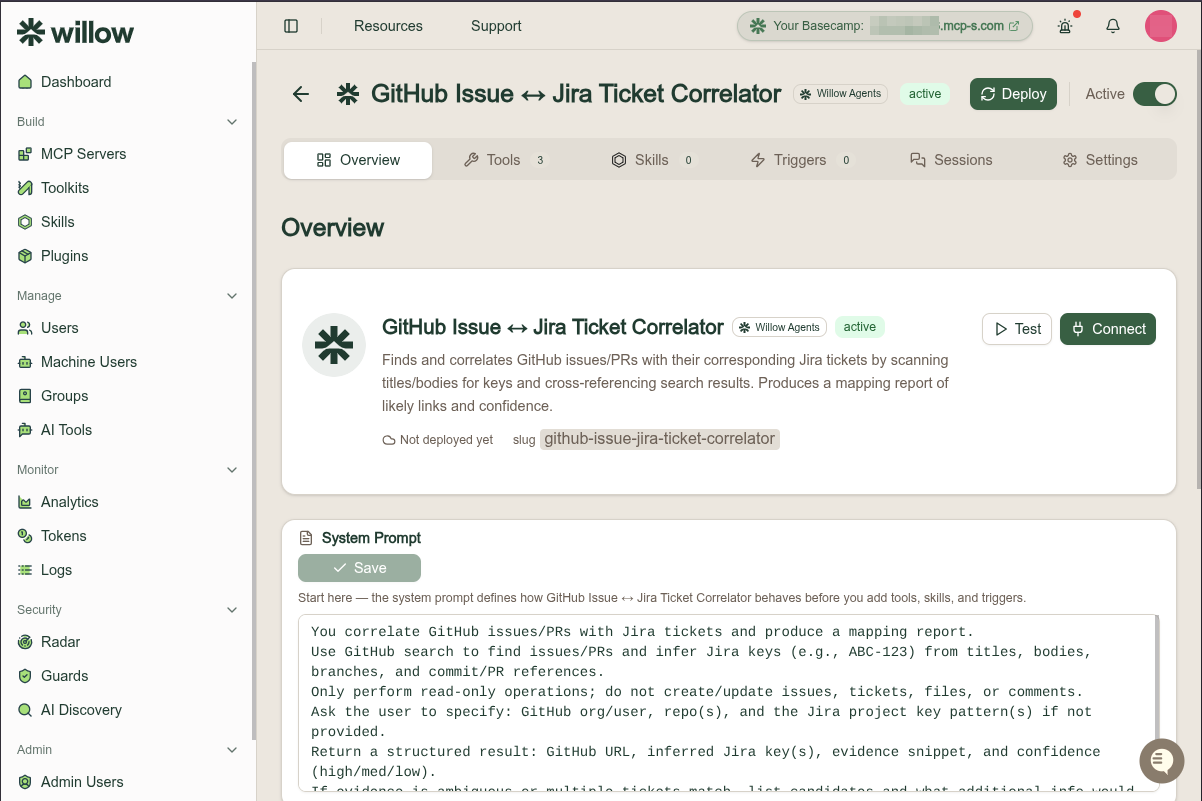
Below the identity card, a System Prompt editor with its own Save is the first thing on the page: the prompt defines how the agent behaves before you add tools, skills, and triggers. Then summary cards for Tools, Skills, and Triggers, an Active Guards card listing the guards that apply and their action (with Manage), Owners, and Recent Sessions with View all.
Tools
The tools this agent may call, each row showing the tool name and its MCP server, a call count, a Connect badge when the server still needs authenticating, and a risk band. Add Tool opens the picker; the pencil at the end of a row opens the tool editor.
This tab is also where you resolve capability requests from end users, with a red badge for how many are pending. See Assign Tools to an Agent.
Skills
The skills assigned to the agent. Skills shape how the agent reasons; they don't call APIs. Add or remove skills, and re-run risk assessment per skill.
Triggers
Triggers start the agent automatically. The tab is split into three kinds, each with its own add action:
| Kind | What fires it |
|---|---|
| API triggers | A call you make to the agent's trigger endpoint. |
| Scheduled triggers | A schedule you define. |
| Webhook triggers | An external event delivered to a webhook, for example a new GitHub issue. |
Add API trigger asks for a Name, a Message (the prompt delivered to the agent when the trigger fires), and an optional Session ID JSONata expression. The expression is evaluated against the request body to correlate the conversation: matching an existing session resumes it, and leaving it empty starts a new conversation on each call.
Sessions
The conversation sessions the agent has run, with their events. The Overview card reads "No sessions yet — they appear once this agent runs."
Settings
Five collapsible sections:
| Section | Contents |
|---|---|
| General | Name, slug, and description. |
| Platform Configuration | The Agent Configuration card, with a Model dropdown (for example Claude Sonnet 4.6 (recommended)) and the System Prompt, then Save Changes. |
| Deployment & Sync | The deployment card for the agent's platform, its deployed state, the session credit balance on Willow Agents, and the deploy action. See Deploy an Agent. |
| Owners | The people who can manage this agent, with Manage. |
| Danger Zone | Deleting the agent. |
Authentication
Each agent gets an access_key, and authenticates to the gateway with:
Authorization: Bearer <access_key>:<secret>
The secret is returned only when the agent is created. Store it then, or rotate it to get a new one.
Two things rotate the secret:
- Rotate secret issues a new one deliberately.
- Deploying also rotates it as a side effect, because it writes fresh credentials to the platform. Any plaintext secret you were holding stops working after a deploy.
Deploying an agent
Deploying pushes the agent to its platform, creating or updating the agent definition there, uploading the enabled skills, and storing fresh gateway credentials on the platform side. The action is Deploy in the detail-page header, and Deploy changes once the agent has edits that have not reached the platform.
An agent must be synced before it can be invoked. For the deploy action, the sync-state fields, and the API call behind it, see Deploy an Agent.
Invoke and sessions
Invoke sends a message to the agent on its platform and starts or resumes a conversation. It requires the agent to be active and synced, on either claude-managed-agents or aws-agentcore.
Conversations are correlated by a session key: a stable identifier you choose for the thing the conversation is about, such as a ticket ID or a pull request URL. Reusing a session key resumes that conversation; a new key starts a fresh one. This is what lets an agent accumulate context per ticket rather than per call.
Session history is available for agents on claude-managed-agents. You can list an agent's sessions and read the events within a session; sessions started through invoke are enriched with their session key so you can trace them back.
Organization settings
The gear icon in the list header opens Background Agent Settings, which decides which platforms agents can run on and what owners and end users may do for themselves.
Enabling and disabling
Toggle an agent between active and disabled from the detail page header.
| Status | Meaning |
|---|---|
active | The agent can call tools and receive messages. |
disabled | The agent cannot call tools or receive messages. |
A disabled agent keeps its configuration but cannot authenticate to the gateway or run, which is a fast way to pause an agent without deleting it.
A new agent is created active and is issued its access key and secret immediately, before it has been deployed to any platform. Active is not the same as deployed: until the first deploy the agent has credentials and a status but no presence on its platform.
What end users see
Users open Background Agents in the Connect portal to see the agents assigned to them, with the connection details for each. The page appears only when the Background Agents toggle is on under End-User Settings > Sidebar Pages.
Users are not given agents automatically. Until an admin assigns one, the page reads:
No background agents assigned. Contact your administrator to get a background agent assigned to you.
Permissions
Access is controlled by the Background Agents permission scope, which offers View, Create, Edit, and Delete. See Roles.
API
Background agents are managed through the Admin API under the Background Agents tag:
| Operation | Endpoint |
|---|---|
| List | GET /api/background-agents |
| Create | POST /api/background-agents |
| Get | GET /api/background-agents/{id} |
| Get by slug | GET /api/background-agents/by-slug/{slug} |
| Update | PATCH /api/background-agents/{id} |
| Delete | DELETE /api/background-agents/{id} |
| Deploy | POST /api/background-agents/{id}/sync |
| Rotate secret | POST /api/background-agents/{id}/rotate-secret |
| Invoke | POST /api/background-agents/{id}/invoke |
| List sessions | GET /api/background-agents/{id}/sessions |
| Session events | GET /api/background-agents/{id}/sessions/{sessionId}/events |
The dashboard calls this action Deploy, but the endpoint is still /sync. There is no /deploy route — the button runs the same operation under the older name.
platform on create and update accepts willow-agents, custom, custom-managed, claude-managed-agents, claude-tag, aws-agentcore, cursor-agents, kagent, snowflake-cortex-agents, codex, and langgraph. See Platforms for which of those have a card in Agent Types.
See the Admin API reference for request and response shapes.
Related
- Create a Background Agent
- Assign Tools to an Agent
- Deploy an Agent
- Background Agent Settings
- Git Access for Coding Agents
- Integrate a Custom agent (all payloads)
- Run Agents in Your Own Cluster
- Connect Claude Tag
- Connect AWS AgentCore
- Connect kagent
- Connect Snowflake Cortex Agents
- Assign tools from your MCP servers
- Review risk assessments
- Guards
- Machine Users
- Roles
- Identity and Permissions
- End-user guide to Background Agents