Manage Tools
The Tools tab lists every tool Willow discovered from an MCP server and is where you decide what end users can actually invoke through the gateway. An enabled tool is live; a disabled one is invisible to AI clients regardless of group membership. Before users can call anything, you need to sync tools from the upstream server and enable the ones you want to expose.
Prerequisites
You need:
- admin access to Willow
- an MCP server already added and authentication configured
Go to Build > MCP Servers. Open the three-dot menu on a server row and select Edit, or click anywhere on the row.
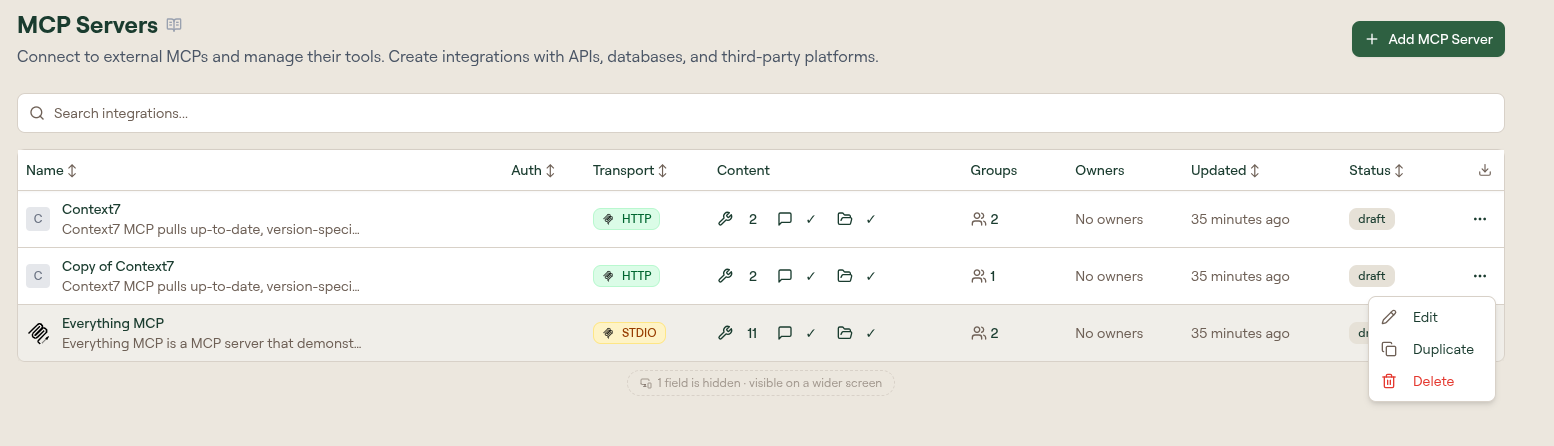
Then select the Tools tab from the server's edit page.
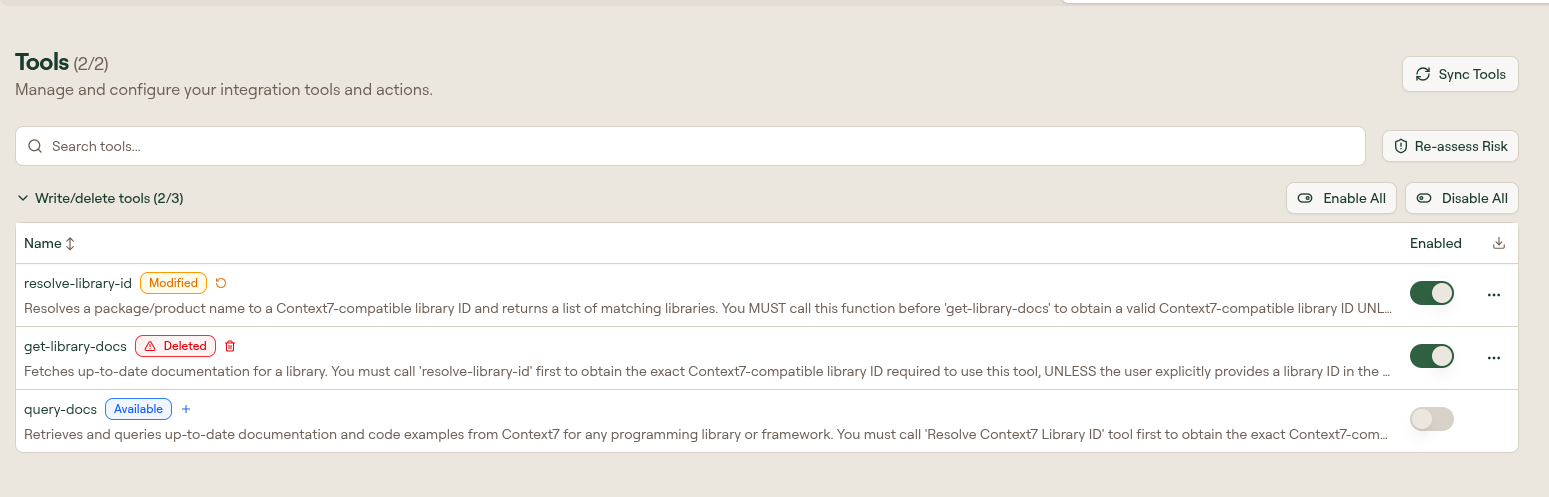
Sync tools
When you first add a server, the Tools tab is empty. Sync Tools reads the current tool list from the upstream MCP server and populates the tab. Run it again whenever the upstream server adds, renames, or removes tools.
Select Sync Tools when:
- the table is empty after adding a server
- the upstream MCP server added or renamed tools
- a tool call fails with "tool not found" in logs
After syncing, confirm the expected tools appear before enabling them for users.
Enable and disable tools
Each tool row has an enable toggle. Disabled tools are not exposed to AI clients through the gateway.
Tools are grouped by risk category into Read-only tools and Write/delete tools. Each group is collapsible, carries its own enabled-of-total count (for example Read-only tools (19/20)), and has its own Enable All and Disable All controls, so you can selectively expose read-only tools while keeping write-heavy ones off until you're confident in access controls, logging, and guard behavior.
Tool states
As you sync, edit, or remove tools, row badges track each tool's relationship to the upstream definition.
| Badge | Meaning |
|---|---|
| Available | Matches the upstream tool definition. |
| Modified | The tool schema or mapping was edited in Willow. |
| Deleted | The tool no longer exists upstream but remains listed until removed or reset. |
Use Reset to default from the row menu to restore a modified tool to its upstream definition.
Require approval for a tool
Some tools are too consequential to run without a human review. Marking a tool as requiring approval adds a confirmation step before the AI client can invoke it.
- Open the row menu for a tool.
- Select Require approval.
The row shows an Approval Required badge. The menu action changes to Remove approval requirement when approval is already enabled.
Approval applies to every call to the tool. When only some invocations are consequential — a specific Slack channel, a labeled Drive file, a restricted Jira project — gate those instead with Conditions.
Test a tool
Before rolling out a new MCP server to users, run a test call to confirm end-to-end connectivity: from Willow's gateway through authentication to the upstream server and back.
- Open the row menu for a low-risk tool.
- Select Test Tool.
- Enter the smallest valid arguments in the JSON editor.
- Select Run test.
- Read the result panel for structured output or an error.
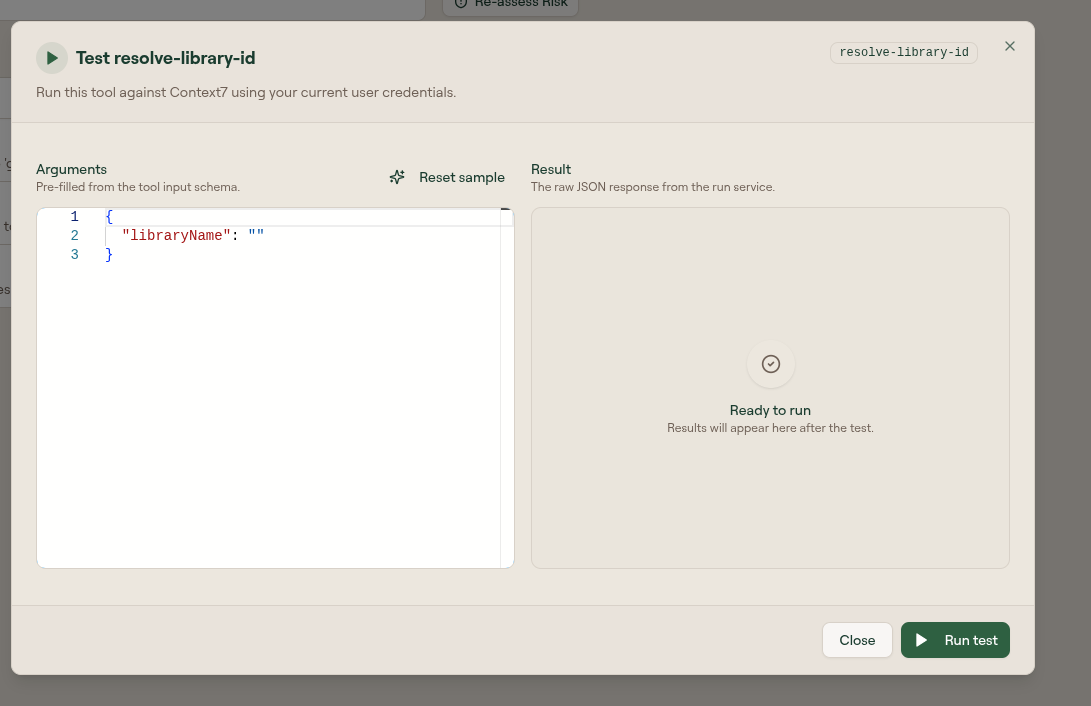
After running, the result panel shows the raw JSON response from the upstream server.
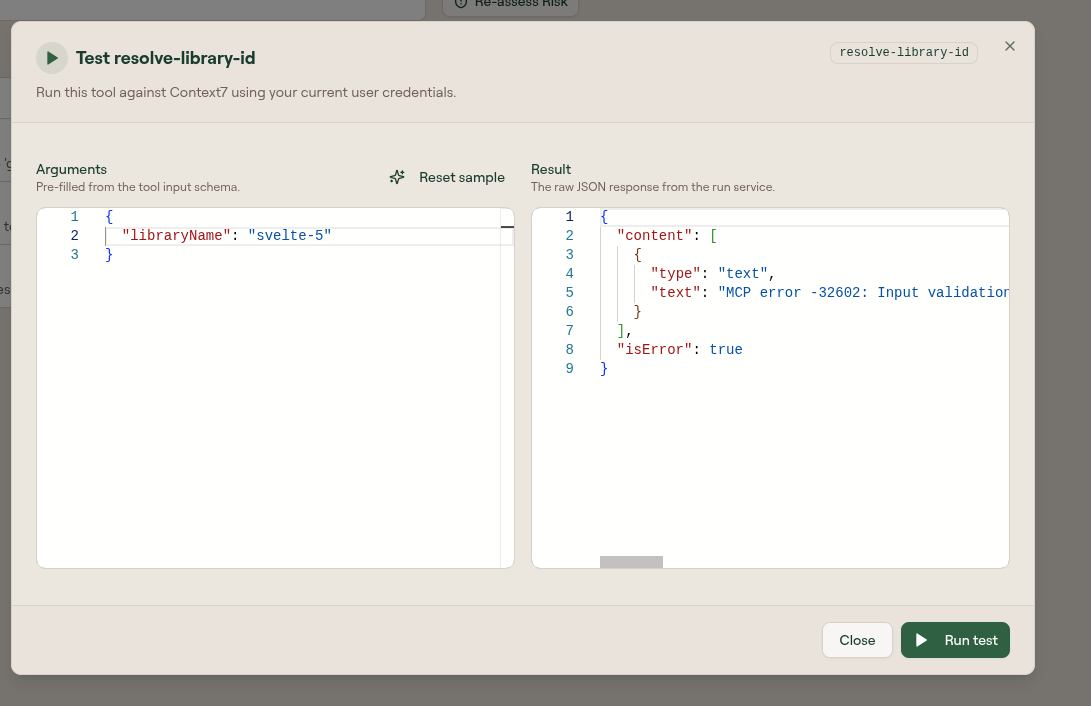
If the test fails, the error message in the result panel usually points directly at the cause:
| Error type | Check |
|---|---|
| Missing or invalid arguments | Adjust the test input to match the tool schema. |
| Authentication error | Return to Configure MCP Server Authentication. |
| Upstream connection error | Check MCP configuration, base URL, transport, and network reachability. |
| Missing tool | Run Sync Tools again. |
Edit a tool
Willow lets you override a tool's name, description, schema, and mapping without touching the upstream server. This is useful for tightening an overly permissive schema, renaming a tool to match your internal naming conventions, or adding an annotation that affects guard behavior.
Open the row menu and select Edit to open the tool's full edit page.
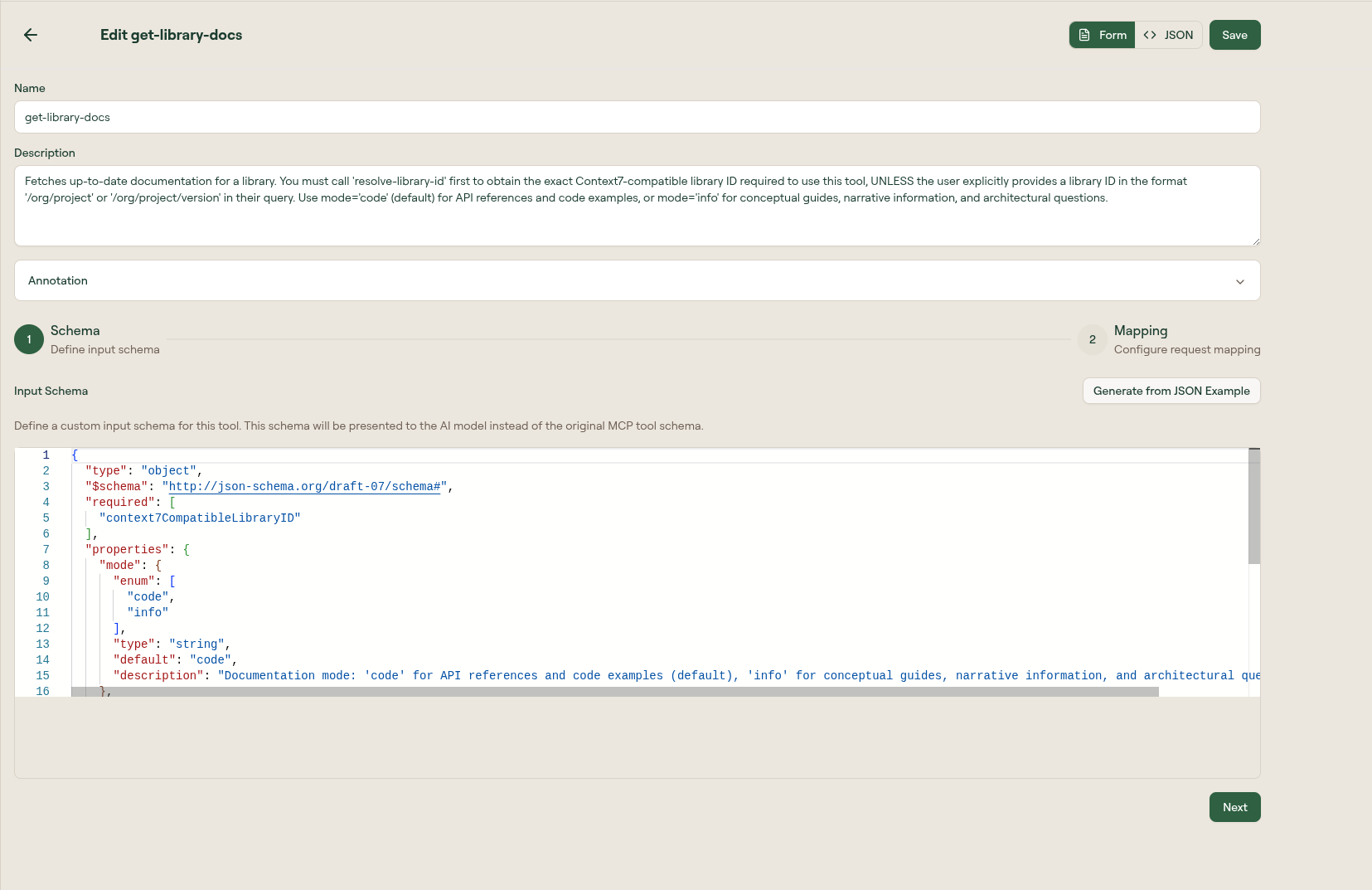
The editor has two steps. In Schema (step 1), edit the Input Schema JSON that defines what arguments the tool accepts. Select Next to advance to Mapping (step 2), where you configure how Willow transforms arguments before forwarding the call upstream. Switch between Form and JSON mode at any time using the toggle at the top. Expand Annotation to adjust tool annotation settings. Use ← Back to return to the Tools tab without saving, or Save to commit your changes.
Editing a tool marks it as Modified in the tool list. For field-level detail, see MCP Server Settings Reference.
Re-assess risk
Use Re-assess Risk on the Tools tab or from an individual tool's row menu to refresh risk scoring. Risk bands affect which tool group a tool appears in and can influence guard rules. If no visible change appears after running re-assess, the action may still have completed in the background. Check the tool's group assignment in the table.