MCP Server Settings Reference
Complete field reference for all six tabs on the MCP server edit page. For task-oriented walkthroughs, see Configure MCP Server Authentication and Manage Tools.
Open a server from Build > MCP Servers by clicking a row or selecting Edit from the row menu. The edit page header shows the server name and a draft or active status badge. A Publish button sits above the tabs and is always visible regardless of which tab is open — selecting it changes a draft server to active and makes it accessible through the gateway.
Overview tab
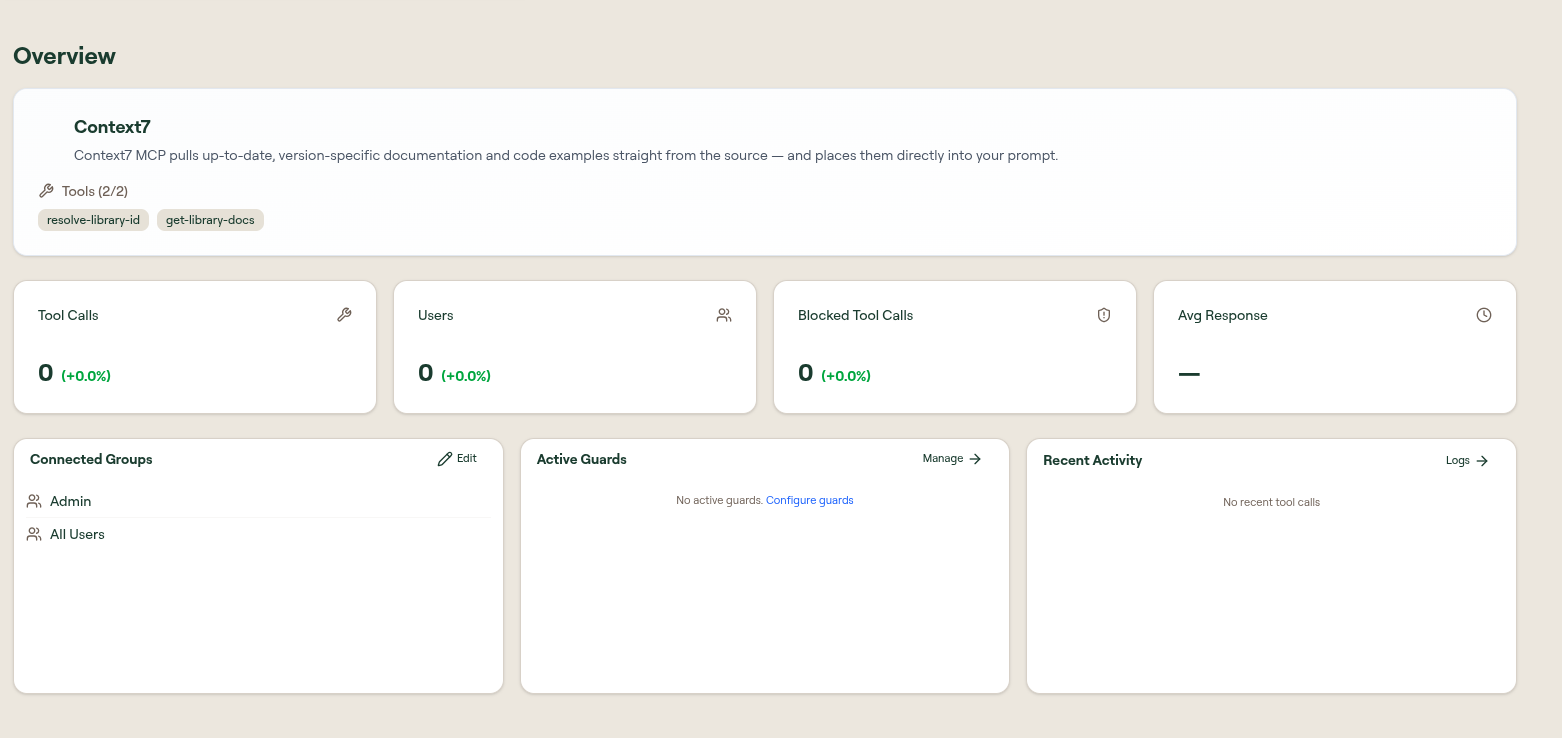
The Overview tab summarizes the MCP server and its runtime posture.
| Area | Description |
|---|---|
| Name and description | Display name and short description shown in the dashboard. |
| Tools | Count and list of discovered tools synced from the upstream server. |
| Risk Assessment | Overall risk score and band, an AI summary, and the Authentication, Tools, and Guards dimensions. See Risk Assessment. |
| Metric cards | Tool Calls, Users, Blocked Tool Calls, and Avg Response for this server. |
| Connected Groups | Groups whose members can access this server through the gateway. Select Edit to change assignments. |
| Active Guards | Runtime guards applied to this server. Manage opens guard configuration. |
| Recent Activity | Recent tool calls for this server. Logs opens the full log view. |
Ownership and connected groups control dashboard responsibility and runtime access respectively. Admin permissions alone do not grant gateway access. See Identity and Permissions and Groups.
Setup tab
The Setup tab configures upstream authentication and connector-specific connection steps.
Which authentication modes appear depends on how the server was added, in the same way the Settings tab sections do. The proxy modes and the connector modes never appear together, so a mode named on one is not available on the other.
A server with Built-In transport is a Willow connector, and Willow owns its upstream configuration. Most connectors to a named service offer:
| Mode | Description |
|---|---|
| Instant OAuth | Willow's pre-configured app for that service. The fastest setup, and it needs no credentials of your own. |
| OAuth | Users authorize through a browser redirect. Takes a Client ID, Client Secret, and Scopes; Willow generates the Redirect URL for you to register with the provider. |
| API Key | One shared key managed by the admin. Takes an optional API key expiration date, which raises an alert as the date approaches so the key can be rotated in time. |
| API Key Per User | Each user supplies their own key. Takes a markdown block, How to find API Key, that is shown to users when they configure the integration. |
| None | No authentication required. |
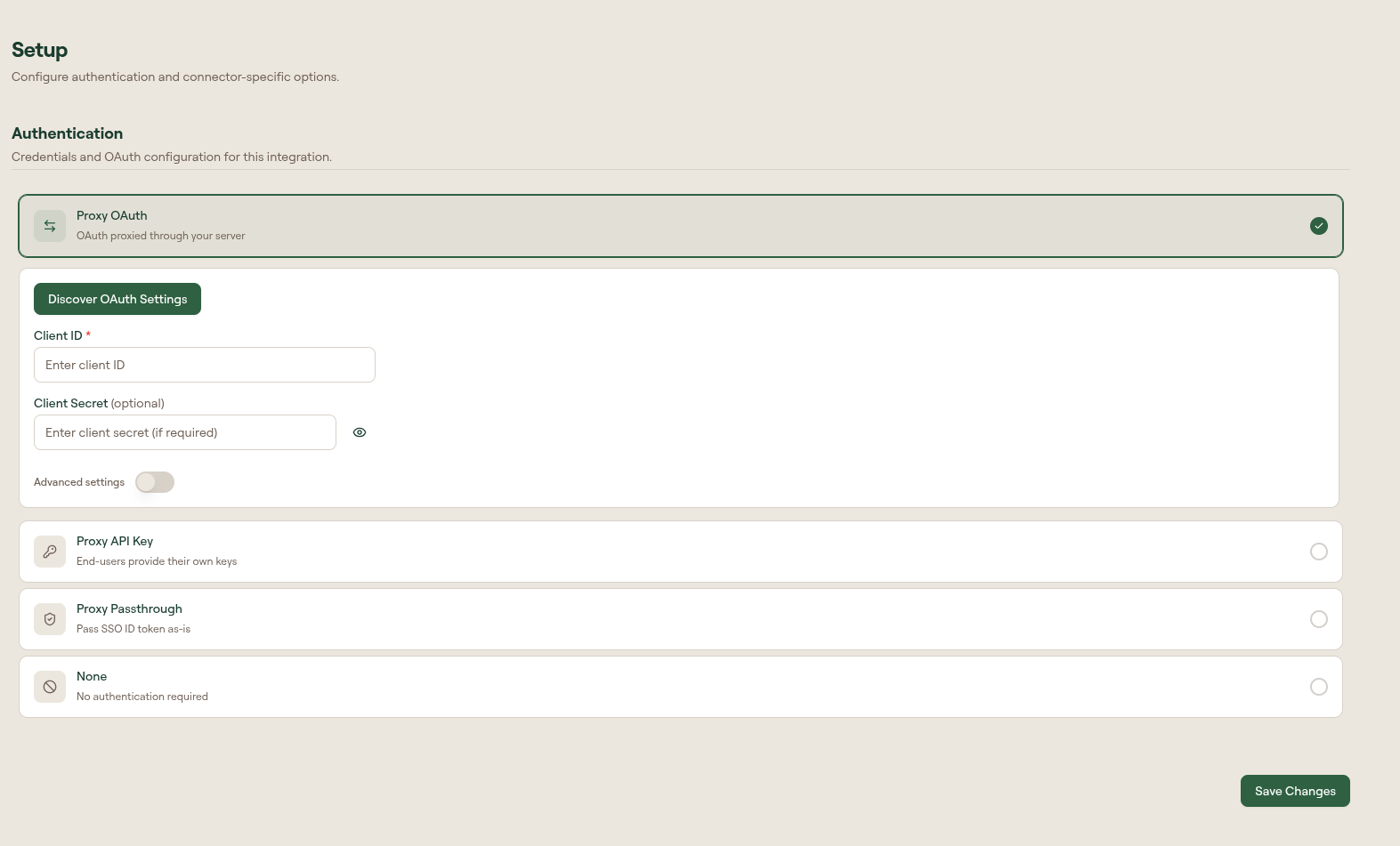
A server you configured yourself, on HTTP or STDIO transport, proxies the caller's credential instead:
| Mode | Description |
|---|---|
| Proxy OAuth | OAuth proxied through your server. |
| Proxy API Key | End users provide their own keys. |
| Proxy Client Credentials | A server-to-server token minted for the proxied MCP, the same for every caller. Takes a Token URL, Scopes, and whether to send credentials as a JSON body. |
| Proxy Passthrough | The caller's SSO ID token is passed as-is. |
| None | No authentication required. |
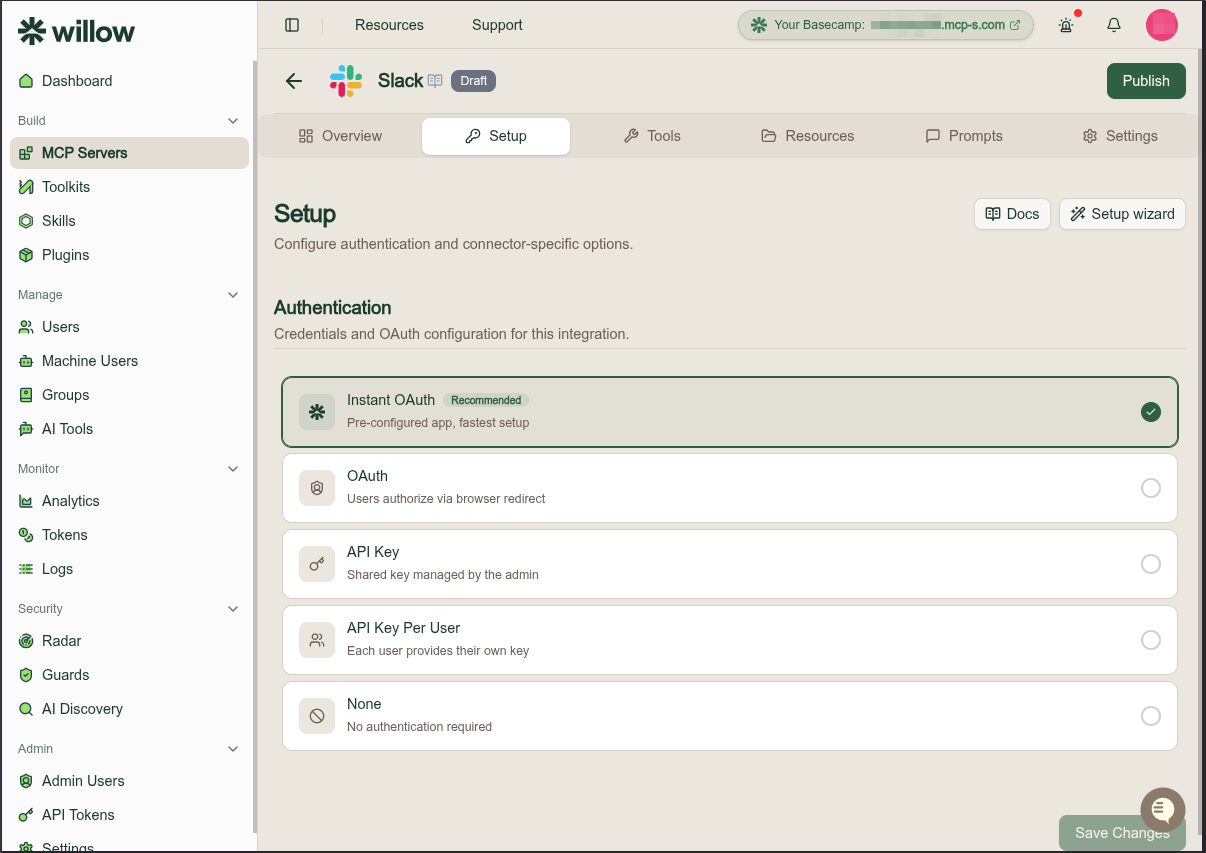
The set varies by connector. Instant OAuth requires a pre-registered Willow app for that service, so the generic MCP from API connector offers API Key, Client Credentials, API Key Per User, and None instead. Read the Setup tab of the server in front of you rather than assuming the table above.
| Field / area | Description |
|---|---|
| Setup wizard | Opens a short guided flow that asks how you want to authenticate and fills in the matching mode. Available on Willow connectors. |
| Docs | Opens the connector's documentation page. |
| Run / test area | Connector-specific area for validating configuration after save. |
See Configure MCP Server Authentication for setup steps for each mode, and for what each proxy mode forwards to the upstream server.
Tools tab
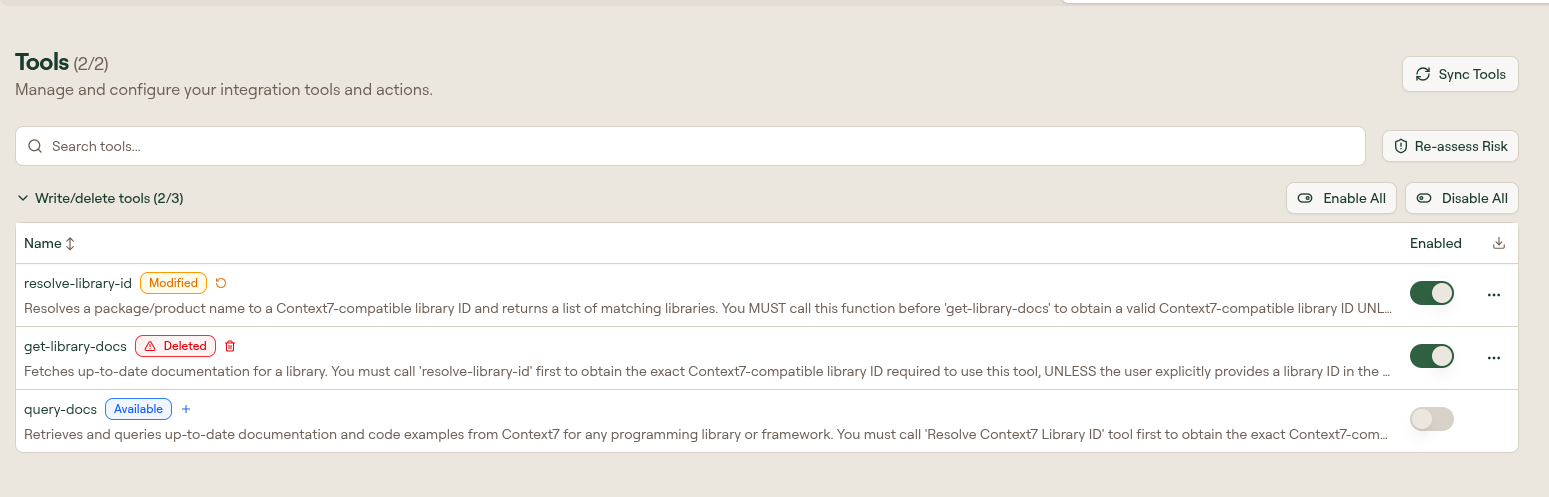
The Tools tab lists tools discovered from the upstream MCP server.
| Control | Description |
|---|---|
| Search tools | Filter the tool list by name. |
| Sync Tools | Re-read tools from the upstream MCP server. |
| Re-assess Risk | Refresh risk scoring for tools on this server. |
| Enable All / Disable All | Bulk enable or disable tools for gateway access. These sit on each risk-category group header, so they act on Read-only tools or Write/delete tools separately rather than the whole list. |
| Per-tool toggle | Enable or disable an individual tool. |
| Row menu | Test Tool, Edit, Require approval, Re-assess risk, Reset to default, Remove. |
| Tool editor | Opens a full edit page. Form or JSON mode toggle at the top. Fields: Name, Description, Annotation (collapsible), Schema (step 1, Input Schema JSON editor), Mapping (step 2). Use Next to advance steps. ← Back and Save at the top. |
See Manage Tools for task-oriented instructions.
Resources tab
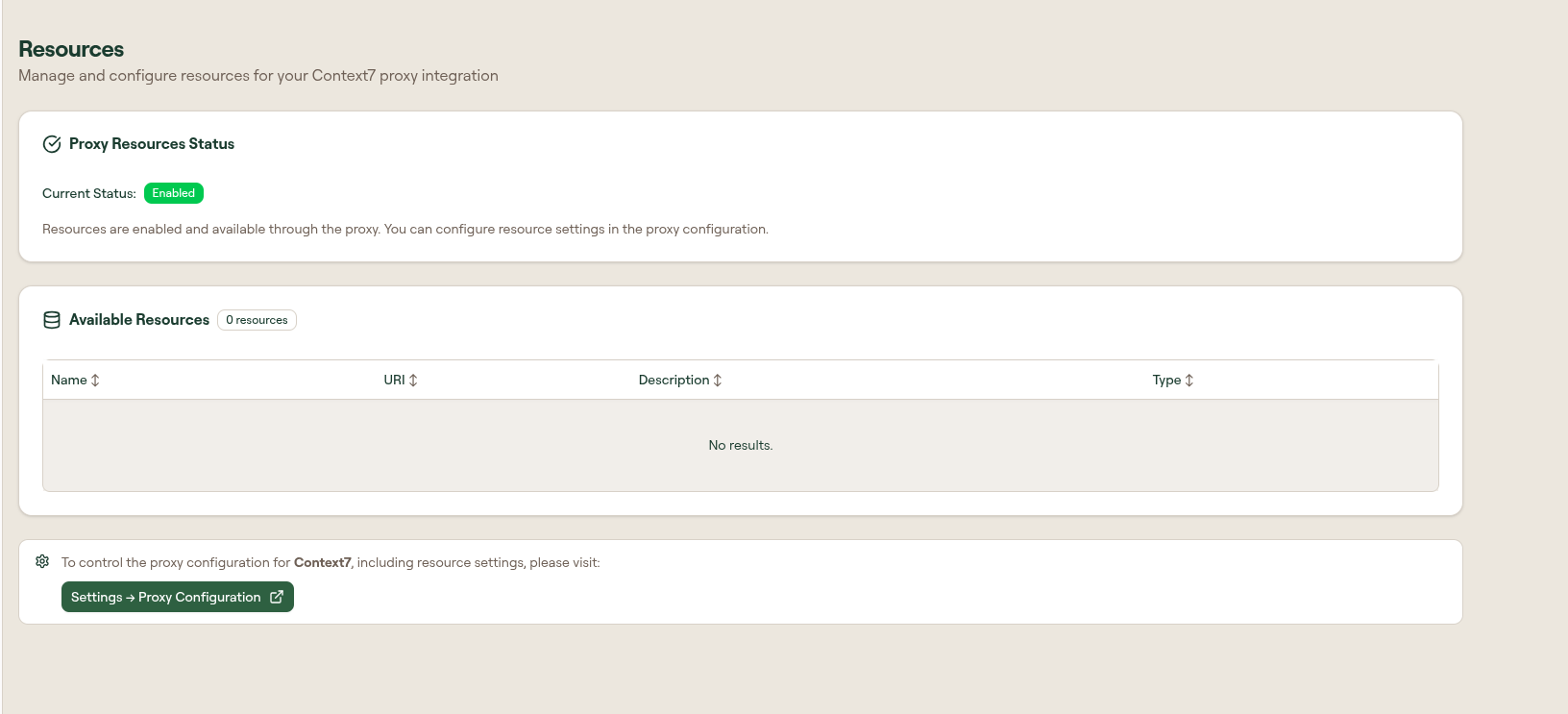
The Resources tab shows MCP resources exposed through the Willow proxy.
| Field | Description |
|---|---|
| Proxy Resources Status | Whether resources are enabled for this integration. |
| Available Resources | Table of resources discovered from the upstream server. |
| Settings → Proxy Configuration | Link to enable or disable resources in proxy settings. |
If resources are enabled but the table is empty, the upstream server did not expose any resources.
Prompts tab
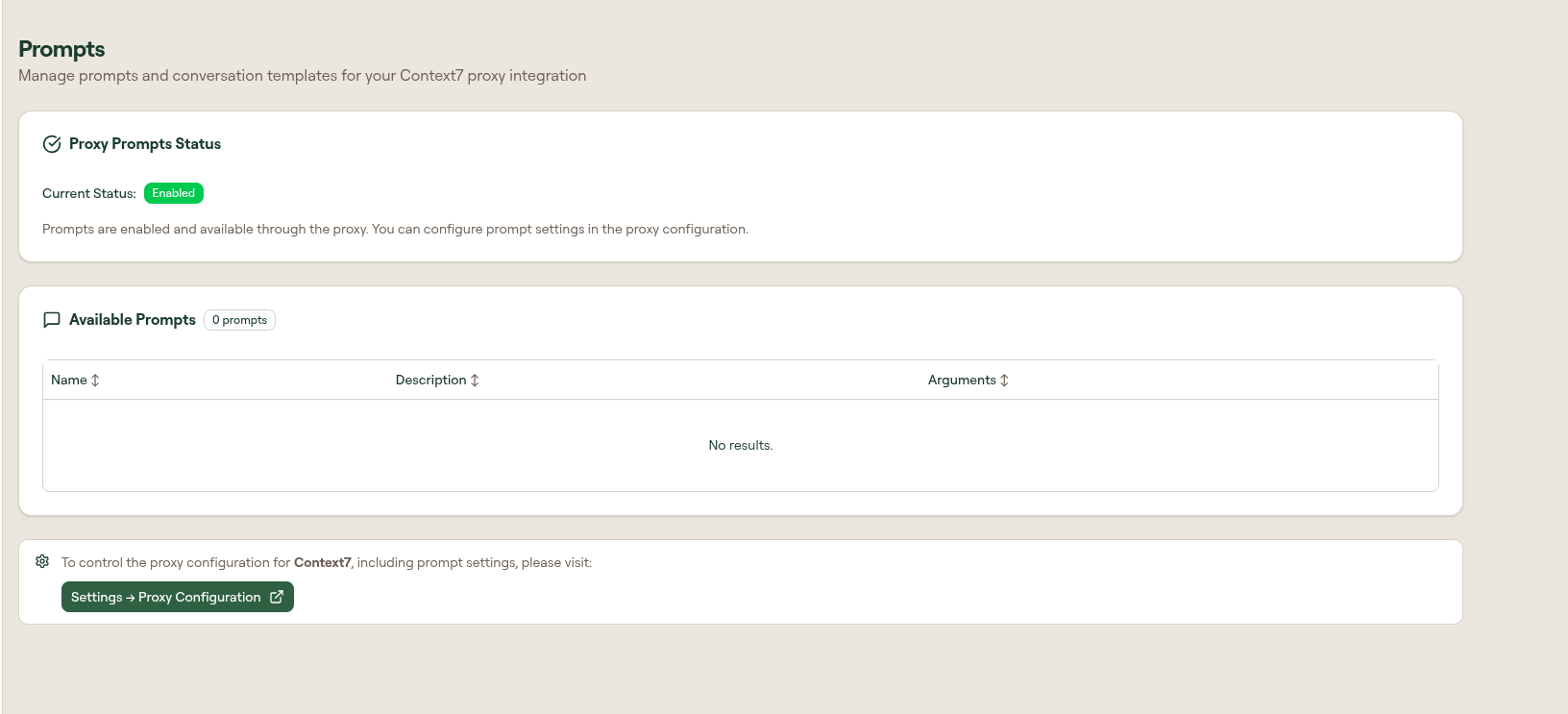
The Prompts tab mirrors Resources for MCP prompts and conversation templates.
| Field | Description |
|---|---|
| Proxy Prompts Status | Whether prompts are enabled for this integration. |
| Available Prompts | Table of prompts discovered from the upstream server. |
| Settings → Proxy Configuration | Link to enable or disable prompts in proxy settings. |
Settings tab
The Settings tab is split into collapsible sections.
Which sections appear depends on how the server was added. A server with Built-in transport is a Willow connector, and Willow owns its upstream configuration, so it shows General Settings, Request Settings, Allowed AI Tools, Metadata, and Danger Zone. A server you configured yourself, on HTTP or STDIO, additionally shows MCP Configuration and Proxy Configuration.
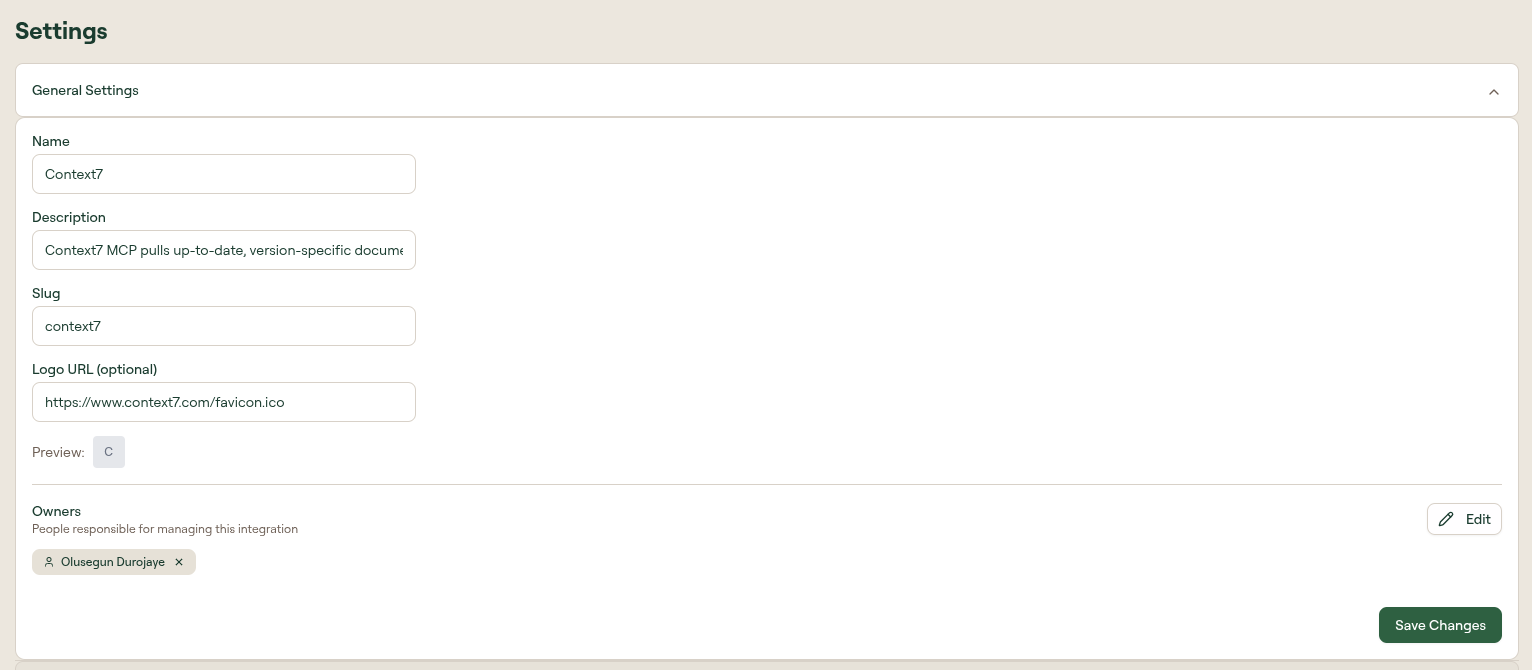
General Settings
| Field | Description |
|---|---|
| Name | Display name shown in the MCP Servers table and edit page header. |
| Description | Optional description of the server's purpose. |
| Slug | URL-friendly identifier used in MCP URLs and API references. |
| Logo URL | Optional image URL. A preview renders when the URL is valid. |
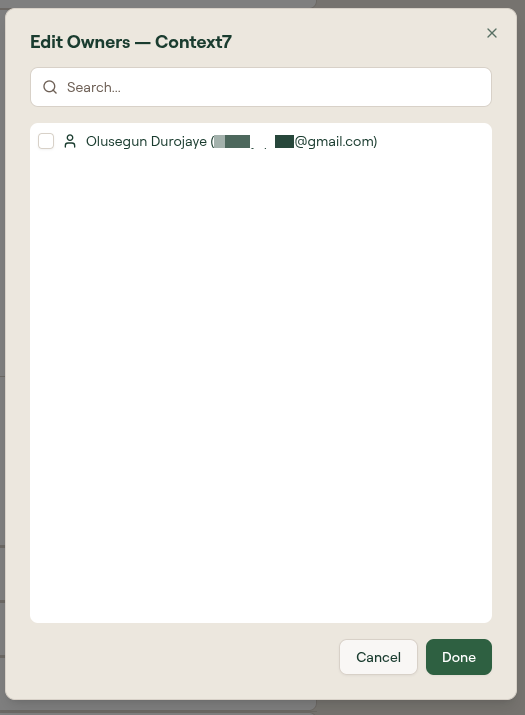
| Owners | Admins responsible for this server. Select Edit to search and assign owners. |
| Save Changes | Saves general settings. |
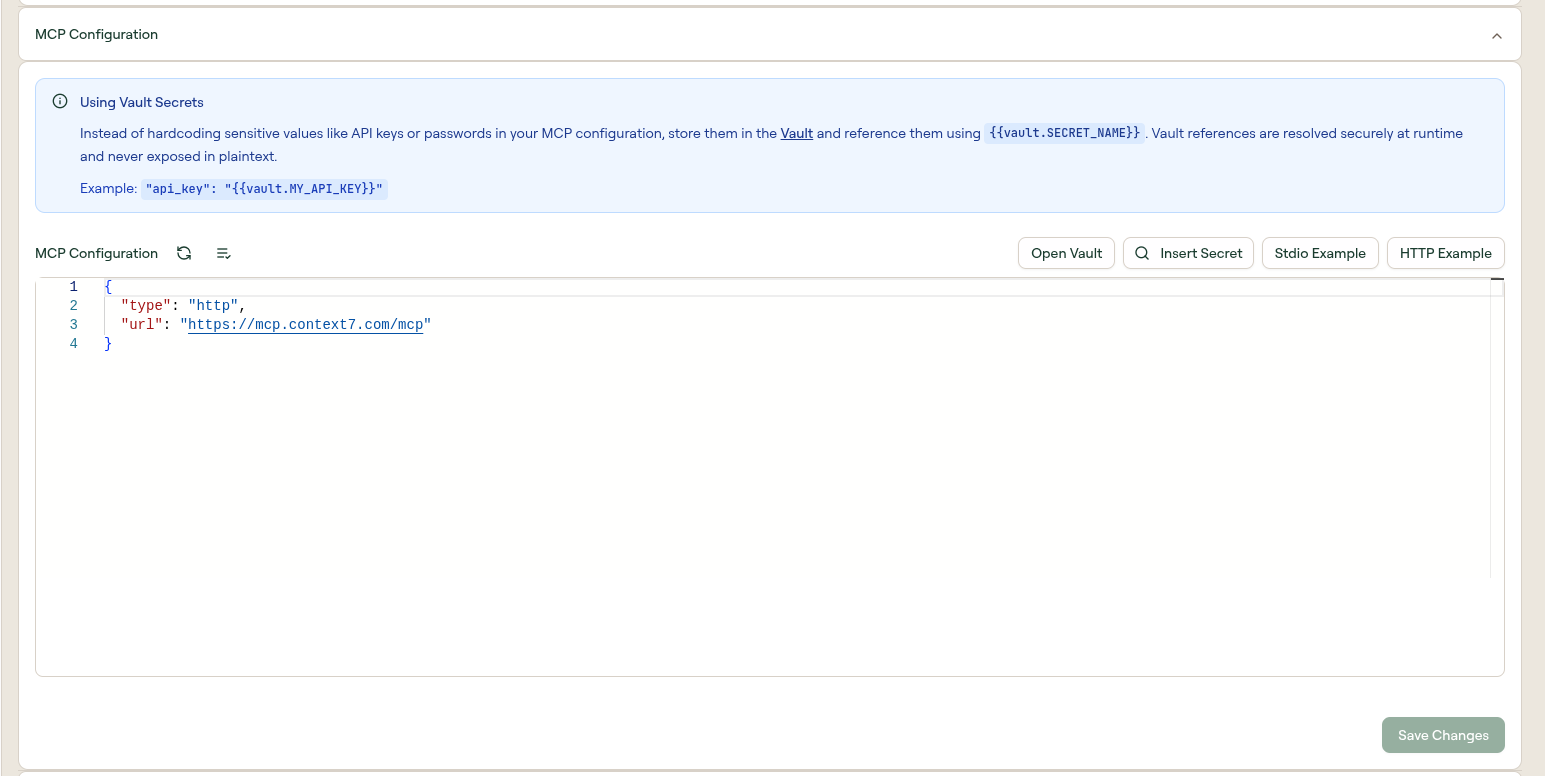
MCP Configuration
JSON editor for the upstream MCP server configuration.
| Control | Description |
|---|---|
| Vault syntax | Reference secrets as {{vault.SECRET_NAME}}. Vault references are resolved securely at runtime and never exposed in plaintext. |
| Open Vault | Opens the vault to manage secrets. |
| Insert Secret | Search and insert a vault placeholder into the JSON editor. |
| Stdio Example / HTTP Example | Insert sample configuration snippets. |
| Lint / Validate | Toolbar actions to check configuration syntax. |
| Save Changes | Saves the MCP configuration. |
See Vault for secret management.
Proxy Configuration
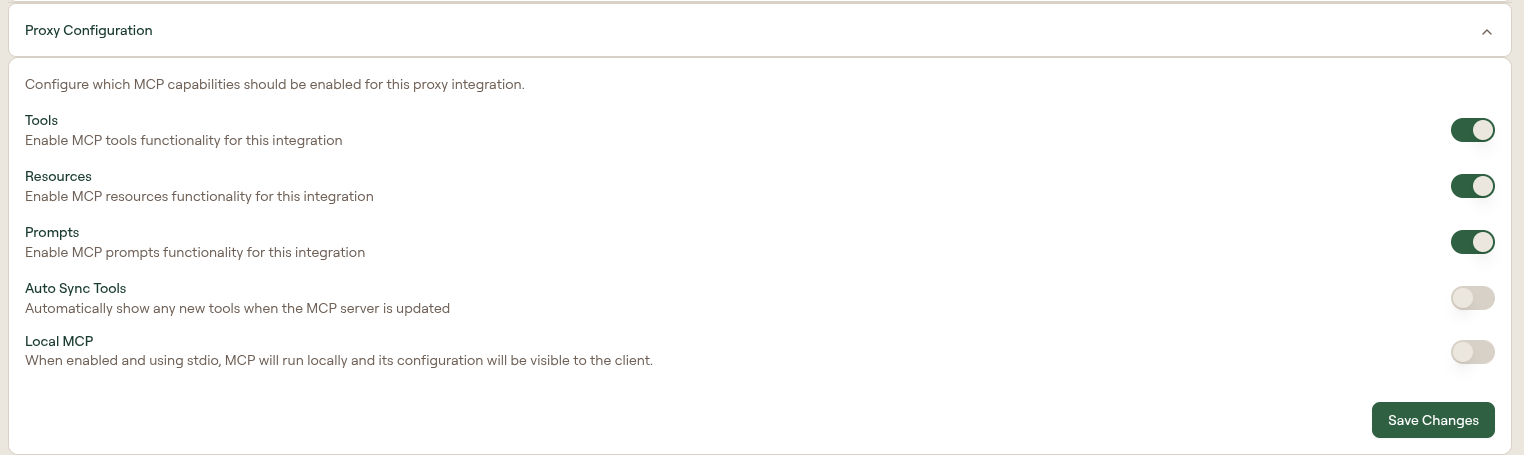
Controls which MCP capabilities Willow proxies for this server.
| Toggle | Description |
|---|---|
| Tools | Enable MCP tools for this integration. |
| Resources | Enable MCP resources for this integration. |
| Prompts | Enable MCP prompts for this integration. |
| Auto Sync Tools | Automatically add new tools when the upstream server is updated. |
| Local MCP | When enabled with STDIO transport, MCP runs locally and its configuration is visible to the client. |
Request Settings
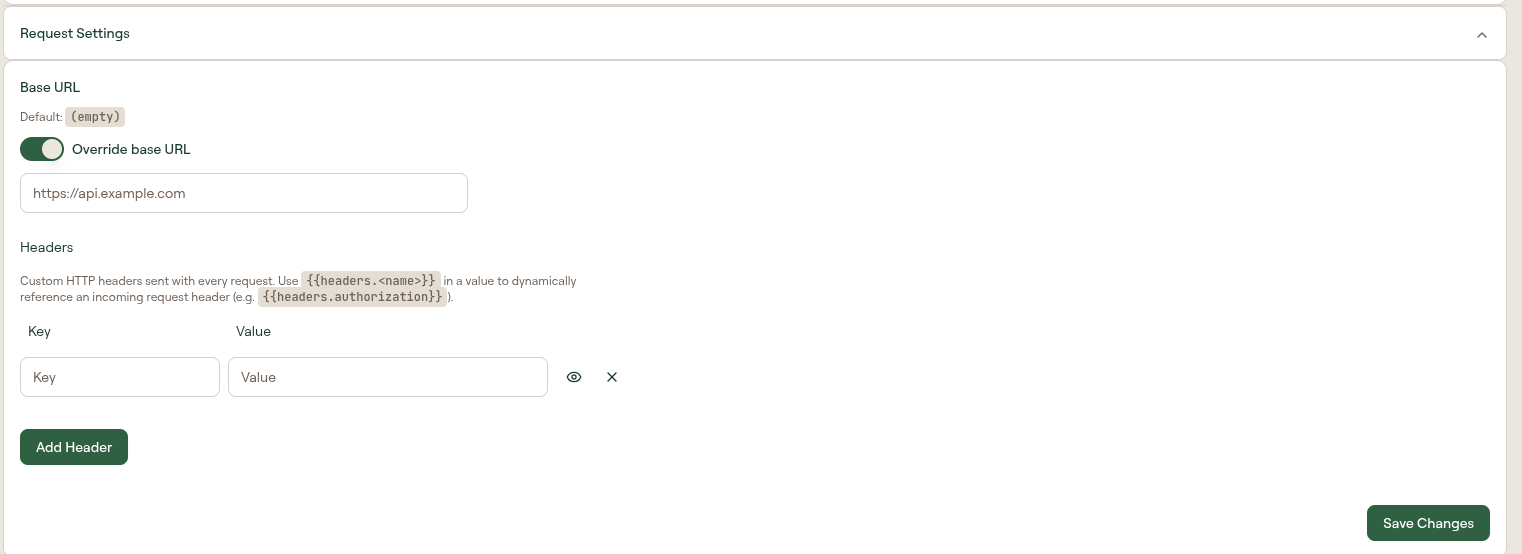
Advanced HTTP request configuration for the proxy.
| Field | Description |
|---|---|
| Override base URL | When enabled, replaces the base URL used for upstream requests. |
| Base URL | Shown when override is enabled. Default is empty. |
| Headers | Key-value header pairs added to every upstream request. Use Add Header for multiple entries. In header values, use {{headers.<name>}} to dynamically reference an incoming request header (for example, {{headers.authorization}}). |
| Save Changes | Saves request settings. |
Allowed AI Tools
By default this MCP server is served to every approved AI tool. Restrict it to hide its tools from — and reject its tool calls made by — any other AI tool.
| Field | Description |
|---|---|
| Restrict to specific AI tools | When on, only the AI tools you select below can see this MCP server. Leave off to keep the server available to all approved AI tools. |
| AI tool list | Enabled tools from AI Tools. Select at least one, then Save Changes. A tool that was allowed here and later disabled or removed stays listed so you can clear it. |
See AI Tools to add or enable the clients that appear in this list.
Connect
Appears only when the integration's effective run gateway is external (a hybrid / on-prem gateway you host).
| Toggle | Description |
|---|---|
| Handle OAuth on the run gateway | When on, the OAuth connect flow for this integration is served by your own run gateway instead of the Willow SaaS connect service. The authorization-code exchange and token encryption happen inside your infrastructure, and credentials are stored encrypted with your gateway's key. |
See On-Prem OAuth (Run-Hosted Connect) for when to use it, prerequisites, and the required run gateway environment (including KMS_KEY_ID).
Metadata
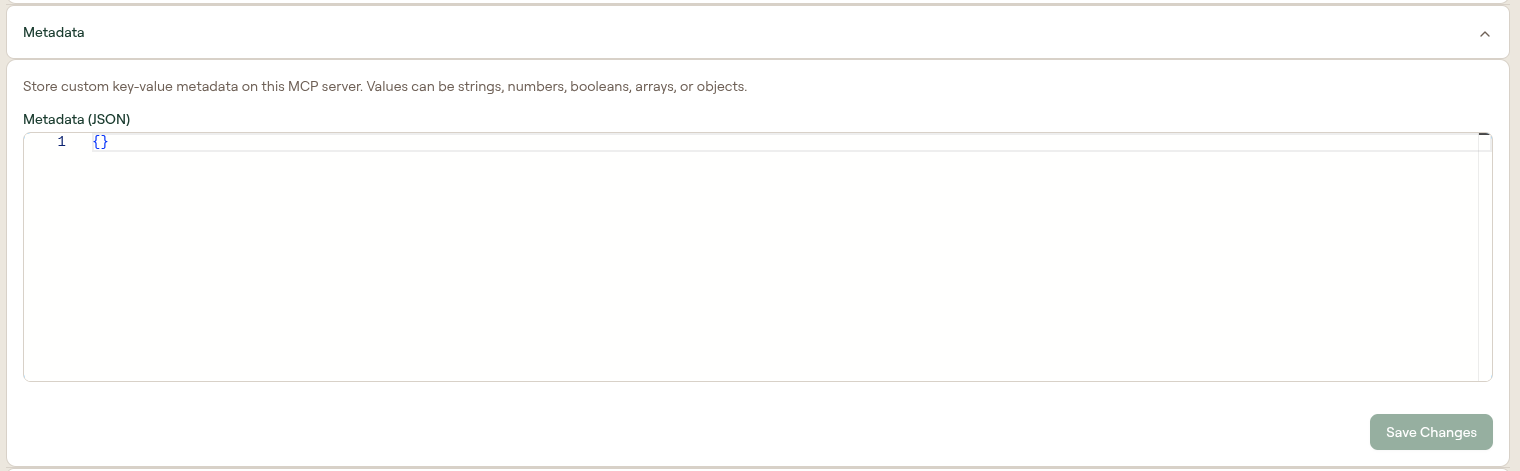
Custom key-value metadata for the MCP server. Accepts strings, numbers, booleans, arrays, and objects in a JSON-style editor.
Danger Zone
| Action | Description |
|---|---|
| Delete MCP | Permanently deletes the MCP server. The label reads "Once you delete an mcp, there is no going back. Please be certain." This action cannot be undone. |

Deleting from the list page row menu opens a separate confirmation dialog titled Delete Integration.
Related
- MCP Servers — list page reference
- Add an MCP Server
- Configure MCP Server Authentication
- Manage Tools