Configure MCP Server Authentication
The Setup tab on an MCP server edit page controls how Willow authenticates to the upstream MCP server on behalf of the caller. Choose it before syncing tools. Authentication errors during a tool test almost always trace back to a mismatched or missing auth configuration.
Prerequisites
You need:
- admin access to Willow
- an MCP server already added to your organization
Go to Build > MCP Servers, click the server row to open its edit page, then select the Setup tab.
Which modes you see
The Setup tab does not offer the same modes on every server. Check the Transport column of the MCP Servers table:
| Transport | Modes |
|---|---|
Built-In | Instant OAuth, OAuth, API Key, API Key Per User, None |
HTTP or STDIO | Proxy OAuth, Proxy API Key, Proxy Client Credentials, Proxy Passthrough, None |
The Built-In row is the common case rather than a guarantee, because a connector only offers what its service supports. The Setup tab of the server in front of you is the authority. For why the sets differ, see Authentication: Connector vs Proxy Modes.
Willow connector authentication
Connectors authenticate against a service Willow already knows, so the modes describe whose credential reaches that service rather than how a token is proxied.
| Mode | Use when |
|---|---|
| Instant OAuth | You want the fastest setup. Willow uses its own pre-configured app for the service, so you supply no credentials. |
| OAuth | You want users to authorize through your organization's own OAuth app rather than Willow's. |
| API Key | One key serves everyone, and you manage it centrally. |
| API Key Per User | Each user supplies their own key, so calls are attributable to individuals. |
| None | The service needs no authentication. |
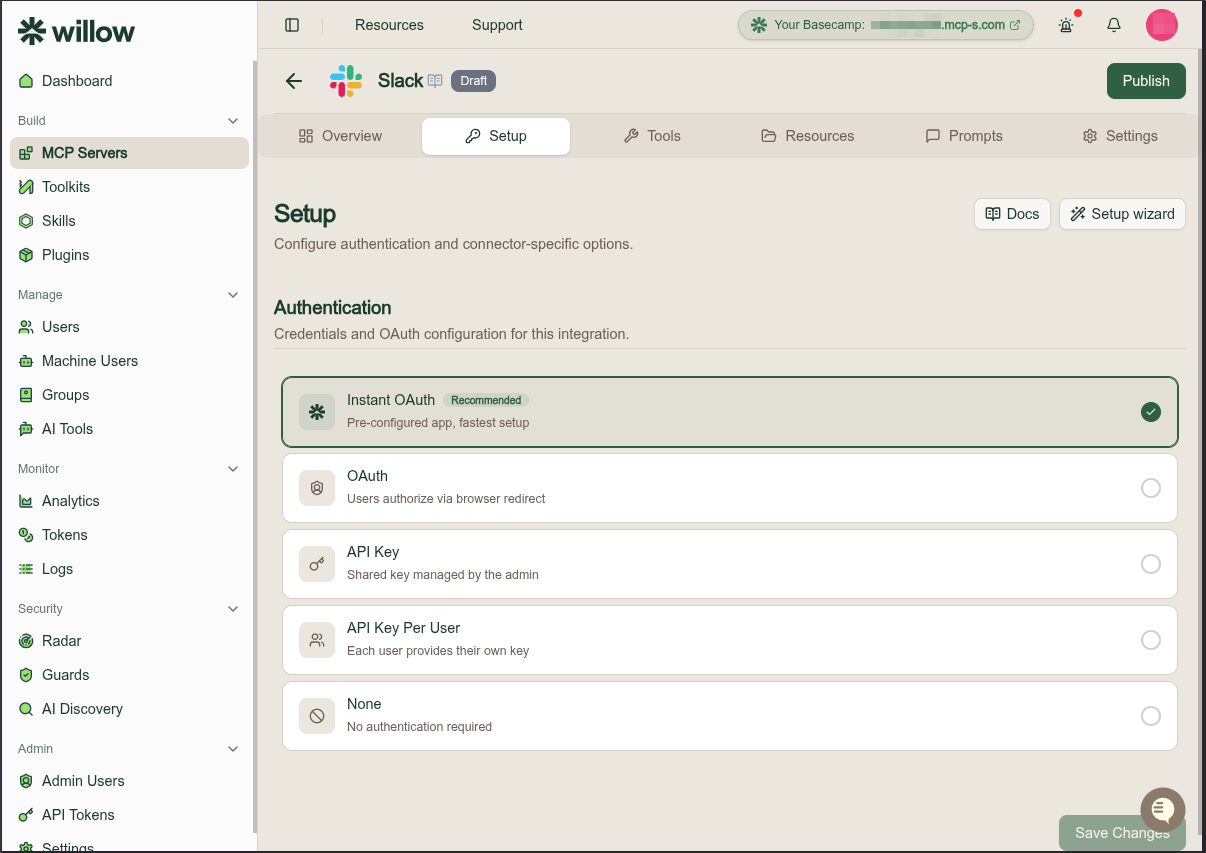
Two buttons sit above the options. Docs opens the connector's own documentation page. Setup wizard opens a short guided flow, described below.
Instant OAuth
Select Instant OAuth and save. There is nothing to configure: Willow's app for that service handles the authorization, and each user authorizes when they first connect.
Some connectors need one identifying detail even in this mode, such as your Bitbucket workspace slug. The connector's own page says so when that applies. Instant OAuth is also not offered for every connector — services that scope an OAuth application to a single tenant, such as Okta, require your own app. See Connectors.
OAuth
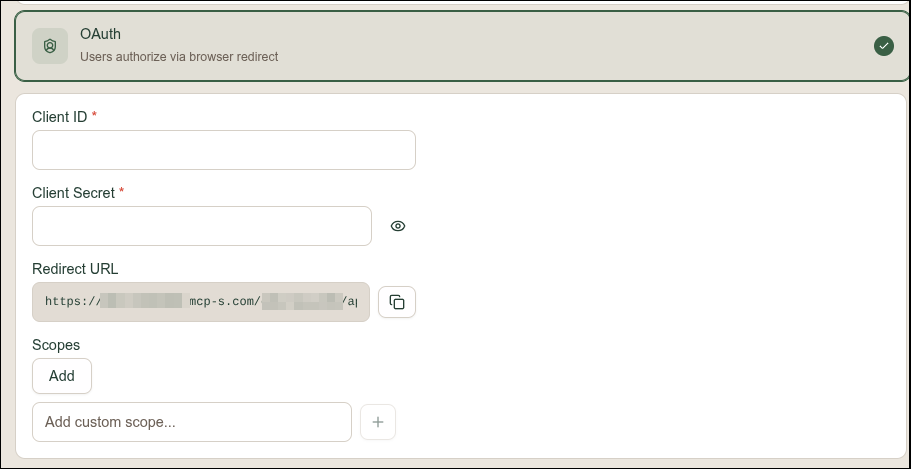
Use your own OAuth application when you need the consent screen, scopes, or audit trail to belong to your organization.
- Select OAuth.
- Copy the Redirect URL that Willow generates and register it with your OAuth provider as an allowed callback.
- Paste the Client ID and Client Secret from your OAuth application. Both are required.
- Add any Scopes the service needs. Use Add for a suggested scope, or type one into the custom scope field.
- Select Save Changes.
API Key
One key, managed by you, used for every caller.
- Select API Key.
- Paste the key into API Key.
- Optionally set an API key expiration date. Willow raises an alert as the date approaches so the key can be rotated before it lapses.
- Select Save Changes.
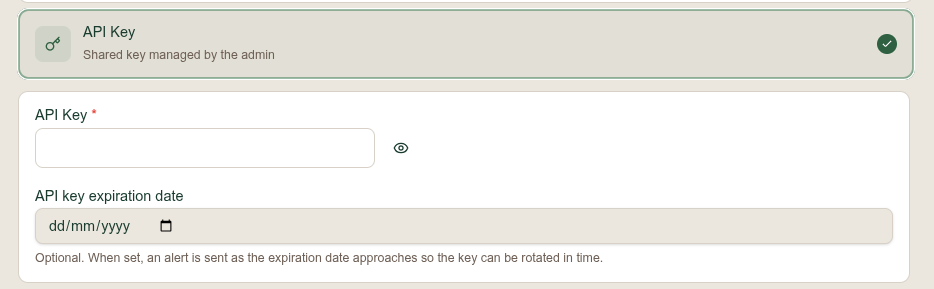
Because every call carries the same key, the upstream service cannot tell your users apart. Use API Key Per User when you need per-person attribution.
API Key Per User
Each user supplies their own key the first time they connect.
- Select API Key Per User.
- Fill in How to find API Key, a markdown block telling users where to generate their key in the upstream service. This is shown to them at connection time, so name the exact page and any scopes the key needs.
- Select Save Changes.
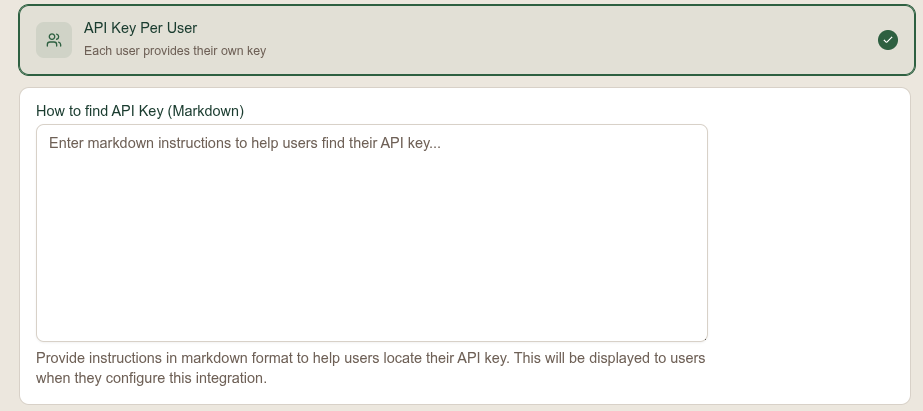
Users who have not supplied a key cannot call the server's tools. Leaving the instructions blank is the most common reason they get stuck.
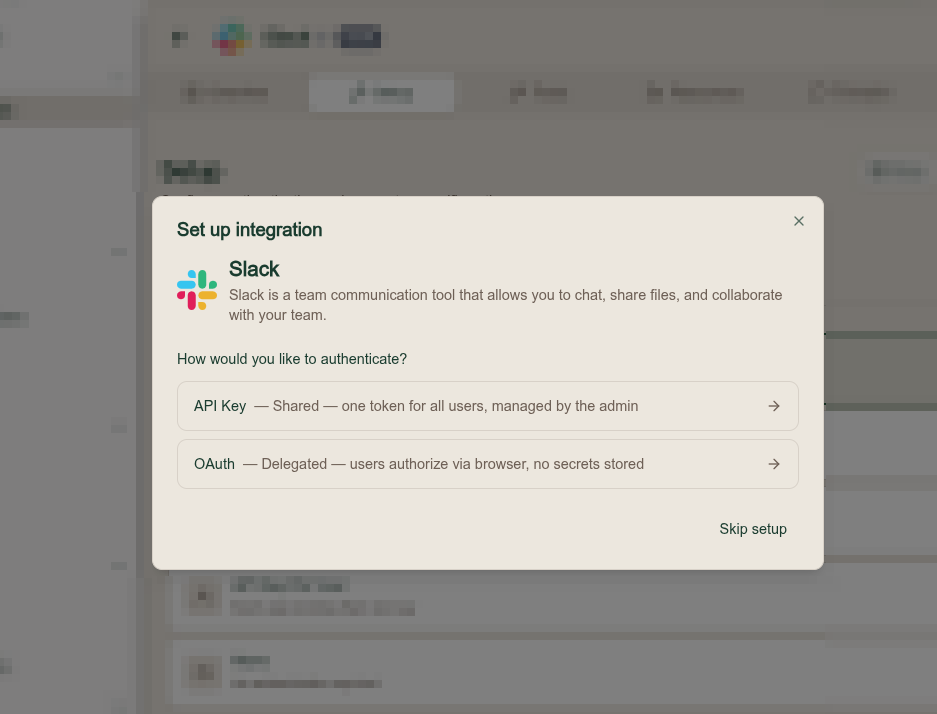
Setup wizard
Select Setup wizard on the Setup tab for a guided version of the same choice. It asks how you want to authenticate and offers two routes:
- API Key for a shared token that you manage for everyone
- OAuth for delegated access, where users authorize in the browser and no secret is stored
Choosing one takes you to that mode with its fields ready. Skip setup closes the wizard and leaves the mode unchanged, so you can set it directly on the Setup tab instead.
Custom server authentication types
A custom server is one you configured yourself, so Willow does not hold an app registration for it. Each mode describes which credential Willow proxies through to your endpoint.
| Type | Use when |
|---|---|
| Proxy OAuth | The MCP server supports OAuth and each user should authorize access through Willow's proxied flow. |
| Proxy API Key | Each user provides their own API key, or you define setup keys users complete during connection. |
| Proxy Client Credentials | Willow should mint an OAuth token from a client-credentials grant and send it to the server, the same for every caller. |
| Proxy Passthrough | The caller's own token should be forwarded to the server: a user's SSO token, or a machine user's client-credentials token. |
| None | The upstream server requires no authentication. Use only for local or trusted test servers. |
Do not choose None for production systems just to complete setup. Match the auth mode to how the server will actually be used.
What each mode forwards
The Authorization header the upstream MCP server receives depends on both the mode and who is calling:
| Mode | Human user | Machine user |
|---|---|---|
| None | nothing | nothing |
| Proxy OAuth | the user's authorized OAuth token | not available (requires interactive authorization) |
| Proxy API Key | the user's API key | not available (requires a per-user key) |
| Proxy Client Credentials | a minted client-credentials token, from the server's configured client | the same minted token |
| Proxy Passthrough | the user's SSO ID or access token | a client-credentials token minted from the machine user's credentials |
Machine users can only use None, Proxy Client Credentials, and Proxy Passthrough (with client credentials configured on the machine user). Proxy API Key and Proxy OAuth require a human user to supply credentials interactively; a machine-user call in those modes fails with an authorization error.
Configure Proxy OAuth
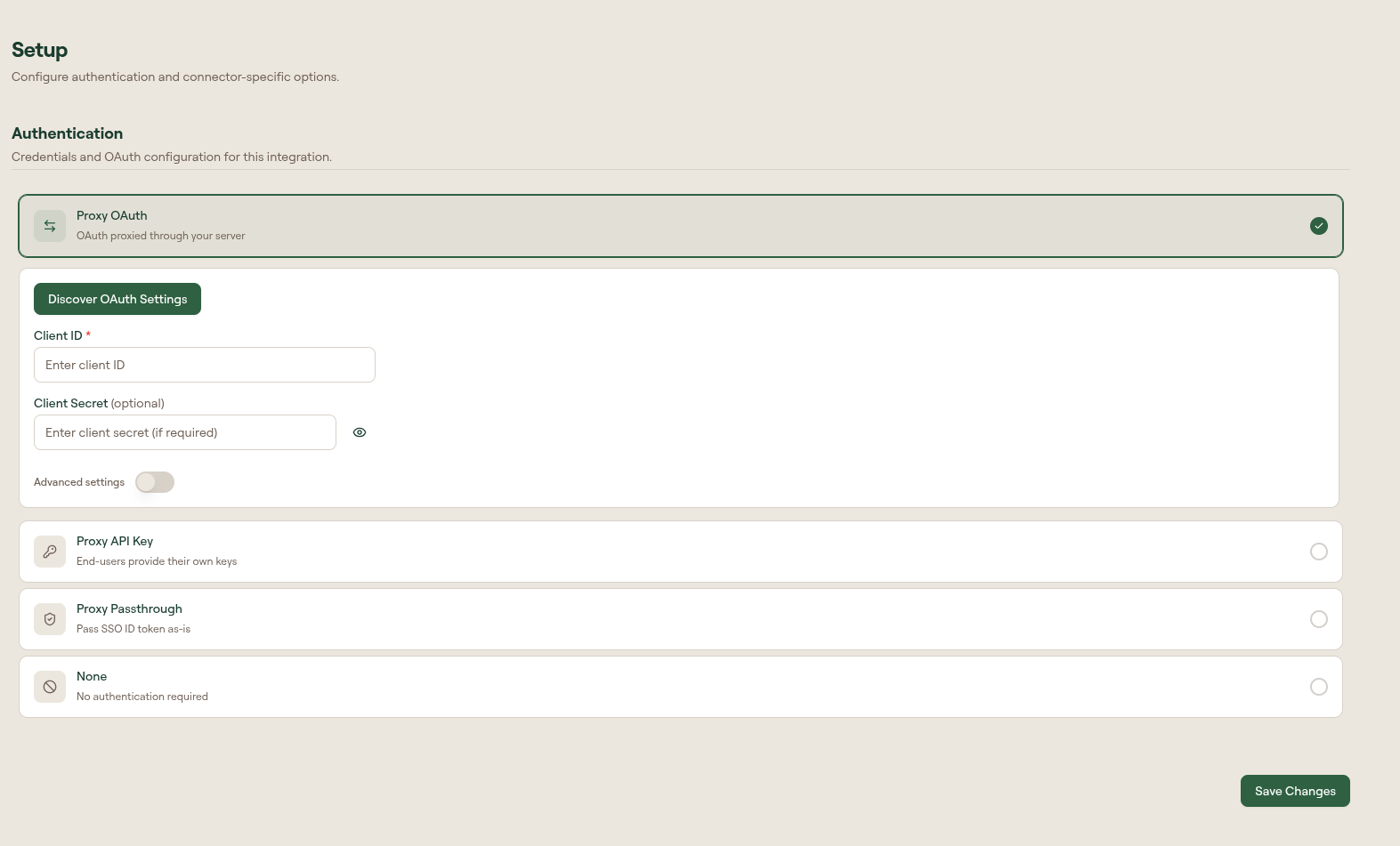
In Proxy OAuth mode, Willow runs a separate OAuth authorization flow with the upstream server for each user, then sends the access token that server issues as the Authorization: Bearer header on every tool call. When the server supports discovery, Discover OAuth Settings reads its OAuth metadata and registers a client automatically, so you often only need to point Willow at the server and let each user authorize once.
- On the Setup tab, select Proxy OAuth.
- Select Discover OAuth Settings if Willow can auto-detect endpoints from the server.
- Enter Client ID and Client Secret (optional) from your OAuth application.
- Select Save Changes.
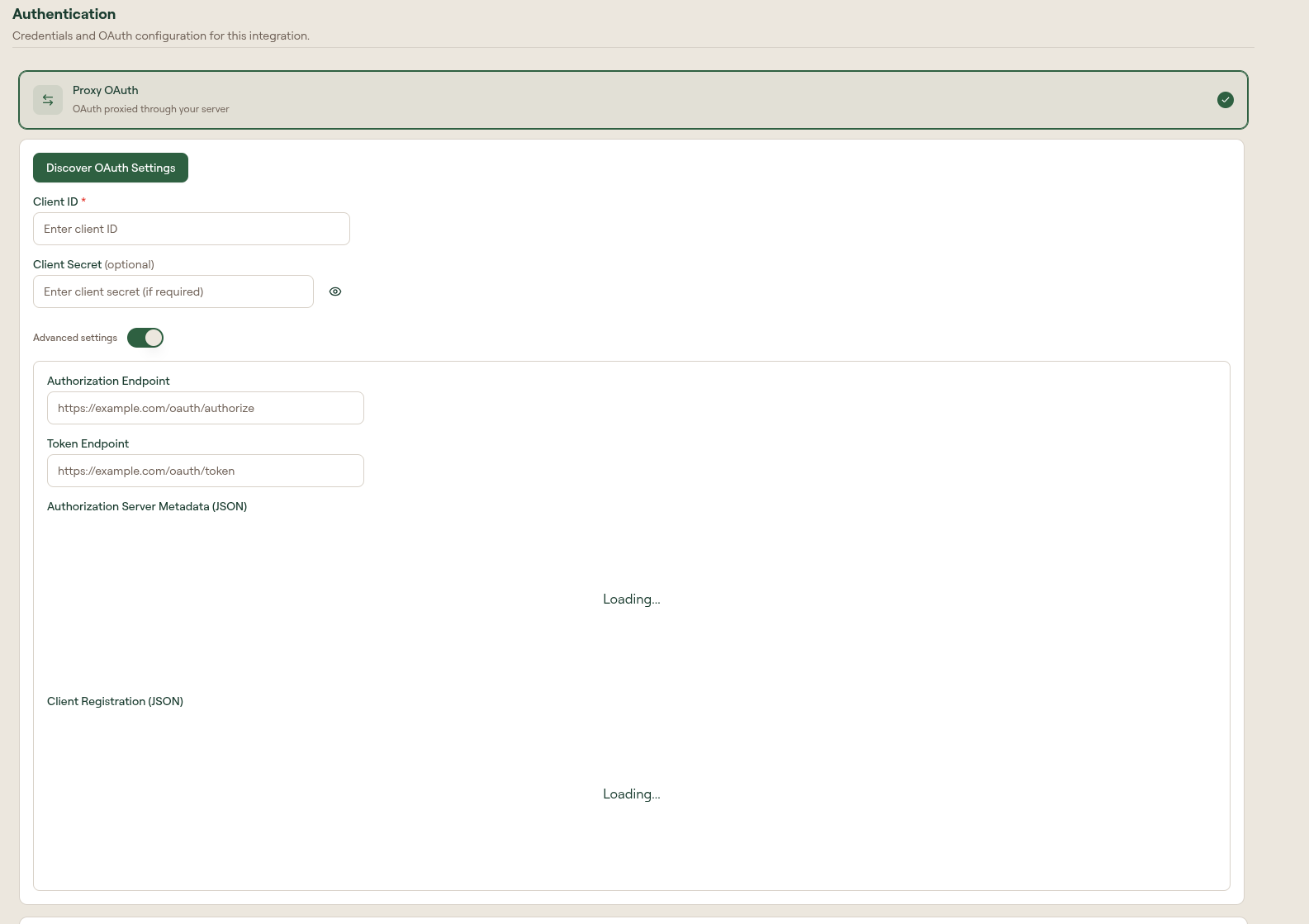
For servers that need manual endpoint configuration, expand Advanced settings and fill in:
- Authorization Endpoint
- Token Endpoint
- Authorization Server Metadata (JSON)
- Client Registration (JSON)
Developers building a server for this mode can see Build an OAuth-Protected MCP Server for Willow, or the hands-on OAuth server tutorial.
Configure Proxy API Key
In Proxy API Key mode, each user supplies their own key when they connect. By default, Willow sends that key to the upstream server as the Authorization header, using the raw key value with no Bearer prefix. If the upstream expects the key in a different header or format, reference it in a custom header in the MCP configuration.
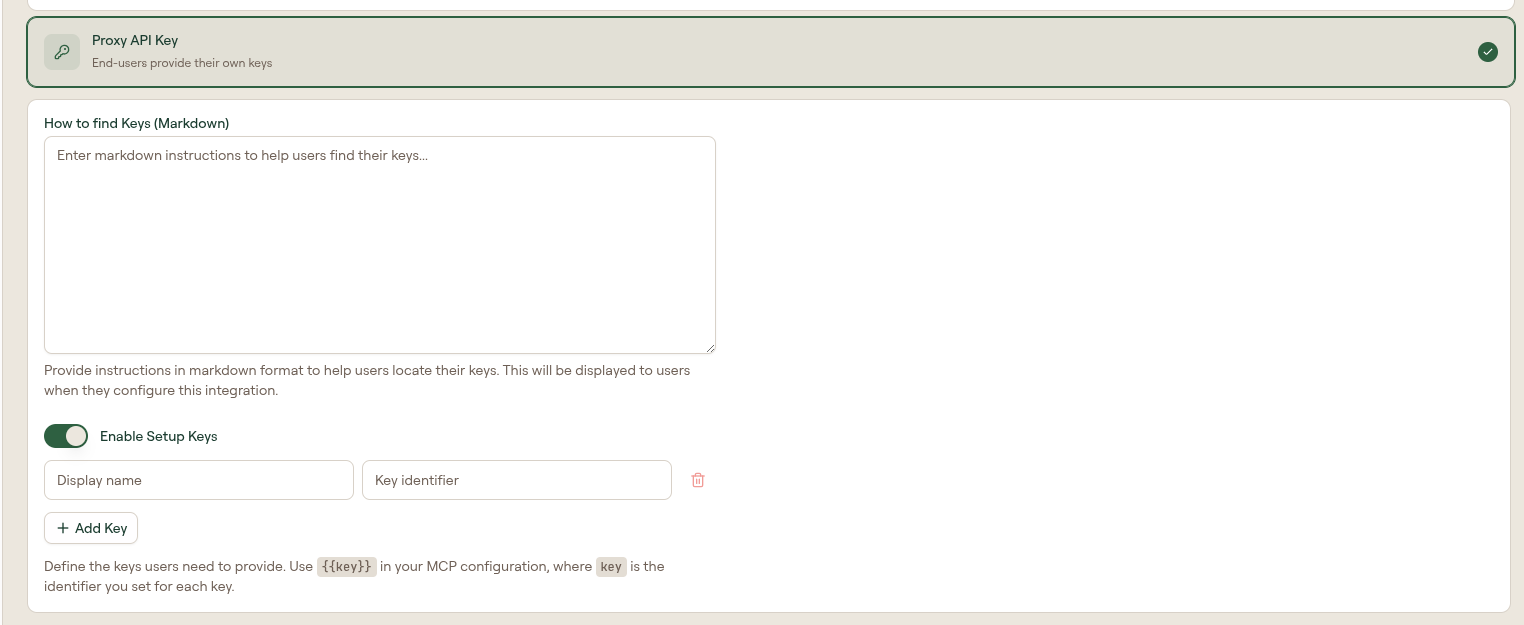
- On the Setup tab, select Proxy API Key.
- Optionally add How to find Keys (Markdown) instructions for end users.
- Select Save Changes.
To send the key somewhere other than the default Authorization header, or in addition to it, reference it in the Settings > MCP Configuration JSON:
- With Enable Setup Keys off (the default), each user has one key. Reference it with
{{apiKey}}. - With Enable Setup Keys on, add key rows with a display name and key identifier, then reference each key with
{{<identifier>}}, where<identifier>is the identifier you set.
For example, to send the key as X-Api-Key instead of the default Authorization:
{
  "type": "http",
  "url": "https://mcp.example.com/mcp",
  "headers": {
    "X-Api-Key": "{{apiKey}}"
  }
}
The placeholder is substituted with each user's own key at request time. If a user has not provided a key, the placeholder is forwarded literally and the upstream call fails, so confirm users have completed the connection before testing. These per-user placeholders are different from a vault secret, which is a single admin-managed value shared across all users.
You can also configure API key behavior at creation time for custom MCP servers. See Add an MCP Server.
Developers building a server that receives these keys can see Accept Per-User API Keys from Willow, or the hands-on API-key server tutorial.
Configure Proxy Client Credentials
Proxy Client Credentials makes Willow perform an OAuth client-credentials grant and forward the resulting token to the MCP server. Willow uses the same client for every caller, so the server sees a single service identity rather than the individual user.
- On the Setup tab, select Proxy Client Credentials.
- Enter the Client ID and Client Secret of the OAuth client that issues the token.
- Enter the Token URL (the provider's token endpoint) and any Scopes the server requires.
- Leave Send credentials as JSON body off unless the provider requires
application/jsoninstead of form-encoded credentials. - Select Save Changes.
The MCP server then receives an Authorization: Bearer <token> on every call, issued by the provider at your Token URL. The server validates it against the provider's keys. This works with any provider's token endpoint, including Okta and Keycloak.
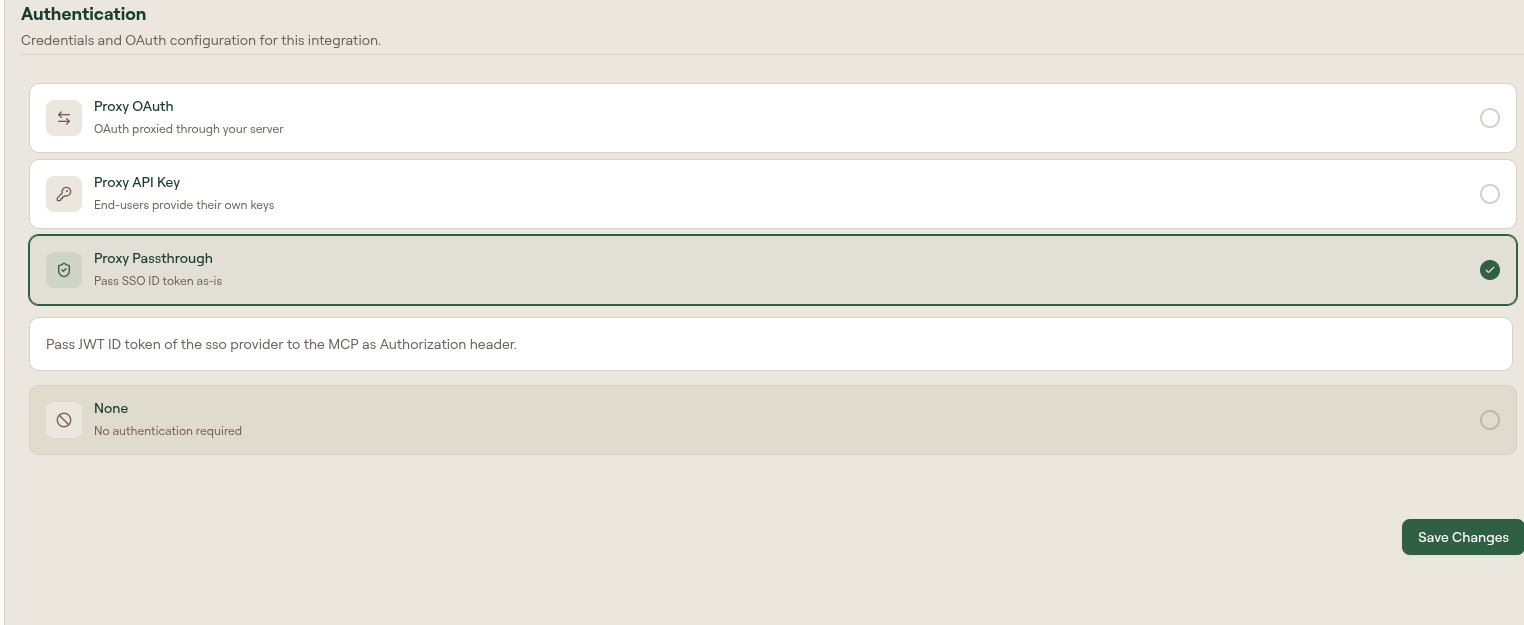
Configure Proxy Passthrough
Proxy Passthrough forwards the caller's own token to the MCP server as the Authorization header. It requires no server-side credentials, but what gets forwarded depends on the caller:
- A human user forwards the JWT from their SSO session. Choose whether to pass the ID token or the Access token in the mode's options. See JWT Passthrough.
- A machine user has no interactive session, so Willow mints a token from the machine user's client credentials and forwards that instead.
In both cases the MCP server receives the token directly and validates it itself.
- On the Setup tab, select Proxy Passthrough.
- Choose whether to pass the ID token or the Access token.
- Select Save Changes.
A human caller needs an active SSO session. A machine-user caller needs client credentials configured, or the call fails with "Failed to generate access token". The machine-user path requires an SSO provider that supports client credentials (Okta or Keycloak). See SSO Overview.
Using vault secrets
Store sensitive values in the Vault and reference them in MCP configuration with:
{{vault.SECRET_NAME}}
On the Settings > MCP Configuration section, use Insert Secret to search vault secrets and insert the placeholder into the JSON editor. See MCP Server Settings Reference.
Switching auth modes on a connected server
Changing a server's auth mode does not rewrite connections users have already made. A user who connected under the old mode keeps that connection until they remake it:
- Have the user Disconnect the server from its card menu in the Connect portal, then Connect again to authorize under the new mode.
- Re-authenticate reuses the connection's existing mode, so it does not move a connection from one mode to another. Use Disconnect and reconnect instead.
For how end users connect and authorize a server, see Connect Your AI Client.
Test the connection
After saving authentication settings:
- Use the run or test area on the Setup tab if the connector exposes one.
- Save your changes and open the Tools tab.
- Select Sync Tools, then test a low-risk tool.
A successful test confirms Willow can reach the upstream MCP server with the current credentials. If the test fails, check the auth mode, vault secret references, OAuth client details, and upstream server reachability before changing gateway or client settings.
Related
- Add an MCP Server
- Manage Tools
- MCP Server Settings Reference
- Build an MCP Server Behind Willow (developer guide)
- How Identities Authenticate (developer guide)