JumpCloud SSO
Set up JumpCloud as your identity provider for Willow.
Prerequisites
- An active JumpCloud account with administrative privileges
- A Willow account with administrative access
Supported features
SSO Features
- SP-initiated SSO (OIDC, Authorization Code flow)
SCIM Features
- Import Users
- Create Users
- Update User Attributes
- Deactivate Users
- Group Management (create, update, delete groups and group memberships)
Configuration steps
Configure SSO
-
In the JumpCloud Admin Portal, go to User Authentication → SSO Applications
-
Click + Add New Application
-
In the search box, type
OIDC, select the Custom OIDC App template, and click Next -
Under General Info, fill in:
- Display Label: Enter a name for your app (recommended: "Willow")
- Optionally set a description and user portal image
-
Click Configure Application, then open the SSO tab
-
Configure the following settings:
- Grant Types: Leave Authorization Code checked (default)
- Redirect URIs: Enter your Willow callback URL
- For SaaS deployments:
https://{your-willow-org}.mcp-s.com/api/auth/callback/jumpcloud - For On-Premise deployments:
{your-connect-url}/api/auth/callback/jumpcloud
- For SaaS deployments:
- Client Authentication Type: Select Client Secret Basic
- Login URL: Enter your Willow dashboard URL (used for SP-initiated sign-in)
- For SaaS deployments:
https://{your-willow-org}.mcp-s.com - For On-Premise deployments:
{your-connect-url}
- For SaaS deployments:

-
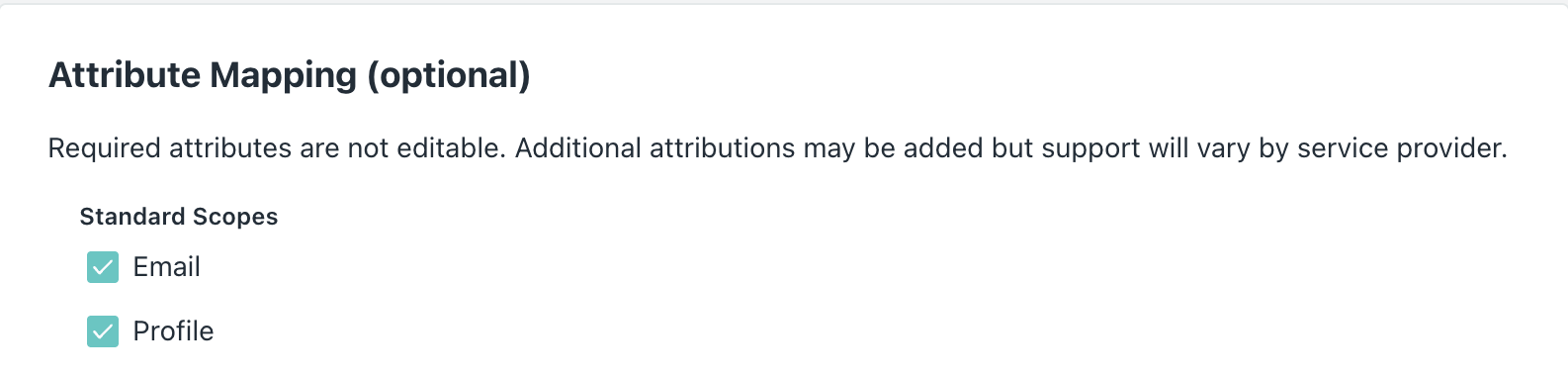
Under Attribute Mapping, ensure the Email and Profile standard scopes are selected
-
Click Activate. JumpCloud will display the Client ID and Client Secret — copy both immediately, as the secret cannot be retrieved later
-
Open a new browser tab and go to your Willow Admin Console at
https://app.withwillow.ai/admin/settings -
Navigate to Authentication and select Provider: JumpCloud
-
Enter the following values:
- Client ID: Paste the Client ID from step 8
- Client Secret: Paste the Client Secret from step 8
-
Click Save Changes
Your SSO configuration is now complete.
Assign users or groups
- Return to the JumpCloud Admin Portal and open the Willow application
- Open the User Groups tab (or the Users tab to assign individual users)
- Select the user groups or users who should have access to Willow
- Click Save
SP-initiated SSO
Users can sign in to Willow by starting from the Willow dashboard:
- Navigate to your Willow dashboard at
https://{your-willow-org}.mcp-s.com - You'll be redirected to JumpCloud to authenticate
- Enter your JumpCloud credentials (if not already signed in to JumpCloud)
- After successful authentication, you'll be redirected back to the Willow dashboard
Configure SCIM provisioning
If you want to automatically provision and manage users from JumpCloud to Willow, follow these steps.
Generate API token in Willow
-
In your Willow Admin Console, navigate to
https://app.withwillow.ai/admin/api-tokens -
Click Generate Token
-
Enter a descriptive name for the token (for example, "JumpCloud SCIM")
-
Click Generate
-
Copy the API Token (it starts with
wxt_...)Important: Save this token securely. You won't be able to see it again.
Create a placeholder user in Willow
JumpCloud requires a Test User Email to validate the SCIM connection during activation. The email must not already exist in Willow.
Pick an email you have not yet invited to Willow (for example, [email protected]). JumpCloud will create this user as part of the activation handshake.
Configure SCIM in JumpCloud
- Return to the JumpCloud Admin Portal and open the Willow application you created earlier
- Open the Identity Management tab
- Fill in the configuration settings:
- Base URL:
- For SaaS deployments:
https://app.withwillow.ai/scim/v2 - For On-Premise deployments:
{your-app-url}/scim/v2
- For SaaS deployments:
- Token Key: Paste the API token from the previous step (starts with
wxt_...) - Test User Email: The placeholder email from the previous section
- Base URL:
- Make sure Enable management of User Groups and Group Membership in this application is on if you want to push groups to Willow
- Click Activate
JumpCloud will run a connection test (GET /Users) followed by a series of provisioning tests (create user, and if group management is enabled, add/get/update/delete group). If everything succeeds, you'll see "Identity Management integration has been successfully verified".
If the test fails, JumpCloud displays the upstream error above the Activate button. Review the message and correct the Base URL, token, or test user email before retrying.
Attribute mapping
The default JumpCloud attribute mappings are compatible with Willow's SCIM implementation out of the box. Willow accepts the following SCIM attributes from JumpCloud:
| JumpCloud attribute | SCIM attribute sent to Willow |
|---|---|
email | userName |
firstname | name.givenName |
lastname | name.familyName |
email | emails[0].value |
displayname (or computed) | displayName |
User activation/deactivation is handled by JumpCloud automatically (the active SCIM attribute) — no mapping changes are required. You only need to customize attribute mappings if you store user identity data in non-default JumpCloud fields.
Your SCIM provisioning is now configured. New users assigned to the Willow app in JumpCloud will be automatically created in Willow, and changes to user attributes or group memberships will be synchronized automatically.
Contact support
If you continue to experience issues, contact Willow support at [email protected] with the following information:
- Your JumpCloud organization domain
- The error message or behavior you're experiencing
- Screenshots of your configuration (with sensitive information redacted)
JumpCloud reference docs: