How Willow Assesses Risk
Willow continuously evaluates how exposed your AI usage is and expresses the result as risk. The same idea appears in several places in the product, from a single MCP server's posture to an organization-wide security score. This page explains the shared model and points you to where each part is configured and reviewed.
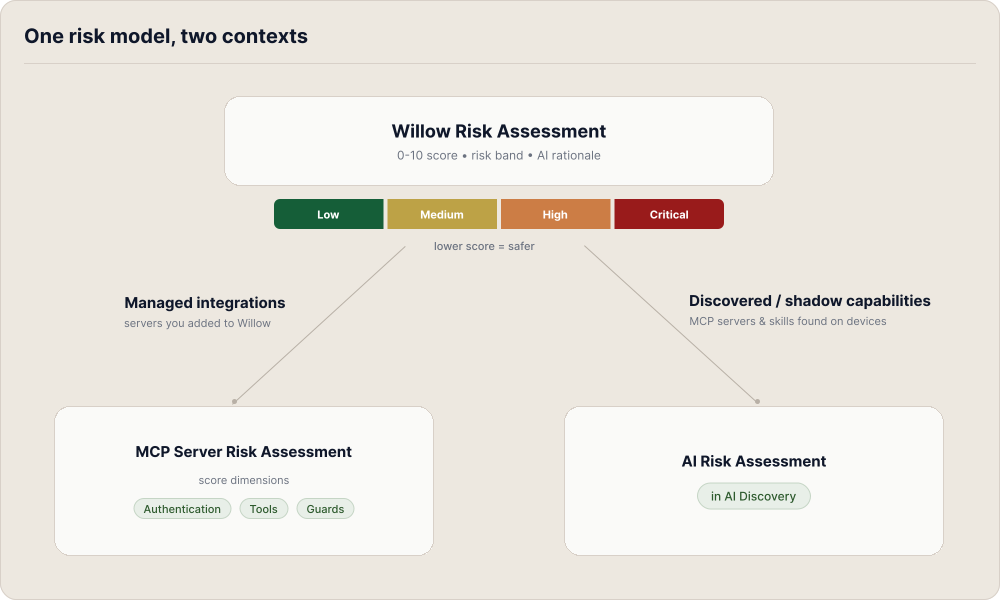
Risk bands
Wherever risk appears, it is summarized as a band:
| Band | Meaning |
|---|---|
| Low | Little exposure; safe defaults are in place. |
| Medium | Some exposure worth reviewing, but not urgent. |
| High | Meaningful exposure that should be addressed soon. |
| Critical | Severe, often irreversible exposure that needs immediate attention. |
Bands are color-coded (green for low, amber for elevated, red for high and critical). Some surfaces also express risk as a numeric score or a count of findings per band.
Where risk is assessed
Willow scores risk on a common 0–10 scale (lower is safer) paired with a band and, where an AI provider is connected, a short written rationale. It applies this model in two contexts.
Managed integrations: MCP Server Risk Assessment
For MCP servers you have added to Willow, MCP Server Risk Assessment scores each server 0–10 with a band, and additionally breaks the score into three dimensions:
- Authentication — the upstream auth method and whether SSO is configured. No authentication scores Critical.
- Tools — the discovered tools, weighted so write and delete tools raise risk more than read-only ones.
- Guards — the runtime guards constraining the server.
An optional AI summary narrates the posture and main risk factors. The summary requires Bring Your Own AI; the score and dimensions are heuristic and always available.
Discovered capabilities: AI Risk Assessment
For MCP servers and skills that AI Discovery finds on managed devices (including shadow AI the gateway never sees), the same scoring runs as an AI Risk Assessment: each capability gets a 0–10 score, a band, and an AI rationale, shown in that capability's detail drawer (for example, Medium Risk, 6/10 with the reasoning behind it). The AI Discovery dashboard rolls these up in a Risk Summary (how many capabilities were assessed, broken down by band) alongside Guard Checks (how many were checked and passed), and a Needs Attention list surfaces the riskiest findings first.
Tool-level and guard-level risk
Two narrower signals feed the picture above:
- High-risk tools — individual tools flagged as high risk, typically because they delete or mutate data. They appear on the AI Tools surface and in Radar, under Destructive actions with no human approval.
- Guard Checks — whether guards actually inspect a capability. A capability with no guard is riskier than one that is guarded. See also runtime vs build-time guards.
Where risk surfaces
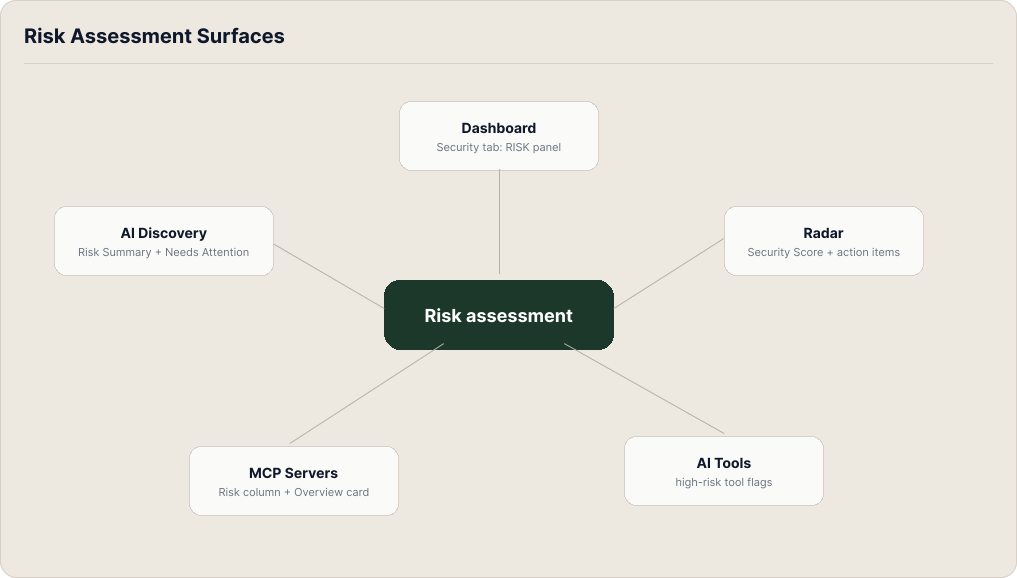
The same assessments are surfaced in several places, each at a different altitude:
| Surface | What it shows |
|---|---|
| Dashboard (Security tab) | A RISK panel summarizing Guards and AI Risk counts for the organization. |
| AI Discovery | The Risk Summary (Guard Checks and AI Risk Assessment) and the Needs Attention list of discovered capabilities. |
| Radar | An overall posture score, plus KPIs for high or critical MCP servers, high or critical skills, and destructive actions with no human approval. |
| MCP Servers | A sortable Risk column in the server list and a Risk Assessment card on each server's Overview tab. |
| Skills | A Risk column in the skills list. The score also drives the Skill Review Policy, which holds a skill for admin approval at or above a chosen threshold. |
| Toolkits | A Risk column in the toolkit list, plus a Re-assess Risk row action that re-runs scoring across the toolkit's tools. |
| AI Tools | High-risk tool flags on individual tools. |
Lowering risk
The concrete steps depend on the surface, but the levers are consistent:
- Add authentication to unauthenticated servers and enforce SSO. See Configure authentication.
- Disable or constrain high-risk tools, and expose read-only tools first. See Manage tools.
- Attach guards so capabilities are inspected at runtime and build time.
- Bring discovered shadow capabilities under management from AI Discovery, and set policy rules to block or warn on future findings.
- Work the Radar KPIs furthest from target, each of which carries the steps to reduce it.