The AI Discovery dashboard
Open Discover > Shadow AI. The page heading is AI Discovery.
| Header control | Action |
|---|---|
| Setup Instructions | Opens Scan Agent setup. |
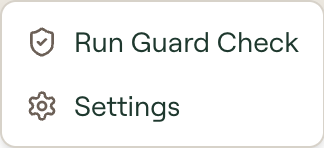
| More actions > Run Guard Check | Checks discovered capabilities against enabled build-time guards. |
| More actions > Settings | Opens AI Discovery Settings. |
| Refresh | Reloads the inventory. |

Tabs
| Tab | Contents |
|---|---|
| Overview | Inventory counts, governance status, risk summary, and items needing attention. |
| Devices | Reporting machines, their users, scan versions, and last scan time. |
| MCP Servers | Discovered MCP servers, where they are configured, and their risk and enforcement status. |
| Skills | Discovered skills, associated AI agents and devices, and risk and enforcement status. |
| Plugins | Coding-agent plugins and their marketplaces, bundled components, and risk assessments. |
| Agent Memory | CLAUDE.md and AGENTS.md files reported by devices. |
| AI Agents | Desktop, web, and embedded AI tools detected across the organization. |
| Vibe Apps, if shown | Applications deployed through supported app-building platforms. |
| CLI Tools | Installed command-line tools and their signed-in accounts. |
| Auth Discovery | OAuth connections captured by the browser extension. |
| Policy Rules | Rules for discovered capabilities. See Policy Rules. |
Overview
The MCP Servers, Skills, and Plugins cards show totals, default policy actions, managed and shadow counts, and governance percentages. Other cards count devices, AI agents, memory files, CLI tools, and OAuth providers.
Risk Summary shows guard-check results and AI risk assessments by risk band. Needs Attention lists capabilities with risk findings. Select an item to inspect its details. The Policy Rules panel summarizes default actions and active rules.
MCP Servers and Skills
Use the search box to find a capability. MCP Servers has All, Shadow, and Managed views. Skills has an Include built-in switch.
Filters narrows either inventory by Group, User, Risk Level, First Seen, and AI Agent. Tables show the capability's associated agents, users and devices, first scan, risk, and enforcement status.
Select a capability to inspect its configuration, source files, devices, guard results, and AI risk assessment. See How Willow assesses risk.
Select Export CSV, where available, to download the table.
Plugins
The Plugins tab lists the plugins the Scan Agent found in Claude Code, Cursor, and Codex. Two buttons at the top switch between Plugins and Marketplaces, each with a count. The search box sits above the table and searches whichever view is open. Filters narrows the inventory by group, user, risk level, and first-seen date. The Marketplace filter lists marketplaces and their plugin counts, plus No marketplace for plugins installed without one.
Select a plugin to see its AI risk and guard results. Full details includes:
- Bundled Components: the skills and MCP servers inside the plugin, each assessed on its own with its own risk and guard result. The plugin's overall risk is the highest of its own score and its components' scores. A component that differs between devices is listed once with its riskiest score, and expands to each version with its device count and risk.
- Plugin Files: every file the agent collected, marked with its worst finding. Risky files are listed first.
- Manifest (
plugin.json): the plugin's manifest, which you can copy.
Plugin policies live in Policy Rules, where Plugins Default and rules that target plugins allow, warn on, or block them.
Agent Memory
The Scan Agent reports CLAUDE.md and AGENTS.md files to this tab. Use Group, User, and Risk Level to filter the inventory.
AI Agents
Use All, Desktop, Web, or Embedded to filter detected AI tools. The Scan Agent reports installed desktop tools, and the browser extension reports web and embedded AI activity.
Manage Block List opens policy controls for known web AI tools, including tools not yet detected in your organization.
Devices
Search by device or user, switch between Active and Stale, or filter by operating system. Agent Versions summarizes the Scan Agent builds reported by devices.
Open a device to inspect its scanned configuration. Its Access Map, when enabled, lists the MCP servers and skills available to each AI agent. See Device Access Map.
Manage automatic updates and target versions under More actions > Settings > Agent updates.
Vibe Apps
Where this tab is available, it lists apps discovered on Lovable, Bolt, v0, and Replit through the browser extension. Search by app, project, or URL and filter by platform. Platform Settings configures the platforms; Deployment Policy opens their policy settings.
CLI Tools
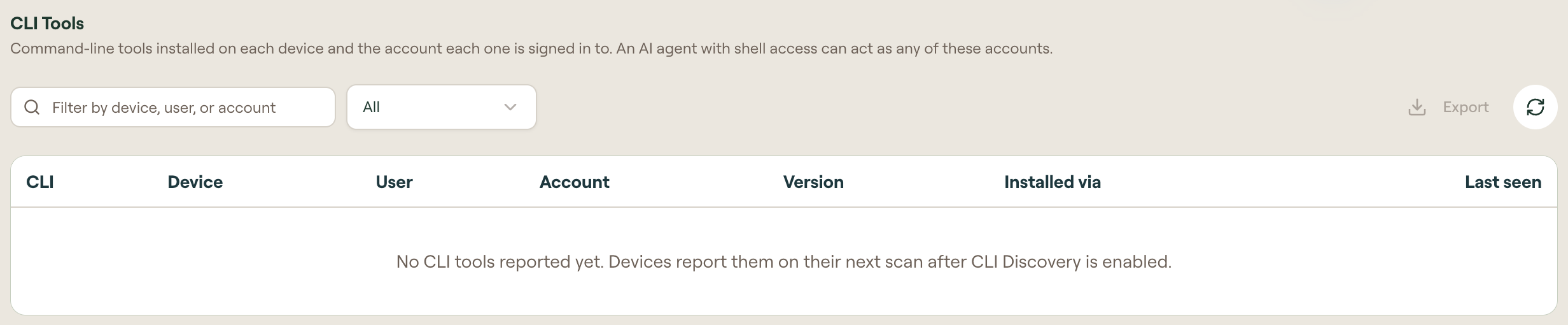
This tab lists command-line tools and the accounts signed in on each device. Its columns are CLI, Device, User, Account, Version, Installed via, and Last seen.
Search with Filter by device, user, or account. The status filter offers All, Signed in, and Not signed in. Select Refresh to reload the list. Devices populate the inventory on a scan that includes CLI discovery.
Auth Discovery
This tab shows OAuth sign-ins reported by the browser extension. Sign-in events, Allowed, Warned, and Blocked summarize the last 30 days.
Connections lists which apps connect to which services, with users, devices, first scan, and enforcement status. Providers groups activity by OAuth provider. OAuth Sign-ins Default shows the action used when no rule matches.
OAuth sign-in policies and MCP or skill policies are configured separately. Policy Rules opens the rules for discovered capabilities.
Guard Check
Open More actions > Run Guard Check to evaluate discovered capabilities against enabled build-time guards. The dialog shows progress and the result for each capability. Select Cancel to stop a running check, or Done after it finishes.
See Runtime vs build-time guards.