Some screenshots show mcp-s.com, which some existing organizations still use. New organizations use withwillow.ai. Copy the URLs shown in your own organization.
Install the Scan Agent manually
Use manual installation to test the Willow Scan Agent on a few devices before an MDM rollout. For a repeatable rollout across managed devices, use MDM deployment instead.
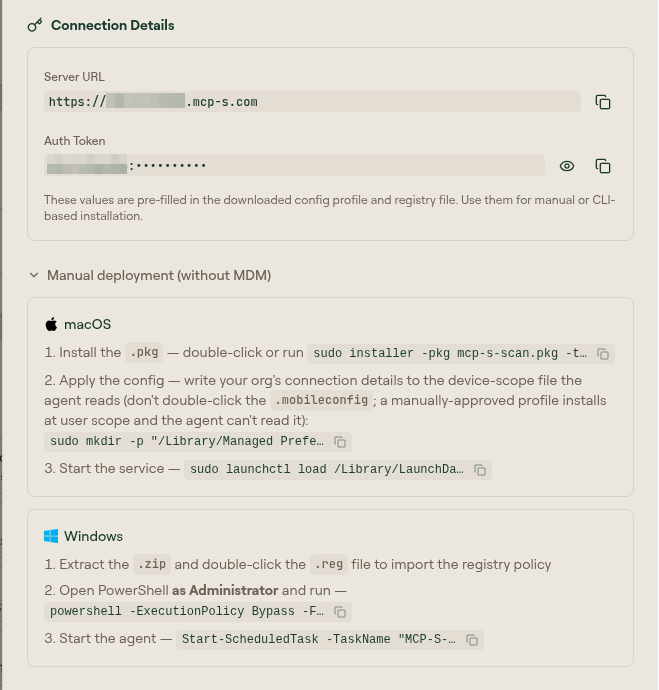
The exact commands are pre-filled and copyable in the Scan Agent Setup modal under Manual deployment (without MDM). Copy them from there so the connection values match your organization.
Prerequisites
- Admin access to Willow.
- The generated agent files for your platform from the Scan Agent Setup flow:
- macOS:
.pkginstaller and.mobileconfigprofile. - Windows x64:
.zippackage and.regregistry policy. - Linux x64 or ARM64:
.tar.gzpackage.
- macOS:
- Your Server URL and Auth Token from the setup modal's Connection Details. See Scan Agent reference.
macOS
-
Install the package. Double-click the
.pkg, or run:sudo installer -pkg mcp-s-scan.pkg -target / -
Apply the config. Do not double-click the
.mobileconfigfor a manual install. A manually-approved profile installs at user scope, and the Scan Agent runs as a system LaunchDaemon that cannot read it. Instead, write your organization's connection details to the device-scope managed preferences file the agent reads. Substitute your own Server URL and Auth Token from the setup modal's Connection Details:sudo mkdir -p "/Library/Managed Preferences" && sudo tee "/Library/Managed Preferences/com.mcp-s-scan.agent.plist" >/dev/null <<'EOF'<?xml version="1.0" encoding="UTF-8"?><!DOCTYPE plist PUBLIC "-//Apple//DTD PLIST 1.0//EN" "http://www.apple.com/DTDs/PropertyList-1.0.dtd"><plist version="1.0"><dict><key>serverUrl</key><string>https://your-org.withwillow.ai</string><key>authToken</key><string>your-org:your-token</string><key>intervalSeconds</key><integer>60</integer></dict></plist>EOF -
Start the service:
sudo launchctl load /Library/LaunchDaemons/com.mcp-s-scan.agent.plist
The .mobileconfig double-click flow is only appropriate when an MDM pushes the profile at device scope. For a manual install, use the device-scope file as above.
Windows
-
Extract the
.zipand double-click the.regfile to import the registry policy. -
Open PowerShell as Administrator and run the installer:
powershell -ExecutionPolicy Bypass -File install.ps1 -
Start the agent if the installer did not start it:
Start-ScheduledTask -TaskName "MCP-S-Scan Agent"
Linux
-
Extract the archive for your architecture:
tar -xzf mcp-s-scan-linux-amd64.tar.gz -
Run the installer as root. It installs the agent to
/usr/local/bin, writes a placeholder/etc/mcp-s-scan/config.jsonif none exists, and registers themcp-s-scansystemd service:sudo bash install.sh -
Put your Server URL and Auth Token in the config file:
sudo nano /etc/mcp-s-scan/config.json -
Start the service:
sudo systemctl start mcp-s-scan
Verify the install
Once the agent runs, it reports to Willow at the next scan interval. Open AI Discovery and confirm the device appears with a recent last scan time. For status checks and log locations, see the management commands in the Scan Agent reference.