Scan Agent reference
Reference details for the Willow Scan Agent: what to download, the connection values it needs, where it installs, how to manage it, and the webhook alternative. For installation steps, see Install the Scan Agent manually or Deploy Scan Agent with MDM.
Downloads
Download the latest AI Discovery packages from the Scan Agent Setup flow in the Willow dashboard.
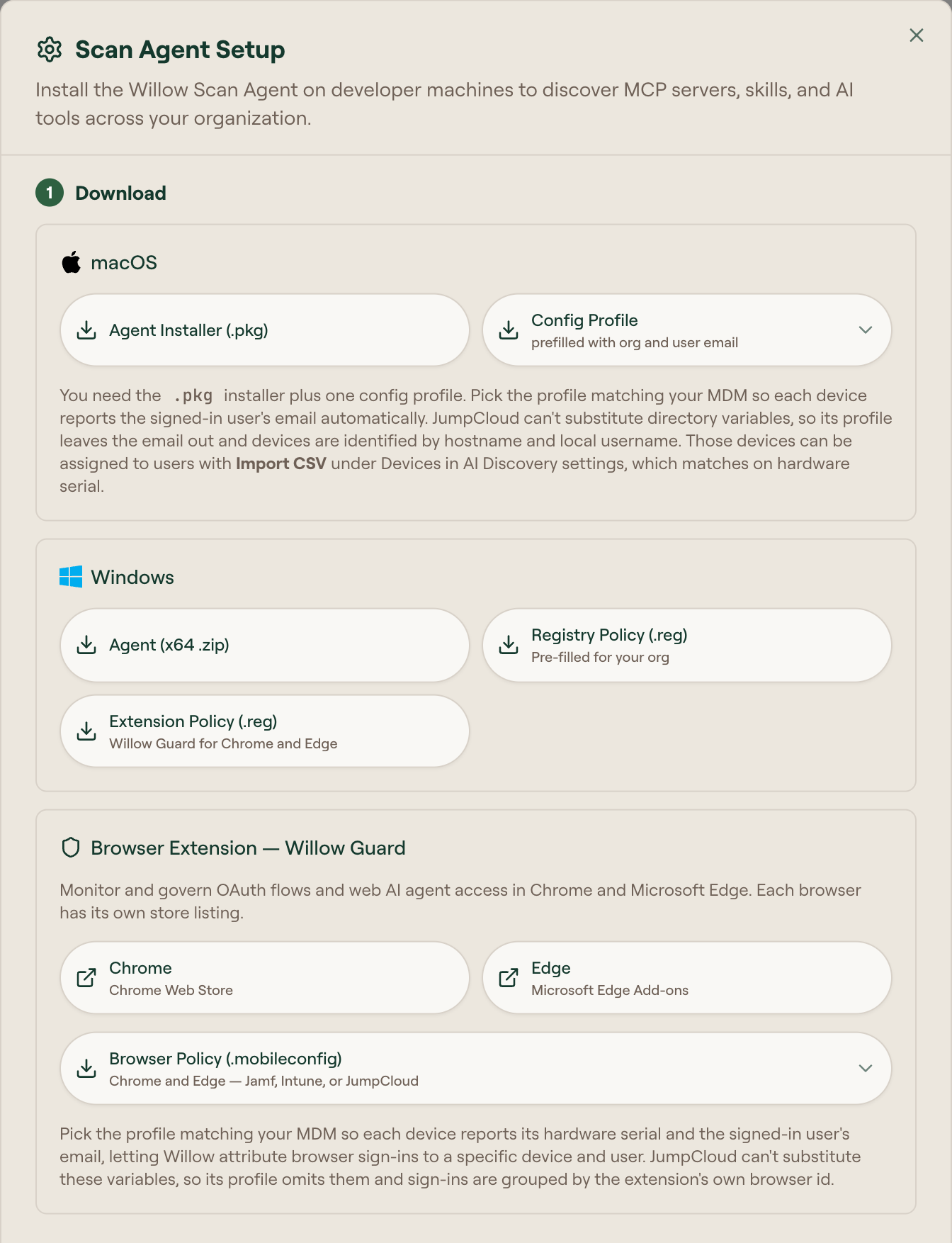
| Platform | Files |
|---|---|
| macOS | .pkg installer and .mobileconfig profile, pre-filled for your organization |
| Windows x64 | .zip package and .reg registry policy, pre-filled for your organization |
| Linux x64 and ARM64 | .tar.gz package with install.sh, uninstall.sh, and a systemd unit |
| Browser extension | Chrome Web Store (Chrome) and Microsoft Edge Add-ons (Edge) install, plus Browser Policy (.mobileconfig) for macOS or Extension Policy (.reg) for Windows, each covering both browsers and pre-filled for your organization |
The generated profiles and registry policy contain the connection details for your Willow organization. Do not edit the generated values unless Willow Support asks you to.
Connection details
The Scan Agent Setup modal also shows Server URL and Auth Token values.
These values are pre-filled in the downloaded macOS configuration profile, Windows registry policy, and Willow Guard Chrome and Edge policy. Use them only when you are doing manual or CLI-based installation, converting the policy into another MDM format, or validating what the generated files contain.
| Field | Description |
|---|---|
| Server URL | Your Willow organization URL, such as https://your-org.withwillow.ai. |
| Auth Token | Organization token used by the Scan Agent or Willow Guard to report discovery data to Willow. |
Treat the auth token as sensitive. Do not paste it into tickets, screenshots, or shared docs.
Configuration reference
The agent reads its configuration from managed profiles on macOS, registry policy on Windows, and /etc/mcp-s-scan/config.json on Linux. Willow Guard reads its configuration from Chrome or Edge managed storage. Willow generates these files with your organization values already filled in.
| Field | Type | Description |
|---|---|---|
serverUrl | string | Your Willow Connect URL, such as https://your-org.withwillow.ai. |
authToken | string | Organization token in orgSlug:signature format. |
intervalSeconds | int | Scan Agent interval in seconds. The default is 60. |
macOS
Management commands
# Check status
sudo launchctl print system/com.mcp-s-scan.agent

# View logs
tail -f /var/log/mcp-s-scan/agent-error.log

# Restart
sudo launchctl kickstart -k system/com.mcp-s-scan.agent

# Uninstall
sudo /usr/local/bin/mcp-s-scan-uninstall.sh
Install paths
| Path | Description |
|---|---|
/usr/local/bin/mcp-s-scan-agent | Agent binary |
/Applications/Willow Menubar.app | Menu bar status app |
/Library/LaunchDaemons/com.mcp-s-scan.agent.plist | Launch daemon |
/Library/Managed Preferences/com.mcp-s-scan.agent.plist | Managed preferences from the .mobileconfig profile |
/var/log/mcp-s-scan/ | Log files |
Windows
Management commands
# Check status
Get-ScheduledTask -TaskName "MCP-S-Scan Agent" | Select-Object State

# View logs
Get-Content C:\ProgramData\mcp-s-scan\logs\agent.log -Tail 50

# Restart
Stop-ScheduledTask -TaskName "MCP-S-Scan Agent"
Start-ScheduledTask -TaskName "MCP-S-Scan Agent"

# Uninstall
powershell -ExecutionPolicy Bypass -File "C:\Program Files\MCP-S-Scan\uninstall.ps1"
Install paths
| Path | Description |
|---|---|
C:\Program Files\MCP-S-Scan\mcp-s-scan-agent.exe | Agent binary |
C:\Program Files\MCP-S-Scan\willow-menubar.exe | System tray app |
C:\ProgramData\mcp-s-scan\logs\ | Log files |
HKLM\SOFTWARE\Policies\MCP-S-Scan | Registry policy from the .reg file |
Linux
Management commands
# Check status
systemctl status mcp-s-scan

# View logs
tail -f /var/log/mcp-s-scan/agent-error.log

# Restart
sudo systemctl restart mcp-s-scan

# Uninstall
curl -fsSL https://willow-scan.withwillow.ai/uninstall-linux.sh | sudo bash -s -- --purge
Install paths
| Path | Description |
|---|---|
/usr/local/bin/mcp-s-scan-agent | Agent binary |
/etc/mcp-s-scan/config.json | Configuration |
/etc/systemd/system/mcp-s-scan.service | systemd unit |
/var/lib/mcp-s-scan/ | Status and state |
/var/log/mcp-s-scan/ | Log files |
Webhook API
As an alternative to the scan agent, you can send device scan data directly through the webhook API. Use this when agent installation is not feasible or when another inventory system already collects equivalent findings.
Find your webhook URL and authorization header in the AI Discovery setup flow.
curl -X POST "https://your-org.withwillow.ai/api/device-scan" \
  -H "Authorization: your-org:your-token" \
  -H "Content-Type: application/json" \
  -d '{"platform":"darwin","scanDate":"...","deviceInfo":{},"foundFiles":[],"capabilities":[]}'