Deploy Willow Guard Browser Extension
Deploy Willow Guard when you need to monitor and govern OAuth flows and web AI agent access in managed Chrome and Microsoft Edge browsers. Chrome installs from the Chrome Web Store. Edge installs from Microsoft Edge Add-ons. The store IDs are different; managed policy must use the ID for that browser.
Prerequisites
- Admin access to Willow.
- Access to the Scan Agent Setup flow in AI Discovery.
- Admin access to the MDM, GPO, or browser-management tool you use for Chrome or Edge policy.
- A pilot group of managed browsers or devices.
- The Willow Guard Chrome and Edge policy profile from Willow.
Minimum requirements
| Component | Minimum requirement |
|---|---|
| Browser | Managed Google Chrome or Microsoft Edge. Google documents Chrome browser policy in Set Chrome browser policies on managed PCs. Microsoft documents Edge extension policy in Use group policies to manage Microsoft Edge extensions. |
| macOS deployment | An MDM provider that can deploy the Willow Guard .mobileconfig profile. The generated profile force-installs into both Chrome and Edge. Scan Agent Setup offers one profile per MDM (Jamf / Kandji, Intune, JumpCloud); pick the one that matches yours. |
| Windows deployment | GPO, Intune, or another policy management tool that can set Chrome and Edge ExtensionInstallForcelist and per-extension managed storage. Download the Windows .reg from Scan Agent Setup, or copy the registry keys from this page. |
| Linux deployment | Chrome and Edge JSON policy under /etc/opt/chrome/policies/managed/ and /etc/opt/edge/policies/managed/. Willow currently provides macOS- and Windows-oriented generated artifacts; convert the same values into Linux JSON if needed. |
| Policy values | serverUrl and authToken must be present in Chrome or Edge managed storage for Willow Guard. deviceSerial and userEmail are optional: they let Willow attribute browser sign-ins to a specific device and user. The Jamf / Kandji profile fills them with $SERIALNUMBER and $EMAIL, and the Intune profile with {{SerialNumber}} and {{mail}}. The JumpCloud profile leaves them out, because JumpCloud can’t substitute them, so sign-ins are grouped by the extension’s own browser ID. |
Willow does not publish a separate minimum Chrome or Edge version. Use a currently supported enterprise browser that supports extension force-install and managed storage policies.
Firefox uses a separate add-on and is not listed on addons.mozilla.org yet. Do not point managed Firefox at the Chrome or Edge store ID.
Expected outcome
Target browsers install Willow Guard from their store (Chrome Web Store or Microsoft Edge Add-ons), receive your Willow connection details through managed policy, and surface browser-based AI usage in AI Discovery.
Download the browser extension files
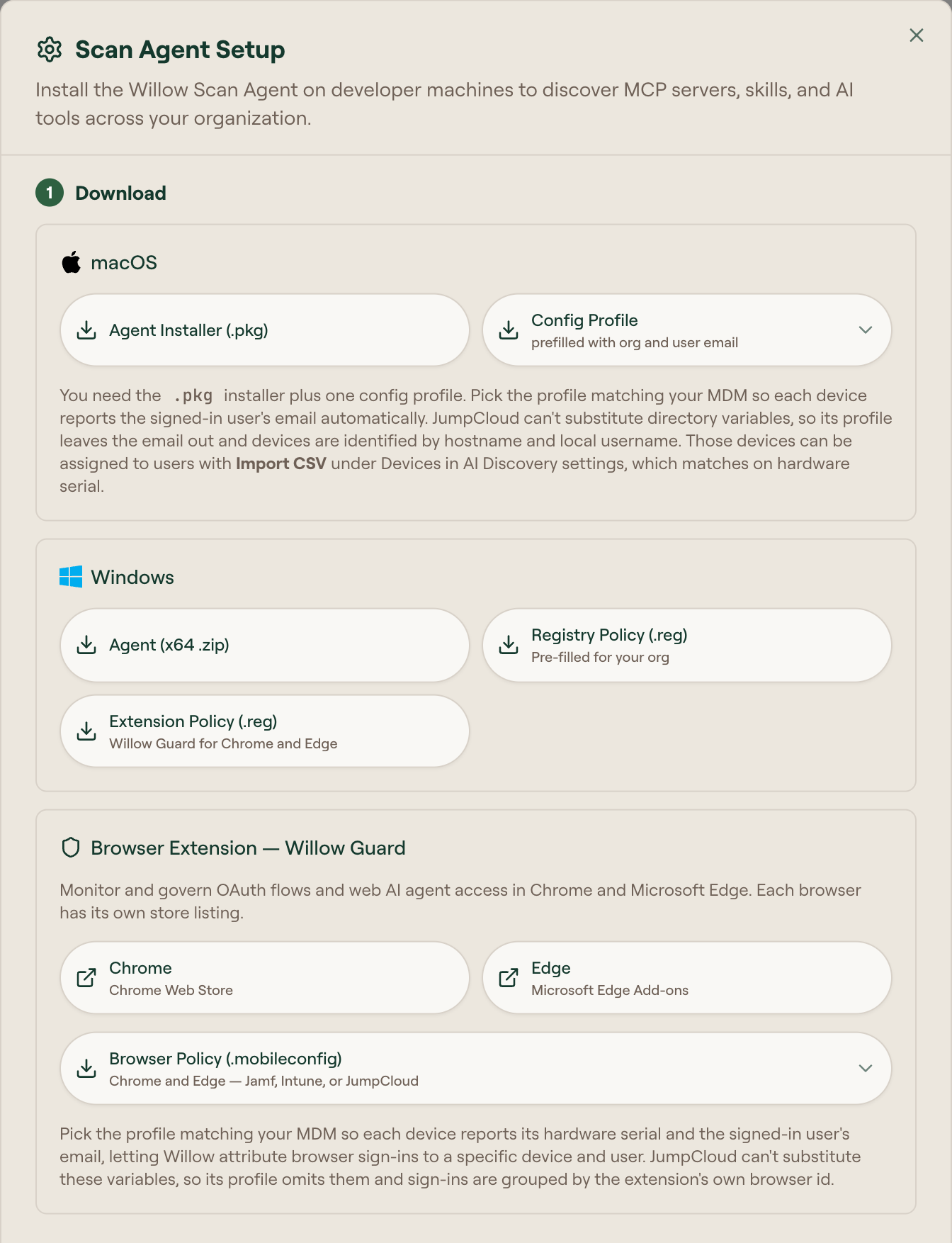
- In Willow, open AI Discovery.
- Click Setup Instructions or Setup Scan Agent.
- In Browser Extension - Willow Guard, use Chrome or Edge for a manual store install.
- For macOS, download Browser Policy (.mobileconfig) and pick the entry for your MDM. The profile covers both Chrome and Edge.
- For Windows, download Extension Policy (.reg) from the Windows section. It also covers both browsers.
Both files are pre-filled for your organization.
Connection details
The Scan Agent Setup modal shows Server URL and Auth Token under Connection Details.
These values are pre-filled in the downloaded policy profile. Use them only when you need to convert the generated policy into another browser-management format.
Do not edit the generated values unless Willow Support asks you to. Treat the auth token as sensitive.
Deploy with MDM on macOS
Use this flow for Jamf, Mosyle, Iru (formerly Kandji), JumpCloud, or another MDM that can deploy macOS configuration profiles.
- Upload the Willow Guard Chrome and Edge policy
.mobileconfigfile to your MDM as a custom configuration profile. - Assign the profile to your pilot device group.
- Confirm the profile installs on a test Mac.
- Confirm Chrome installed Willow Guard from the Chrome Web Store and Edge installed it from Microsoft Edge Add-ons.
The policy force-installs the extension and writes Willow connection details to Chrome and Edge managed storage. Users do not need to configure the extension manually.
Deploy with GPO on Windows
Use this flow when Chrome or Edge policy is managed through Group Policy.
Import the Windows .reg from Scan Agent Setup, or deliver the same values through Chrome and Edge Windows policy.
Chrome Web Store ID: ibekbbcohbodaihoahkeilfhjmadabkd.
Microsoft Edge Add-ons ID: oekojbbmacmkfajlffakbbjillkeobed.
Chrome
- Force-install the extension: add
ibekbbcohbodaihoahkeilfhjmadabkd;https://clients2.google.com/service/update2/crxtoHKLM\SOFTWARE\Policies\Google\Chrome\ExtensionInstallForcelist. - Push the connection details to Chrome managed storage. Set
serverUrlandauthTokenas string values underHKLM\SOFTWARE\Policies\Google\Chrome\3rdparty\extensions\ibekbbcohbodaihoahkeilfhjmadabkd\policy.
Edge
- Force-install the extension: add
oekojbbmacmkfajlffakbbjillkeobed;https://edge.microsoft.com/extensionwebstorebase/v1/crxtoHKLM\SOFTWARE\Policies\Microsoft\Edge\ExtensionInstallForcelist. - Push the connection details to Edge managed storage under
HKLM\SOFTWARE\Policies\Microsoft\Edge\3rdparty\extensions\oekojbbmacmkfajlffakbbjillkeobed\policy.
Roll out
- Link the GPO to your pilot user or device OU.
- Run policy update on a test device or wait for the next policy refresh.
After policy refresh, Chrome and Edge should install Willow Guard automatically and expose the managed connection values to the extension.
Deploy with Intune on Windows
Use this flow when Chrome or Edge policy is managed through Microsoft Intune.
Chrome Web Store ID: ibekbbcohbodaihoahkeilfhjmadabkd.
Microsoft Edge Add-ons ID: oekojbbmacmkfajlffakbbjillkeobed.
- Create or update Chrome and Edge administrative template policies in Intune.
- Force-install Chrome with
ibekbbcohbodaihoahkeilfhjmadabkd;https://clients2.google.com/service/update2/crxand Edge withoekojbbmacmkfajlffakbbjillkeobed;https://edge.microsoft.com/extensionwebstorebase/v1/crxon ExtensionInstallForcelist. - Push
serverUrlandauthTokenwith a custom profile (OMA-URI or registry-based configuration) underHKLM\SOFTWARE\Policies\Google\Chrome\3rdparty\extensions\ibekbbcohbodaihoahkeilfhjmadabkd\policyandHKLM\SOFTWARE\Policies\Microsoft\Edge\3rdparty\extensions\oekojbbmacmkfajlffakbbjillkeobed\policy. Use the pre-filled values from Connection Details. - Assign the policy to your pilot device group.
- Sync policy on a test device.
After the policy applies, Chrome and Edge should install Willow Guard automatically and the extension should read its Willow connection values from managed storage.
Verify deployment
On a managed Chrome browser:
- Open Chrome.
- Open
chrome://extensions. - Confirm Willow Guard is installed and enabled.
- Open
chrome://policy. - Reload policies and confirm the Willow Guard Chrome policy is present.
On a managed Edge browser:
- Open Edge.
- Open
edge://extensions. - Confirm Willow Guard is installed and enabled.
- Open
edge://policy. - Reload policies and confirm the Willow Guard Edge policy is present.
In Willow, open AI Discovery after a test OAuth or web AI agent interaction. Captured OAuth flows appear on the Auth Discovery tab, and detected web AI agents appear on the AI Agents tab.
Troubleshooting
| Symptom | Check |
|---|---|
| Extension does not install | Confirm the force-install policy applies to the test browser (Chrome vs Edge policy hive) and uses that browser's store ID. |
| Extension installs but does not report | Confirm managed storage includes serverUrl and authToken under that browser's policy. |
| Policy applies on macOS but the browser ignores it | Confirm the browser is managed and that the profile targets com.google.Chrome or com.microsoft.Edge, not only the OS profile scope. |
| No events appear in Auth Discovery | Confirm the browser can reach your Willow Connect URL and test a browser-based AI flow after policy refresh. |