Policy Rules
Policy rules are how you govern what AI Discovery finds. Each rule allows, warns on, or blocks discovered MCP servers, skills, and plugins, scoped to the users, groups, or devices you choose. You manage them from the Policy Rules tab of the AI Discovery dashboard.
Rules are evaluated top-to-bottom, the first matching rule wins, and you can drag them to reorder.
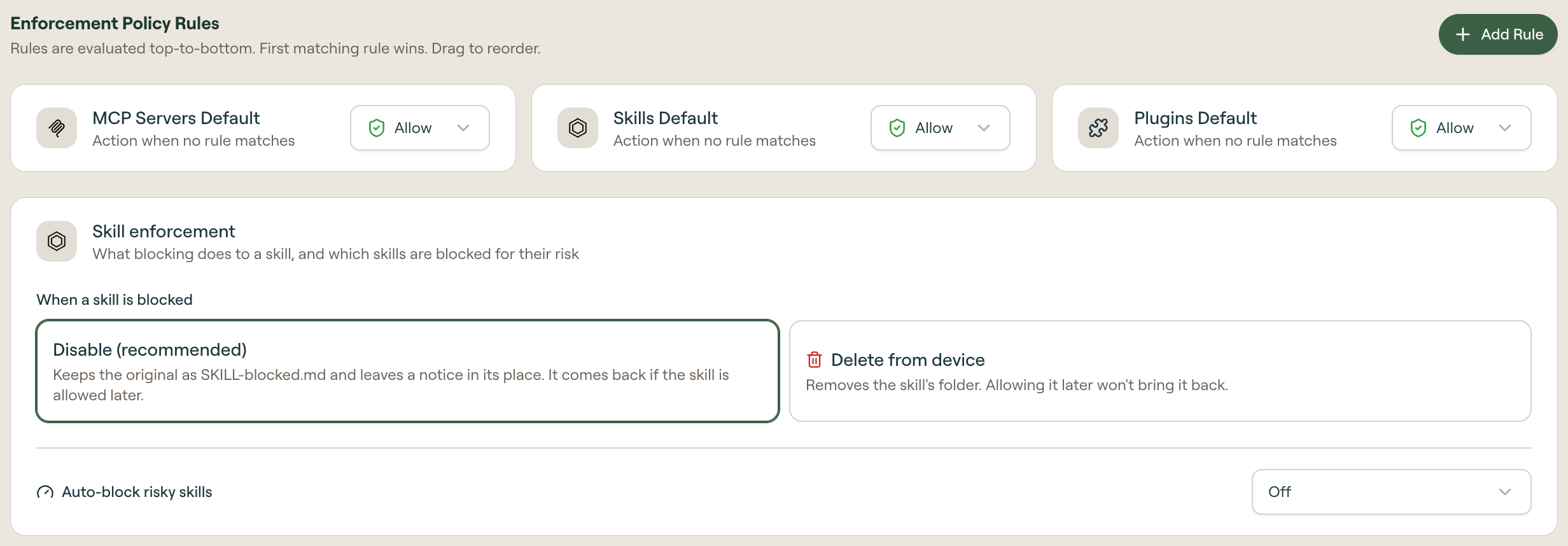
Three default rules sit above the list, MCP Servers Default, Skills Default, and Plugins Default, which set the action when no rule matches. Filter the rules below by target (MCP Servers, Skills, Plugins) and by state (Active, Draft). Each rule row shows its position, its target type, its action, and whether it is Active or Draft.
Before you define anything, the tab reads No policy rules defined and offers Add First Rule.
How rules are evaluated
Willow evaluates rules in this order:
- Managed MCP servers (proxied through your gateway) are always allowed
- Rules scoped to a specific group, user, or device only apply to matching targets
- Rules scoped to specific AI agents only apply to capabilities found in those agents
- Rules are checked top-to-bottom, and the first match determines the action
- If nothing matches, the default action is applied
- With risk auto-block enabled, a skill at or above the threshold is blocked unless it is allowlisted or a rule names it
The Scan Agent enforces these rules on each device, so a rule only reaches devices where the agent is installed. A device without it can still use a direct, unmanaged connector in its AI app. Tool calls that do go through your gateway are governed by the gateway's own guards and tool conditions instead.
Skill enforcement
Use Skill enforcement to choose how the Scan Agent blocks skills and whether to block skills automatically by risk.
When a skill is blocked applies to every block on a skill, whether it comes from a rule, a default policy, or risk auto-block.
| Option | Result |
|---|---|
| Disable (recommended) | The Scan Agent keeps the original as SKILL-blocked.md and leaves a notice in its place. The skill comes back if you allow it later. |
| Delete from device | The Scan Agent removes the skill's folder, including skills that are already disabled. Allowing the skill later does not bring it back, so users must reinstall it. Selecting this option asks you to confirm. |
Auto-block risky skills blocks discovered skills by their AI risk. It is Off by default.
| Mode | Result |
|---|---|
| Off | Skills are blocked only by your rules and default policy. |
| Same as Skills settings | Uses the minimum risk score and the guard-failure setting from Skills Settings. If those settings have no risk threshold and allow guard failures, nothing is blocked. |
| Custom threshold | Blocks skills scored at or above the score you pick, from 1 to 10. Also block skills that fail a guard check is on by default. |
Auto-block applies to unmanaged skills on each device after its next scan. Enabling it requires confirmation. Configure an AI provider to calculate risk scores. To approve a skill blocked by auto-block, select Allow anyway in the Skills tab or create a rule for that skill.
Allow anyway applies to the exact content of the skill, identified by its content hash, and to the skill as a whole rather than to a single finding. If someone edits the skill, the edited copy has a new hash, so it is scanned and scored again and can be blocked even though the earlier version was allowed.
To change the text users see in place of a blocked skill or MCP server, see Block messages.
Add a policy rule
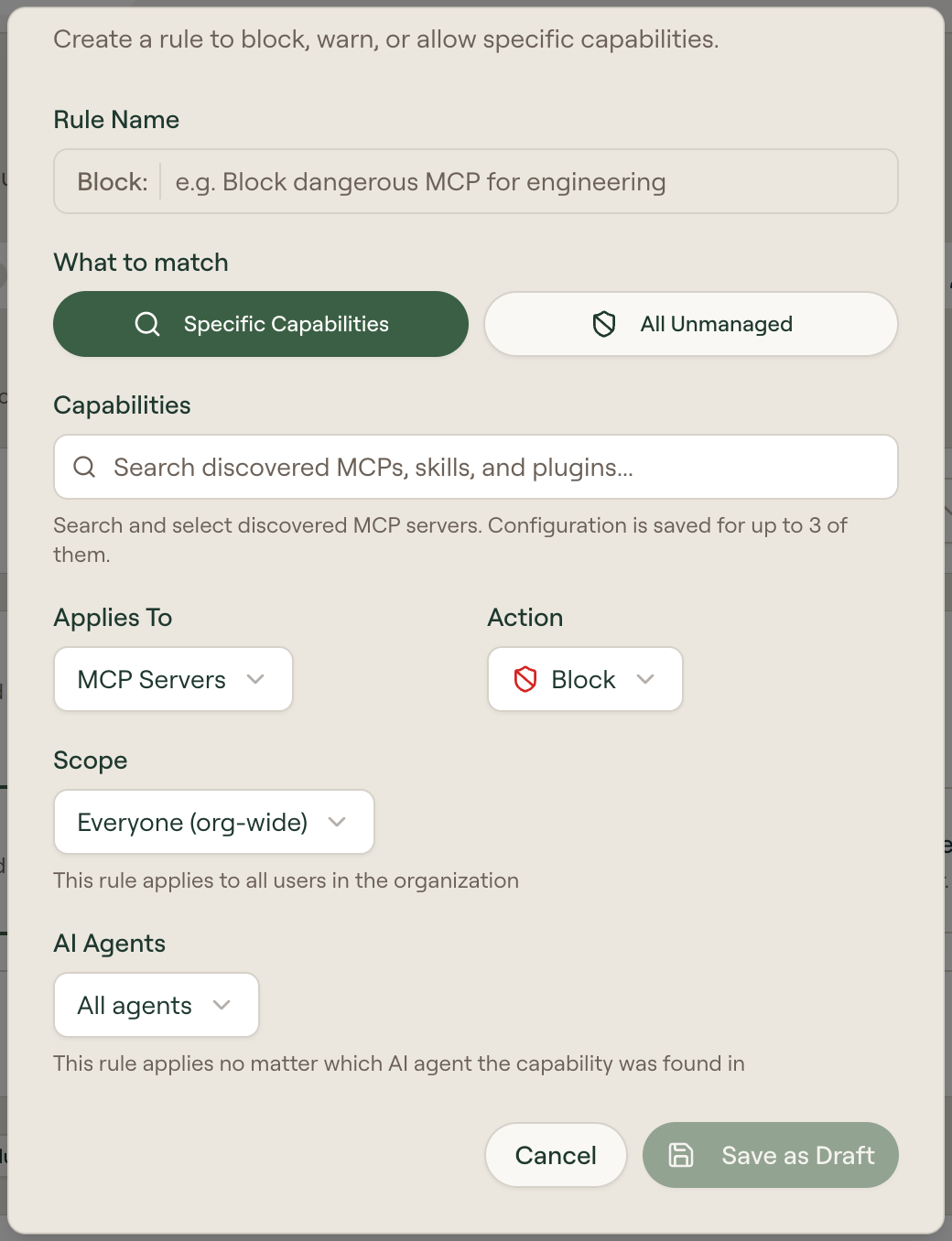
Select Add Rule, or use the shield icon (Add to Policy Rule) on a discovered capability to pre-fill one.
| Field | Options |
|---|---|
| Rule Name | Free text. The dialog prefixes it with the chosen action, for example Block:. |
| What to match | Specific Capabilities or All Unmanaged. |
| Capabilities | Search and select discovered MCP servers, skills, or plugins. Only when matching specific capabilities. |
| Applies To | MCP Servers, Skills, Plugins, or All Capabilities. |
| Action | Allow, Warn, or Block. |
| Scope | Everyone (org-wide), Specific Groups, Specific Users, or Specific Devices. |
| AI Agents | All agents, or the specific AI agents the rule applies to. With All agents, the rule applies no matter which agent the capability was found in. |
Choosing All Unmanaged applies the rule to every unmanaged capability of the selected type. Managed capabilities, the ones proxied through your gateway, are always exempt. The Willow extension for Claude Desktop (the MCPB bundle) counts as managed too, so an All Unmanaged rule does not block it.
An Estimated Impact panel updates as you configure the rule, showing how many capabilities match and how many devices and users are affected. If a rule would reach every device, Willow warns you to narrow the scope.
Preview impact on real traffic shows how the rule would affect the last 30 days of MCP calls. It summarizes affected calls, users, and servers and highlights them in a flow diagram. Select Affected only to hide unaffected traffic. The preview updates as you change the draft.
The replay covers MCP servers. Calls that cannot be matched to a scanned configuration are excluded from the totals. A notice identifies results limited by traffic volume.
Publish a rule
Rules are saved with Save as Draft and do not enforce anything until published.
Select a rule to open its detail panel, which shows its action, target, match type, priority, creation date, scope, and the capabilities it covers, a collapsed Traffic · last 30 days section with the same replay, along with Edit Rule and Delete Rule. Drafts offer Publish Rule; active rules offer Unpublish Rule.
Publishing asks for confirmation, warning that the rule "will become active and start enforcing immediately". The rule's badge then changes from Draft to Active.