Some screenshots show mcp-s.com, which some existing organizations still use. New organizations use withwillow.ai. Copy the URLs shown in your own organization.
AI Tools
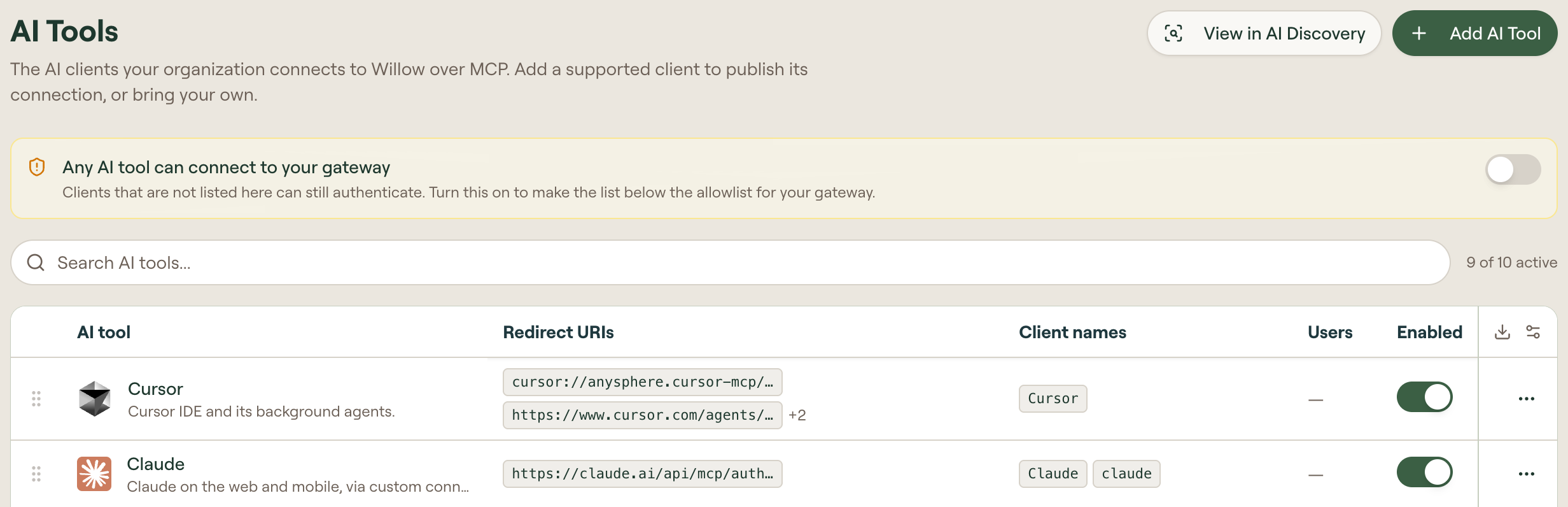
Configure AI clients like Claude Desktop, Cursor, and VSCode to connect to your integrations and toolkits via the MCP protocol.
Find it under Manage → AI Tools (/manage/ai-agents).
The AI Tools list
Each AI tool appears as a row, with a search box and an active count (for example, 9 of 10 active) above the list. A row shows:
- the tool's name, icon, and a one-line description
- how many of your users have connected with it
- an Enabled toggle that controls whether users may connect with the tool
- a ⋯ menu
On wider screens the list also shows each tool's Redirect URIs and Client names.
Select Add AI Tool to browse supported clients, grouped under AI Assistants, Coding Agents & CLIs, Editors & IDEs, and Other.
Turn a tool off
Turning off Enabled revokes the tool's existing OAuth tokens and client registrations, stops its calls, and records the revocation in the admin audit log. Anyone who then signs in from that tool, or tries to refresh an existing session, is refused with This AI tool is disabled for your organization. The tool also drops out of the AI tools offered in the Connect dialog. If users report this error, check the tool's Enabled setting. If your organization's policy permits the tool, enable it and have users reconnect. If the restriction is intended, direct users to an approved AI tool.
Restrict connections to listed tools
A banner above the list reads Any AI tool can connect to your gateway. While its toggle is off, clients that aren't listed can still authenticate. Turn it on to make the list an allowlist for your gateway, so only the tools listed and enabled here can connect.
View in AI Discovery
View in AI Discovery opens AI Discovery, which surfaces AI tools running on your devices, including ones you have not configured here.
Add an AI tool
- Select Add AI Tool.
- To add a supported client, select Add on its card. Added marks clients already configured.
- For another client, select Start from scratch on Custom AI Tool.
- Enter a Name, Slug, and Redirect URI. The URI supports
*as a wildcard. Optionally enter the OAuth Client name used to recognize the client. - Select Create.
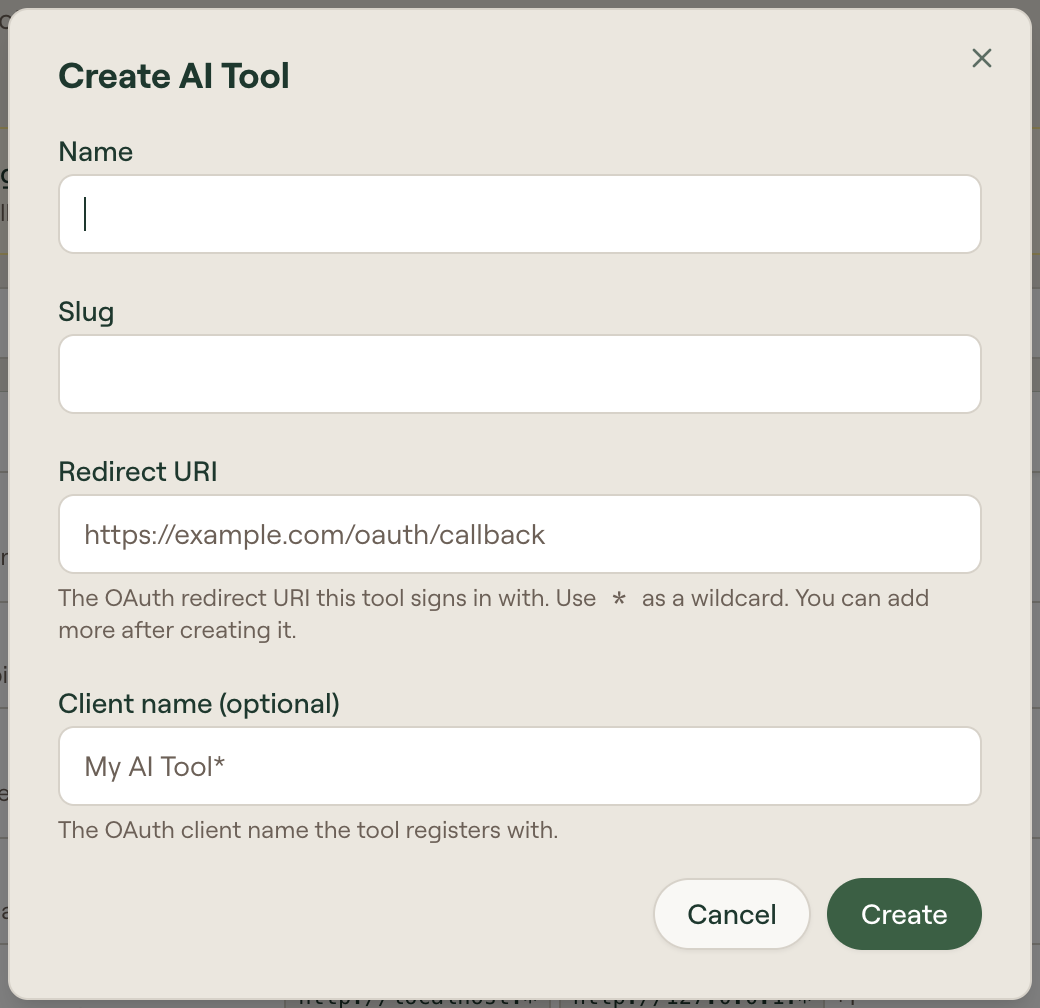
The slug cannot be changed after creation.
Grok Bot, xAI's Grok Bot desktop app, is in the catalog under AI Assistants. It connects over remote MCP only, so its STDIO option is disabled. Willow attributes its connections by client name rather than by callback URL, because it shares Cursor's loopback callback.
Edit an AI tool
Open a tool's row menu and select Edit, or select the row itself, to open its configuration page. Built-in tools offer only Edit in the row menu; they cannot be deleted.
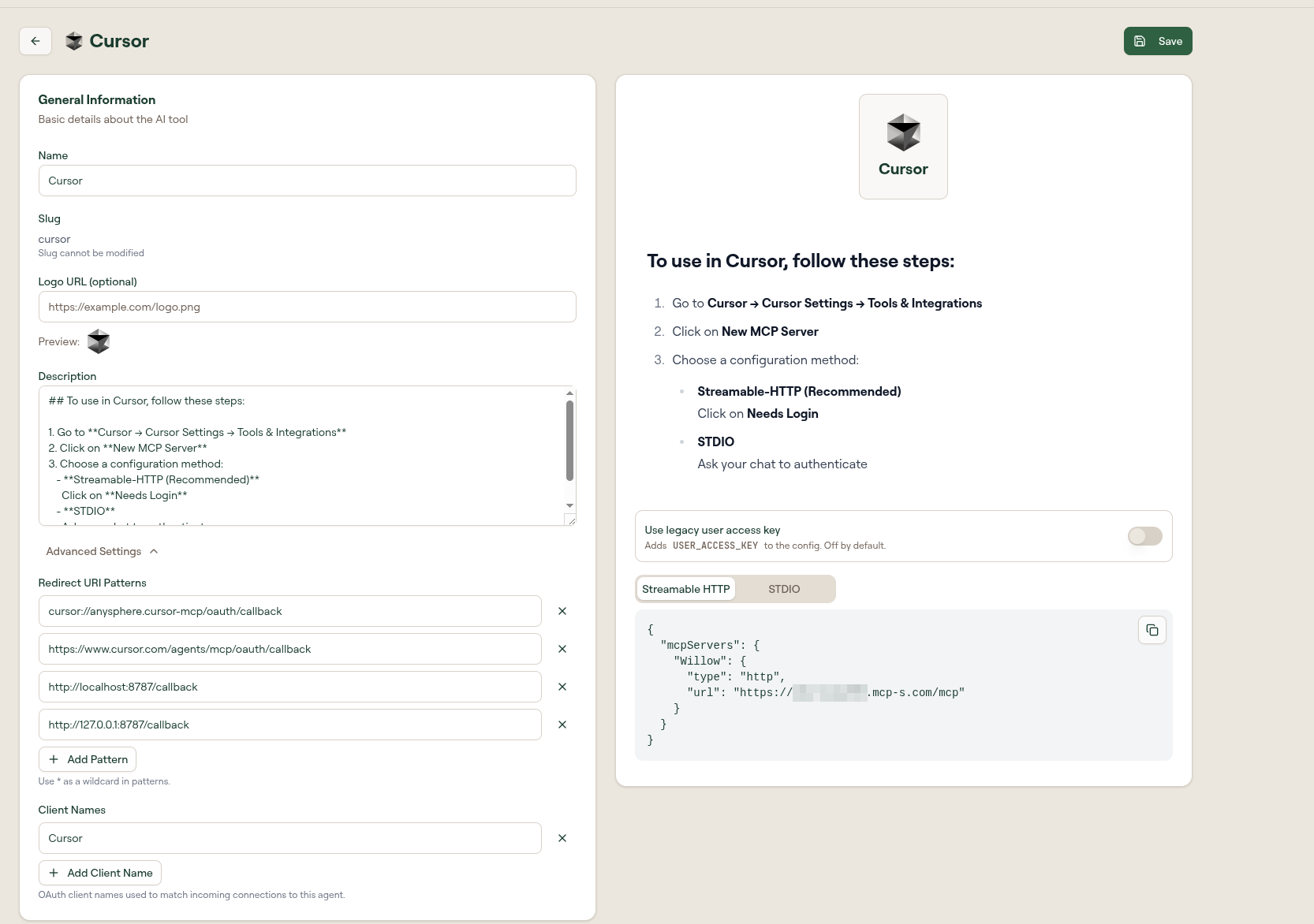
Select Save in the top right to persist your changes.
General Information
| Field | Description |
|---|---|
| Name | The tool's display name. |
| Slug | Read-only. Slugs cannot be modified after creation. |
| Logo URL | Optional image URL. A preview renders beneath the field. |
| Description | Markdown. This is what renders as the setup instructions in the right-hand panel. |
Advanced Settings
| Field | Description |
|---|---|
| Redirect URI Patterns | OAuth redirect URIs the tool may use. Select Add Pattern for more. Use * as a wildcard. |
| Client Names | OAuth client names used to match incoming connections to this tool. Select Add Client Name for more. |
Together these let Willow recognize an incoming OAuth connection and attribute it to the right tool.
Configuration
The Configuration card controls which connection methods Willow offers for this tool.
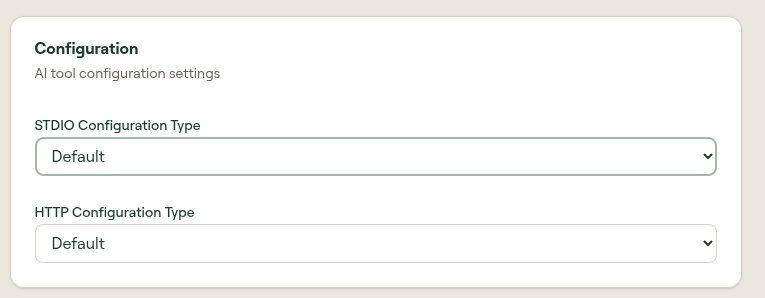
| Setting | Options |
|---|---|
| STDIO Configuration Type | Disabled, Default, Custom |
| HTTP Configuration Type | Disabled, Default, Custom |
Choose Disabled to hide that transport, Default to use Willow's generated configuration, or Custom to supply your own.
Connection Instructions
The MCP Connection tab has a Connection Instructions card: the Markdown steps users see next to the config in the Connect dialog. For Claude, Claude Desktop, Claude (web), ChatGPT, and Codex, an Instruction template picker offers presets for that tool's real setup path. Choose one and select Apply template to replace the text in the editor.
| Tool | Templates |
|---|---|
| Claude, Claude Desktop, Claude (web), ChatGPT | Org-managed (admins add the connector or plugin, and users search for it and connect) and Self-serve (users add it themselves). Users search for the connector name your admin chose, not a fixed name, and ask their organization admin if it is missing. |
| Codex | CLI + ChatGPT desktop, ChatGPT desktop only, and Codex CLI only. |
Applying a template overwrites the current text, so you can reset to the default at any time. Select Save to keep it.
Sensitive AI tools
On the Settings tab, Mark as sensitive pairs an AI tool with MCP servers that are marked Sensitive. The pairing is one-way. A sensitive MCP server serves only sensitive AI tools, but a sensitive AI tool can use any MCP server, sensitive or not. The gateway hides and blocks a sensitive MCP server from every non-sensitive AI tool, and admins cannot pick a non-sensitive AI tool under Allowed AI tools on a sensitive server. A sensitive MCP server is available to every sensitive AI tool automatically, including tools you mark sensitive later. Background agents are exempt from the pairing.
The setup preview
The right-hand panel previews exactly what an end user sees when they connect this tool. It renders the Description as numbered steps, then shows a copyable configuration block under Streamable HTTP and STDIO tabs.
For example, the Streamable HTTP block points at your gateway:
{
  "mcpServers": {
    "Willow": {
      "type": "http",
      "url": "https://your-org.withwillow.ai/mcp"
    }
  }
}
Use legacy user access key
A Use legacy user access key toggle sits above the preview. When on, Willow adds USER_ACCESS_KEY to the generated configuration. It is off by default; leave it off unless a client cannot complete the OAuth flow.