Connect Your AI Client
Get your AI client talking to Willow in under 5 minutes.
Before you start
You need:
- An invite email from your admin (already accepted)
- One of these AI clients: Cursor, Claude Code, VS Code, Claude Web, Claude Desktop, ChatGPT, OpenCode, Codex, or Devin Desktop
Step 1: Open the Connect MCP dialog
Click Connect MCP at the bottom of the left sidebar.
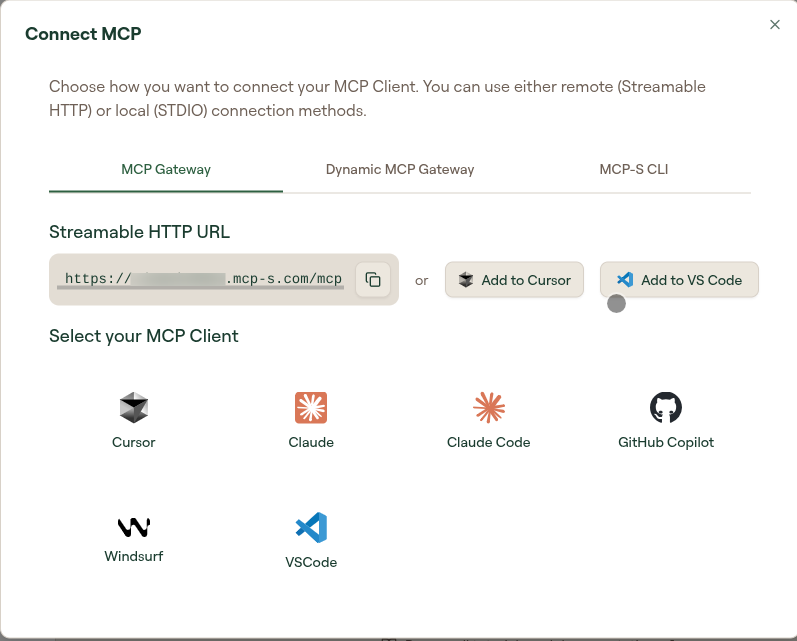
The dialog lists the AI tools it can generate a config for down the left, under Select your AI tool: Cursor, Claude, Claude Code, GitHub Copilot, Windsurf, VSCode, and Willow CLI.
Pick Willow CLI if you want to connect from the command line rather than from an AI client. See the MCP-S CLI Reference.
Step 2: Select your AI tool
Click your tool in the list. The panel on the right fills in with everything you need for it:
| Section | What it gives you |
|---|---|
| One-click install | For tools that support it, a button that installs the MCP server directly with no manual config. Cursor shows Add to Cursor; VSCode shows Add to VS Code. |
| Server URL | The endpoint to connect to, with a Copy button. Shown for Streamable HTTP only. |
| Configuration | A ready-made config block, also copyable. Switch it between Streamable HTTP and STDIO. |
| Setup steps | The manual steps for that specific tool. |
| Setup guide | A link out to fuller instructions. |
On Streamable HTTP, the server URL is your gateway root:
https://yourorg.mcp-s.com/mcp
On STDIO, the URL is replaced by a config block that runs the gateway locally through npx, passing your org in the environment:
{
  "mcpServers": {
    "Willow": {
      "type": "stdio",
      "command": "npx",
      "args": ["-y", "@mcp-s/mcp"],
      "env": { "ORG": "yourorg" }
    }
  }
}
Use legacy user access key
STDIO adds one extra control below the config block: Use legacy user access key. It is off by default, and it does not appear in Streamable HTTP mode.
Turning it on injects your personal access key into the config as a USER_ACCESS_KEY environment variable:
"env": {
  "USER_ACCESS_KEY": "<your-access-key>",
  "ORG": "yourorg"
}
The value the dialog inserts is your real access key, not a placeholder. Anyone who obtains it can act as you through the gateway. Do not paste the generated config into a shared file, a ticket, a chat message, or a repository. Leave the toggle off and authenticate through the browser unless a client genuinely cannot handle OAuth.
For what the different endpoints mean, and when to use the Dynamic MCP Gateway instead, see Connection Methods.
Cursor and VS Code users: Click the one-click button. Your client opens and configures itself. Skip to Step 4.
Everyone else: Copy the server URL or the configuration block, then continue to Step 3.
Step 3: Configure your client manually
Paste the URL into your client's MCP server config. The exact location depends on your client. See Per-Client Setup for detailed instructions.
Step 4: Authorize
When your client connects to Willow for the first time, it will show an authorization prompt. Click Authorize (or equivalent) to confirm.
If you don't see a prompt, restart your client and try again.
Step 5: Verify it worked
In your AI client, ask:
"List what tools you have access to"
Your AI responds with the available tools. You're connected.
If you see an error instead, see Troubleshooting.
Per-client guides
Need step-by-step instructions for your specific client?