Connect Cursor to Willow
Get Cursor connected and running your first tool call.
Prerequisites
- Cursor (current version)
- Your organization's Willow URL
Step 1: Get Your Connection URL
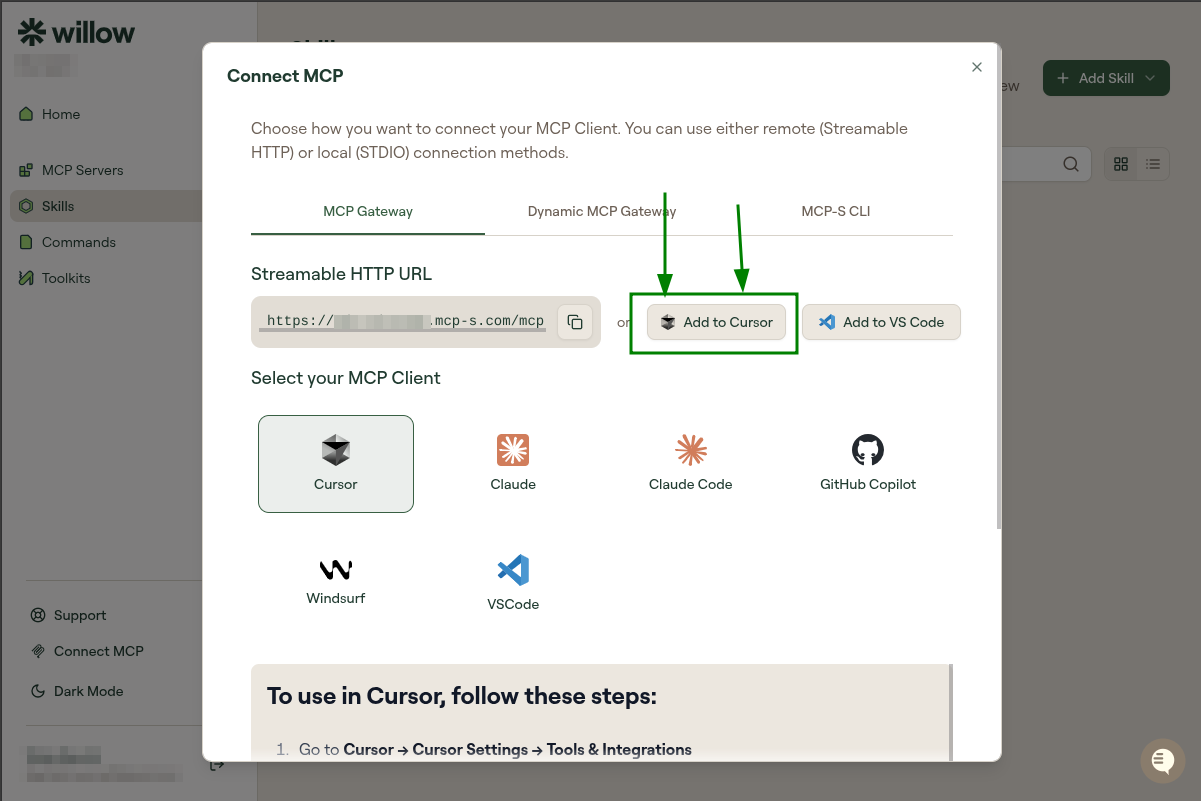
In Willow, click Connect MCP at the bottom of the sidebar. Select Cursor from the AI tool list on the left.
You'll see your connection URL and two options:
- Add to Cursor (recommended): one-click setup. Cursor opens and configures automatically.
- Copy URL: paste it manually if you prefer (see Manual Configuration below).
Step 2: Configure Cursor
If you used the one-click button, Cursor will open and configure automatically. Skip to Step 3.
Manual Configuration
Cursor reads MCP servers from an mcp.json file. Edit it directly:
~/.cursor/mcp.jsonmakes the server available in every project..cursor/mcp.jsoninside a project scopes it to that project.
Create the file if it does not exist, then add this entry inside mcpServers:
{
  "mcpServers": {
    "willow": {
      "type": "http",
      "url": "https://yourorg.mcp-s.com/mcp?mcp=github"
    }
  }
}
Replace yourorg with your organization name and github with the server name.
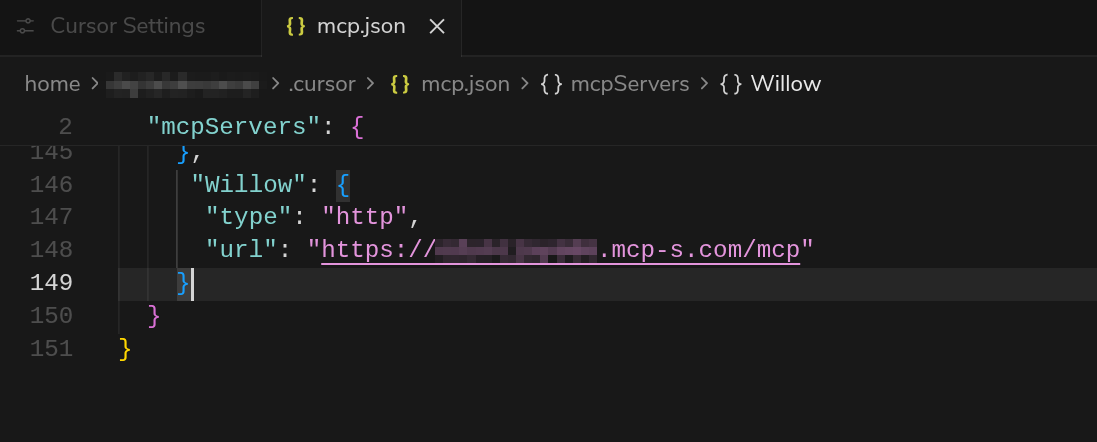
Save the file, then restart Cursor.
Step 3: Authenticate
After Cursor restarts, go to Cursor Settings > Tools & MCP. You'll see a Willow entry showing "Needs authentication."
Verified on Cursor 3.6.31 (Stable). Cursor's current documentation describes managing MCP servers from a Customize page instead, so a newer build may put this list there. The mcp.json file and the entry you add to it are the same either way.
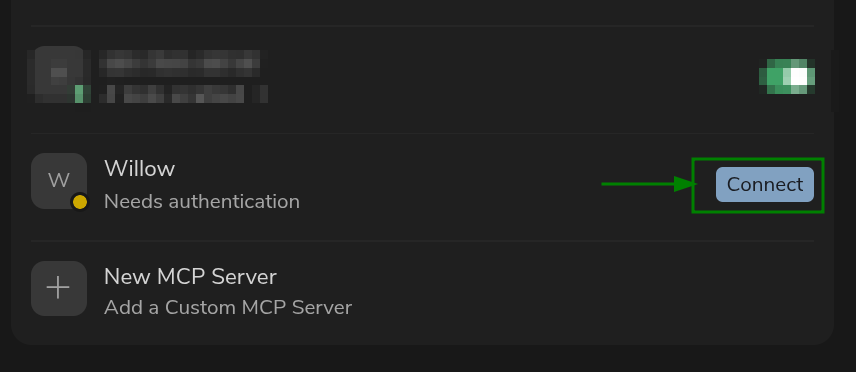
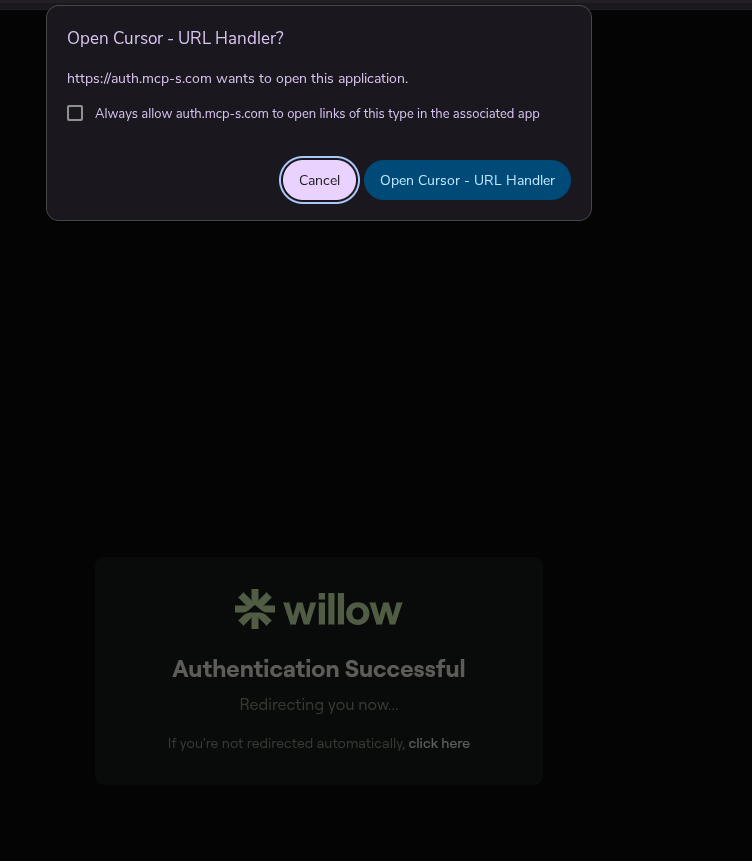
Click Connect. Your browser opens. Log in to Willow if prompted. Willow will show "Authentication Successful" and attempt to redirect back to Cursor. When the "Open Cursor - URL Handler?" dialog appears, click Open Cursor - URL Handler.
Step 4: Verify It Works
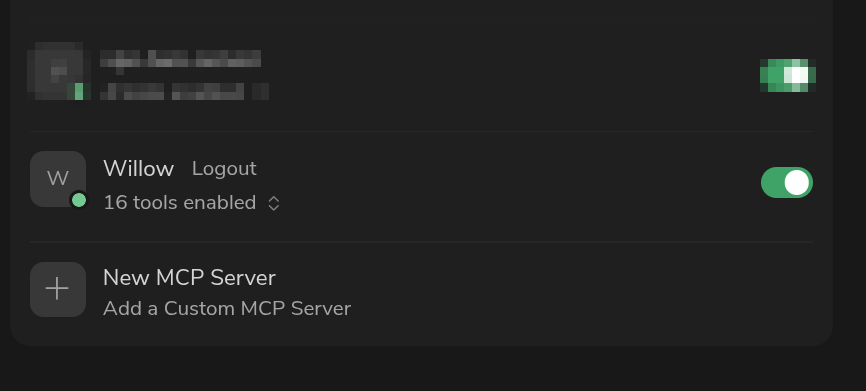
Back in Cursor Settings > Tools & MCP, Willow should show a green dot and "X tools enabled."
In Cursor chat, ask:
"List what tools you have access to in Willow MCP"
You should see the tools from your Willow MCP servers listed.
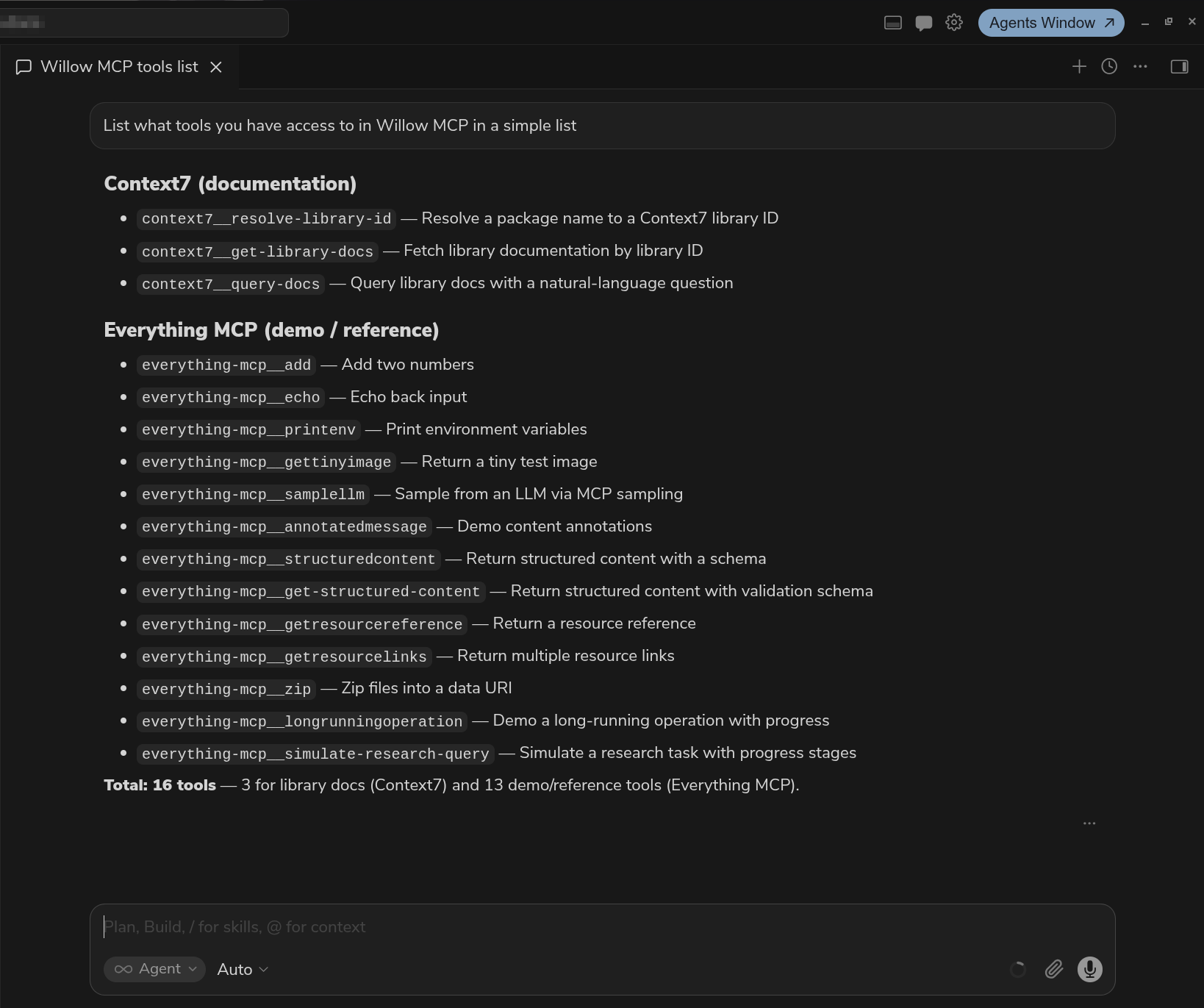
The tools you see will depend on which MCP servers your organization admin has installed, which tools on those servers they have enabled, and what tools each MCP server exposes. Your list may look different from the one shown here.
Troubleshooting
Nothing happens when I ask for tools
- Go to Cursor Settings > Tools & MCP and confirm the Willow entry shows as authenticated
- Restart Cursor completely
- Check that
"type": "http"is in your config
Error: Connection refused
- Verify your Willow URL is correct
- Check your internet connection
- See General Troubleshooting
Related
- All AI Clients: Setup for other clients
- Troubleshooting: Common errors