Chat with Your MCP Tools
Chat lets you ask questions and work with your MCP tools without leaving Willow. You choose which MCP servers Chat can use, then send requests in natural language.
Before you start
Your administrator controls whether Chat appears for your organization. If you don't see Chat in your sidebar, ask them to turn it on.
Open Chat
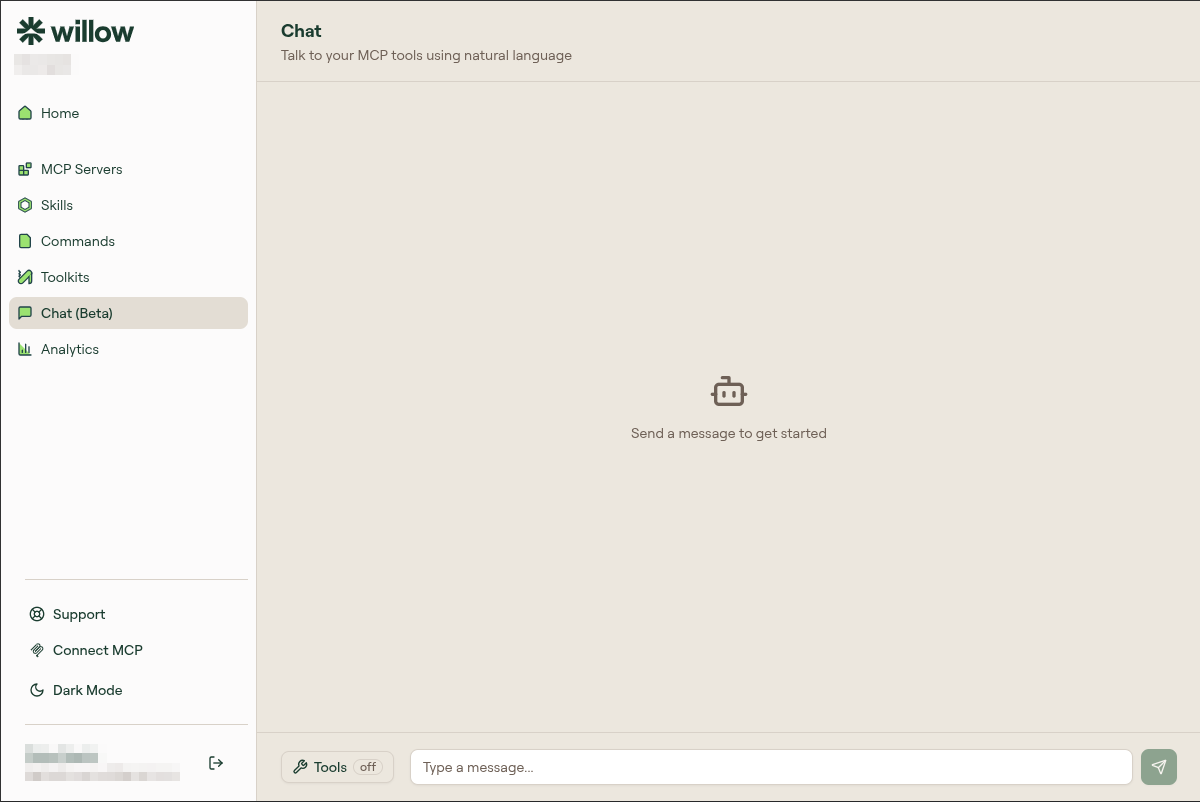
Click Chat in the Connect sidebar. A new conversation opens with the message box at the bottom of the page.
Send a message without tools
Type your question in the message box and click the send button. When the Tools control shows off, Chat responds without calling an MCP tool.
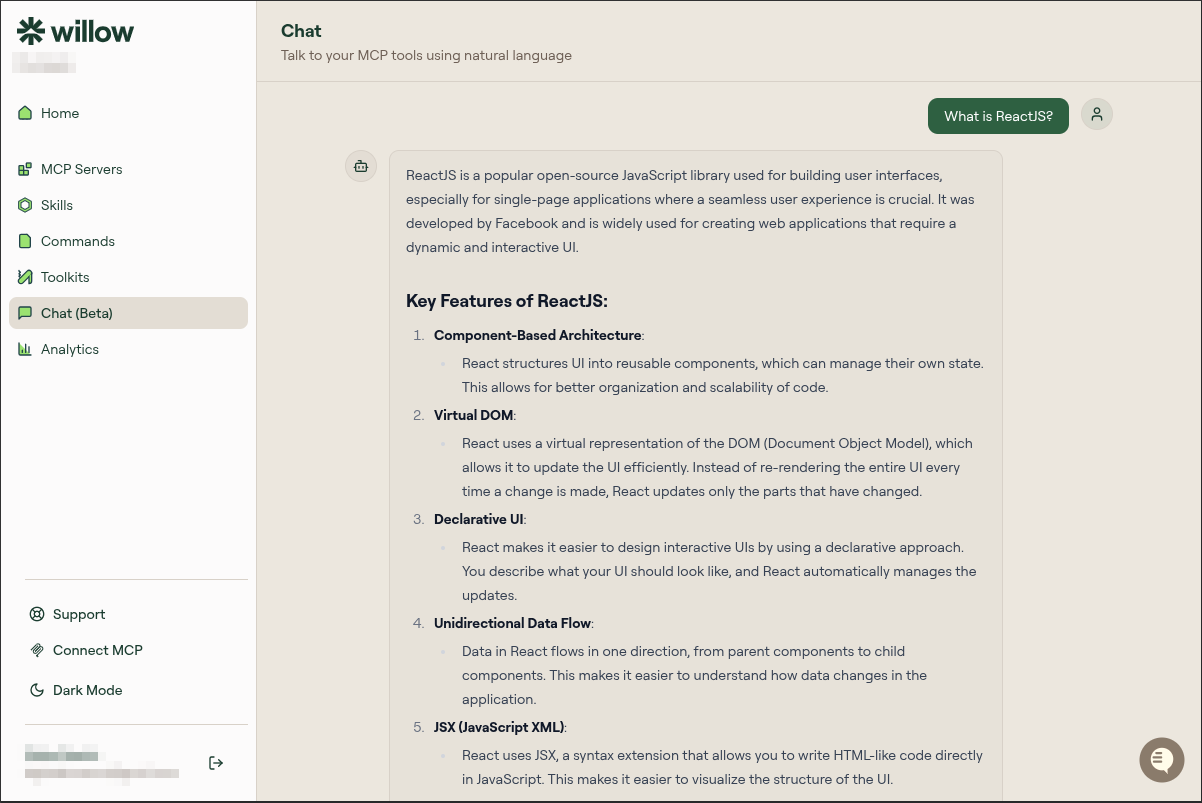
Use this mode for questions that don't need information or actions from one of your connected services.
Choose MCP servers
Turn on tools when you want Chat to use an MCP server.
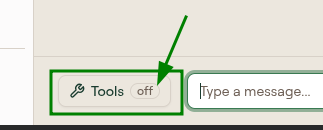
- Click Tools beside the message box. The off badge means no MCP servers are selected.
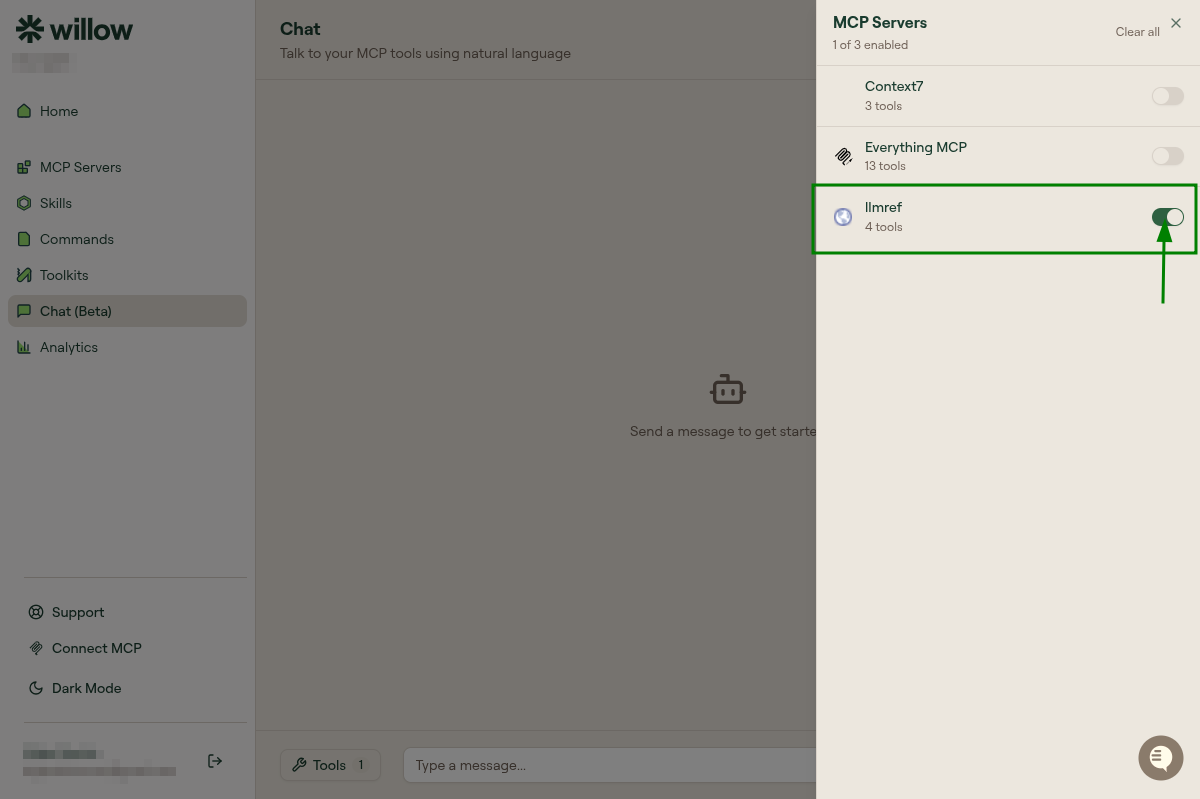
- In the MCP Servers panel, turn on each server you want Chat to use. The panel shows how many servers are enabled and how many tools each server provides.
- Close the panel and enter your request.
The Tools control shows the number of selected servers. Chat can choose from the tools those servers provide when it answers your request.
See when Chat uses a tool
When a response calls an MCP tool, a tool row appears above the answer. It shows the tool name and whether the call completed successfully. Click the row to inspect the tool-call details.
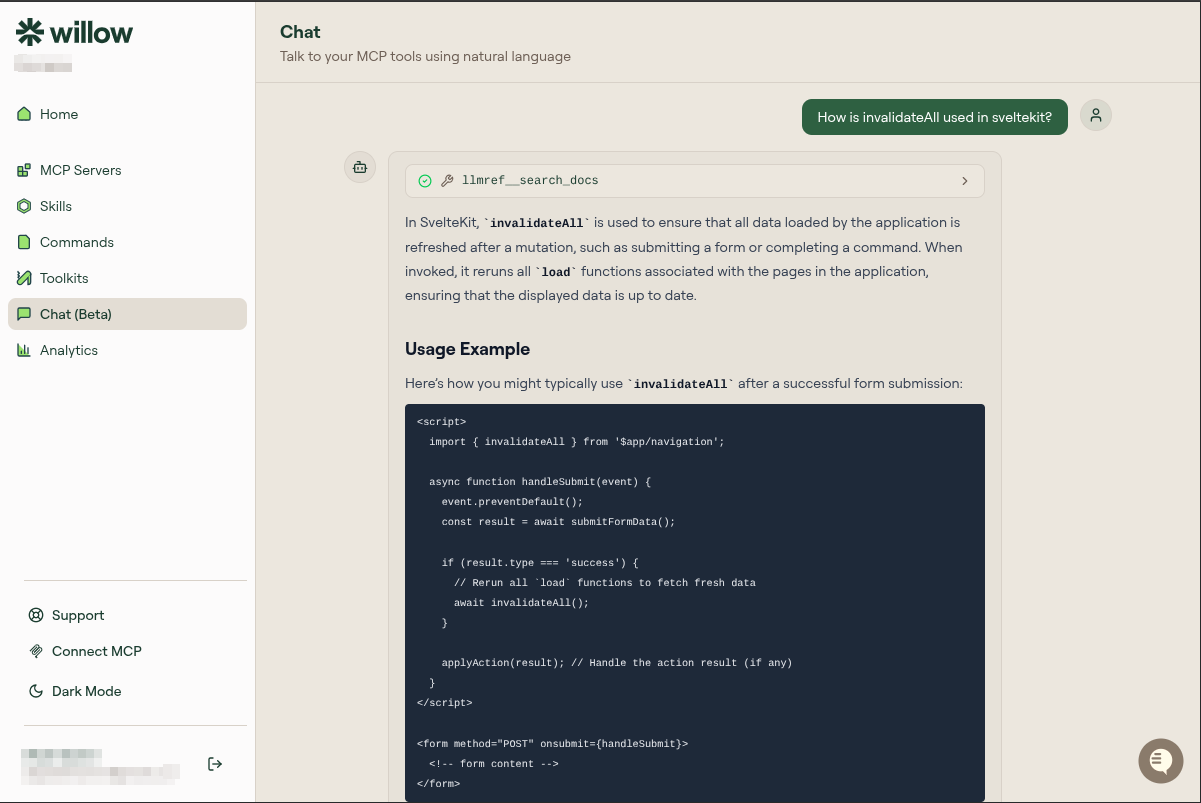
If Chat can answer without a selected tool, it returns a regular response without a tool row.
If a server is missing
The MCP Servers panel shows only the servers available to your account. If you need a server that isn't listed, ask your administrator to check your group access and the server's status.