Create a Toolkit with AI
Describe the agent you want in plain language and let Willow assemble the toolkit for you: it picks the right tools from your connected integrations and, optionally, writes reusable prompts to go with them.
This is an alternative to building a toolkit by hand. If you'd rather pick the tools yourself, see Create a Toolkit.
Before you start
AI generation runs on an AI provider your admin connects, not on the default gateway. If you don't see an Add with AI button on the Toolkits page, your admin hasn't enabled it yet. Ask them to turn on Bring Your Own AI in Settings.
Steps
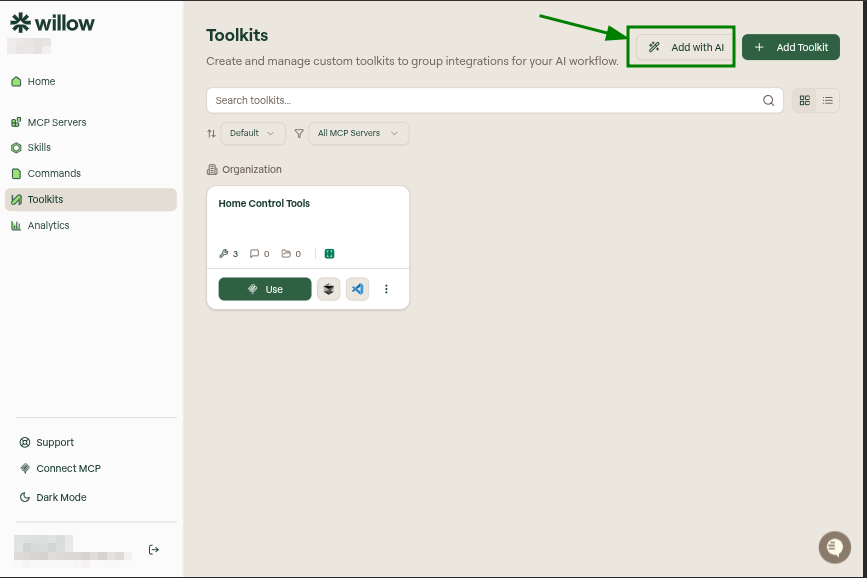
- Click Toolkits in the sidebar, then click Add with AI.
- Describe what your agent does. Be specific about the tools and workflows it needs. The more concrete you are (which apps, which actions), the better the result.
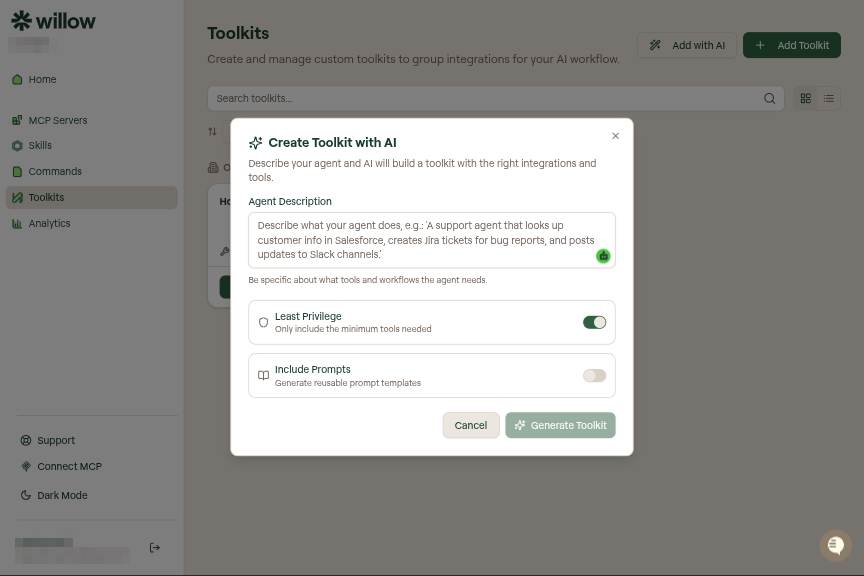
- Set the two options:
- Least Privilege (on by default): include only the minimum tools the agent needs. Leave this on unless you want a broader set of tools.
- Include Prompts (off by default): also generate reusable prompt templates for the workflow.
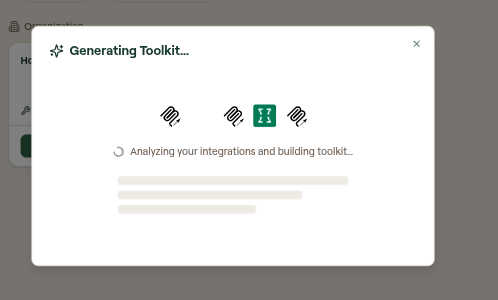
- Click Generate Toolkit. Willow analyzes your connected integrations and builds a toolkit.
- Review the result. Willow proposes a name, slug, description, and a count of the tools, prompts, and resources it selected, marked with an AI Generated badge.
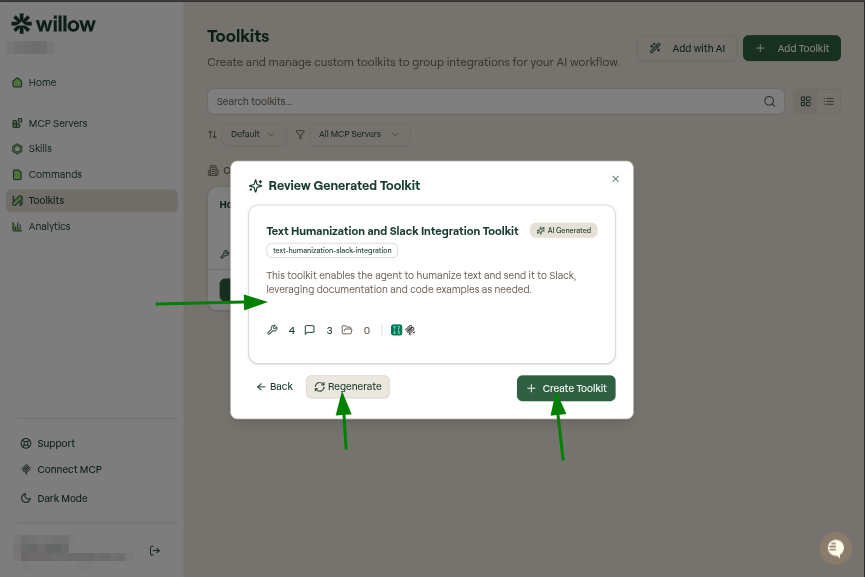
- Not quite right? Click Regenerate to try again, or Back to edit your description.
- Happy with it? Click Create Toolkit.
- Willow creates the toolkit and opens the Edit Toolkit page, where you can fine-tune the tools, prompts, and resources like any other toolkit.
Everything after this point is the same as a hand-built toolkit. See Edit a Toolkit to adjust it, and Toolkits to use or share it.