Create Your First Command
Commands are reusable text templates. When you type /command-name in your AI client, the command expands into its full content. This tutorial walks you through creating one.
What you'll build
A /standup command that expands into a standup update template, useful for filling out daily standups consistently.
Time: 5 minutes
Step 1: Open Commands
Click Commands in the sidebar.
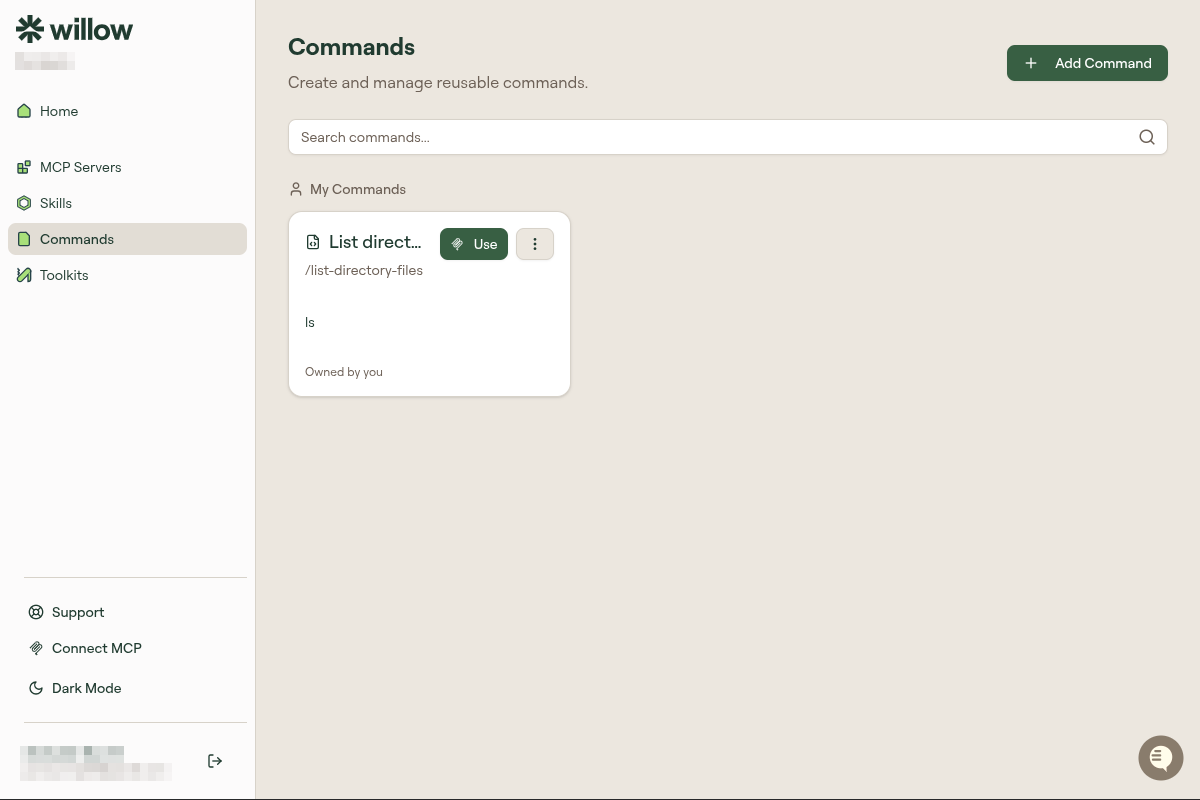
Click + Add Command.
Step 2: Fill in the details
A form appears with three fields:
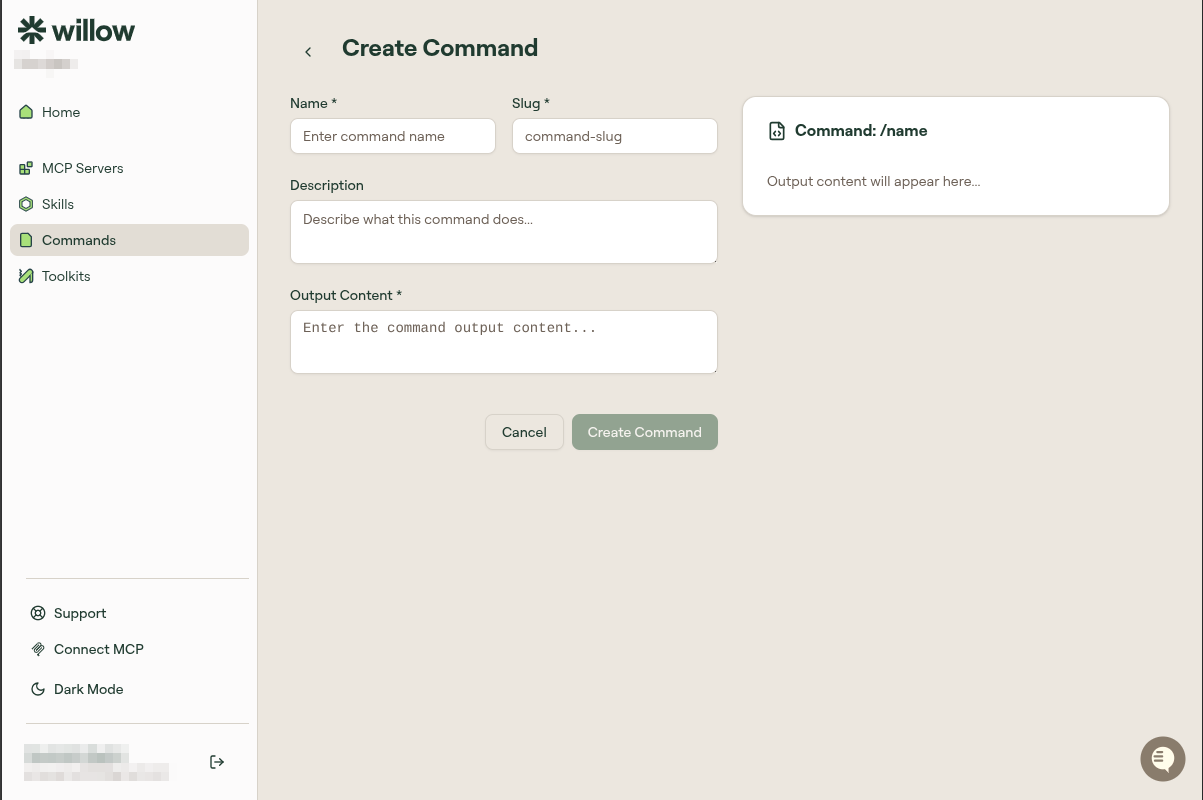
Title: The human-readable name shown in Willow.
Daily Standup
Slug: The /name you type to invoke this command. No spaces.
standup
Content: The text that gets inserted when someone uses this command. Write it in Markdown.
## Standup Update

**Yesterday:**

**Today:**

**Blockers:**
Step 3: Save
Click Create Command (or Save).
Your command appears in the Commands list.
Step 4: Use it
In your AI client, type:
/standup
The command content expands in your message. Fill in the blanks and send.
What makes a good command
Commands work best for:
- Templates you fill out repeatedly (standup, code review request, bug report)
- Long prompts you don't want to retype
- Standard formats your team uses
They're not for instructions about how to do something. That's what skills are for.