Create Commands
Commands are reusable text templates invoked by typing /slug in your AI client. They belong to you and are private by default; your admin cannot see or change them. You can share individual commands with specific teammates.
Create a command manually
- Click Commands in the sidebar
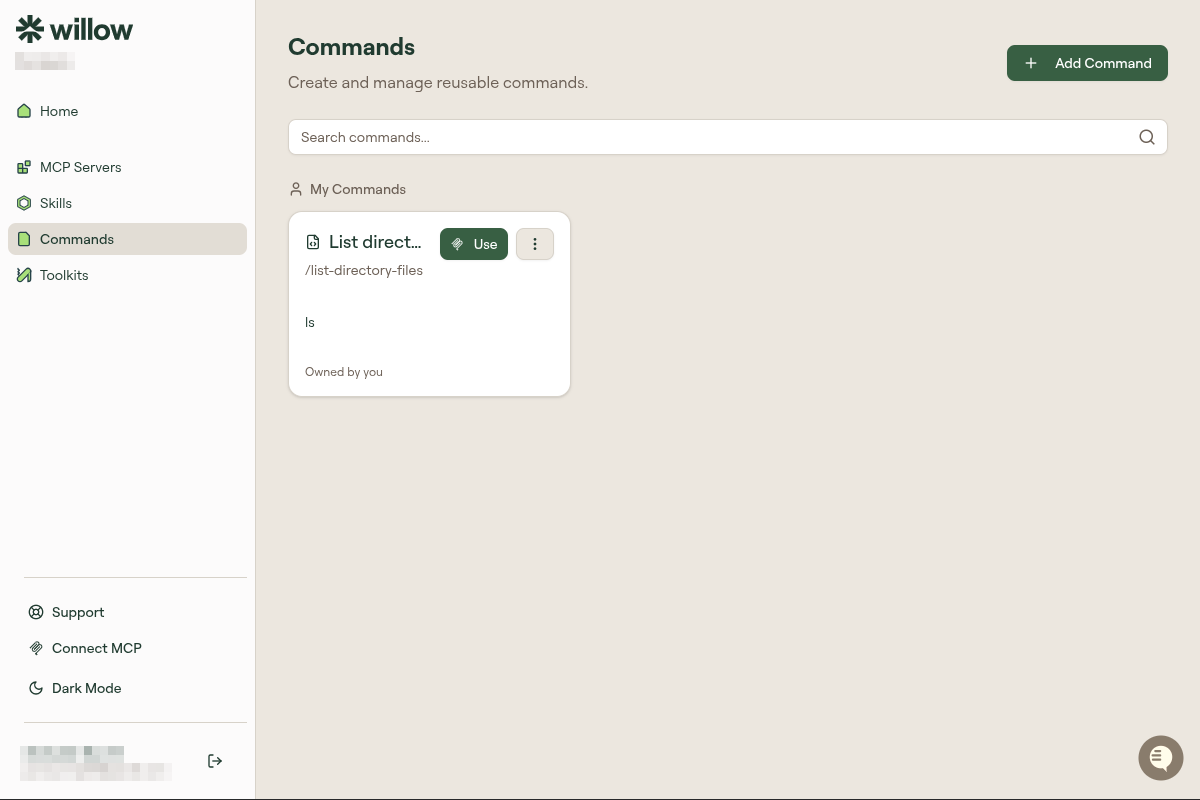
- Click + Add Command
- Fill in Name, Slug, Description, and Output Content
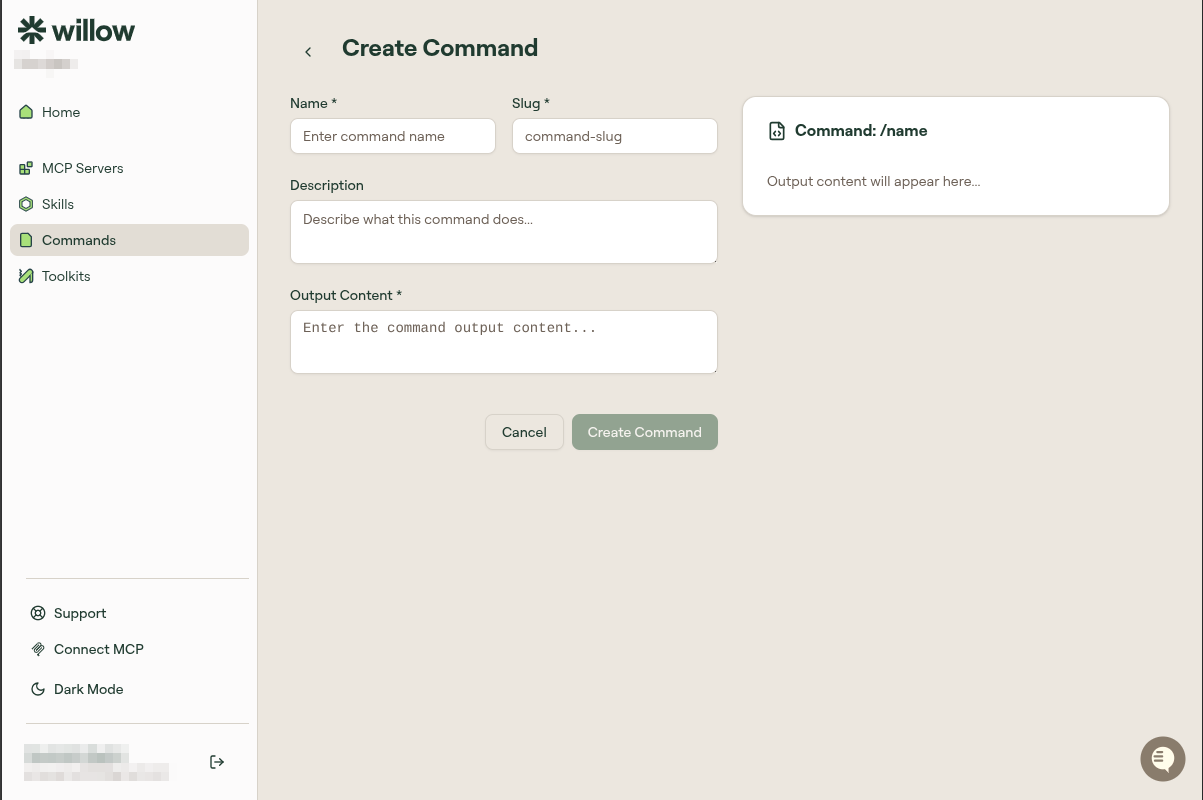
- Click Create Command
The slug becomes the invocation name. Type /slug in your AI client to expand it.
Editing a command
Click Edit on any command card, make your changes, and click Save. Changes apply immediately. The next invocation of /slug expands the updated content.
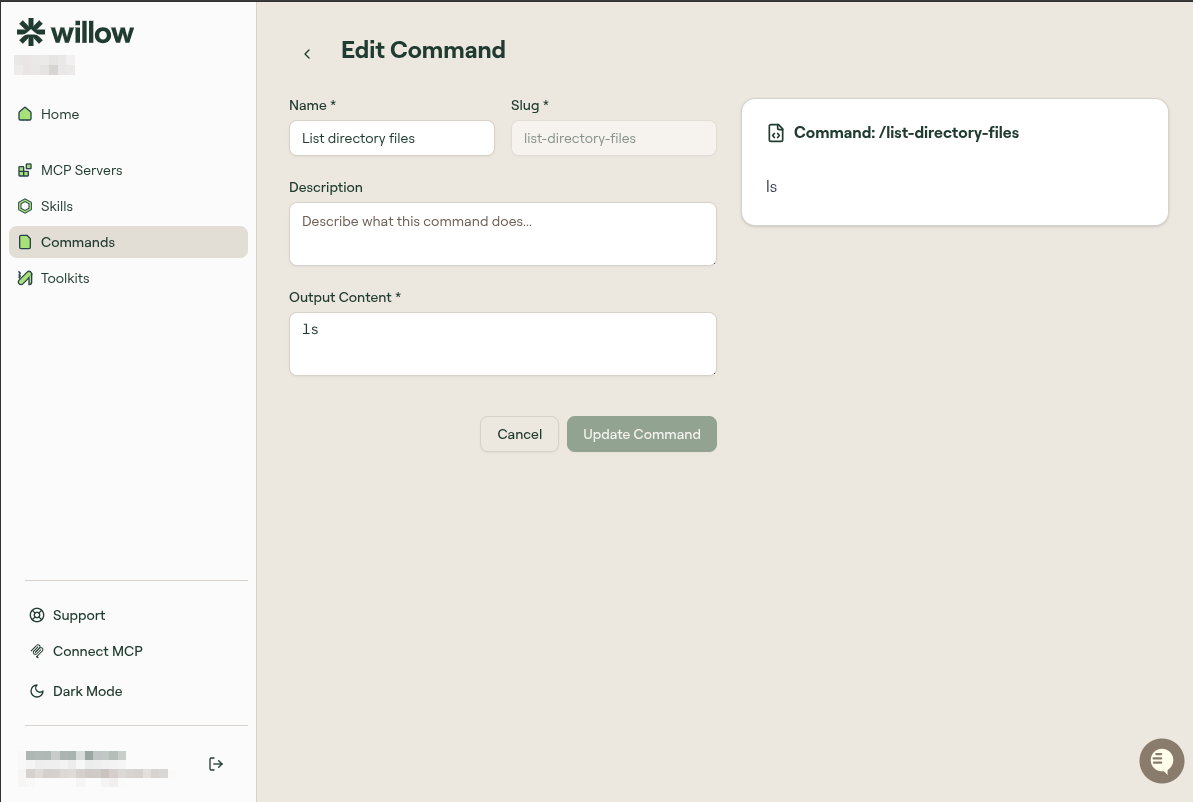
Use Duplicate to copy an existing command as a starting point for a variation.
Command content format
Command content is plain text or Markdown. Whatever you write becomes the text that expands when the command is invoked.
Use Markdown for structure:
## Bug Report

**Summary:**

**Steps to reproduce:**
1.
2.

**Expected:**

**Actual:**

**Environment:**
Using a command
Click Use on any command card. A dialog opens showing the command content.
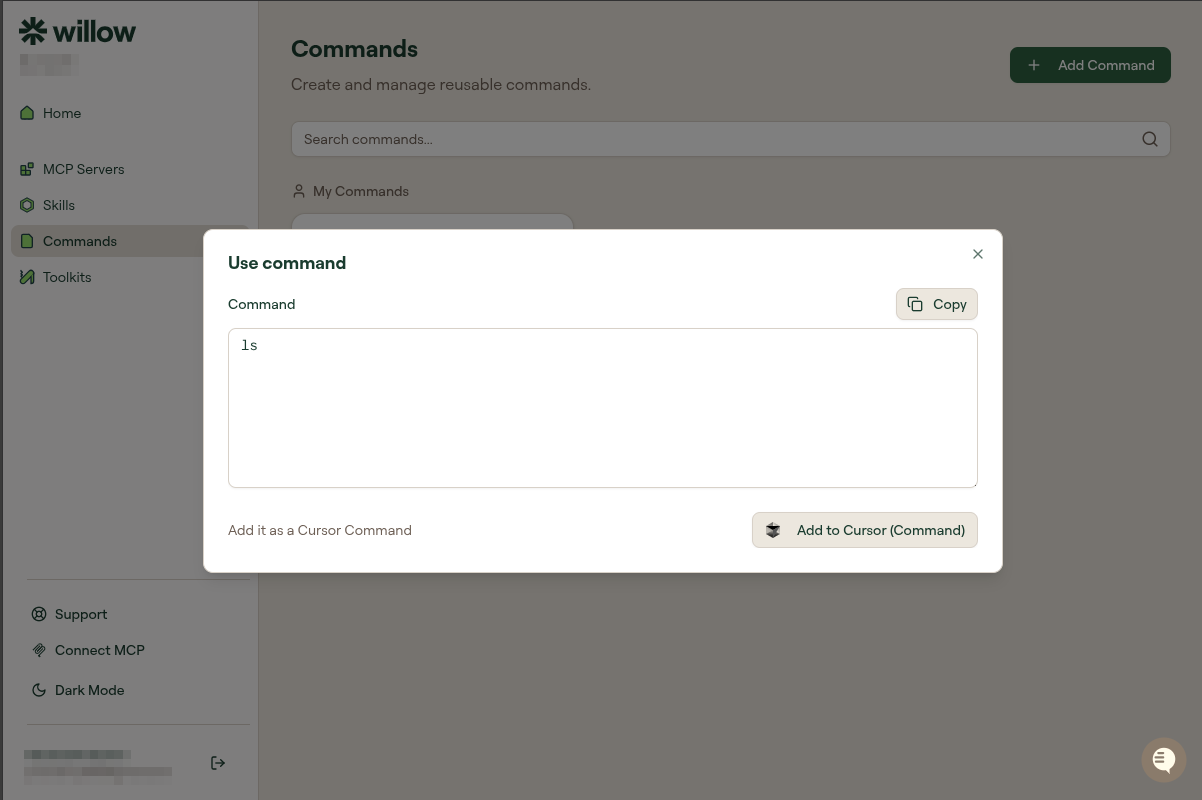
From here you have two options:
- Copy: copies the command text to your clipboard so you can paste it directly into any AI client prompt.
- Add to Cursor (Command): installs the command natively into Cursor so you can invoke it with
/slugin Cursor chat.
Sharing a command
Click the ⋮ menu on any command card and select Share. Add a teammate's email and set their permission level: Read (they can use it) or Write (they can also edit it).
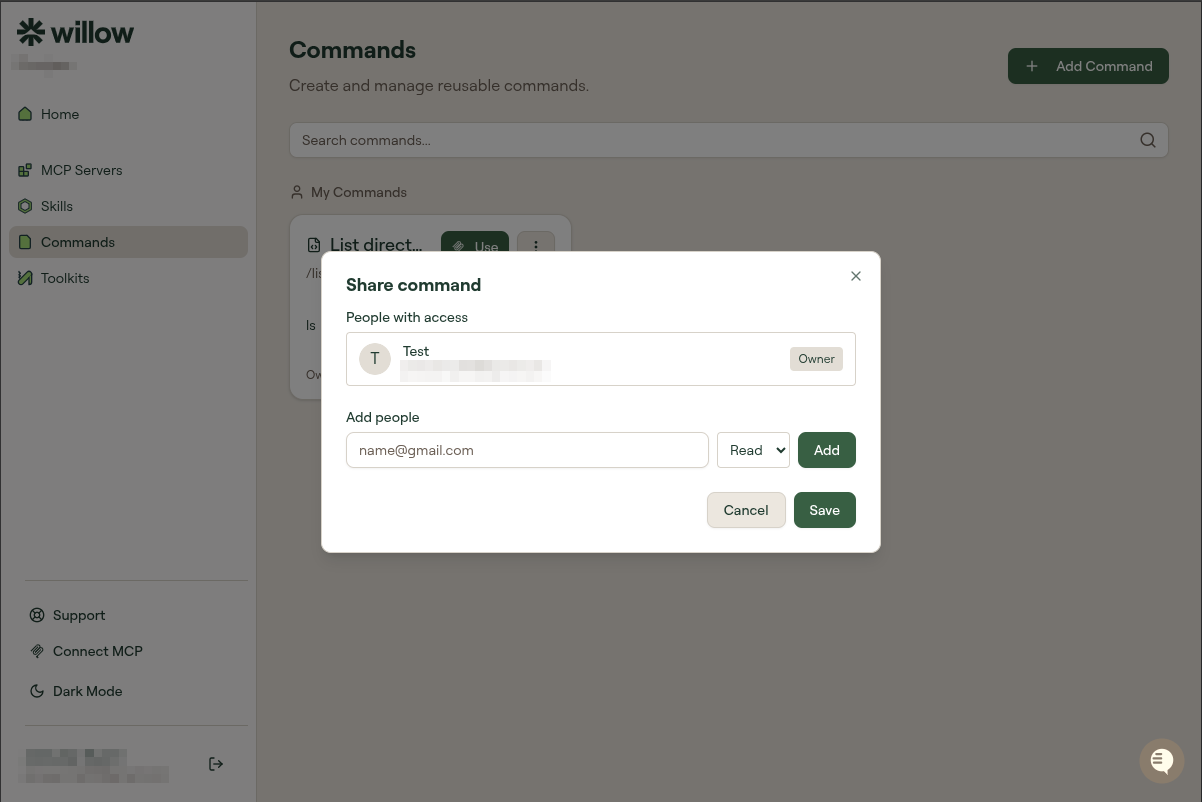
Sharing is per-command. Sharing one command doesn't expose your other commands.
Related
- Create your first command: step-by-step tutorial
- Skills: for process instructions, not templates