Browse and Enable MCP Servers
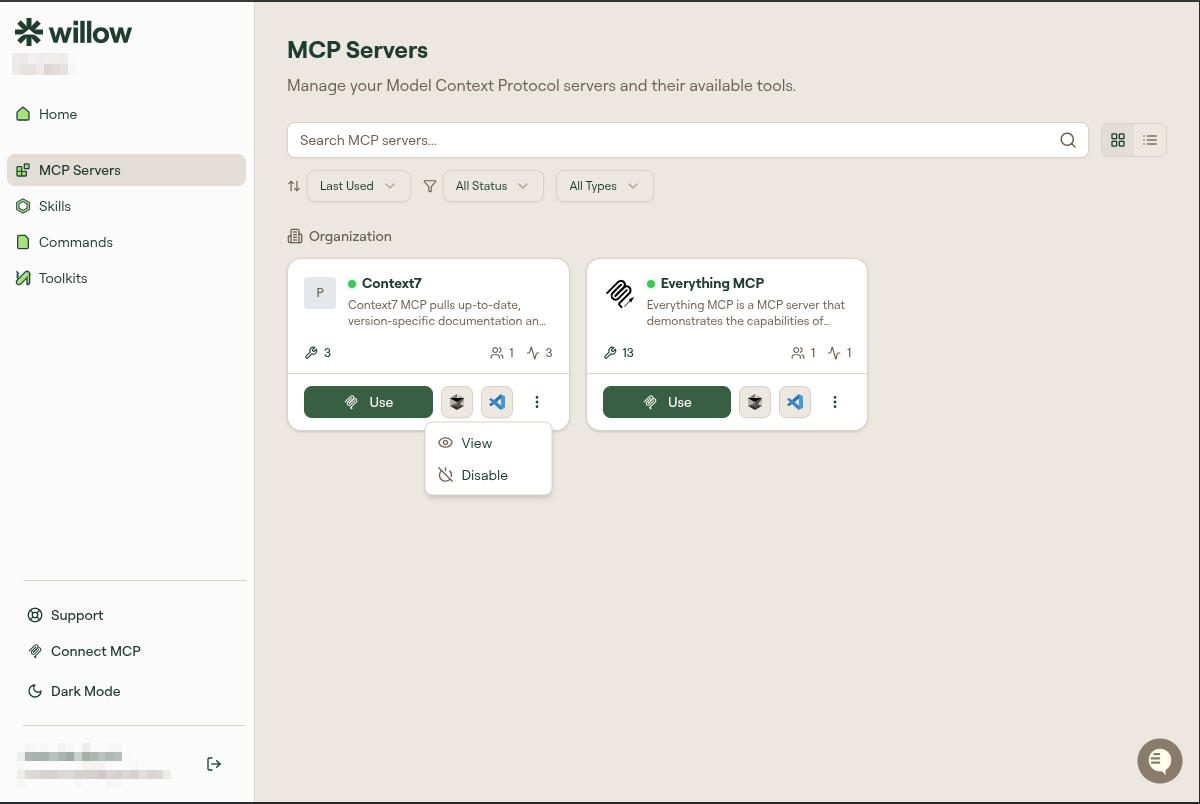
Click MCP Servers in the sidebar to see every tool server your admin has made available to you. Use the search bar or the Last Used, Status, and Type filters to find what you're looking for.
Add a server to your AI client
If you want to connect a server to your AI client (for example, to use it in Cursor or Claude Code), click Use on any server card. This opens the Connect MCP modal pre-configured for that server. Copy the URL and add it to your AI client config.
See Per-Client Setup if you need steps for your specific client.
Enable or disable a server
Enabling and disabling controls whether a server's tools are active in your existing Willow connection. This takes effect immediately without changing any AI client config.
- Click Enable to make a server's tools available to your AI.
- Click Disable to remove a server's tools from your AI.
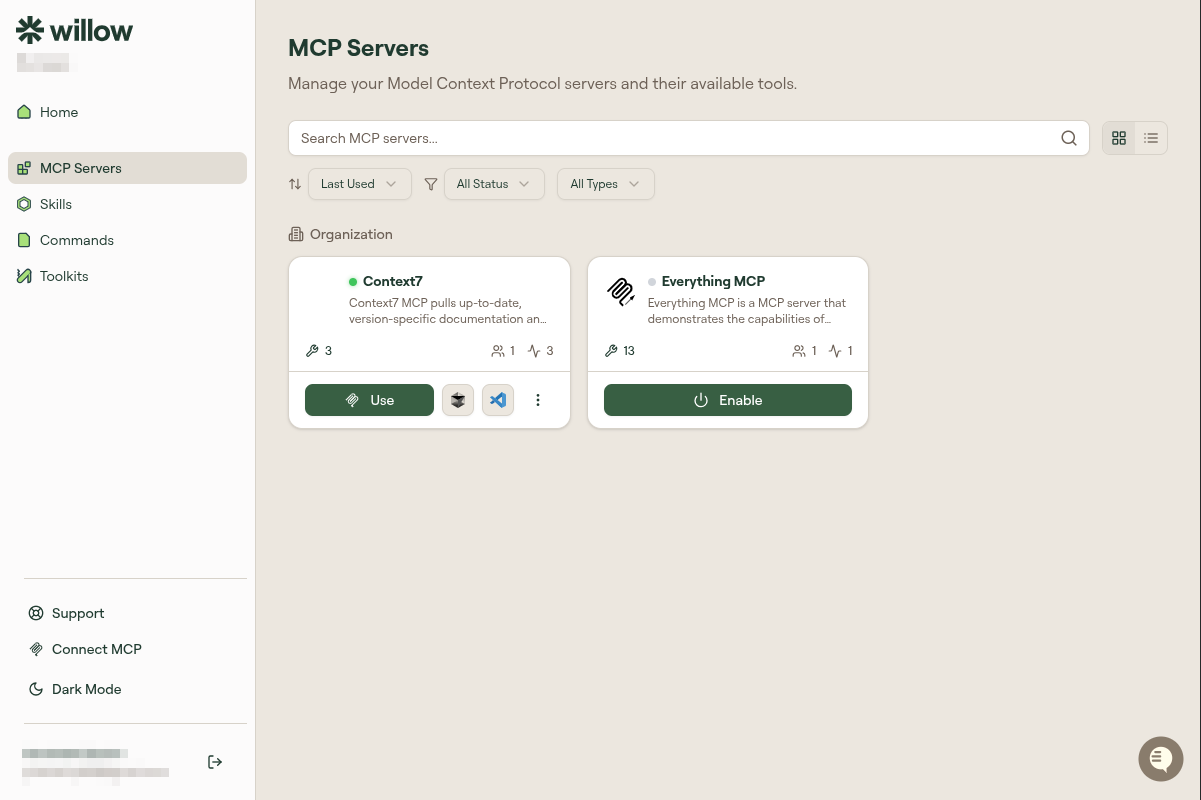
Disabling doesn't remove the server from your list. Click Enable to restore it.
If a server isn't in your list
Your admin controls which servers appear here. If a server you need isn't showing, contact your admin to request access.