Edit a Toolkit
Configure the tools, prompts, and resources in a toolkit you own.
Opening the Edit Toolkit page
Willow opens Edit Toolkit automatically after you create a toolkit. To return to it later, click the toolkit card in the Toolkits list.
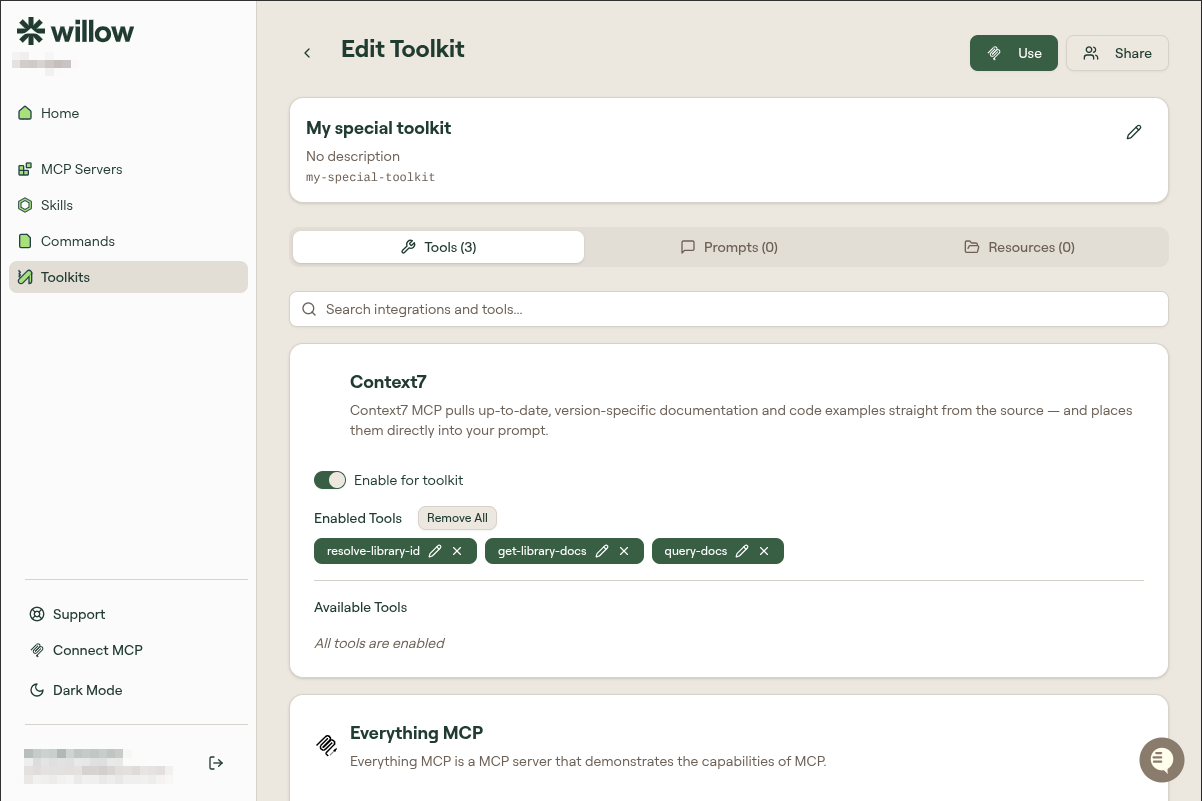
The page shows your toolkit's name, description, and slug in a header card, with a pencil icon to edit them inline. Three tabs below let you configure what the toolkit contains.
Tools tab
The Tools tab lists every MCP server your admin has made available. For each server:
- Toggle Enable for toolkit to include or exclude the entire server
- Enabled Tools shows the individual tools currently active, each with an edit and remove button
- Available Tools shows tools from that server that are not yet enabled
- Use Remove All to disable all tools on a server at once
- Use the Search integrations and tools bar to filter across all servers
Changes here take effect the next time your AI client connects using this toolkit's URL.
Prompts tab
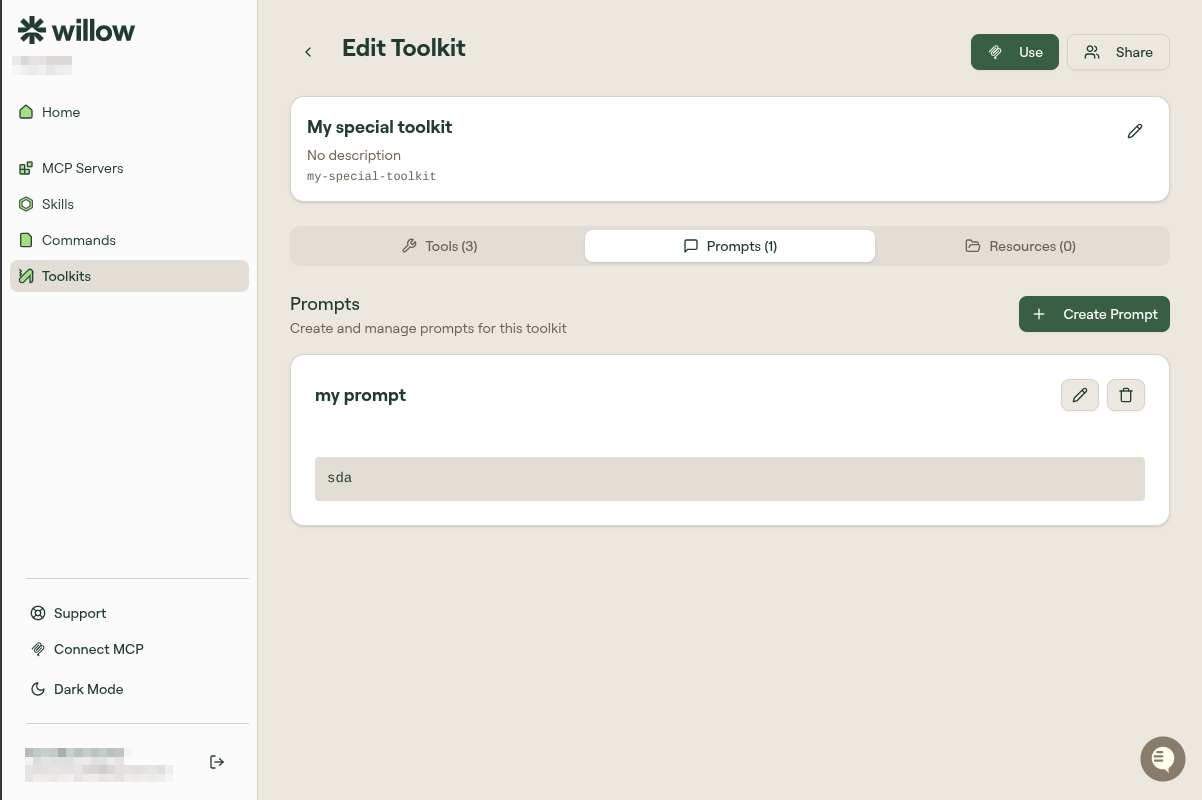
Prompts are instruction text that shapes how your AI approaches tasks in this toolkit's context.
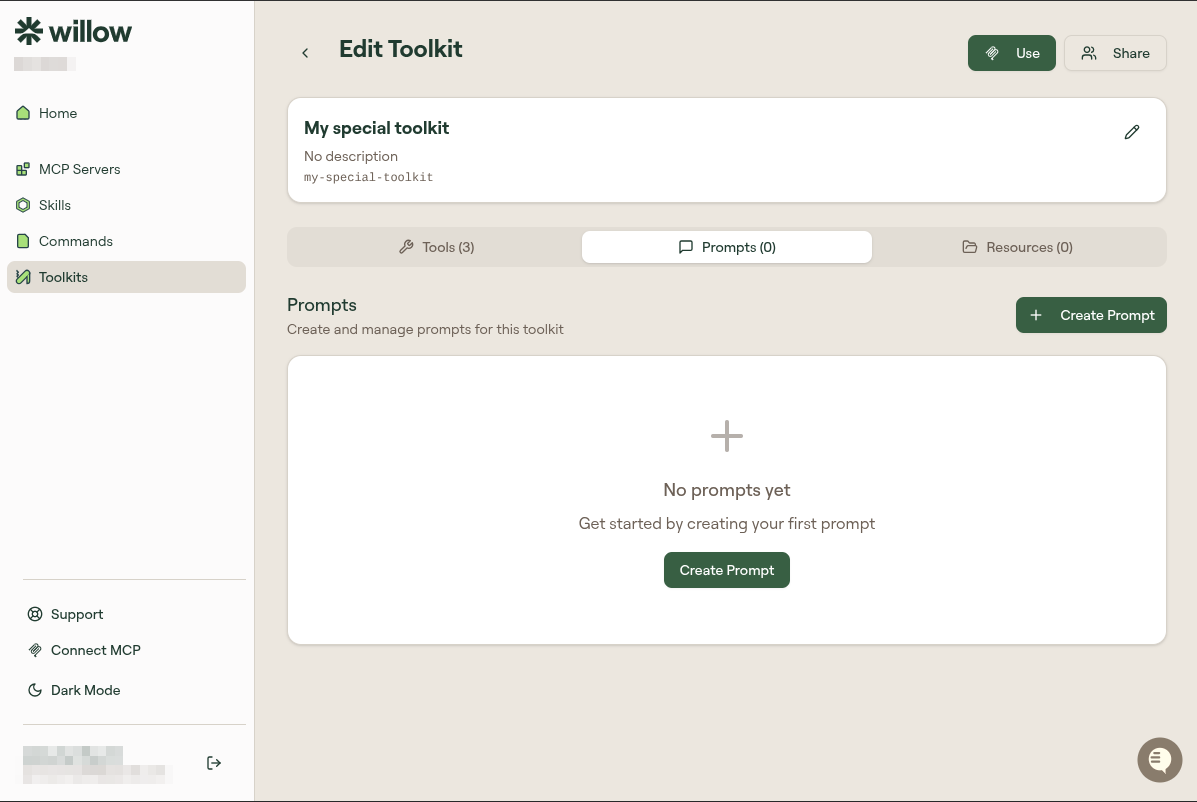
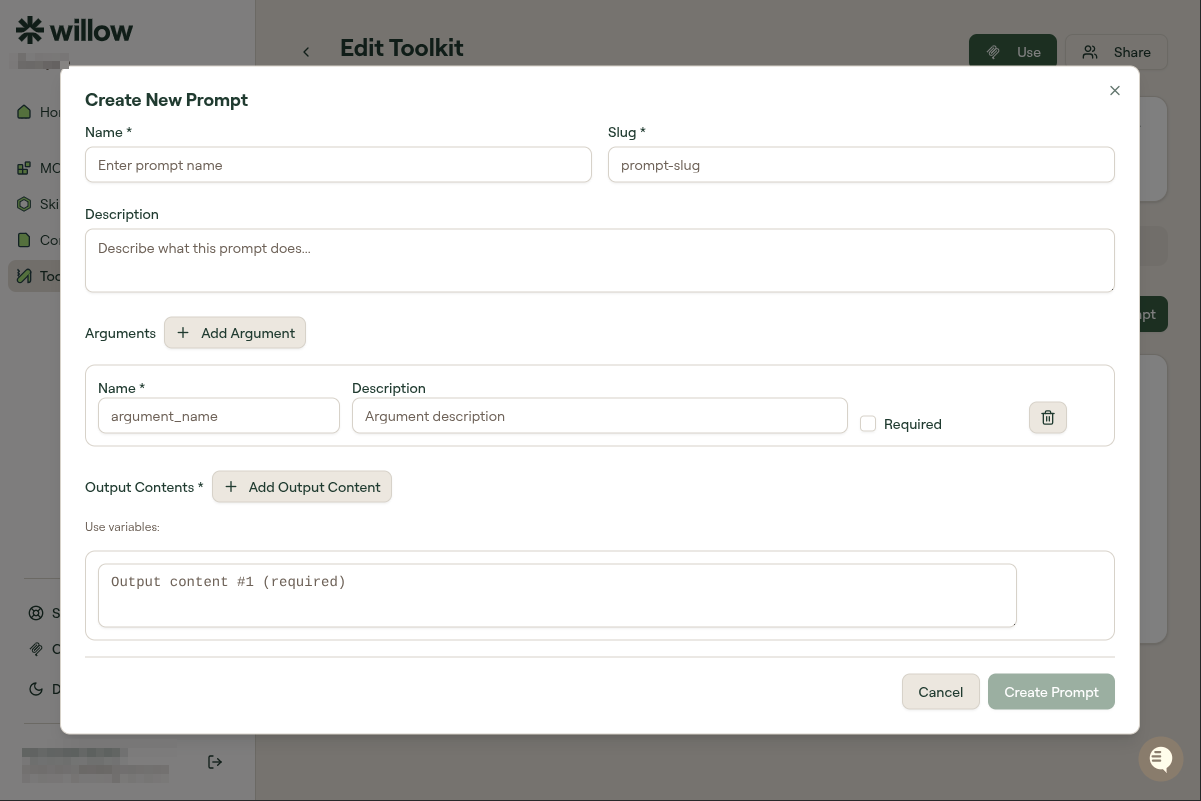
Click Create Prompt to add one. The form has:
- Name and Slug (slug is auto-generated from the name)
- Description: what this prompt does
- Arguments: optional variables your AI can fill in when using the prompt. Each argument has a name, description, and an optional Required checkbox
- Output Contents: the actual prompt text. You can reference arguments as variables
Existing prompts show in the tab as cards. Use the pencil icon to edit or the trash icon to delete.
Resources tab
Resources are reference content your AI can read during the workflow: schemas, style guides, data dictionaries, API specs, or anything else your AI should be able to look up.
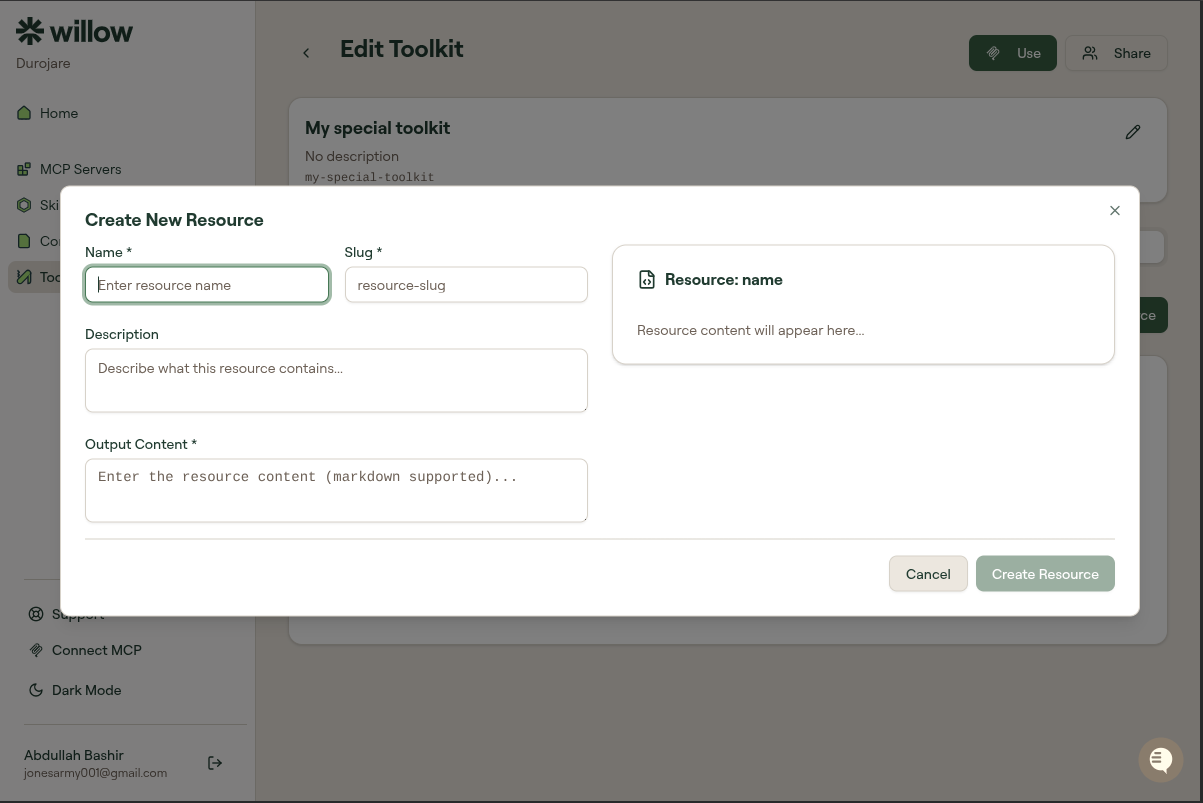
Click Create Resource to add one. The form has:
- Name and Slug
- Description: what this resource contains
- Output Content: the resource text (Markdown supported). A live preview shows on the right.