Connect Codex to Willow
Use the OpenAI Codex CLI with your organization's Willow tools.
Prerequisites
- Codex CLI installed (
codex --versionto verify) - Your organization's Willow URL (from the Connect MCP modal)
Step 1: Get Your Connection URL
In Willow, click Connect MCP at the bottom of the left sidebar.
Codex is not one of the tools listed in the dialog, so select any entry and copy the Server URL. The gateway URL is the same for every tool.
Step 2: Add the MCP Server and Authenticate
Run this command, replacing the URL with the one you copied:
codex mcp add willow --url "https://yourorg.mcp-s.com/mcp"
willow is the name you're giving this connection. You can use any name.
Codex adds the server, detects OAuth support, and starts the auth flow immediately. No separate login step needed.
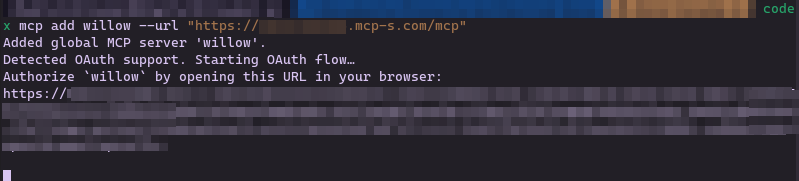
Open the URL in your browser. Log in to your Willow account if prompted, then complete the authorization.
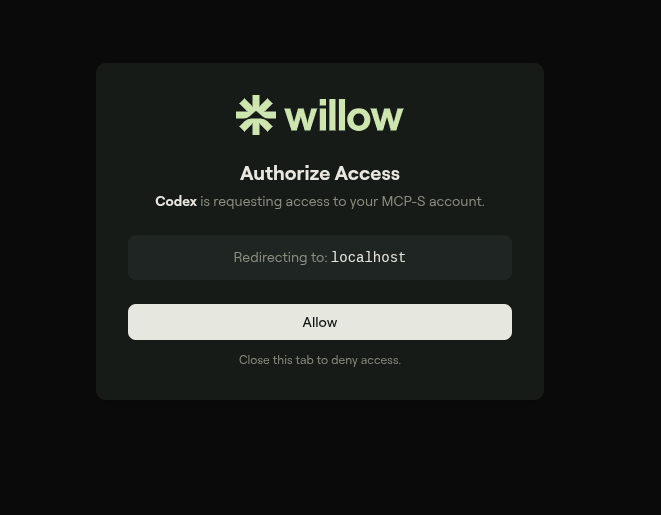
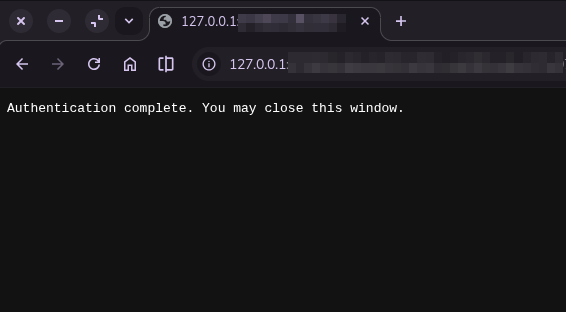
The browser confirms authentication is complete.
Back in the terminal, Codex confirms with Successfully logged in.
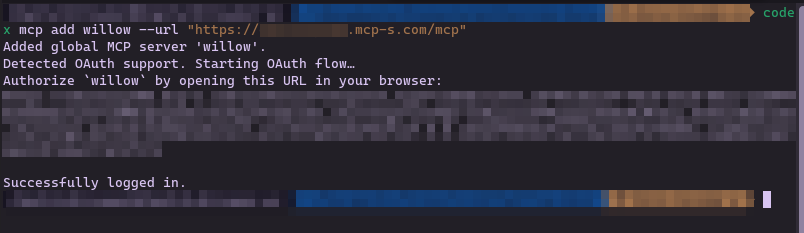
Codex stores the credentials and uses them automatically on future connections.
This writes the server to ~/.codex/config.toml (global). To scope it to a project instead, add it to .codex/config.toml in your project root:
[mcp_servers.willow]
url = "https://yourorg.mcp-s.com/mcp"
Step 3: Verify the Server is Connected
In a Codex TUI session, run:
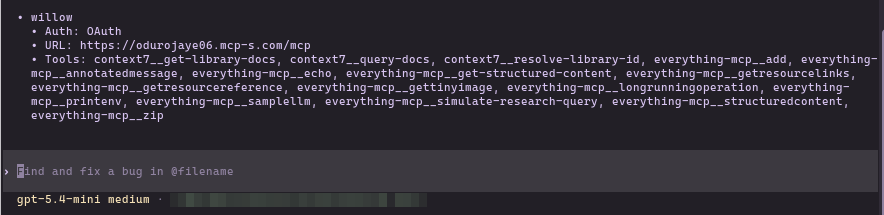
/mcp
You should see willow listed with its Auth method, URL, and available tools.
Step 4: Verify It Works
Ask Codex:
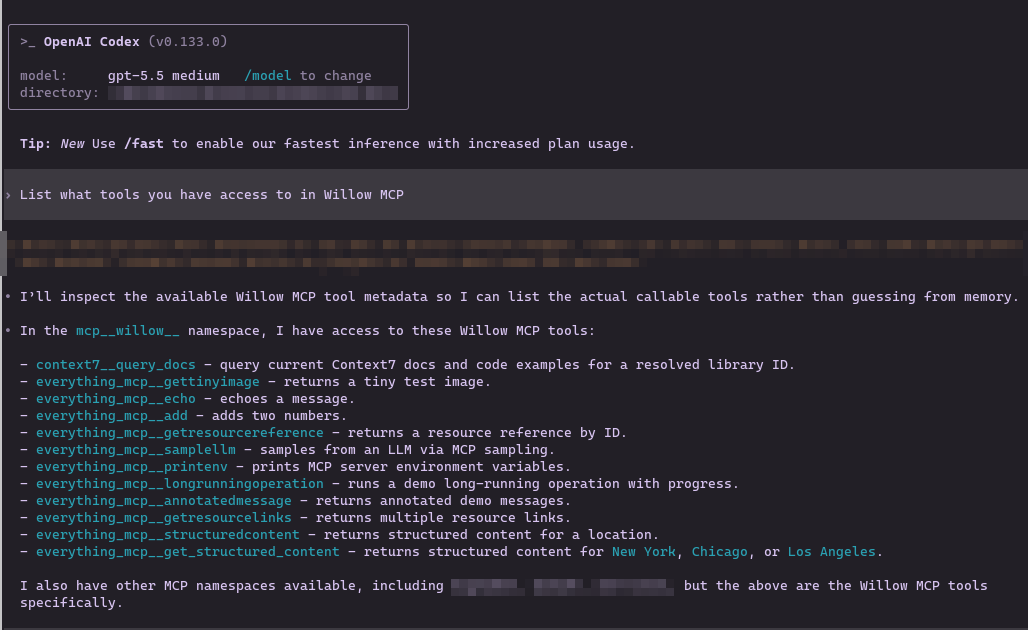
"List what tools you have access to in Willow MCP"
Codex will inspect the available tool metadata and list them under the mcp__willow__ namespace.
The tools you see will depend on which MCP servers your organization admin has installed, which tools on those servers they have enabled, and what tools each MCP server exposes. Your list may look different from the one shown here.
Troubleshooting
Server not listed after /mcp
- Check that
~/.codex/config.tomlhas the correct[mcp_servers.willow]entry withurl - Confirm the URL matches what the Connect MCP modal shows
OAuth login fails
- Ensure you have accepted the invite from your admin
- Re-run
codex mcp login willowto redo the auth flow
Tools not available after authenticating
- Run
/mcpto confirm the server initialized correctly - See General Troubleshooting
mcp-s-cli fails with network/connection errors inside Codex
- Codex's default
workspace-writesandbox blocks outbound network, so the CLI can't reach the gateway. Enable network access — see Running inside OpenAI Codex.
Related
- All AI Clients: Setup for other clients
- Connection Methods: MCP Gateway vs Dynamic vs CLI