Connect OpenCode to Willow
OpenCode comes in two forms: OpenCode Terminal (TUI) and OpenCode Desktop (GUI). This guide covers both.
Configuration and authentication (Steps 1–3) are the same for either. Step 4 shows verification for each.
Prerequisites
- OpenCode Terminal or OpenCode Desktop installed
- Your organization's Willow URL (from the Connect MCP modal)
Step 1: Get Your Connection URL
In Willow, click Connect MCP at the bottom of the left sidebar.
OpenCode is not one of the tools listed in the dialog, so select any entry and copy the Server URL. Two endpoints are available:
- MCP Gateway: one specific server (
https://yourorg.mcp-s.com/mcp?mcp=servername) - Dynamic MCP Gateway: all your servers through one endpoint (
https://yourorg.mcp-s.com/dmcp)
Copy the URL shown.
Step 2: Configure OpenCode
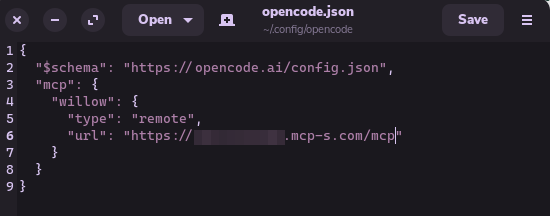
OpenCode reads MCP server configuration from opencode.json in your project directory, or from the global config at ~/.config/opencode/opencode.json. If neither file exists yet, create it.
Add your Willow server to the mcp section:
{
  "$schema": "https://opencode.ai/config.json",
  "mcp": {
    "willow": {
      "type": "remote",
      "url": "https://yourorg.mcp-s.com/mcp?mcp=servername"
    }
  }
}
Replace yourorg with your organization name and servername with the server from the Connect MCP modal.
To connect to all your servers through the Dynamic MCP Gateway:
{
  "$schema": "https://opencode.ai/config.json",
  "mcp": {
    "willow": {
      "type": "remote",
      "url": "https://yourorg.mcp-s.com/dmcp"
    }
  }
}
Step 3: Authorize
Run the auth command to connect OpenCode to Willow:
opencode mcp auth willow

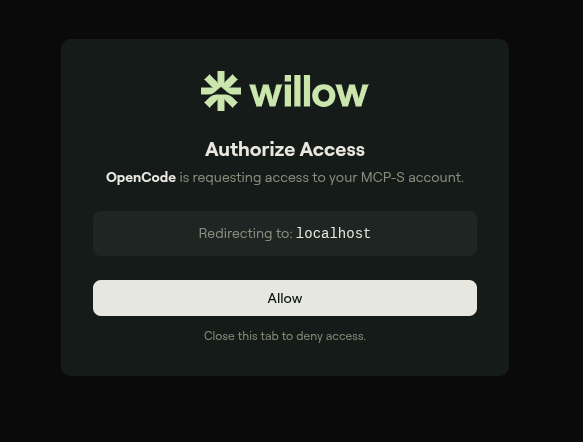
Your browser will open the Willow authorization page. Click Allow.
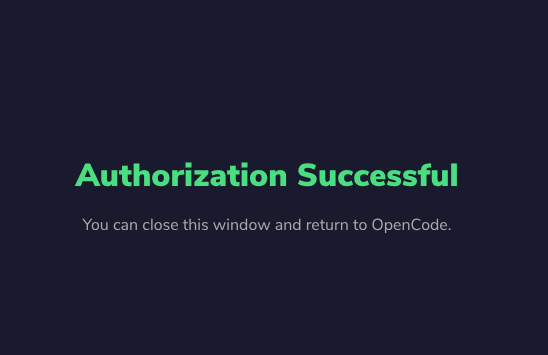
You'll see an "Authorization Successful" confirmation. Close the browser tab and return to OpenCode.
Back in the terminal, you should see:
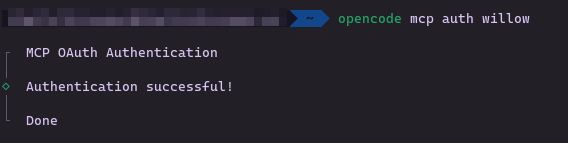
If you see Authentication failed or OAuth completion failed, simply re-run the command and try again. It usually succeeds on the second attempt.
Step 4: Verify It Works
When OpenCode loads, MCPs may take a minute to initialize. This is normal.
Terminal
You'll see the MCP count appear at the bottom of the screen once they're ready.
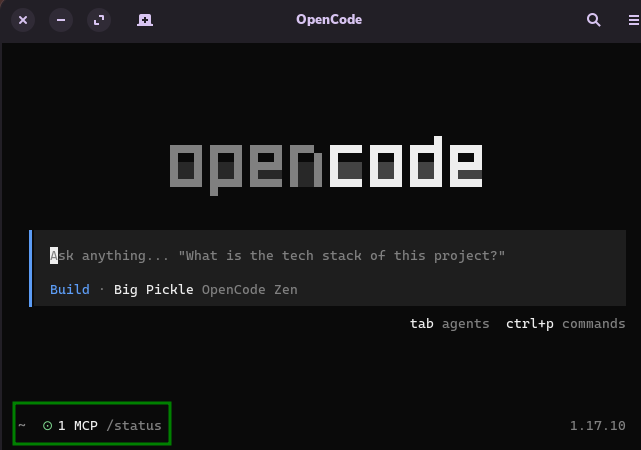
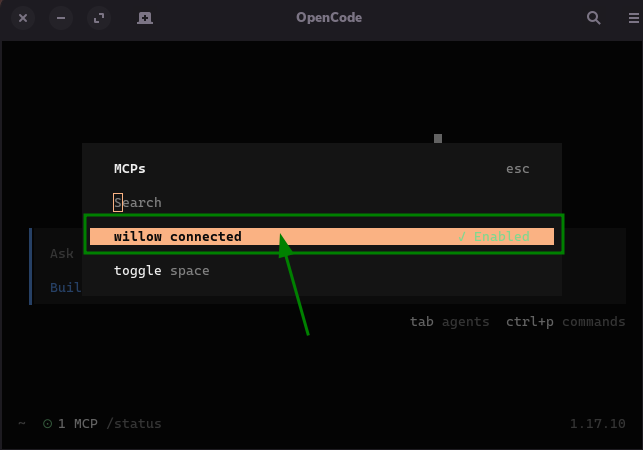
Type /mcps and press Tab (or Enter). You should see willow connected with a status of Enabled.
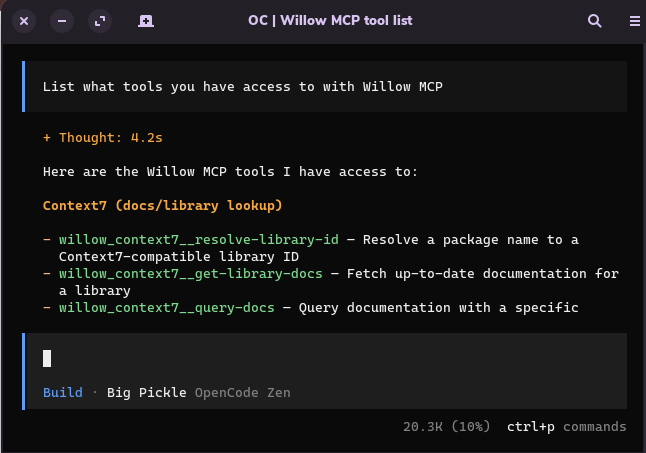
Ask to see the available tools:
"List what tools you have access to with Willow MCP"
Desktop
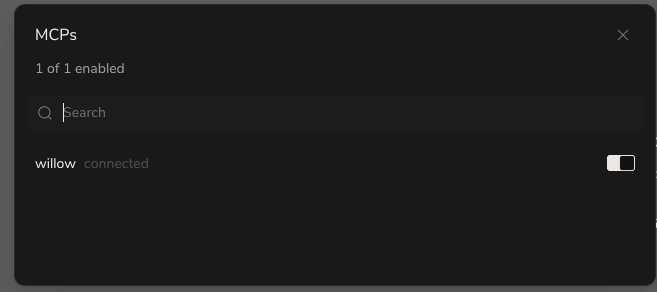
Type /mcps and click it (or press Enter). A panel opens showing willow connected with a toggle. Confirm it is enabled.
Ask to see the available tools:
"List what tools you have access to with Willow MCP"
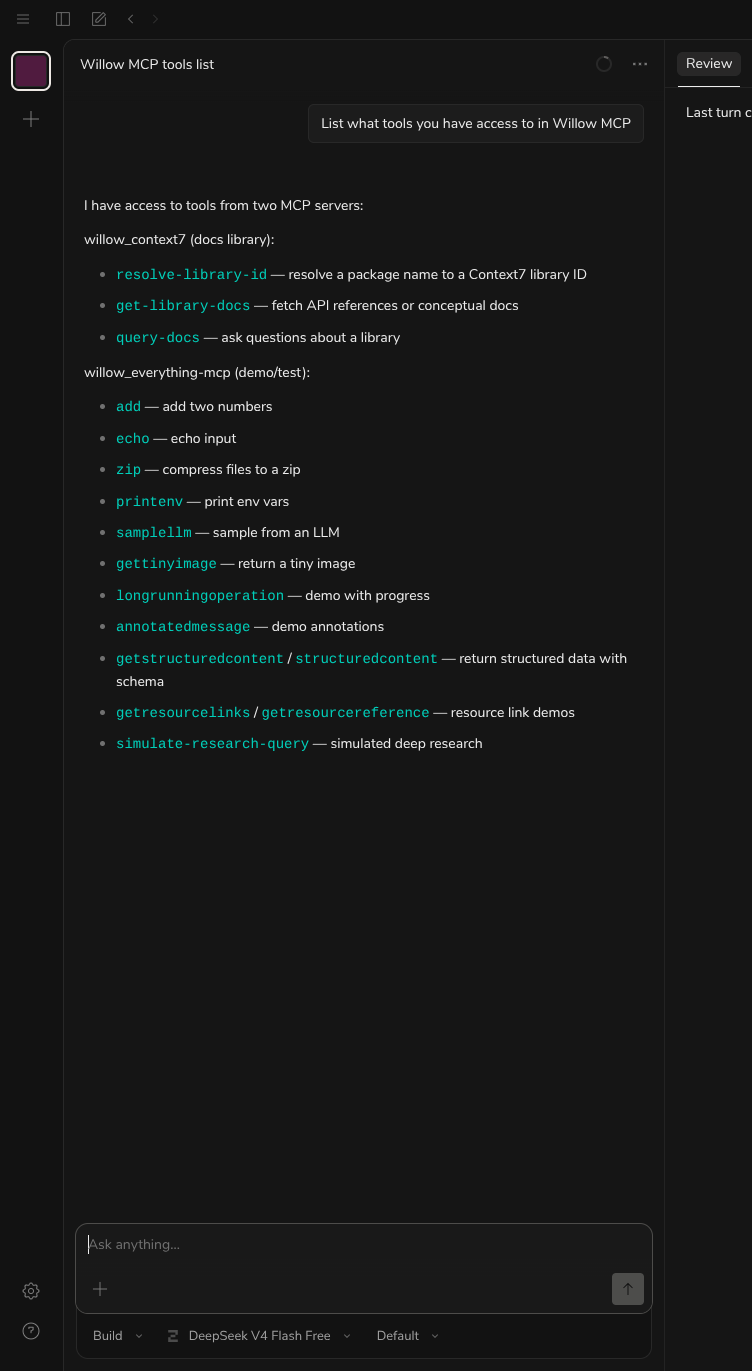
The tools you see will depend on which MCP servers your organization admin has installed and what each server exposes. Your list may look different from the one shown here.
Troubleshooting
MCPs not showing up after launch
- Wait a minute after OpenCode loads. MCP initialization can take time.
- Type
/mcps+ Tab to check status
"Authentication failed" or "OAuth completion failed"
- Re-run
opencode mcp auth willow. This usually succeeds on a second attempt.
Tools not appearing
- Confirm the config file is valid JSON and saved in the right location
- Run
opencode mcp listto check the auth status of your MCP servers - Restart OpenCode after saving config changes
See also: General Troubleshooting
Related
- All AI Clients: Setup for other clients
- Connection Methods: MCP Gateway vs Dynamic vs CLI