Connect Claude Web to Willow
Use Claude on claude.ai with your organization's Willow tools.
Prerequisites
- A claude.ai account (Claude Pro, Team, or Enterprise)
- Your organization's Willow URL (from the Connect MCP modal)
Step 1: Get Your Connection URL
In Willow, click Connect MCP at the bottom of the left sidebar.
Claude Web is not one of the tools listed in the dialog. Select Claude and copy the Server URL.
Step 2: Add Willow as a Connector
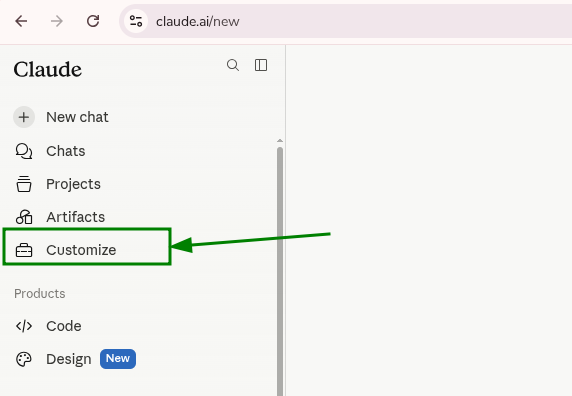
In the claude.ai sidebar, click Customize.
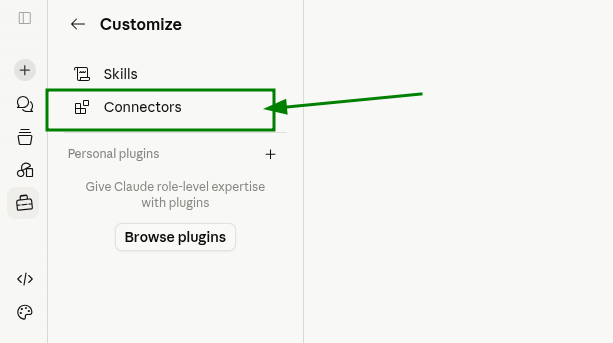
Click Connectors.
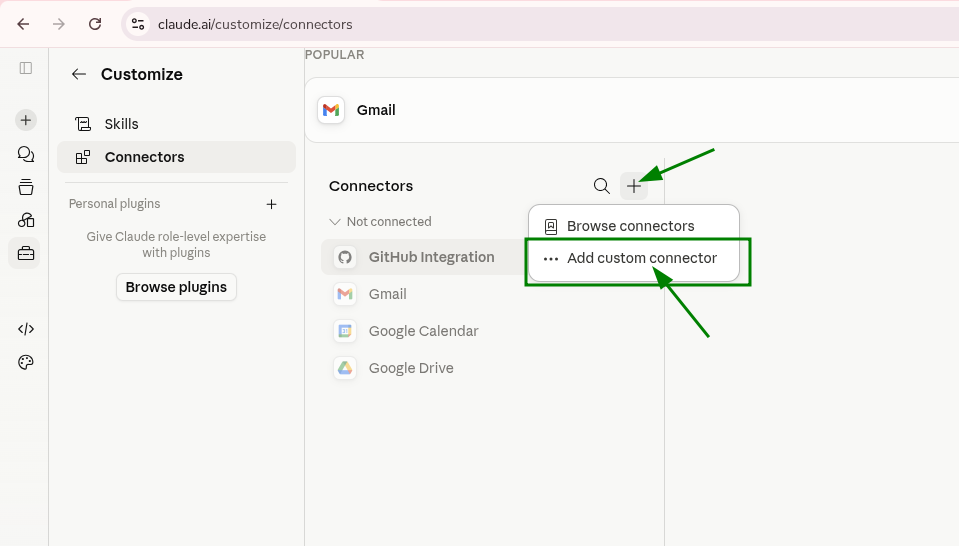
Click the + button, then select Add custom connector.
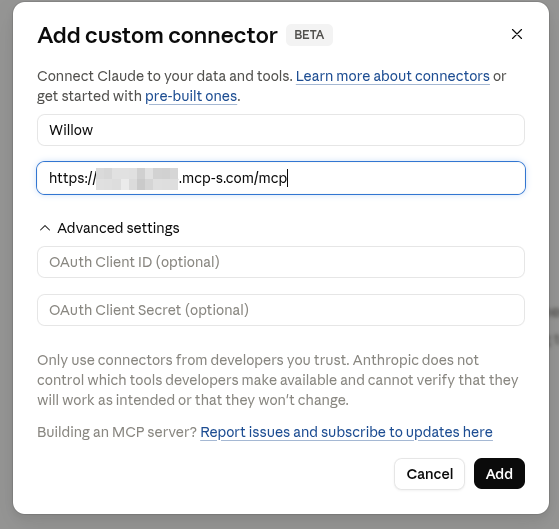
Enter a name (e.g. Willow) and paste your Willow URL. Click Add.
Step 3: Connect
Willow appears in your connectors list. Click Connect.
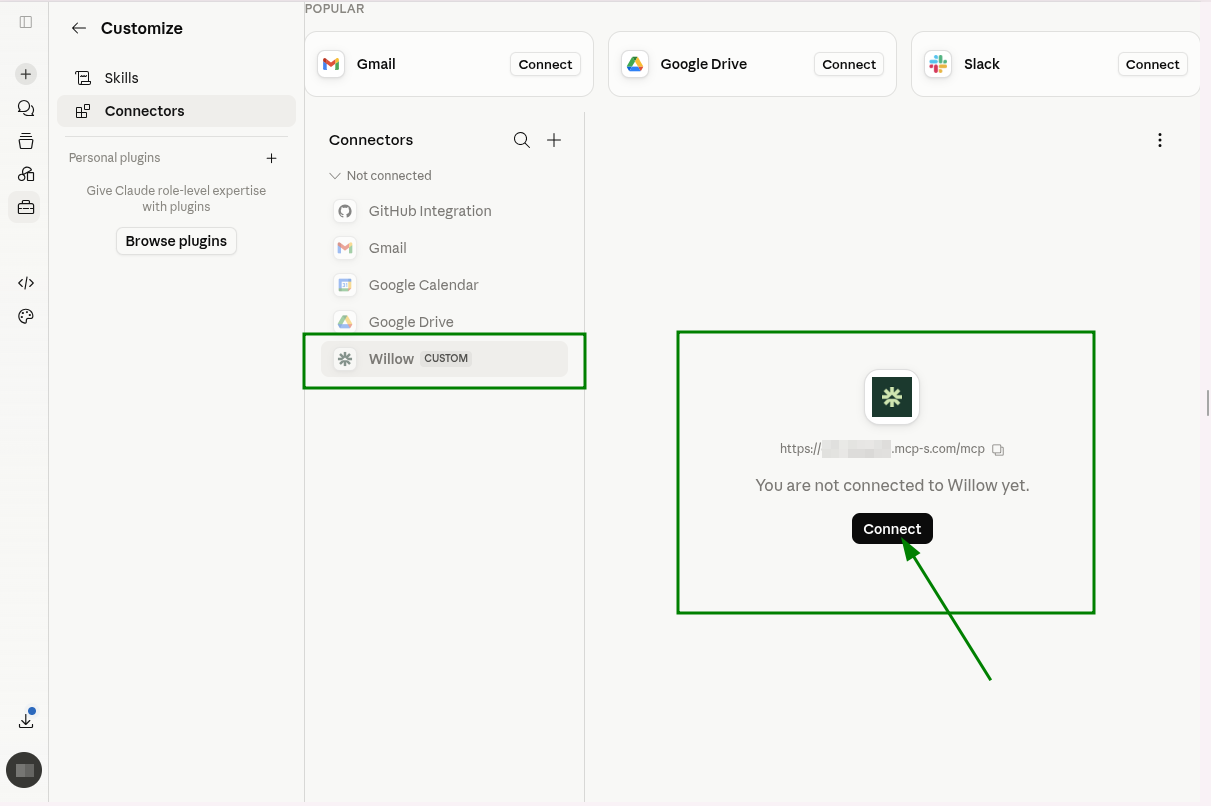
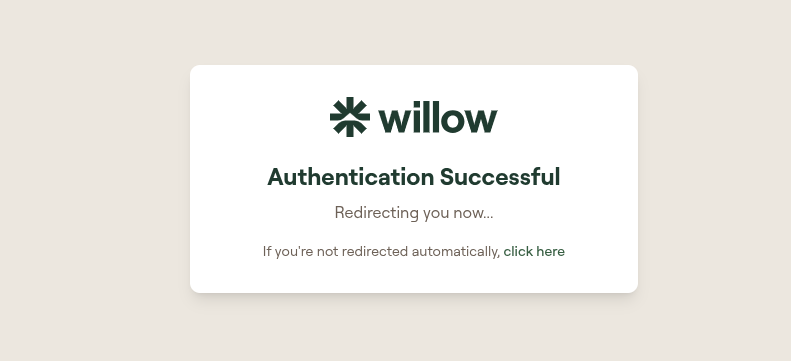
Complete the OAuth flow in your browser. Willow will show an Authentication Successful page and redirect you back to claude.ai automatically.
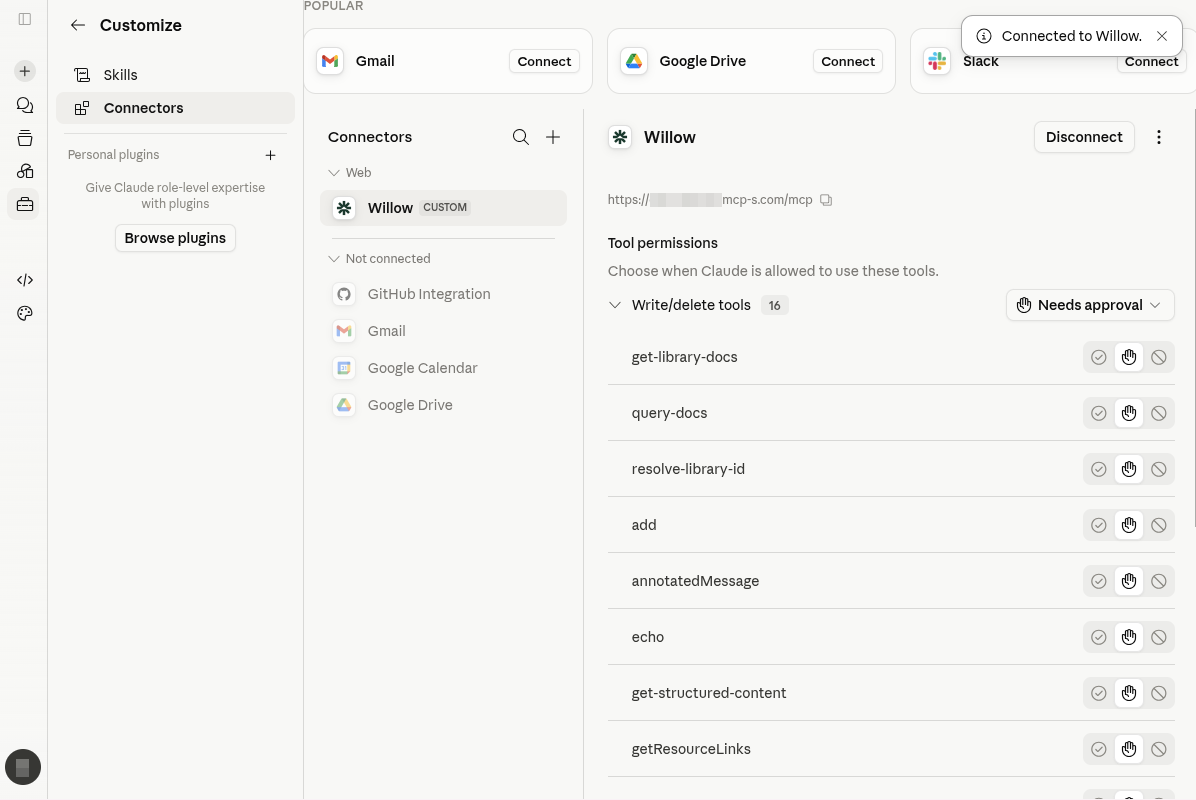
Once redirected, Claude shows a Connected to Willow. confirmation and lists the available tools with their permissions.
Step 4: Confirm Willow is Active in the Chat
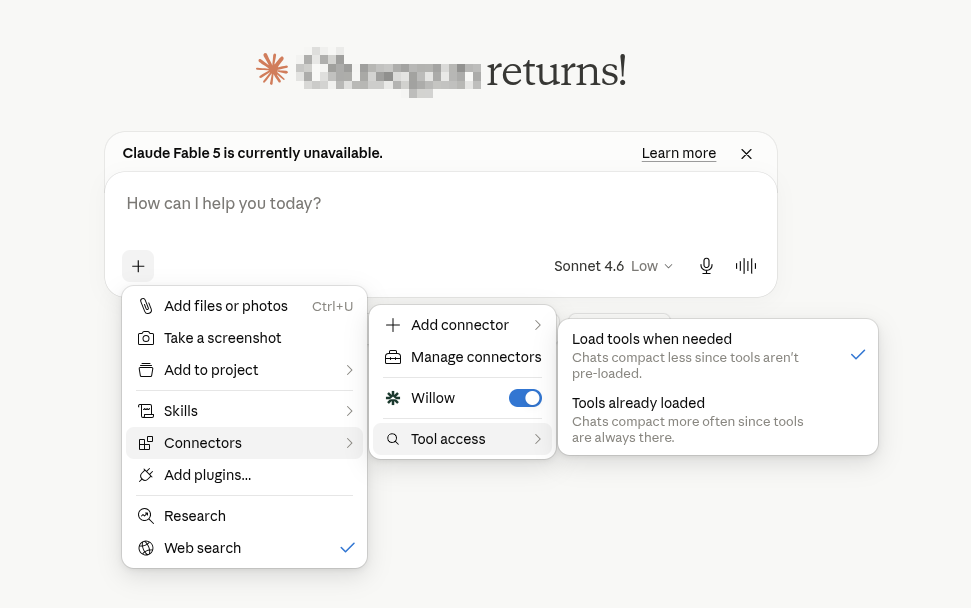
Start a new conversation. Click the + button in the message bar and go to Connectors. Make sure the Willow toggle is on. You can also set how tools load:
- Load tools when needed: tools are fetched on demand. Chats compact less often.
- Tools already loaded: tools are always available. Chats may compact more often.
Step 5: Verify It Works
Ask Claude:
"List what tools you have access to in Willow MCP"
Claude should respond with a full breakdown of your connected Willow tools.
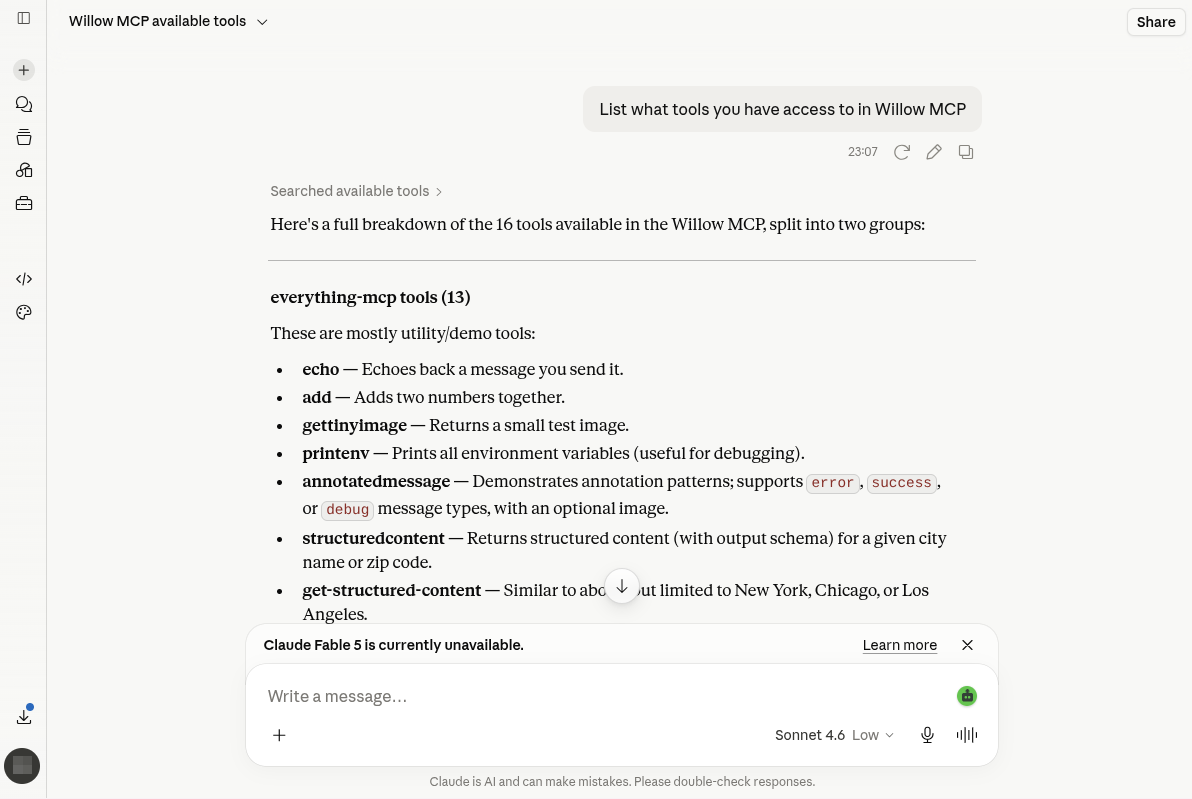
The tools you see will depend on which MCP servers your organization admin has installed, which tools on those servers they have enabled, and what tools each MCP server exposes. Your list may look different from the one shown here.
Using Tools in Conversations
Tools from Willow appear automatically in Claude conversations when the integration is active. Claude will choose to use them when relevant to your request.
If you want to confirm tools are available before asking a question, use the integrations icon in the message bar to see which integrations are connected to the current conversation.
Troubleshooting
No tools visible after setup
- Go to Customize → Connectors and confirm Willow shows as connected under Web
- Start a new conversation. Connectors may not apply to existing conversations.
- Re-authorize if the status shows disconnected
Authorization failed
- Make sure you're logged in to your Willow account and have accepted the invite from your admin
- Try the authorization flow again from Customize → Connectors → Willow → Connect
See also: General Troubleshooting
Related
- All AI Clients: Setup for other clients
- Connection Methods: MCP Gateway vs Dynamic vs CLI