Connect ChatGPT to Willow
Use ChatGPT with your organization's Willow tools.
Prerequisites
- A ChatGPT Plus, Team, or Enterprise account
- Your organization's Willow URL (from the Connect MCP modal)
Step 1: Get Your Connection URL
In Willow, click Connect MCP at the bottom of the left sidebar.
ChatGPT is not one of the tools listed in the dialog, so select any entry and copy the Server URL. The gateway URL is the same for every tool.
Step 2: Enable Developer Mode
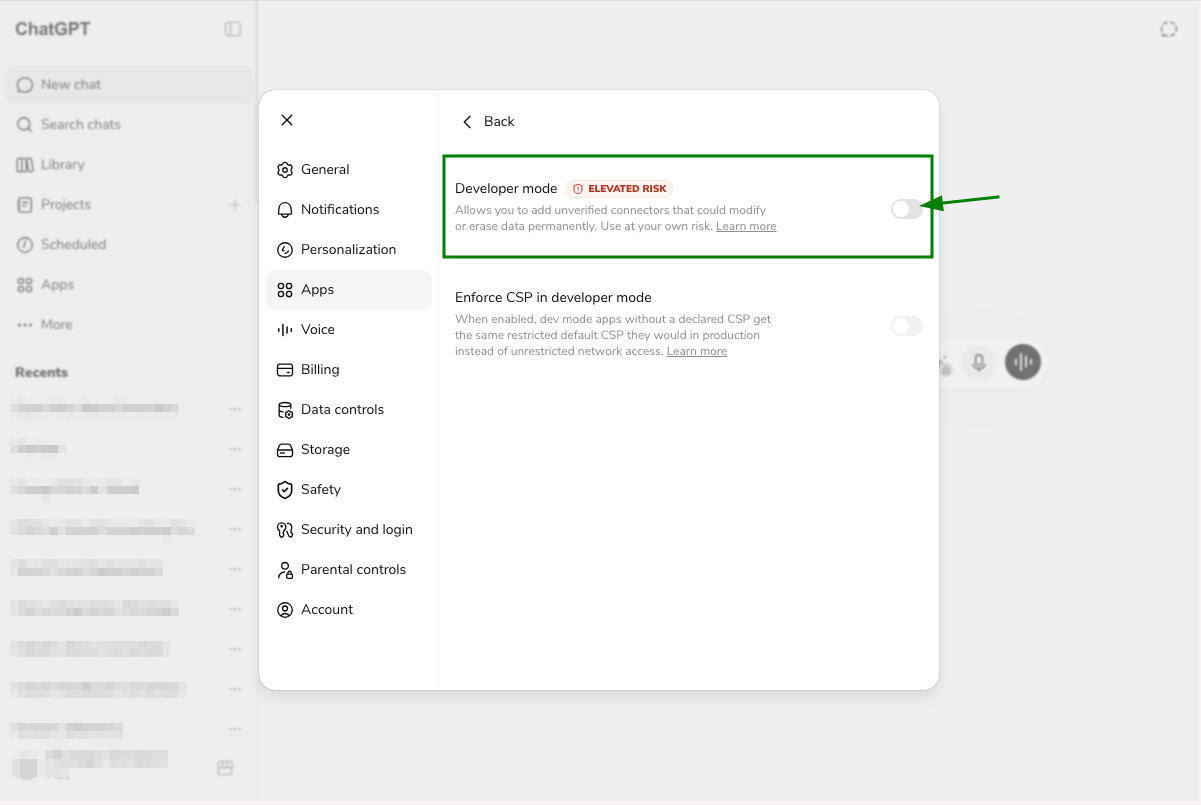
Go to Settings → Apps. Toggle on Developer mode.
Developer mode is marked ELEVATED RISK because it allows unverified connectors. You need it to add custom MCP servers like Willow.
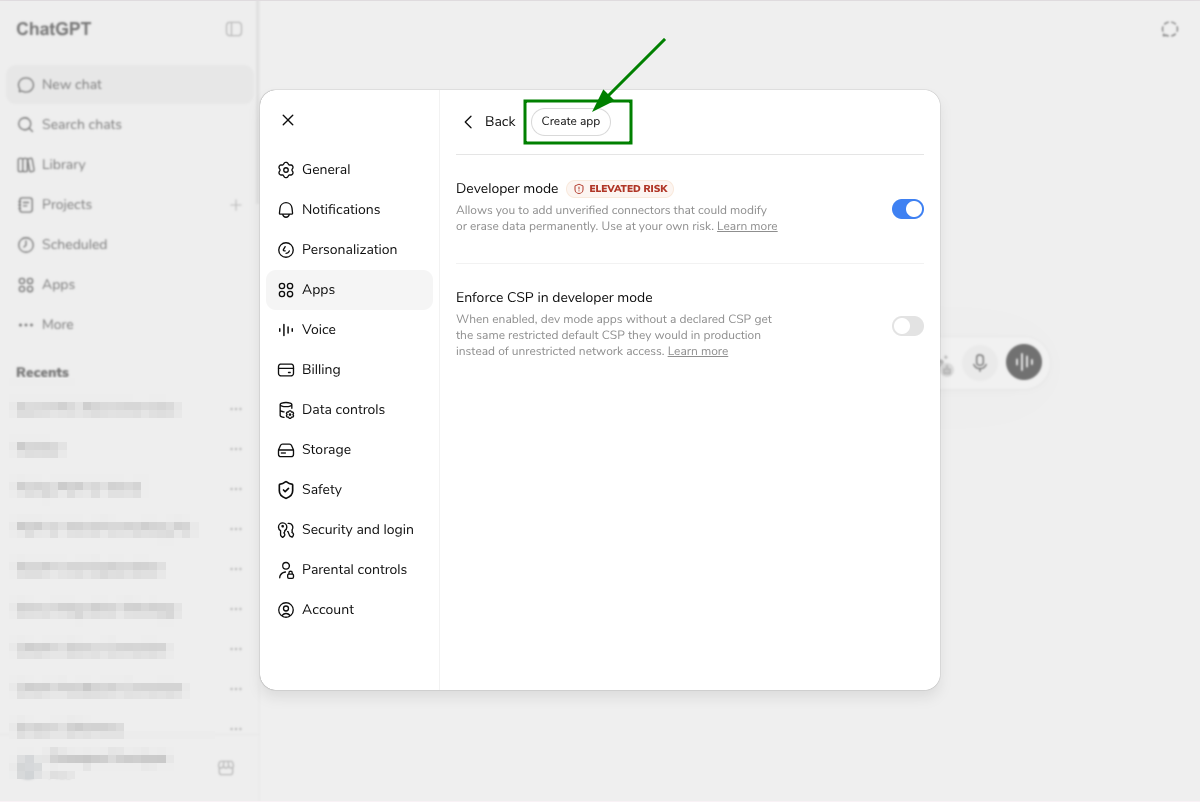
Once enabled, a Create app button appears at the top.
Step 3: Create the App
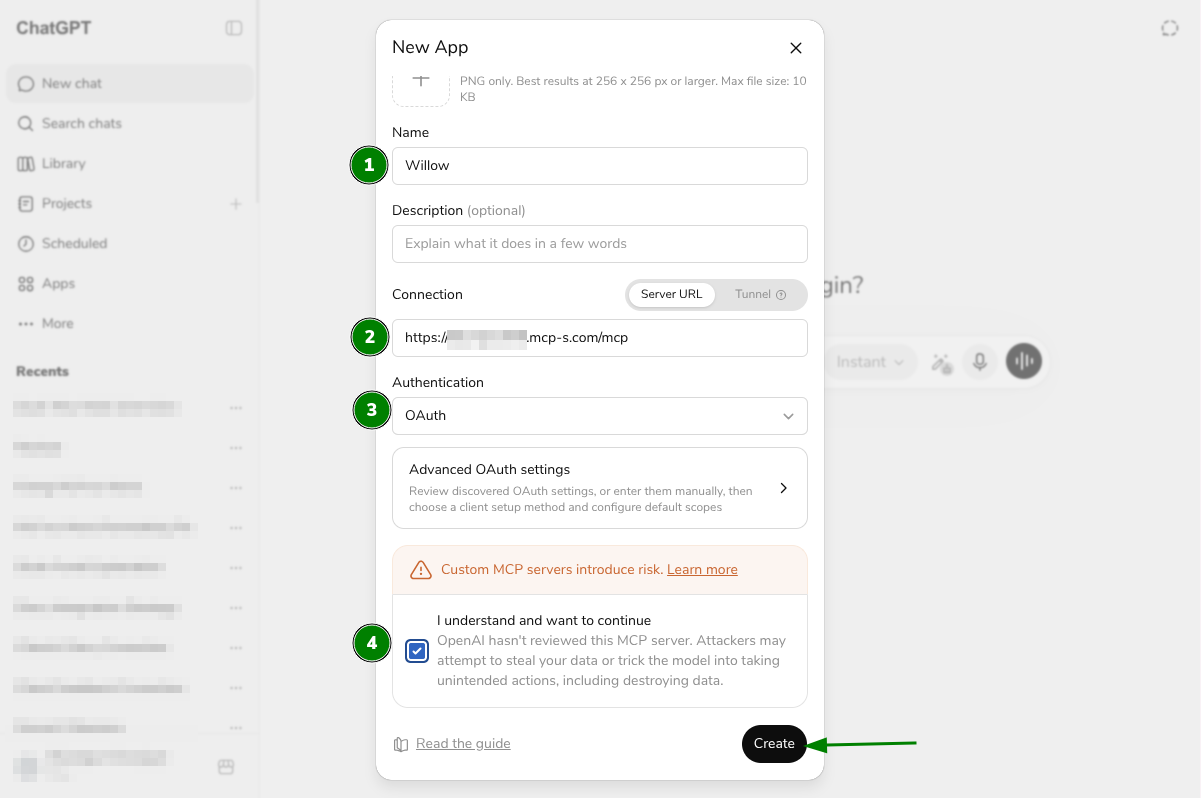
Click Create app. In the New App form:
- Name: enter
Willow - Connection: paste your Willow URL
- Authentication: select
OAuth - Check "I understand and want to continue" to acknowledge the risk warning
Click Create.
Step 4: Sign In
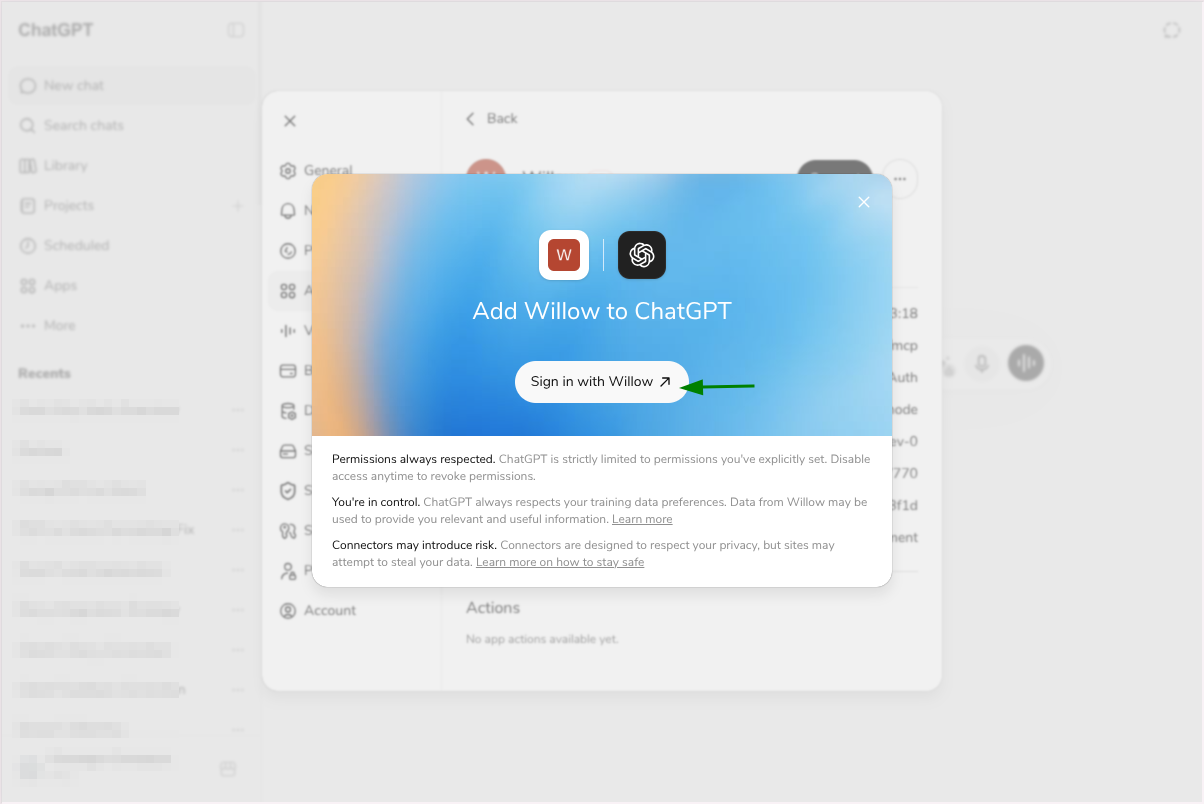
ChatGPT shows an Add Willow to ChatGPT dialog. Click Sign in with Willow.
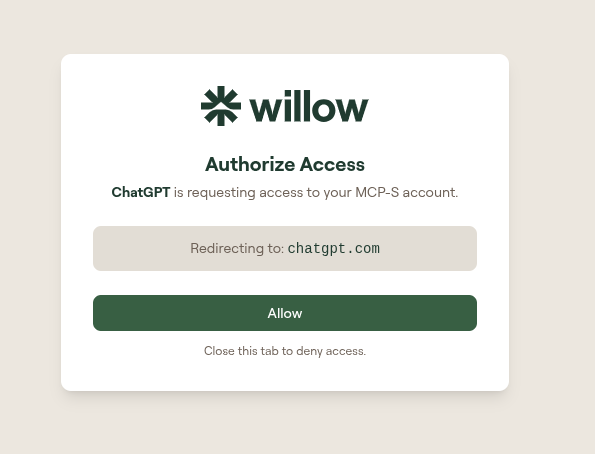
Your browser opens the Willow Authorize Access page. Log in to your Willow account if prompted, then click Allow.
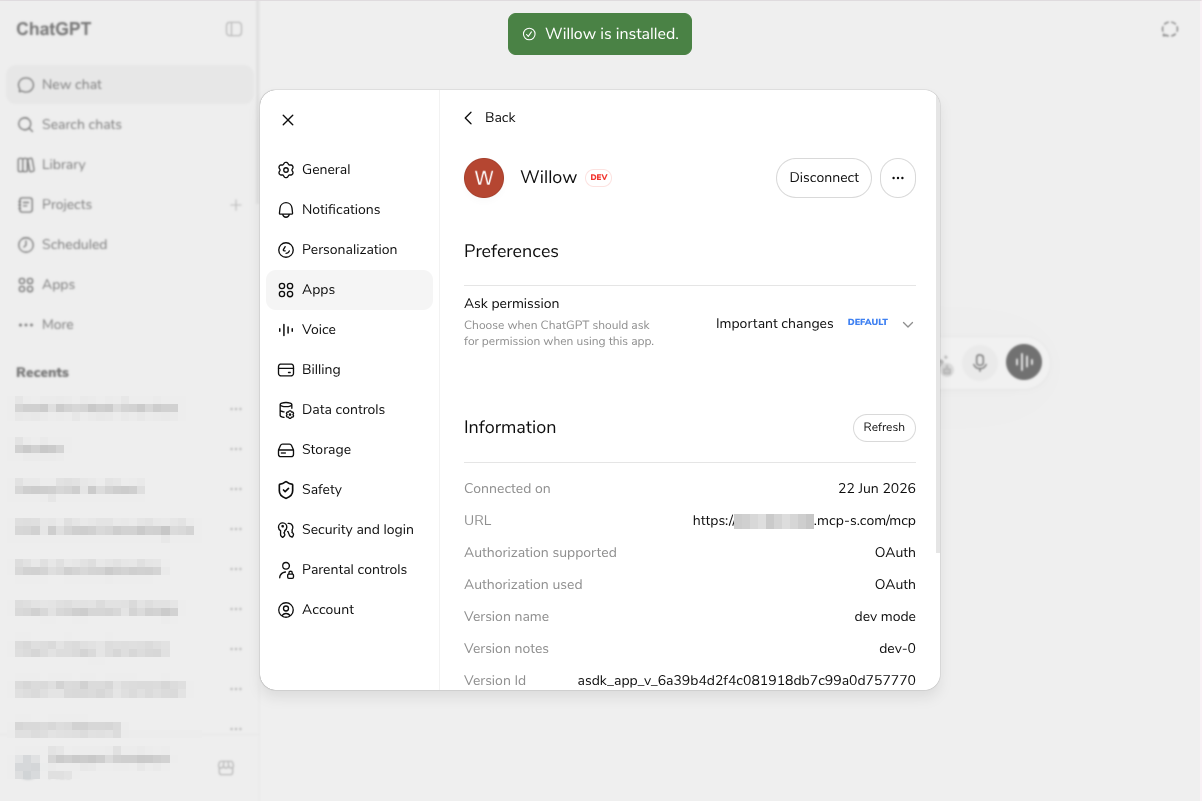
ChatGPT confirms with a Willow is installed. toast and shows the app detail page.
Step 5: Make Sure Willow is Active in the Chat
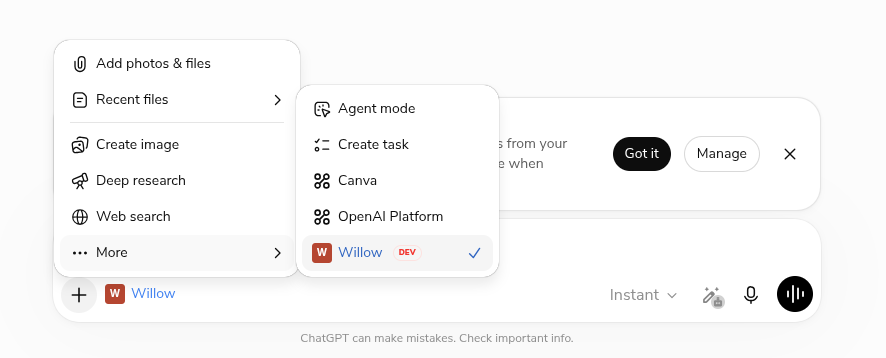
Start a new conversation. Click + in the message bar, go to More, and make sure Willow (DEV) is checked.
Step 6: Verify It Works
Ask ChatGPT:
"What tools do you have access to in Willow MCP? List them"
ChatGPT should respond with the full list of your connected Willow tools.
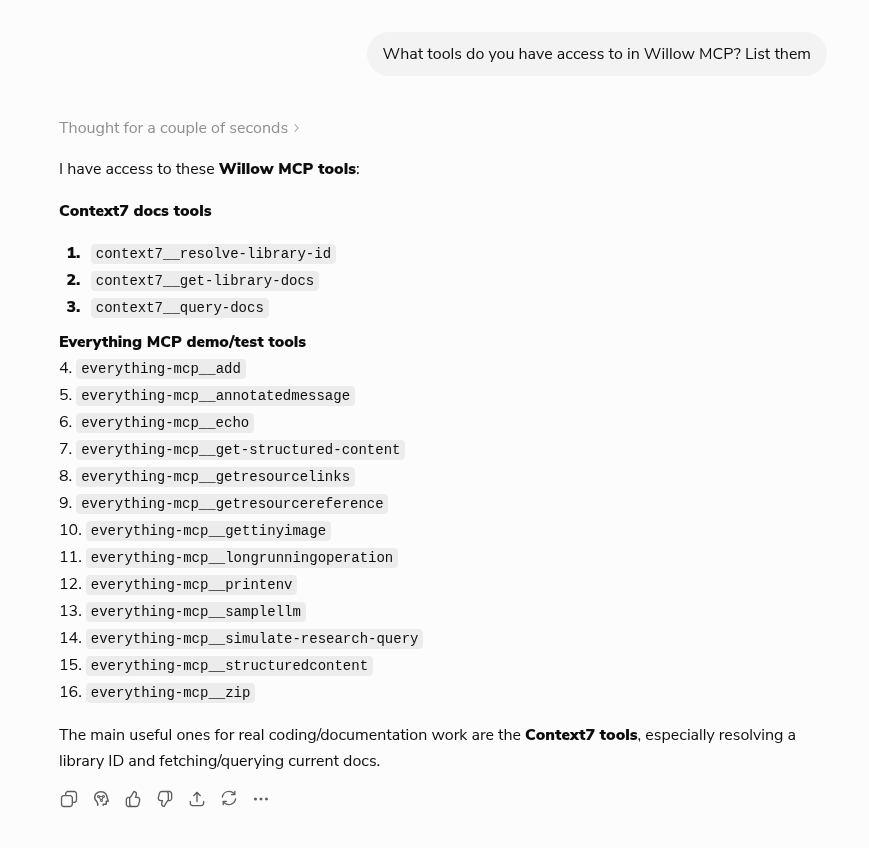
The tools you see will depend on which MCP servers your organization admin has installed, which tools on those servers they have enabled, and what tools each MCP server exposes. Your list may look different from the one shown here.
Troubleshooting
Developer mode option not visible
- MCP connector support requires ChatGPT Plus, Team, or Enterprise. It is not available on free accounts.
"I understand" checkbox doesn't appear
- Make sure Developer mode is fully toggled on before clicking Create app
Authorization failed
- Make sure you have accepted the Willow invite from your admin
- Try removing the app from Settings → Apps and adding it again
Willow not showing in the + menu
- Click + → More to find it. It may not appear in the top-level menu until selected at least once.
See also: General Troubleshooting
Related
- All AI Clients: Setup for other clients
- Connection Methods: MCP Gateway vs Dynamic vs CLI