Guards
Guards are Willow's content security layer. Each guard is a set of checks that inspect content at a specific point in the system and produce a decision: allow it, block it, warn, require approval, or redact the sensitive parts. You manage all of them from Control > Guards.
For the conceptual split between the two categories and where each one fires, see Guards: Runtime vs Build-time.
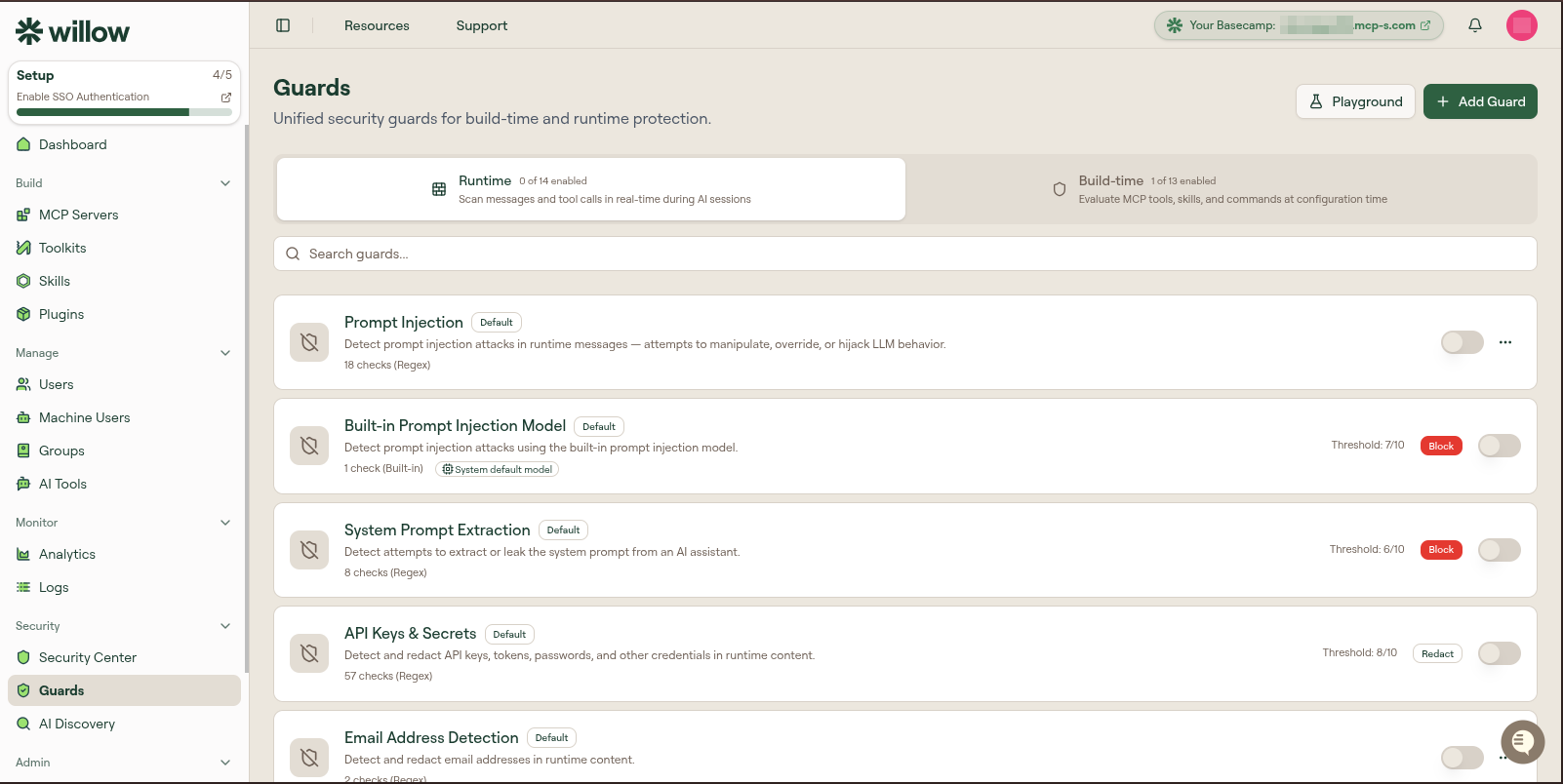
The two tabs
The Guards page has two tabs, each with its own list:
| Tab | Fires | Evaluates |
|---|---|---|
| Runtime | On every MCP request and response through the gateway | Live tool calls and responses: tool name, arguments, and results |
| Build-time | When an admin publishes a toolkit or plugin | The content being distributed: tool selections, embedded prompts, skill text, command definitions |
Runtime guards inspect live activity. Build-time guards check content when it is configured or published. The list supports search and filtering, and each tab shows how many guards are enabled (for example, 0 of 14 enabled).
Page controls
Three controls sit above the tabs:
| Control | What it does |
|---|---|
| Setup & Coverage | Opens Guard Setup & Coverage, which reports which surfaces beyond the gateway are enforcing your guards and starts the setup for the ones that are not. |
| Playground | Opens the Guards Playground to test content against a guard. |
| Add Guard | Creates a new guard. See Create a Guard. |
Anatomy of a guard row
Each guard in the list shows:
| Element | What it shows |
|---|---|
| Name | The guard name, with a Default badge for Willow's built-in guards or a green Published badge once the guard is live |
| Description | What the guard detects, such as "Detect and redact dates of birth in runtime content" |
| Checks | The number of checks in the guard and, for simple guards, their type (for example, 2 checks (Regex)) |
| Threshold | The score, out of 10, at which the guard fires (for example, Threshold: 8/10) |
| Action | What happens when the guard fires (see Actions) |
| Toggle | Enables or disables the guard |
Enabling and publishing
Toggle the switch on a guard row to enable it. A green Published badge appears next to the name and the guard is immediately live. There is no separate publish step. Every tool call through the gateway is evaluated from that moment on.
Thresholds
The threshold sets the guard's sensitivity on a 0-10 scale. A guard fires when any check scores at or above the threshold. Lower thresholds trigger on more content; higher thresholds require a stronger match. For a regex check, any content matching the pattern typically scores 10/10, so it fires at any threshold at or below 10.
Actions
When a guard fires, it applies the action configured on the row. Open the action dropdown to change it:
| Action | Effect |
|---|---|
| Redact | Allows the call but replaces the matched content with a placeholder |
| Warning | Allows the call and logs a warning for review |
| Require Approval | Holds the call pending an approval decision |
| Block | Stops the call and returns a guardrails error to the AI client |
Require Approval only applies to a tool's input (before it runs). On the first triggering call, Willow creates a pending approval and returns a link to an approval page where a user can see which guards flagged the call and why; once it is approved, retrying the identical tool call proceeds without prompting again. Because an already-executed call can't be paused, a Require Approval guard that fires on a tool's output is automatically downgraded to a Warning.
When a Redact guard masks a tool call's input and the call then fails, Willow adds a note to the error telling the AI client that part of the input was redacted and naming the guards that did it, so a masked value can be recognized as a possible cause. The note lists guard names only, never the redacted content, and successful calls get no note.
If more than one guard fires on the same call, Willow applies the most restrictive outcome: Block over Require Approval over Redact over Warning.
Messages that start a background agent
Runtime guards also check the message that triggers a background agent, whether it comes from Slack, a webhook, or a schedule, before the agent runs. A guard attached to specific background agents applies only to those agents.
- Block stops the message, so no run starts. A Slack sender sees the guard's message in the thread, and the blocked message is recorded in the agent's Sessions tab.
- Redact replaces the matched content before the agent sees the message.
- Require Approval holds a Slack message for 30 minutes so the person who sent it can approve it. On webhook, schedule, and other triggers it acts as a block, and so does a Slack message that a Block guard also matched.
If Willow cannot reach the guard evaluator, the message goes through to the agent.
Row actions
The overflow menu on a guard row exposes:
- Edit / Edit Checks / Filters open the guard editor on the corresponding tab.
- Unpublish takes a live guard offline without deleting it.
- Duplicate creates a copy you can modify.
- Delete removes the guard.
The guard editor
Selecting Edit opens a dedicated page for the guard. The header shows its status, type, threshold, action, and check count, plus a Playground button and Publish / Unpublish control. It has five tabs:
| Tab | Contents |
|---|---|
| Overview | Guard summary, status, and recent activity |
| Activity | Event totals, trends, and recent events, with a link to Logs |
| Checks | The checks that make up the guard, each with a type and configuration. See Guard check types. |
| Filters | Runtime traffic filters, or build-time scope and entity types |
| Settings | General details (name, slug, description), Behavior (threshold, action, and an optional user-facing message), Check Sync, and a Danger Zone |
For a full walkthrough of every tab and setting, see The guard editor. To build a guard from scratch, follow Create a guard.
Built-in guards
Willow ships a catalog of built-in guards, disabled by default, that you enable and tune. They run locally and require no external API keys.
Runtime guards
Prompt Injection, Built-in Prompt Injection Model, System Prompt Extraction, API Keys & Secrets, Email Address Detection, Phone Number Detection, SSN Detection, Credit Card Number Detection, IP Address Detection, Financial Data Detection, Date of Birth Detection, Government-Issued ID Detection, Person Name Detection, Toxic Content, and Profanity.
Build-time guards
Secret & Credential Detection, Prompt Injection Detection, Email Address Detection, Phone Number Detection, SSN Detection, Credit Card Number Detection, IP Address Detection, Financial Data Detection, Physical Address Detection, Date of Birth Detection, Government-Issued ID Detection, Data Exfiltration Risk Assessment, and Code Injection & Unsafe Execution.
Each built-in guard carries a sensible default threshold and action. For example, Secret & Credential Detection defaults to a 7/10 threshold with a Block action across 58 checks, while Email Address Detection defaults to 8/10 with Redact.
Connect a provider
Below the runtime guard list, the Connect Providers cards add external content-safety engines: Alice, Prompt Security, CrowdStrike AIDR, and a Custom Webhook. See Guard providers.
Test a guard
Use the Guards Playground to run sample content through a guard and see the exact decision, score, and matched checks before you publish.