Prompt Guard
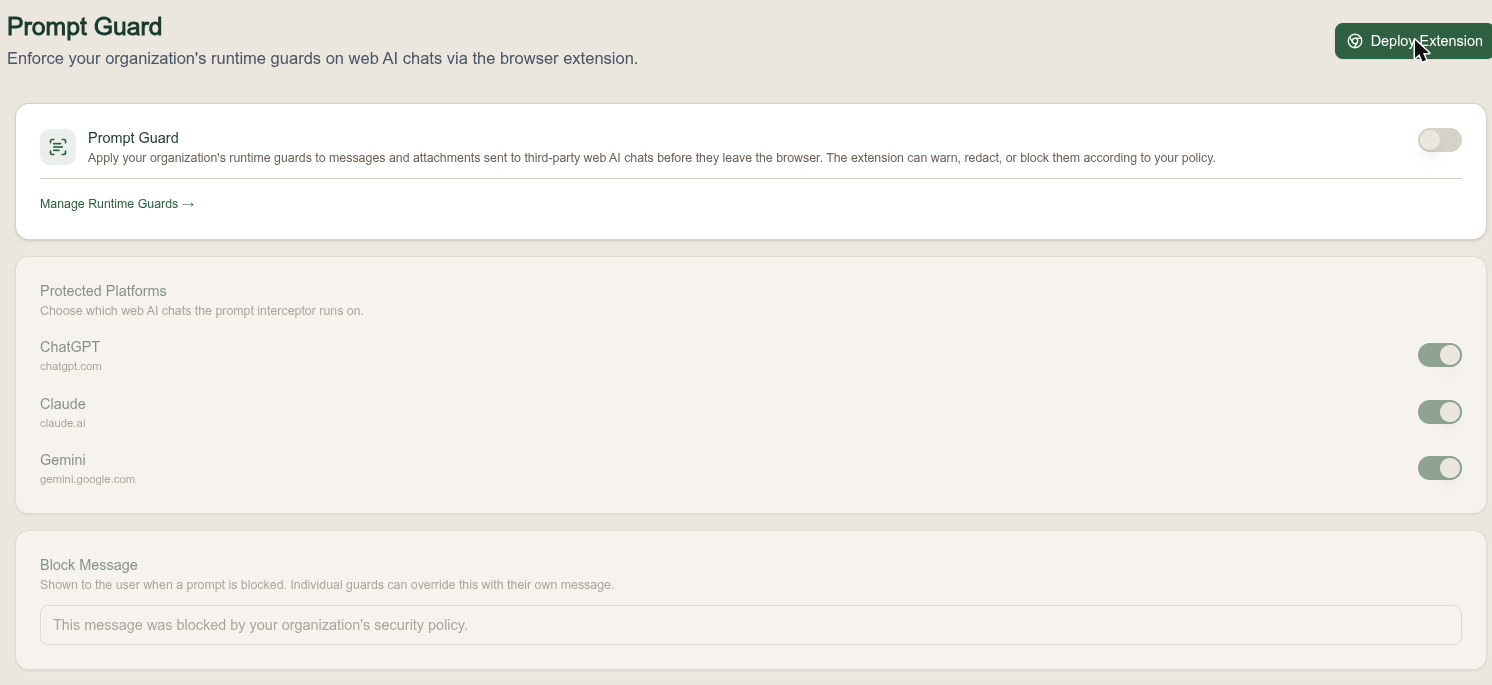
Prompt Guard applies your runtime guards to messages and attachments typed into third-party web AI chats, evaluating them in the browser before they leave the machine. It is the same enforcement you already run on MCP traffic, extended to the chat windows people use directly.
Open Security > Guards > Setup & Coverage, then select Configure Prompt Guard beside ChatGPT Web or Gemini Web. If a surface is collapsed, expand More (N). See Guard Setup & Coverage.
Prompt Guard needs the Willow Guard browser extension on the machine. Without it there is nothing to intercept prompts, so deploy the extension before turning the feature on.
Enable Prompt Guard
The Prompt Guard toggle at the top of the page turns interception on for the organization. It is off by default.
Once on, prompts and attachments sent to the protected platforms are evaluated against your active runtime guards, and the extension can warn, redact, or block according to each guard's action. Manage Runtime Guards returns to the guard list so you can review what will be enforced.
Prompt Guard does not define its own checks. It reuses the runtime guards you already maintain, so a guard that redacts API keys on MCP traffic redacts them in a ChatGPT prompt too.
Protected Platforms
Choose which web AI chats the prompt interceptor runs on. All of them are on by default.
| Platform | Domain |
|---|---|
| ChatGPT | chatgpt.com |
| Claude | claude.ai |
| Gemini | gemini.google.com |
| Microsoft 365 Copilot | m365.cloud.microsoft |
| DeepSeek | chat.deepseek.com |
Turning a platform off leaves that site untouched, even while Prompt Guard is enabled.
Block Message
The text shown to the user when a prompt is blocked. Leave it empty to use the default, This message was blocked by your organization's security policy.
Individual guards can override this with their own message, so use this field for the general case and set guard-specific wording on the guards that need it.
Select Save Changes to apply. Changes do not take effect until saved.
Deploy the extension
Deploy Extension opens Browser Extension Setup, a two-step flow:
- Install — install Willow Guard from the Chrome Web Store or Microsoft Edge Add-ons for manual testing, or Download policy (.mobileconfig), which is pre-filled for your organization and covers both browsers.
- Deploy via MDM — upload the
.mobileconfigprofile to your macOS MDM. This download is the Jamf / Kandji profile, which fills in the device serial and user email with Jamf’s$SERIALNUMBERand$EMAILvariables; for Intune or JumpCloud, download the matching Browser Policy (.mobileconfig) from AI Discovery → Setup Instructions instead. The policy force-installs from the Chrome Web Store into Chrome and from Microsoft Edge Add-ons into Edge, and pushes your organization's connection details with it. For Windows, download Extension Policy (.reg) from AI Discovery → Setup Instructions and import it through GPO or Intune.
The dialog also shows the Connection Details the extension needs, a Server URL and an Auth Token. The extension reads these from Chrome or Edge managed storage as serverUrl and authToken, so machines that receive the policy need no per-device configuration.
The extension is marked Beta in this flow.
For the full Chrome and Edge deployment reference, including minimum requirements and the policy values, see Deploy Willow Guard Browser Extension.