The Guard Editor
Selecting Edit on a guard row, or opening a guard from the guard list, opens the guard editor: a dedicated page for one guard. The header shows the guard's name, its status (Active or Draft), its category (Runtime or Build-time), a Playground button, and a Publish / Unpublish control.
The editor has five tabs: Overview, Activity, Checks, Filters, and Settings.
Overview
The Overview tab summarizes the guard: its checks, filters, and recent activity.
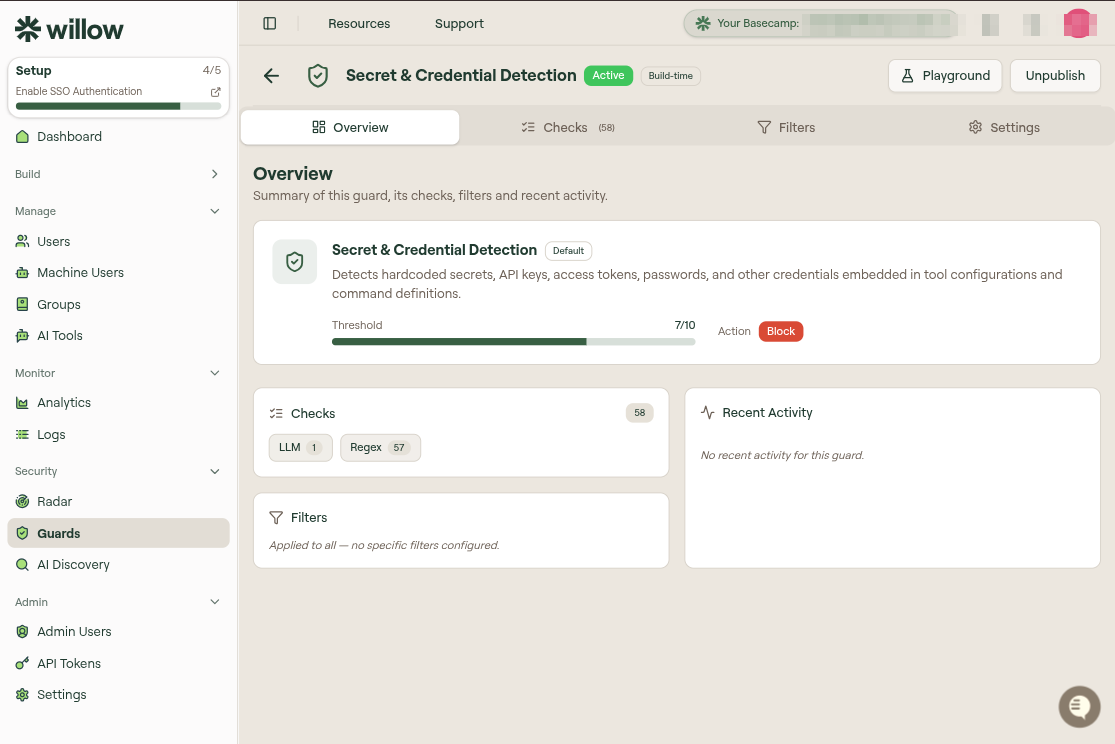
- The summary card repeats the guard's name, description, Threshold, and Action.
- Checks shows the total count and a breakdown by type (for example,
LLM 1,Regex 57). - Filters shows the current scope, or
Applied to all — no specific filters configuredwhen the guard is unscoped. - Recent Activity lists recent times the guard fired, or
No recent activity for this guardif it has not triggered.
Edit checks, filters, and settings on their respective tabs.
Activity
The Activity tab shows event totals, a daily activity chart, blocked MCP servers and tools, and recent events. Select a time window to filter the results. All logs opens the matching records in Logs.
Checks
The Checks tab lists the checks that make up the guard and lets you add, edit, and enable them. The header shows how many are active (for example, Checks (58 of 58 enabled)).
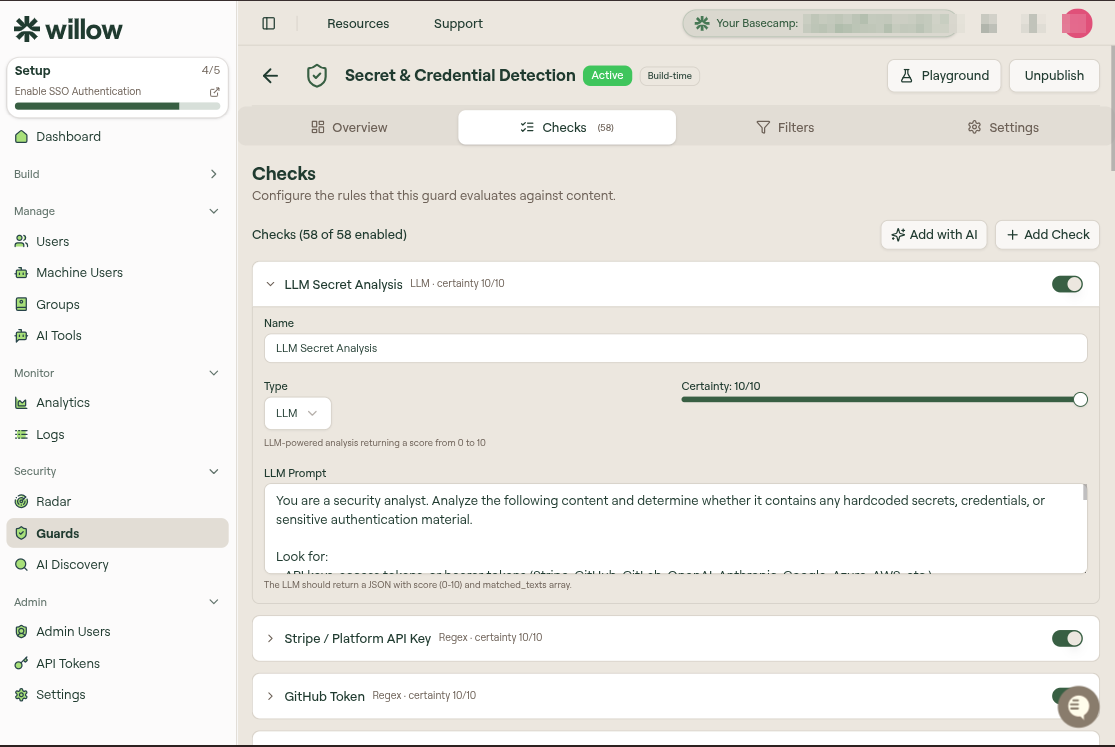
Each check appears as a row showing its name, its type and certainty (for example, Regex · certainty 10/10), and an enable toggle. Expanding a check reveals its Name, Type, Certainty slider, and the type-specific configuration (such as an LLM Prompt). Add checks with + Add Check or Add with AI, then select Save Changes. Add with AI appears only when Bring Your Own AI is configured.
For the full reference on each check type and how certainty combines into the guard score, see Guard check types.
Filters
The Filters tab controls which groups and entities the guard applies to.
| Control | Options | Effect |
|---|---|---|
| Level | Organization Level or User Level | Organization level checks all entities in the organization. User level checks only user-created entities. |
| Entity Types | MCPs (Integrations), Toolkits, Skills, Commands | The guard evaluates only the entity types you check. |
Select Save Filters to apply. With no filters set, the guard applies to everything, which the Overview tab reports as Applied to all.
Filters for runtime guards
The table above is what a build-time guard shows. A runtime guard's Filters tab instead has two sections: Who says whose traffic the guard checks, and What says which traffic. Each row offers a set of choices:
- All: no narrowing. This is the default.
- Specific: only the items you select.
- All except: everything but the items you select.
- None: skip this kind of traffic entirely. Only offered where it makes sense.
Specific and All except need at least one item before you can save.
Every filter you set must match, in both sections. For example, a guard with one background agent under Specific, and Tool Calls and Prompts both on, checks only that agent's tool calls and the messages that trigger it. It does not check people's prompts or tool calls, or other agents. The box at the bottom of the tab restates your choices in plain words, so you can confirm this before you save.
Who
| Row | Choices | Effect |
|---|---|---|
| AI Agents | All, Specific, All except | Narrow by AI tool, such as Claude Code or Cursor. Covers MCP tool calls, IDE hooks, and web chat prompts. The messages that trigger background agents have no AI agent, so they never match Specific. |
| Background Agents | All, Specific, All except, None | Narrow by background agent. Covers the messages that trigger them (Slack, webhook, schedule) and the tool calls they make. Specific leaves out traffic from people. None skips all background agents. |
| Groups | All, Specific, All except, None | Narrow by the user's groups. None skips all people, so the guard checks background agents only. |
| User Risk Score | Any, Range | Limit the guard to users inside a risk band. See Filter by User Risk Score. |
Traffic that Willow cannot attribute to an agent, user, or server never matches Specific, and is never skipped by All except.
What
| Row | Choices | Effect |
|---|---|---|
| Tool Calls | All servers, Specific servers, All except, None | Check MCP tool calls through the Willow gateway and tool calls in the guard hooks. Hook tool calls are not tied to an MCP server: they don't match Specific servers and are still checked under All except. None limits the guard to prompts. |
| Tool Call Direction | Input, Output, Both | Shown while tool calls are checked. Inspect what goes to the tool, what comes back, or both. In the guard hooks, input is the pre-tool event and output the post-tool event. |
| Prompts | All, None | Check the browser Prompt Guard, prompts in the guard hooks for Claude Code and Cursor, calls through the LLM Gateway, and the messages that trigger background agents. None limits the guard to tool calls. Direction does not apply to prompts. |
A guard with None for both Tool Calls and Prompts checks nothing, so it cannot be saved.
Filter by User Risk Score
Choose Range for User Risk Score under Who to narrow the guard to users inside a risk band. Set a Minimum score, a Maximum score, or both; both bounds are inclusive and either can be left empty for an open-ended range. Also apply to users with no risk score is off by default. Turn it on to include users who have no score.
For example, a band of 70–100 applies the guard to users with scores in that range. Risk bands apply to runtime guards. See User Risk Score.
Settings
The Settings tab holds guard-level configuration in sections in a menu on the left. Leaving a section with unsaved changes asks whether to discard them.
General
The guard's identity: Name, Slug, and Description. The description is what admins see in the guard list, so state plainly what the guard detects.
Behavior
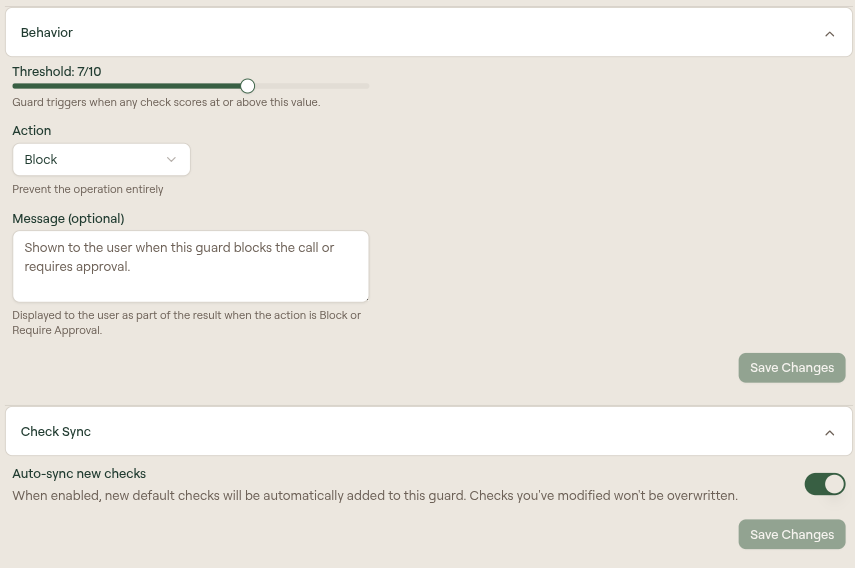
How the guard fires and what it does:
- Threshold slider. The guard triggers when any check scores at or above this value.
- Action: Redact, Warning, Require Approval, or Block. A short line beneath the dropdown describes the selected action (for example, Prevent the operation entirely for Block). See Actions for what each one does.
- Message (optional). Text shown to the user as part of the result when the action is Block or Require Approval. Use it to explain why a call was stopped or what the user should do next. It has no effect for Redact or Warning.
Message placeholders
Select a placeholder below the message field to include matched content or guard details:
| Placeholder | Replaced with |
|---|---|
{{matchedText}} | The content that triggered the guard. Long matches are shortened, and only the first few are listed (the rest become (+N more)). When the check reports no snippet — an LLM or built-in check often scores content without quoting a fragment — it reads the flagged content instead. |
{{checks}} | Names of the checks inside this guard that triggered. |
{{guardName}} | The guard's name. |
{{score}} | The highest score any of its checks returned. |
{{threshold}} | The guard's threshold. |
For example, Blocked: "{{matchedText}}" looks like a credit card number. reaches the user as Blocked: "4111111111111111" looks like a credit card number. A placeholder that is not in the table is left in the message as you wrote it, which makes a typo easy to spot.
{{matchedText}} puts a piece of the scanned content into the message the user (and their AI agent) sees. Audit logs are unaffected: they store the message as you wrote it, so an org that redacts content from its logs stays redacted.
Check Sync
Auto-sync new checks keeps a built-in guard current as Willow adds detectors. When enabled, new default checks are automatically added to this guard; checks you have modified are never overwritten. Turn it off if you want the guard's check set to stay exactly as you left it.
Danger Zone
Two irreversible or disruptive actions:
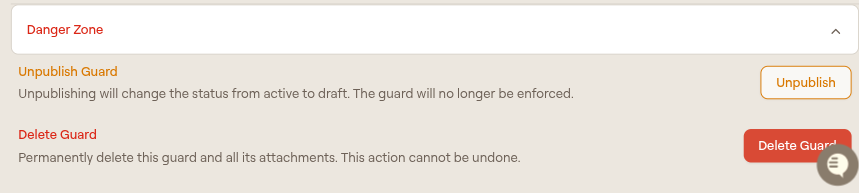
- Unpublish Guard changes the status from active to draft. The guard stops being enforced but is not deleted, so you can republish it later.
- Delete Guard permanently deletes the guard and all its attachments. This cannot be undone.