End-User Settings
End-User Settings controls what people outside the admin app see and can do in the Connect portal. Open Settings in the admin sidebar, then expand End-User Settings.
Changes here apply to the whole organization. Remember to select Save Changes at the bottom of the panel.
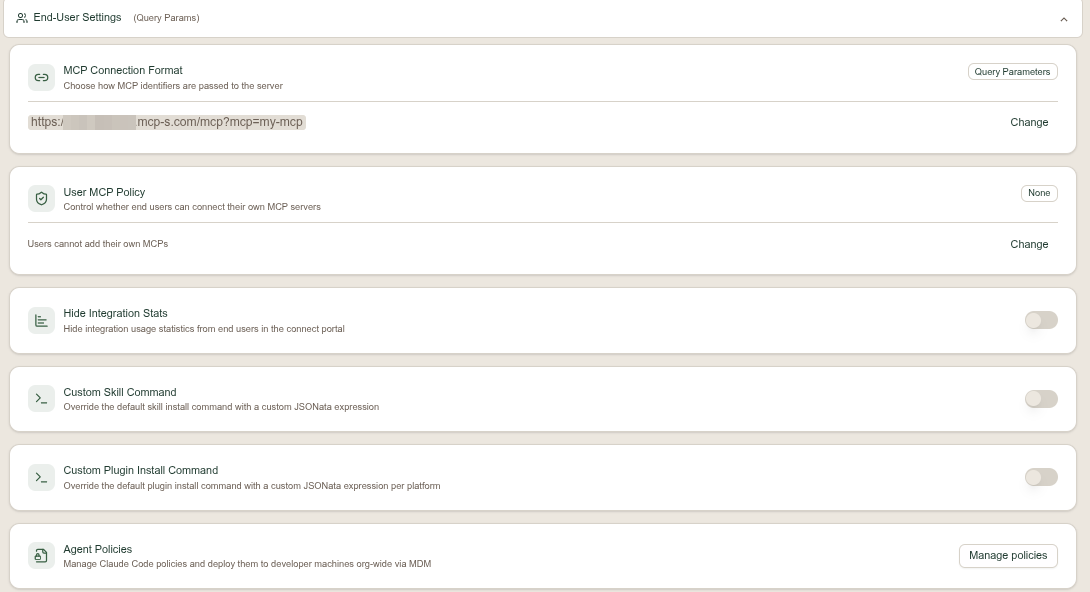
MCP Connection Format
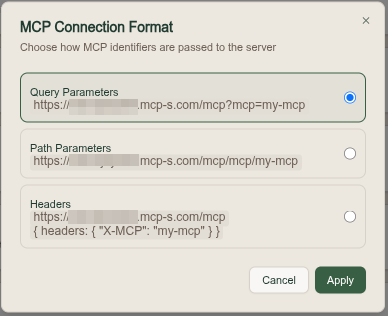
Chooses how MCP identifiers are passed to the server in the connection details users copy. Select Change to pick a format; the current one is previewed beneath the setting.
| Format | Resulting connection |
|---|---|
| Query Parameters | https://your-org.mcp-s.com/mcp?mcp=my-mcp |
| Path Parameters | https://your-org.mcp-s.com/mcp/my-mcp |
| Headers | https://your-org.mcp-s.com/mcp with { headers: { "X-MCP": "my-mcp" } } |
Pick the format your users' AI clients handle best. Some clients accept a URL but provide no way to set custom headers, which rules out the Headers format for them.
User MCP Policy
Controls whether end users can connect their own MCP servers alongside the ones you provide. The current policy is summarized under the setting, for example "Users cannot add their own MCPs".
This has its own reference page. See User MCP Policy.
Hide Integration Stats
Hides integration usage statistics from end users in the Connect portal. Off by default, so users see the stats.
Adding Skills & Plugins
Controls whether end users can add their own content in the Connect portal. Allow adding skills and Allow adding plugins are separate switches. They cover creating content manually, uploading a file, and importing from GitHub.
Use these controls to manage content creation. To control whether the Skills or Plugins page appears in the portal sidebar, use Sidebar Pages.

Custom Skill Command
Overrides the default skill install command with a custom JSONata expression. Off by default, which uses Willow's built-in command.
Custom Plugin Install Command
Overrides the default plugin install command with a custom JSONata expression, set per platform. Off by default.
Agent Policies
Manages Claude Code policies and deploys them to developer machines organization-wide via MDM. Select Manage policies to open the editor.
This has its own reference page. See Claude Code Policy.
Sidebar Pages
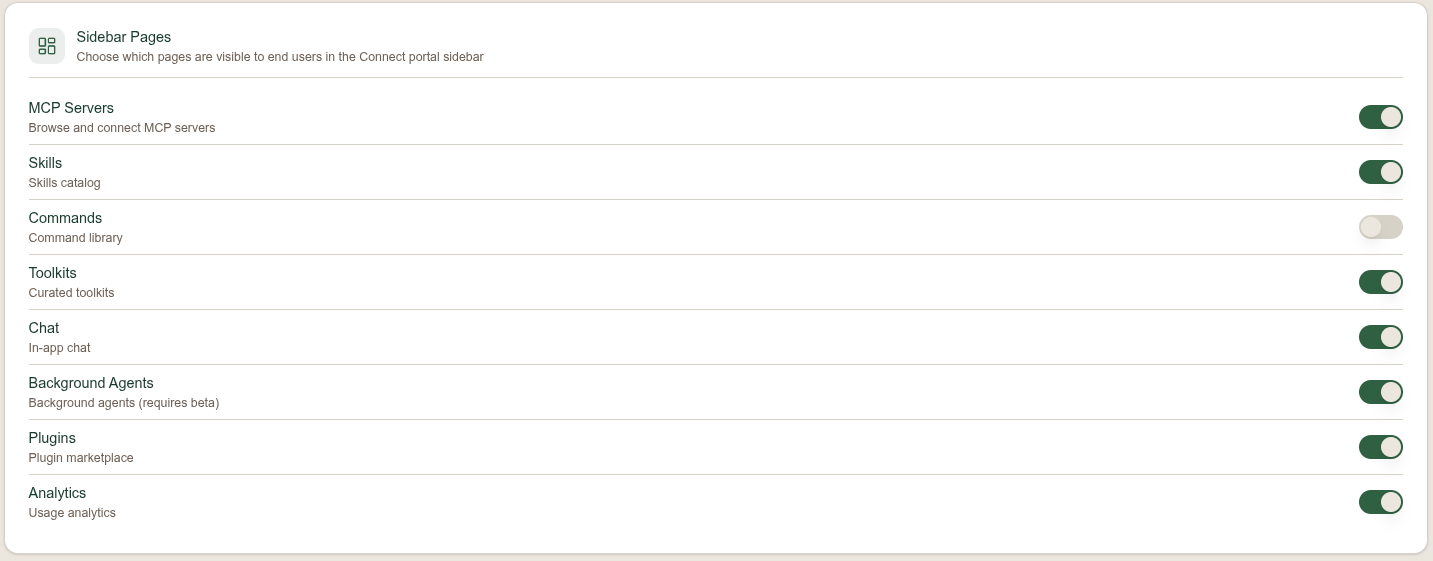
Chooses which pages are visible to end users in the Connect portal sidebar. Select Edit on the Sidebar Pages card to open the toggles; the card shows how many pages are visible. Chat, Commands, and Background Agents are off by default; the rest are on. The screenshot below shows Commands and Background Agents turned off, which removes them from the portal sidebar entirely.
| Page | What users get |
|---|---|
| MCP Servers | Browse and connect MCP servers. |
| Skills | The skills catalog. |
| Commands | The command library. |
| Toolkits | Curated toolkits. |
| Chat | In-app chat. |
| Background Agents | Background agents. |
| Plugins | The plugin marketplace. |
| Analytics | Usage analytics. |
Turning a page off hides it from the sidebar for everyone in the organization.