Background Agent Settings
Settings govern every agent in the organization: which runtimes are available, and what owners and end users may do for themselves. Open Manage > Machine Users > Background Agents and select the gear icon in the header. The page lives at /manage/background-agents/settings.
Changes are staged until you select Save Changes at the top of the page. Connecting a platform is the exception: those dialogs apply on Connect.
Agent Types
Chooses which platforms are available when creating an agent. Enable a platform, supply its credentials where one is needed, or define a custom type. Only enabled platforms are selectable in the create dialog, so this card is the source of truth for what your organization can pick.
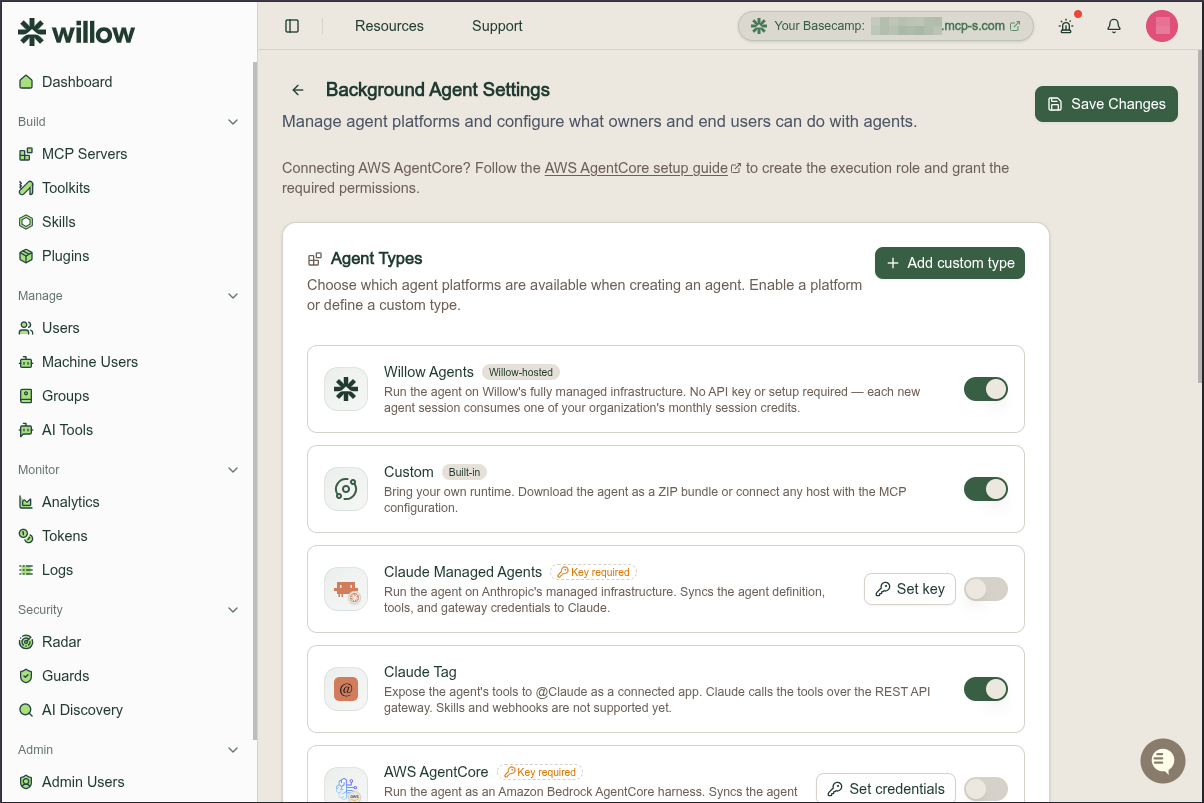
| Platform | Setup |
|---|---|
| Willow Agents | None. Runs on Willow's infrastructure and draws on your session credits. |
| Custom | None. |
| Claude Managed Agents | Set key, an ANTHROPIC_API_KEY. |
| Claude Tag | None. Each agent is connected in Claude itself — see Connect Claude Tag. |
| AWS AgentCore | Set credentials. See Connect AWS AgentCore for the execution role and IAM permissions. |
| kagent | Set credentials, the kagent controller base URL (and token if required). See Connect kagent for the SandboxAgent wiring. |
Platforms that need credentials stay switched off until you supply them. See Platforms for what each runtime does.
Add a custom agent type
Add custom type registers a runtime of your own, described as "the endpoints Willow calls to run this agent on your own platform." The dialog captures:
| Field | Purpose |
|---|---|
| Name | The platform's display name, for example My Runtime. |
| Description | What runs the agent. |
| Sync endpoint | Called with the full agent snapshot when the Sync button runs. |
| Message endpoint | Called with the prompt whenever a trigger or message fires. |
| Request body (under each endpoint) | Optional. Willow default sends Willow's own body; Custom opens a JSON template where {{variables}} such as {{message}} or {{agent.slug}} are filled in per request. See Custom request bodies. |
| Auth header | The header Willow sends the token on. Defaults to Authorization. |
| Bearer token | Optional. Encrypted at rest, and sent as Bearer <token> when the header is Authorization. |
Select Create to add it to Agent Types. Agents on a type created this way carry the custom-managed platform value.
The payloads Willow posts to those two endpoints are documented in Custom Agents & Self-Hosted Harnesses.
Custom request bodies
Every endpoint field has a Request body control under it, set to Willow default until you change it. Switch it to Custom when your platform expects a shape of its own, and the editor opens pre-filled with Willow's body rewritten as a template:
{
  "event": "{{event}}",
  "agent_slug": "{{agent_slug}}",
  "session_key": "{{session_key}}",
  "message": "{{message}}"
}
Edit it into whatever your endpoint accepts. Everything outside a {{variable}} is sent literally, so constants your API needs (a model id, a source flag) can be typed straight in.
| Control | What it does |
|---|---|
| Insert chips | Click a variable to drop it at the cursor. The chips list every value Willow can supply for that endpoint. |
| Build with AI | Describe the body your endpoint expects in plain language ("a prompt string and a thread object with an id") and Willow writes the template, wiring the variables for you. Requires Bring Your Own AI. |
| Preview | Shows the exact JSON your endpoint receives, with sample values filled in. |
| Reset to default | Returns the template to Willow's default body. |
| Use JSONata | Swaps the template for a JSONata expression evaluated against Willow's body. For reshaping that a template can't express, such as building arrays. |
A variable used on its own as a value ("caps": "{{agent.capabilities}}") keeps its original type, so objects stay objects. A variable inside a longer string ("id": "willow:{{session_key}}") is inserted as text. A variable with no value at request time is sent as null.
Tool Assignment
| Setting | Effect |
|---|---|
| Allow common tools | Owners can assign tools from the organization's shared MCP servers. |
| Allow custom tools | Owners can generate and assign custom tools to their agents. |
Skill Assignment
| Setting | Effect |
|---|---|
| Allow common skills | Owners can assign skills from the organization's shared skill catalog. |
| Allow custom skills | Owners can create and assign custom skills to their agents. |
Credentials
| Setting | Effect |
|---|---|
| Show credentials to owners | Agent owners can view access keys and rotate secrets from the connect dashboard. Off by default. |
End User Permissions
| Setting | Effect |
|---|---|
| Allow end users to create agents | End users can create their own agents from the connect dashboard. Off by default. |
Select Save Changes to apply. Your changes do not take effect until you save.
These settings govern what agent owners and end users can do in the connect dashboard. The end-user view is documented in the user guide.
Channels
The Channels configurations card holds the org-level Slack setup shared by every agent. On the Slack row, select Set up (or Manage) to store the app-configuration tokens Willow uses to create each agent's own dedicated Slack app.
| Deployment | What you do |
|---|---|
| SaaS | Store Slack app-configuration tokens (optional, enables one-click app creation per agent). |
| Hybrid | Register your slack-background-agent gateway URLs if self-hosting, then store app-configuration tokens. |
| On-prem | Store app-configuration tokens. The service URL is set by your deployment (SLACK_BG_AGENT_URL). |
The actual Slack app is created and installed per agent in the agent's Slackbot App section. See Set up Slack for background agents for the full setup guide, runtime flow, and troubleshooting.
When the Microsoft Teams Agent Channel beta flag is on, the card also has a Microsoft Teams row. Its dialog stores your organization's Azure Bot registration: the Microsoft App ID, the directory (tenant) ID, and a client secret. Unlike Slack, Teams uses one bot for the whole organization, so there's no per-agent app to create. This is a preview: agents don't answer in Teams yet. See Set up Microsoft Teams for background agents.
GitHub App (coding agents)
The GitHub App (coding agents) card stores the GitHub App that agents use to clone and push repositories. It appears only when Git Proxy is enabled for your organization. See Git Access for Coding Agents.