Assign Tools to an Agent
Tools are the agent's reach: it can call what you grant it and nothing else. Open the agent from Manage > Machine Users > Background Agents and select the Tools tab. The tab header carries a count, and a red badge when capability requests are waiting.
Add tools
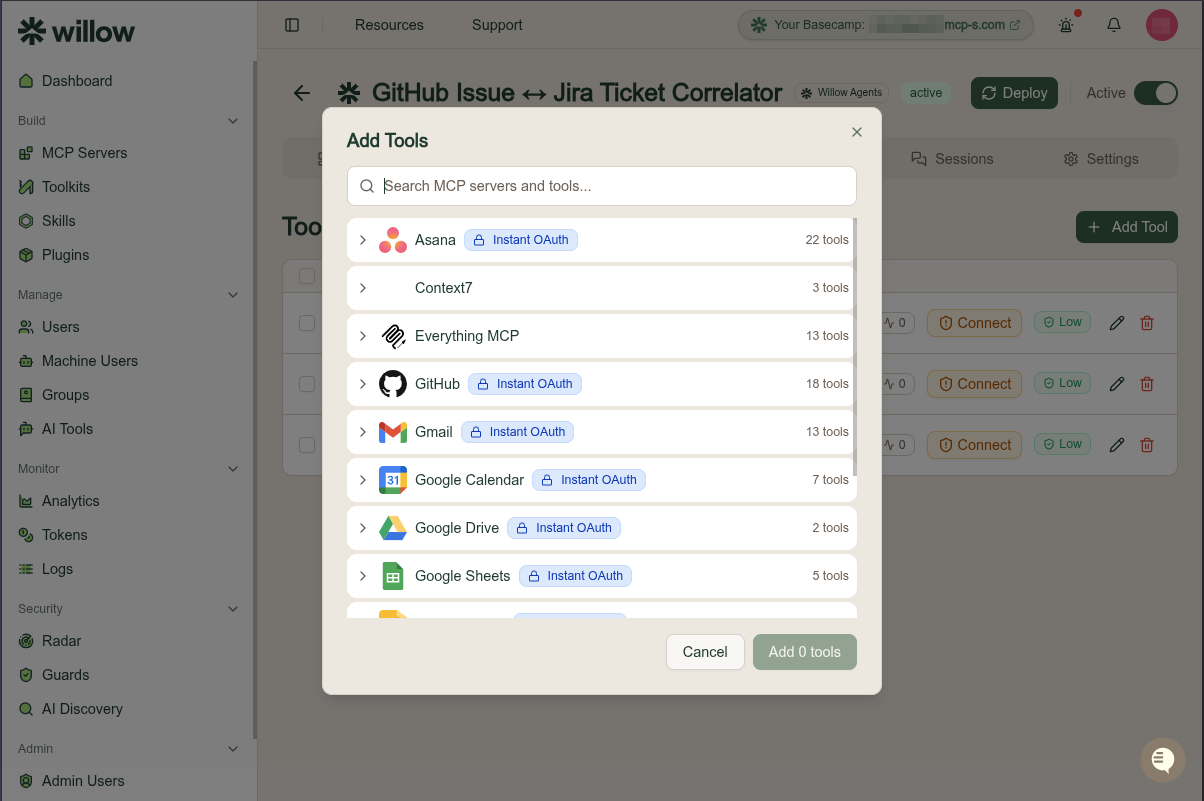
Add Tool opens a picker that searches your MCP servers and tools. Each server expands to its tools and shows its auth badge (such as Instant OAuth) and tool count, and the confirm button names how many you are adding, for example Add 3 tools.
Read the tool list
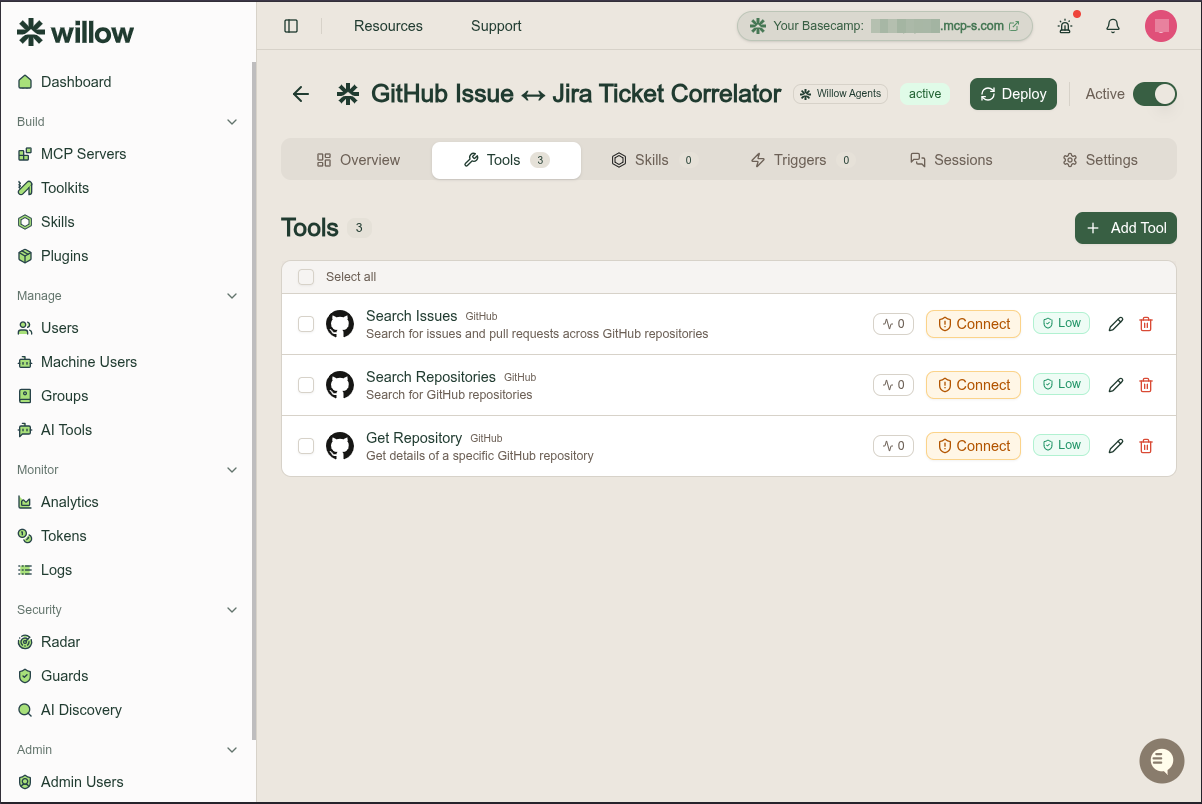
Each row shows the tool name and its MCP server, the description, a call count, a Connect badge when the tool's server still needs authenticating, and a risk band. A Select all checkbox supports acting on several at once.
Two actions sit at the end of each row: the pencil opens the tool editor, and the bin removes the tool from the agent. They sit side by side, so check which one you are on before selecting.
Edit a tool
The editor opens as its own page. It has an Enabled toggle, an AI Generate action, a Form / JSON switch, and Save. Your changes are not applied until you select Save, and they do not reach the agent's platform until you deploy.
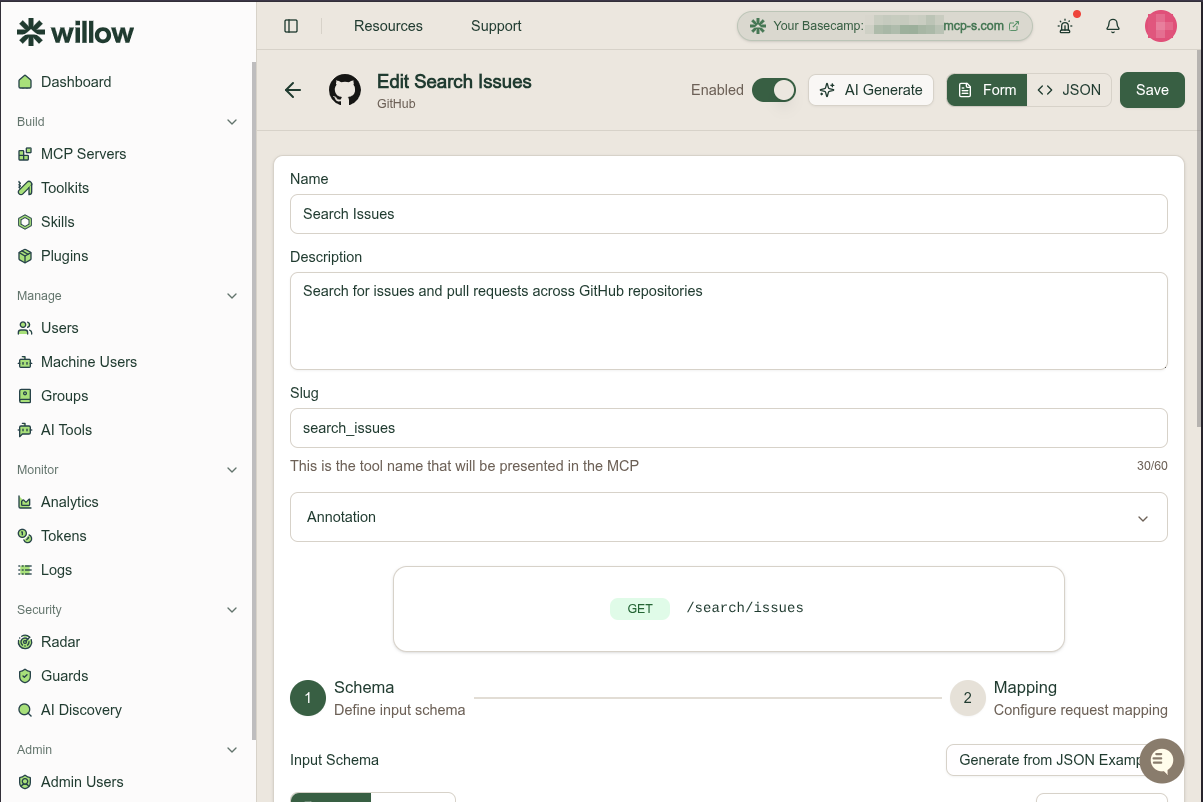
The Form view covers Name, Description, Slug (the tool name presented in the MCP, with a character counter), Annotation, and the HTTP method and path. Below that sits a two-step Schema then Mapping flow: define the input schema, then configure the request mapping.
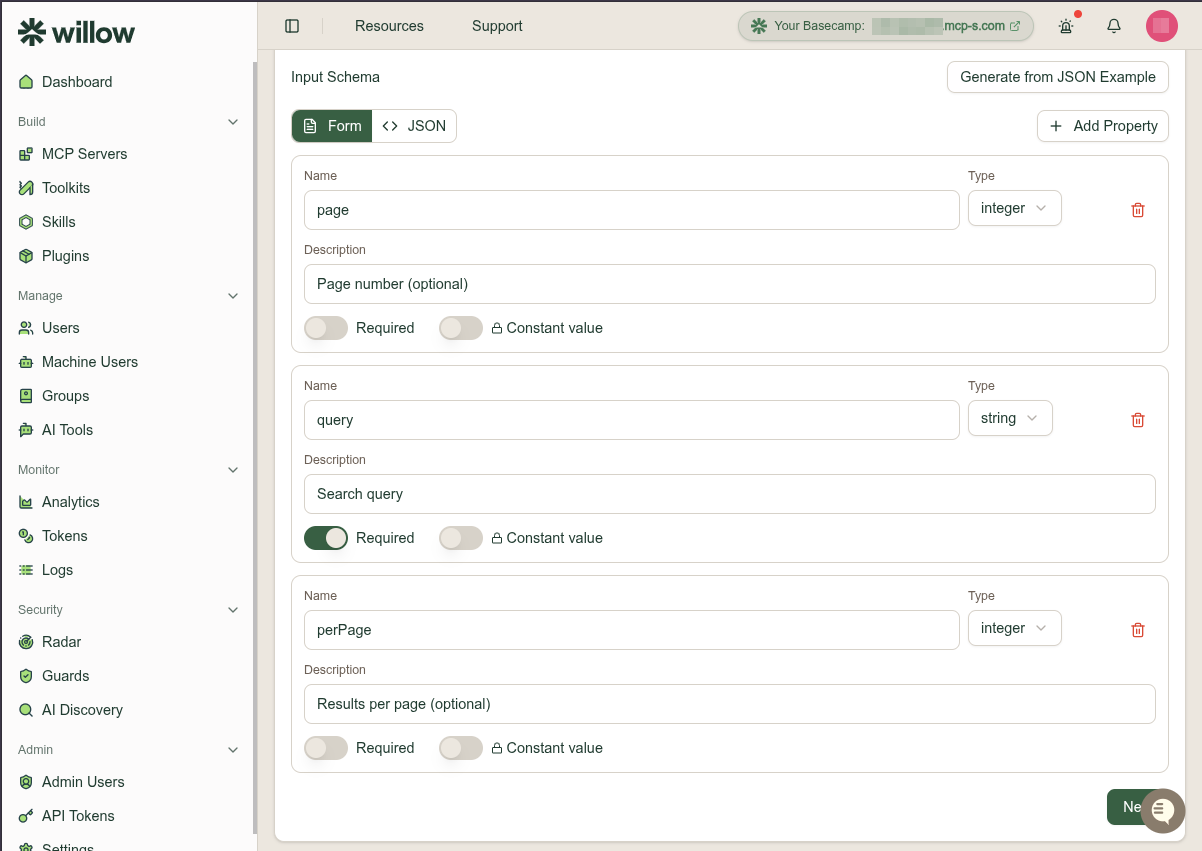
Build the input schema property by property, each with a name, type, description, Required, and an optional Constant value, or produce it in one step with Generate from JSON Example.
The JSON view shows the whole tool document, including action (path, method, mapping), inputSchema, annotations such as readOnlyHint and idempotentHint, and the stored ai_risk block with its level, score, and reasoning.
Generate a tool with AI
AI Generate opens Generate Tool with AI: describe how the tool should behave, in at least 20 characters, and select Generate Tool.
Capability requests
When an end user opens an agent they own in the connect dashboard, they can request more tools, skills, or triggers. Each request becomes a notification tied to the agent.
Pending requests appear as a red badge next to the agent name and on the Tools tab, where you can review the requested items and any free-text explanation, then approve them by adding the capability or dismiss them.
What owners and end users are allowed to ask for in the first place is set under Background Agent Settings.
Keep the set scoped
- Assign the minimum set of tools needed for the job, and remove tools the agent no longer uses.
- Watch the risk band. It reflects the risk assessment of the underlying tool.
- Every agent tool call flows through the gateway, so it is logged and subject to guards and policies like any other traffic.
What to do next
- Deploy an Agent to push the new tool set to its platform
- Assign tools from your MCP servers for how tools are defined in the first place
- Review risk assessments
- Background Agents reference for the rest of the detail page