Google Tasks
Google Tasks is Google's to-do list service. The Willow connector calls the Google Tasks API (https://tasks.googleapis.com/tasks/v1), so an agent can read and manage a user's task lists and tasks.
Google doesn't publish a hosted MCP server for Tasks. Its Workspace MCP servers cover Gmail, Drive, Docs, Sheets, Slides, Calendar, Chat, People and Classroom. This connector fills that gap with Willow-built tools.
The Google Workspace connector also includes tools for Google Tasks. Use Google Tasks when you want an agent that works with tasks only, with a smaller scope.
Authentication
Google Tasks supports one authentication method:
- OAuth: Create your own Google Cloud OAuth app. You control the app, scopes and credentials. Each user connects with their own Google account and sees only their own task lists. Google Cloud setup is required.
Google doesn't support dynamic client registration, so Willow can't register itself with Google. An admin has to create the OAuth client.
Before you start
You will need:
- A Google account that can create projects in the Google Cloud Console. A personal Gmail account is enough for testing.
- Your Willow Redirect URL (see Create the OAuth client).
If your company uses Google Workspace, your admin may block third-party apps by default. In that case a Workspace super admin has to allow your app before anyone can connect. See Approving the app for your organization.
Enable the Google Tasks API before you pick scopes. The scope picker only lists scopes for APIs that are already enabled in the project, so if you skip ahead you will not be able to find the Tasks scopes.
Setting up OAuth
1. Create or select a project
Go to https://console.cloud.google.com/ and either create a new project or select an existing one using the project picker in the top bar.
Every step below applies to the selected project, so make sure the right project name is showing before you continue.
2. Enable the Google Tasks API
Go to APIs & Services → Library, search for "Google Tasks API", open it, and click Enable.
If the API is already turned on, this page shows API Enabled and a Manage button instead of Enable.
Direct link: console.cloud.google.com/apis/library/tasks.googleapis.com
3. Configure the consent screen (Branding)
Google now places OAuth settings under Google Auth Platform instead of the old "OAuth consent screen" wizard. Open console.cloud.google.com/auth/branding. You can also go to APIs & Services → OAuth consent screen, which redirects to the same page.
Fill in the required fields:
- App name: What users see on the Google consent screen
- User support email
- Developer contact email
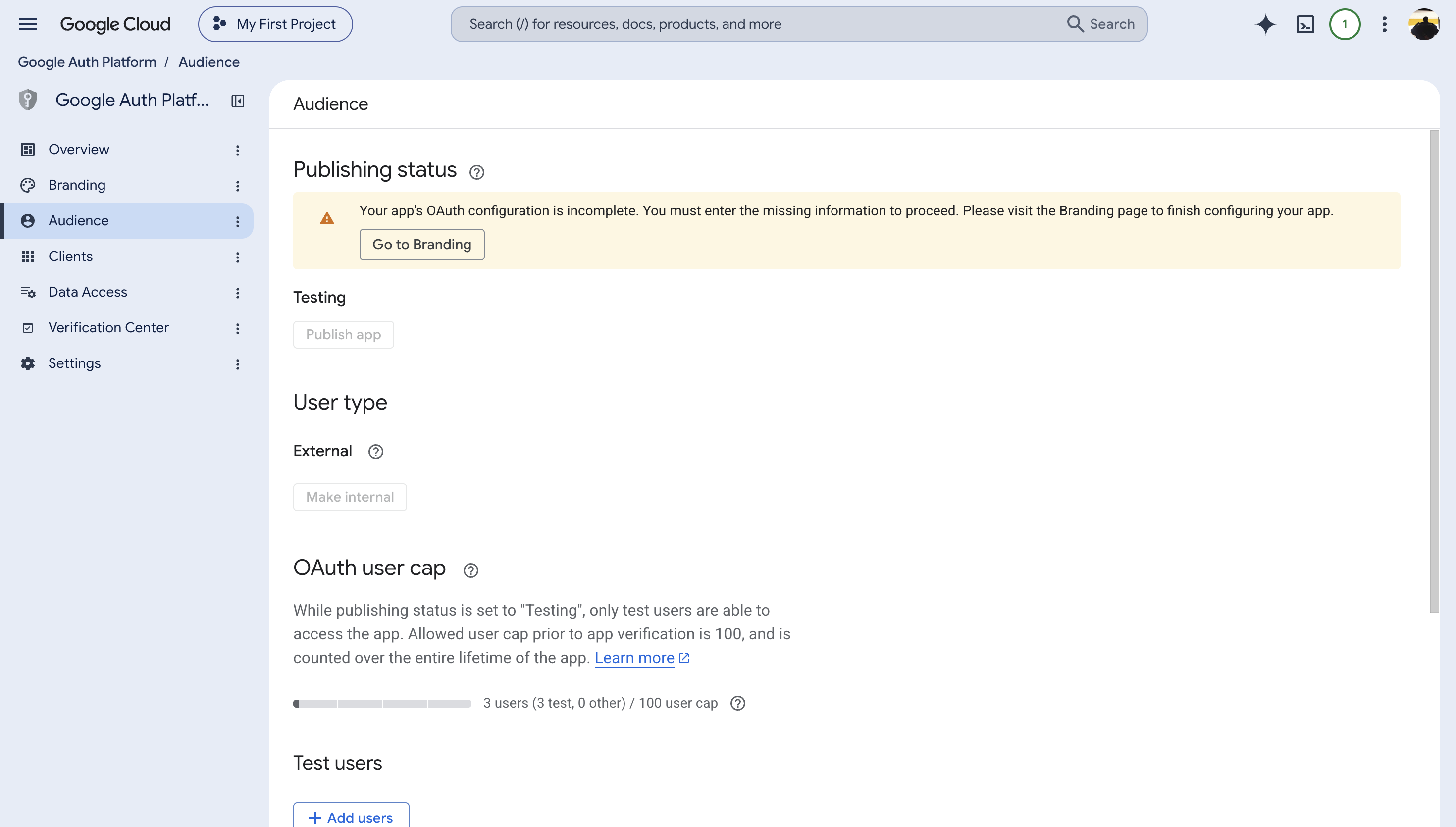
Click Save. Until these fields are filled in, the Audience page will warn that your OAuth configuration is incomplete.
4. Choose your audience
Open Audience (console.cloud.google.com/auth/audience) and set the User type.
Use Internal if you can. Click Make internal. An Internal app can be used only by members of your organization and does not need Google's External app verification.
Google offers Internal only when the Google Cloud project belongs to a Google Cloud Organization. Google Workspace or Cloud Identity provides an organization, but a personal Gmail account does not. If your project has no organization, Make internal is greyed out and External is your only option.
An Internal app may still need admin approval for restricted Google Workspace services, including Gmail and Drive. See Approving the app for your organization.
If you use External, the app starts in Testing. Only accounts listed under Test users can connect. Add each user under Test users → Add users. Anyone who is not on the list gets an error when they try to connect.
Two things to know about Testing before you rely on it:
- The cap is 100 test users over the entire lifetime of the project. It cannot be reset or changed. Each person counts toward the limit as soon as you add them, even if they never connect.
- The user's authorization and refresh token expire after seven days. Users will have to reconnect every week.
Adding a test user takes effect immediately. Until the account is on the list, Google returns Error 403: access_denied with the message "Access blocked: … has not completed the Google verification process". Although the message mentions verification, it usually means the account is missing from Test users.
Complete Branding before publishing. If the Branding page is incomplete, the Audience page shows "Your app's OAuth configuration is incomplete" and Publish app stays greyed out.
5. Add scopes
Open Data Access (console.cloud.google.com/auth/scopes) and click Add or remove scopes.
Add the Tasks scopes you need:
https://www.googleapis.com/auth/tasks: read, create, update and delete task lists and taskshttps://www.googleapis.com/auth/tasks.readonly: read-only
If you do not see them in the list, the Google Tasks API is not enabled yet. Go back to step 2. You can also paste a scope directly into the Manually add scopes box.
Click Update, then Save.
The Data Access page sorts your scopes into Non-sensitive, Sensitive and Restricted. An External app that is published needs Google's verification for sensitive and restricted scopes. Check where the Tasks scopes land on that page before you publish.
6. Create the OAuth client
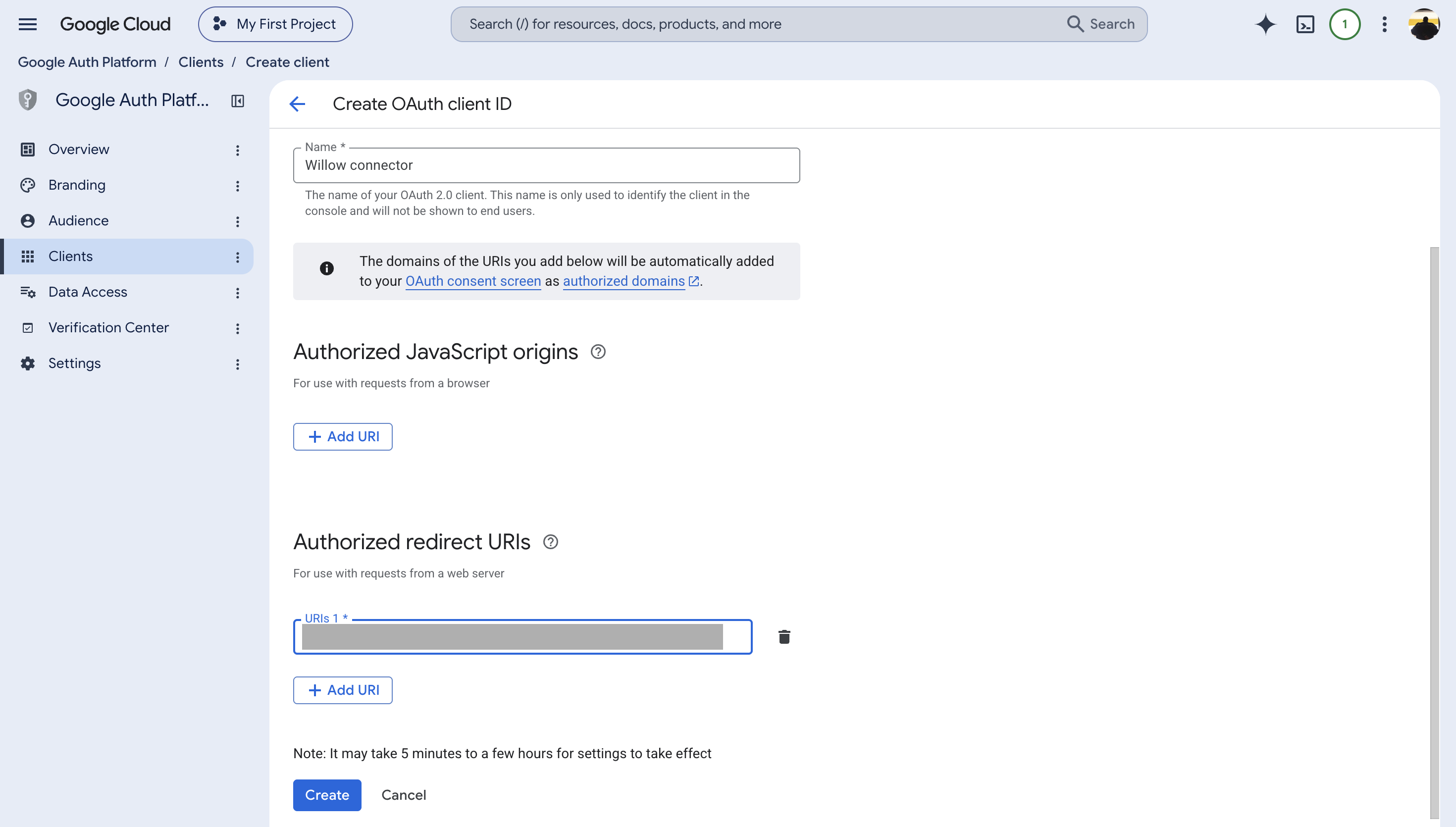
Open Clients (console.cloud.google.com/auth/clients) and click Create client.
- Set Application type to Web application
- Give the client a name
- Under Authorized redirect URIs, click Add URI and add your Willow redirect URL:
- For SaaS deployments:
https://{org}.withwillow.ai/{org}/api/auth/callback - For On-Premise deployments:
{connectUrl}/{org}/api/auth/callback
- For SaaS deployments:
- Click Create
- Copy the Client ID and Client Secret
The redirect URI must match exactly, including https://, and must not have a trailing slash. A mismatch produces Error 400: redirect_uri_mismatch when you connect.
7. Finish in Willow
Open your Google connector in Willow and go to the Setup tab.
- Under Authentication, select OAuth to use your own Client ID and Client Secret.
- Paste the Client ID and Client Secret
- Confirm the Redirect URL shown here exactly matches the URI you registered in step 6
- Under Scopes, click Add and select the same scopes you configured in step 5
- Click Save Changes
Selecting a scope in Willow that you did not add in Google Cloud will fail at connect time, so keep the two lists identical.
Every connector in a Willow organization shares the same Redirect URL, so one Google OAuth client works for all of them. You do not need one client per connector. Paste the same Client ID and Secret into each connector, then select only the scopes it needs.
Select the narrowest scopes offered by the connector that meet your needs.
In Willow, the connector offers these scope choices:
| Willow scope template | Scopes | What agents can do |
|---|---|---|
| Read-only | tasks.readonly | List and read task lists and tasks. |
| Full access (default) | tasks | Everything in the tool list below, including creating, moving and deleting. |
8. Authorize the connection
Click Check connection. It stays disabled until the credentials are saved.
Willow opens Google's consent window. It also shows an Authenticate your MCP dialog with the authorization URL and an Authenticate button in case your browser blocks the window. Complete the Google consent steps, then click I've authenticated.
An External app that requests sensitive or restricted scopes may show an unverified-app warning. If you are testing your own app, follow the available prompts to continue to consent. Publishing the app does not by itself complete verification.
If the consent window does not appear, use the Authenticate button in the dialog.
Test a read-only tool
To test the connection, go to the Tools tab, open the row menu for a read-only tool, and choose Test Tool → Run test. A successful run returns data from Google as JSON.
Use an existing resource that the authenticated account can access. A 401 response indicates an authentication problem; a 403 or 404 can also indicate missing permissions or an inaccessible resource, so an error alone does not confirm a working connection.
If a tool returns Tool blocked by organization's guardrails, check the matching Willow Guard. The response was blocked by a Guard; changing OAuth scopes will not fix that block.
Good read-only tools to test with are List Task Lists and List Tasks.
Approving the app for your organization
Google Workspace admins can restrict which third-party apps may access organization data. When this restriction is on, users may see an access-blocked message naming their Workspace admin or an admin-policy error, even when the OAuth setup is correct.
A Workspace super admin fixes this in the Admin console. From the Admin console, go to Menu → Security → Access and data control → API controls, then click Manage App Access.
To add an app that is not listed yet:
- Click Configure new app
- Enter the app name or the Client ID from step 6, then click Search
- Select the app and click Continue
- Under Access to Google data, choose Specific Google data and allow the scopes your connector needs, including any required Google Sign-in scopes. Choose Trusted only if your organization intends to allow the app to request all Google services, including restricted services.
- Click Continue, then Finish
To change an app that is already listed, point to it and click Change access. To update several apps, select them and click Change access at the top. Use Select org units → Include organizations to choose which parts of your organization receive the change. Leave the top-level organization selected to apply it to everyone. Then confirm with Change access.
The access levels are Trusted, Limited, Specific Google data, and Blocked. Specific Google data permits the scopes you approve, including scopes for restricted services. Trusted permits access across all services.
Internal apps also need approval if your organization restricts unconfigured third-party apps. See Google's guide, Control which third-party & internal apps access Google Workspace data.
Publishing and verification
If your app is Internal, you do not need External app verification or a test-user list, and authorizations do not expire after seven days.
An External app starts in Testing. Only listed test users can connect, and refresh tokens expire after seven days. To use the app in production, click Publish app on the Audience page. If Google classifies the Tasks scopes as sensitive, it must verify your External app first. Submit it from the Verification Center.
Available Tools
The connector has 12 tools. Tools that take a task list id default to @default, the user's default task list.
Task lists (5)
| Tool | What it does |
|---|---|
| List Task Lists | Lists the user's task lists, with paging. |
| Get Task List | Gets one task list by id. |
| Create Task List | Creates a task list. |
| Update Task List | Renames a task list. |
| Delete Task List | Deletes a task list and every task in it. The default list can't be deleted. |
Tasks (7)
| Tool | What it does |
|---|---|
| List Tasks | Lists tasks in a list. Filter by due date, completion date, update time, completed, hidden and assigned tasks. |
| Get Task | Gets one task by id. |
| Create Task | Creates a task with a title, notes and due date. It can be a subtask or placed after a sibling. |
| Update Task | Changes a task's title, notes, due date or status. Set the status to completed to finish a task. |
| Move Task | Moves a task under a new parent, after a sibling, or to another task list. |
| Delete Task | Deletes a task. |
| Clear Completed Tasks | Hides every completed task in a list. |
The Tasks API stores only the date of a task's due time. The time of day is discarded when a due date is set, and the API can't read or write it.
Troubleshooting
| Symptom | Cause |
|---|---|
| Required scopes missing from the scope picker | A required API is not enabled in the selected project. See step 2. |
Error 400: redirect_uri_mismatch | The Redirect URI in the OAuth client does not exactly match Willow's Redirect URL. |
org_internal error | The app is Internal, but the user does not belong to the organization that owns the Google Cloud project. |
Error 403: access_denied: "Access blocked: <domain> has not completed the Google verification process… can only be accessed by developer-approved testers" | The app is External and in Testing, but the Google account is not in Test users. Add the account on the Audience page. This is a test-user error, not a Workspace admin approval error. |
| "Access blocked" that names your Workspace admin, or persists for an account already listed under Test users | Workspace admin has not trusted the app. See Approving the app for your organization. |
| Users have to reconnect every 7 days | App is External and still in Testing. Authorizations expire seven days after consent. |
| Make internal is greyed out | The project does not belong to a Google Cloud Organization |
| Publish app is greyed out, with "Your app's OAuth configuration is incomplete" | Branding is unfinished. Fill in the Branding page first. |
Tool call returns {"error":{"type":"Tool Error","message":"Tool blocked by organization's guardrails"}} | A Willow Guard blocked the response. Check Guards for the matching rule and result. |
Google Tasks specific issues:
| Symptom | Cause |
|---|---|
403 on every tool call | The Google Tasks API may not be enabled in the Google Cloud project that owns the OAuth client. See step 2. |
403 on a create, update, move or delete tool only | The connection may have been authorized with only the read-only scope. Those tools need https://www.googleapis.com/auth/tasks. Choose the Full access scope template, save, and reconnect. |
| Completed tasks are missing from List Tasks | Tasks that were completed in the Google Tasks app are hidden. Set showHidden to true as well as showCompleted. |
| Assigned tasks from Docs or Chat spaces are missing | List Tasks leaves them out unless showAssigned is true. |
| Delete Task List fails on the default list | Google doesn't allow deleting a user's default task list. |