Google Workspace Admin
Google Workspace Admin administers your Google Workspace tenant through the Admin SDK and the Enterprise License Manager API. It manages users, groups and members, organizational units, ChromeOS and mobile devices, and Workspace licenses, and it reads audit and usage reports.
This is the administrative counterpart to the Google Workspace connector. That one works across the productivity suite: Drive, Docs, Sheets, and Slides. This one acts on the directory itself.
Every tool here runs against your whole tenant, not one person's data. Suspend User, Revoke License, and Remove Group Member change who can sign in and what they can reach. Scope this connector to a group of administrators rather than All Users, and consider a runtime guard that requires approval on the write tools. See Guards.
Authentication types
Google Workspace Admin supports one authentication method:
- OAuth: Create your own Google Cloud OAuth app. You control the app, scopes, and credentials. Each administrator connects with their Google account. Google Cloud setup is required.
There is no Instant OAuth option for this connector.
Before you start
You will need:
- A Google Cloud project, ideally owned by your Google Workspace organization.
- A Google Workspace account with an admin role to authorize the connector. The Admin SDK enforces Workspace admin roles on top of the OAuth scope, so a scope grant alone does not let a non-admin list or create users.
- Your Willow Redirect URL (see Create the OAuth client).
Enable the Admin SDK API and the Enterprise License Manager API before you pick scopes. The scope picker only lists scopes for APIs that are already enabled in the project.
Setting up OAuth
1. Create or select a project
Go to https://console.cloud.google.com/ and either create a new project or select an existing one using the project picker in the top bar.
Every step below applies to the selected project, so make sure the right project name is showing before you continue.
2. Enable the Admin SDK and license APIs
Go to APIs & Services → Library, search for each API, open it, and click Enable:
| API | Used by | Direct link |
|---|---|---|
| Admin SDK API | Users, groups, members, org units, devices, audit and usage reports | admin.googleapis.com |
| Enterprise License Manager API | Assign License and Revoke License | licensing.googleapis.com |
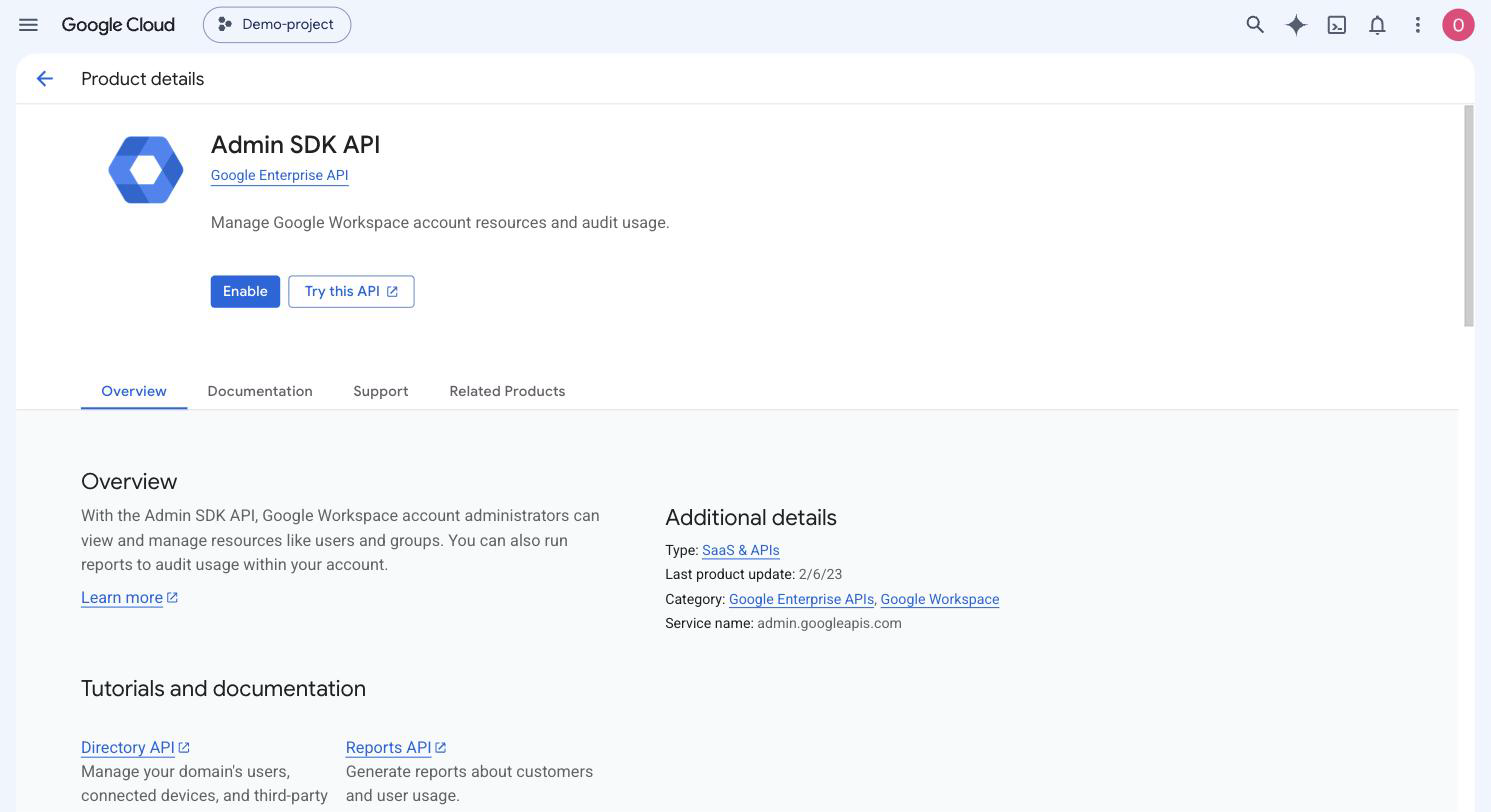
If an API is already turned on, its page shows API Enabled and a Manage button instead of Enable.
3. Configure the consent screen (Branding)
Google now places OAuth settings under Google Auth Platform instead of the old "OAuth consent screen" wizard. Open console.cloud.google.com/auth/branding. You can also go to APIs & Services → OAuth consent screen, which redirects to the same page.
Fill in the required fields:
- App name: What users see on the Google consent screen
- User support email
- Developer contact email
Click Save. Until these fields are filled in, the Audience page will warn that your OAuth configuration is incomplete.
4. Choose your audience
Open Audience (console.cloud.google.com/auth/audience) and set the User type.
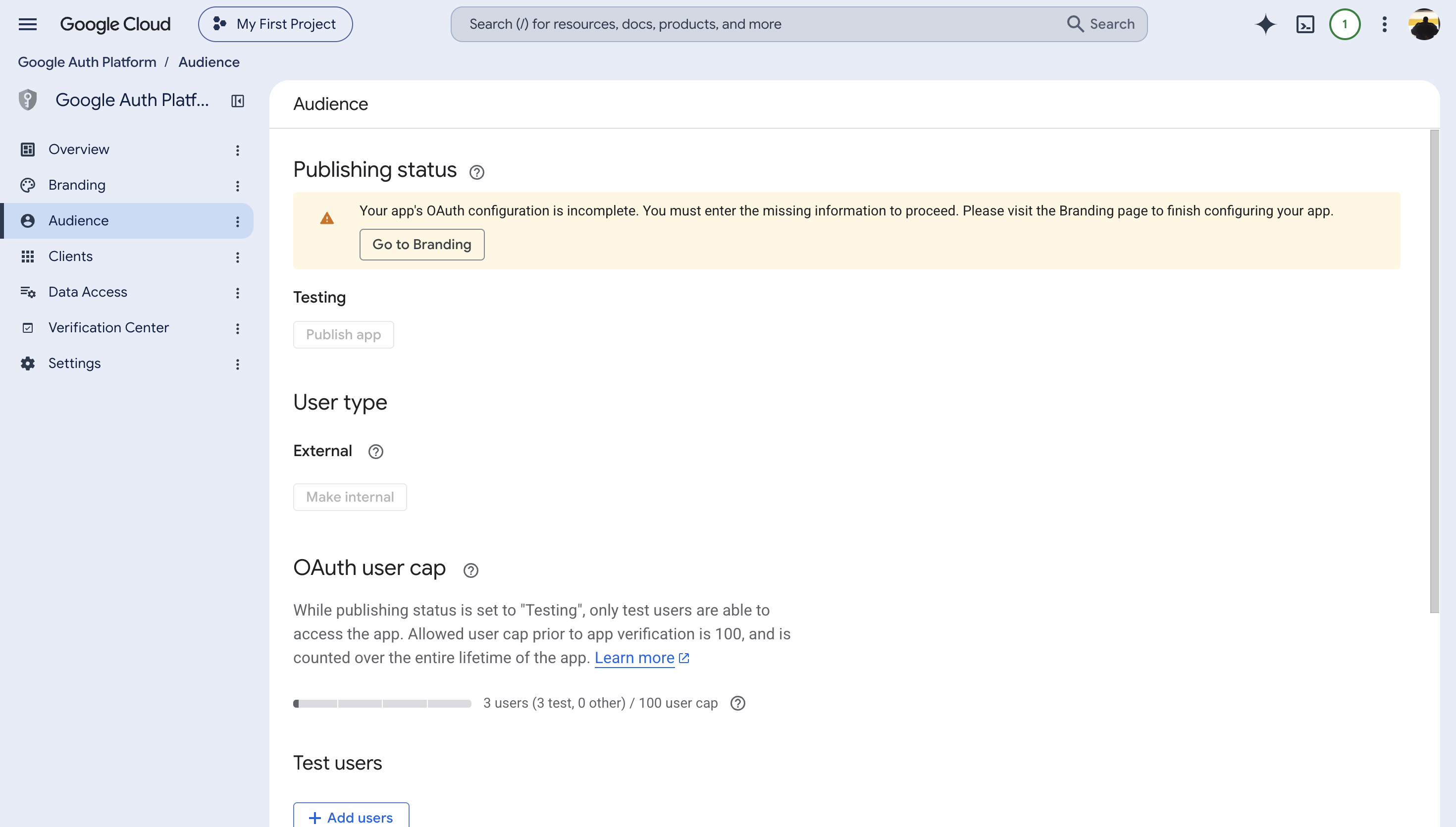
Use Internal if you can. Click Make internal. An Internal app can be used only by members of your organization and does not need Google's External app verification.
Google offers Internal only when the Google Cloud project belongs to a Google Cloud Organization. Google Workspace or Cloud Identity provides an organization, but a personal Gmail account does not. If your project has no organization, Make internal is greyed out and External is your only option.
An Internal app may still need admin approval for restricted Google Workspace services, including Gmail and Drive. See Approving the app for your organization.
If you use External, the app starts in Testing. Only accounts listed under Test users can connect. Add each user under Test users → Add users. Anyone who is not on the list gets an error when they try to connect.
Two things to know about Testing before you rely on it:
- The cap is 100 test users over the entire lifetime of the project. It cannot be reset or changed. Each person counts toward the limit as soon as you add them, even if they never connect.
- The user's authorization and refresh token expire after seven days. Users will have to reconnect every week.
Adding a test user takes effect immediately. Until the account is on the list, Google returns Error 403: access_denied with the message "Access blocked: … has not completed the Google verification process". Although the message mentions verification, it usually means the account is missing from Test users.
Complete Branding before publishing. If the Branding page is incomplete, the Audience page shows "Your app's OAuth configuration is incomplete" and Publish app stays greyed out.
For this connector, Internal is the natural choice: everyone who authorizes it must be an administrator in your Workspace organization anyway.
5. Add Google Workspace Admin scopes
Open Data Access (console.cloud.google.com/auth/scopes) and click Add or remove scopes.
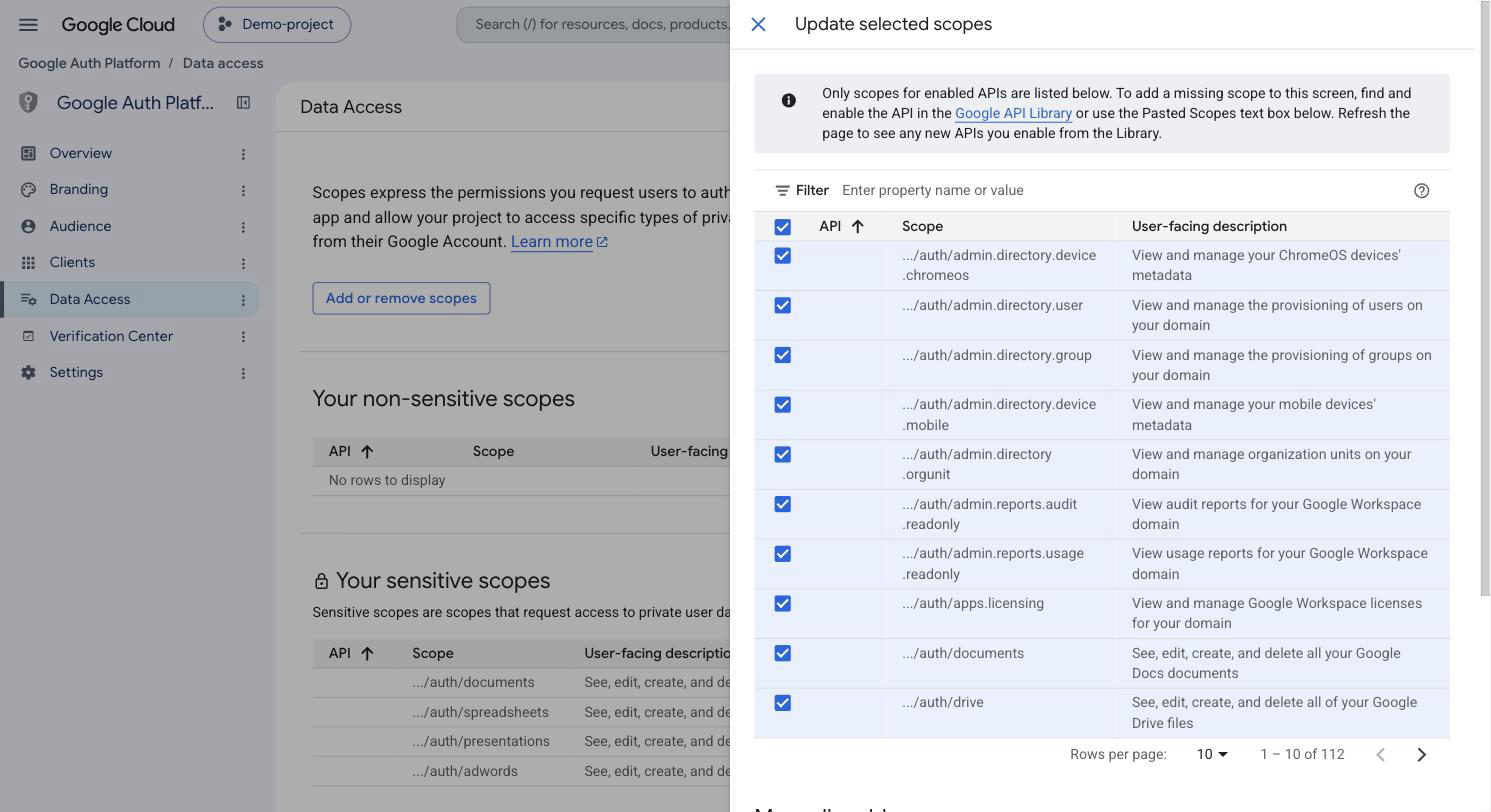
When you create the connector, Willow selects these eight scopes. Each one covers a group of tools:
| Tools | Scope |
|---|---|
| List Users, Get User, Create User, Update User, Suspend User | https://www.googleapis.com/auth/admin.directory.user |
| List Groups, Get Group, Create Group, List Group Members, Add Group Member, Remove Group Member | https://www.googleapis.com/auth/admin.directory.group |
| List Org Units, Get Org Unit | https://www.googleapis.com/auth/admin.directory.orgunit |
| List ChromeOS Devices | https://www.googleapis.com/auth/admin.directory.device.chromeos |
| List Mobile Devices, Action Mobile Device | https://www.googleapis.com/auth/admin.directory.device.mobile |
| List Audit Activities | https://www.googleapis.com/auth/admin.reports.audit.readonly |
| Get User Usage Report | https://www.googleapis.com/auth/admin.reports.usage.readonly |
| Assign License, Revoke License | https://www.googleapis.com/auth/apps.licensing |
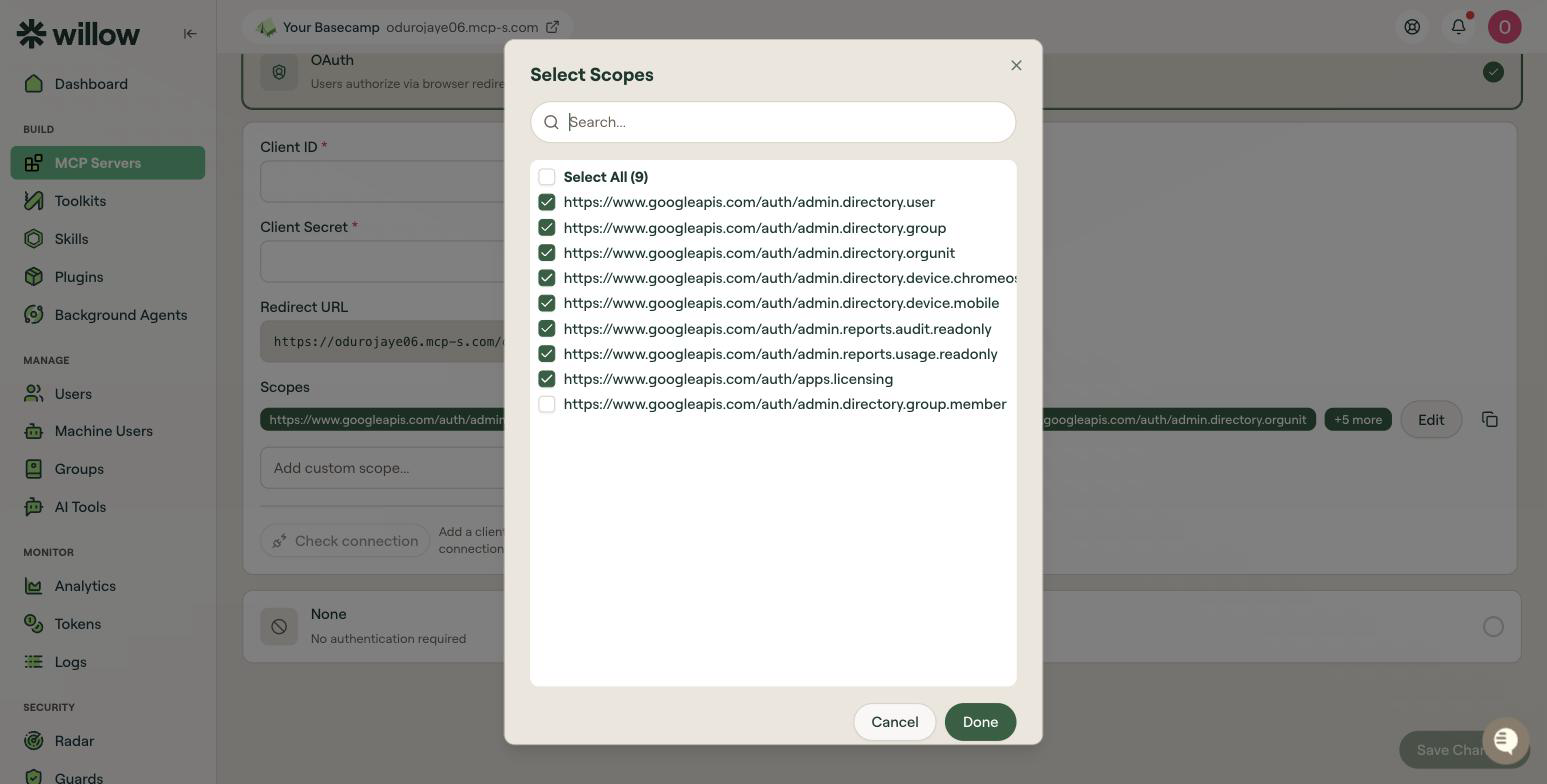
Willow also offers https://www.googleapis.com/auth/admin.directory.group.member, but does not select it by default. Google's admin.directory.group scope already covers "all group operations, including group aliases and members", so you only need group.member if you want to grant member management without full group access.
To add the scopes, paste all eight URIs, separated by commas, into Manually add scopes at the bottom of the panel and click Add to table. Click Update, then Save on the Data Access page.
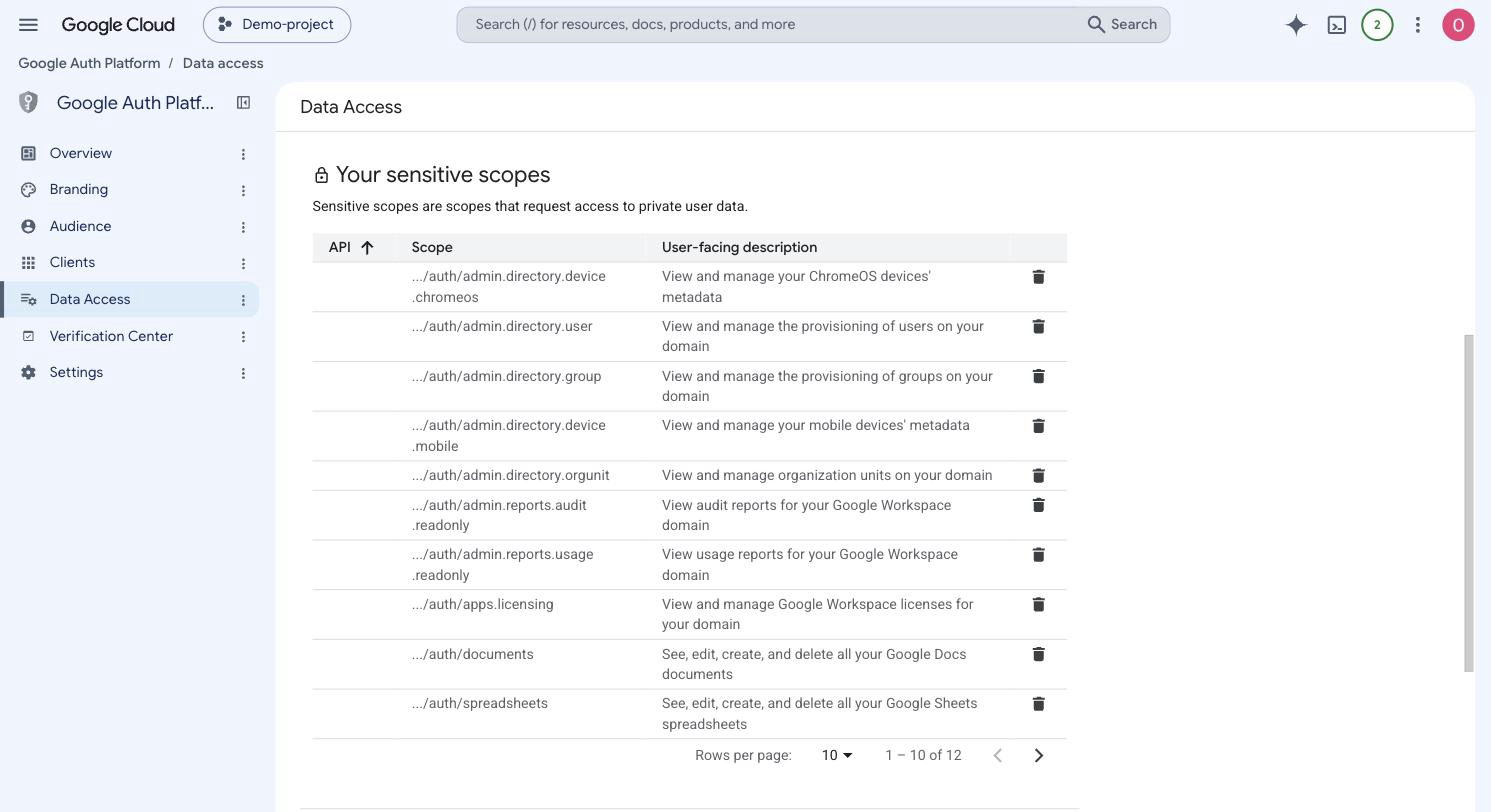
After you save, the Data Access page lists all eight scopes under Your sensitive scopes. None of them are restricted.
Read-only scopes
Google offers .readonly variants for most Directory scopes, such as admin.directory.user.readonly, admin.directory.group.readonly, and admin.directory.orgunit.readonly. They are not in Willow's scope picker. If you only enable the List and Get tools, add the read-only variants as custom scopes in Willow and in Google Cloud. The connector then cannot write even if a write tool is turned on later. Google lists the scope for every method in the Admin SDK Directory API reference.
6. Create the OAuth client
Open Clients (console.cloud.google.com/auth/clients) and click Create client.
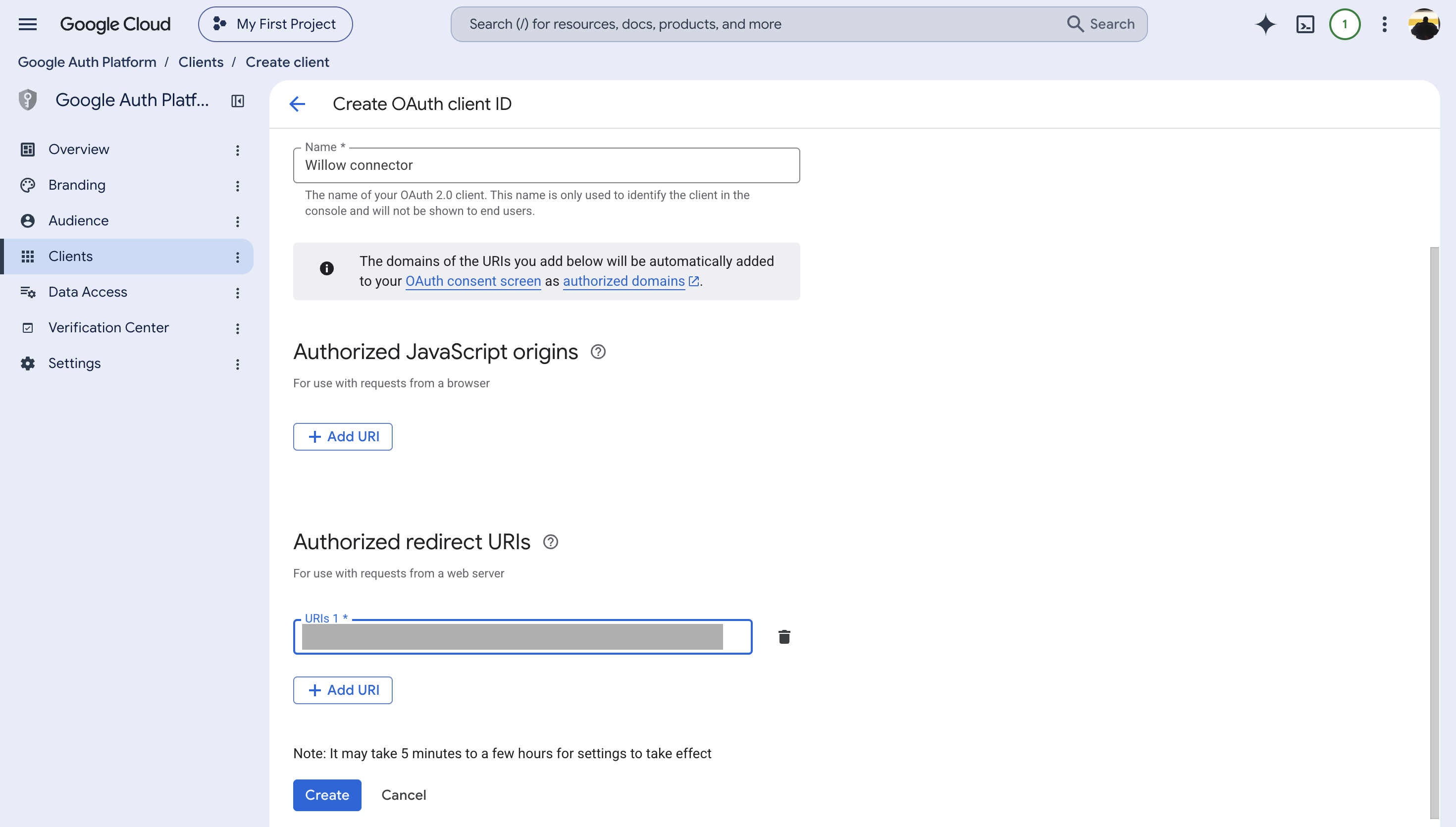
- Set Application type to Web application
- Give the client a name
- Under Authorized redirect URIs, click Add URI and add your Willow redirect URL:
- For SaaS deployments:
https://{org}.mcp-s.com/{org}/api/auth/callback - For On-Premise deployments:
{connectUrl}/{org}/api/auth/callback
- For SaaS deployments:
- Click Create
- Copy the Client ID and Client Secret
The redirect URI must match exactly, including https://, and must not have a trailing slash. A mismatch produces Error 400: redirect_uri_mismatch when you connect.
7. Finish in Willow
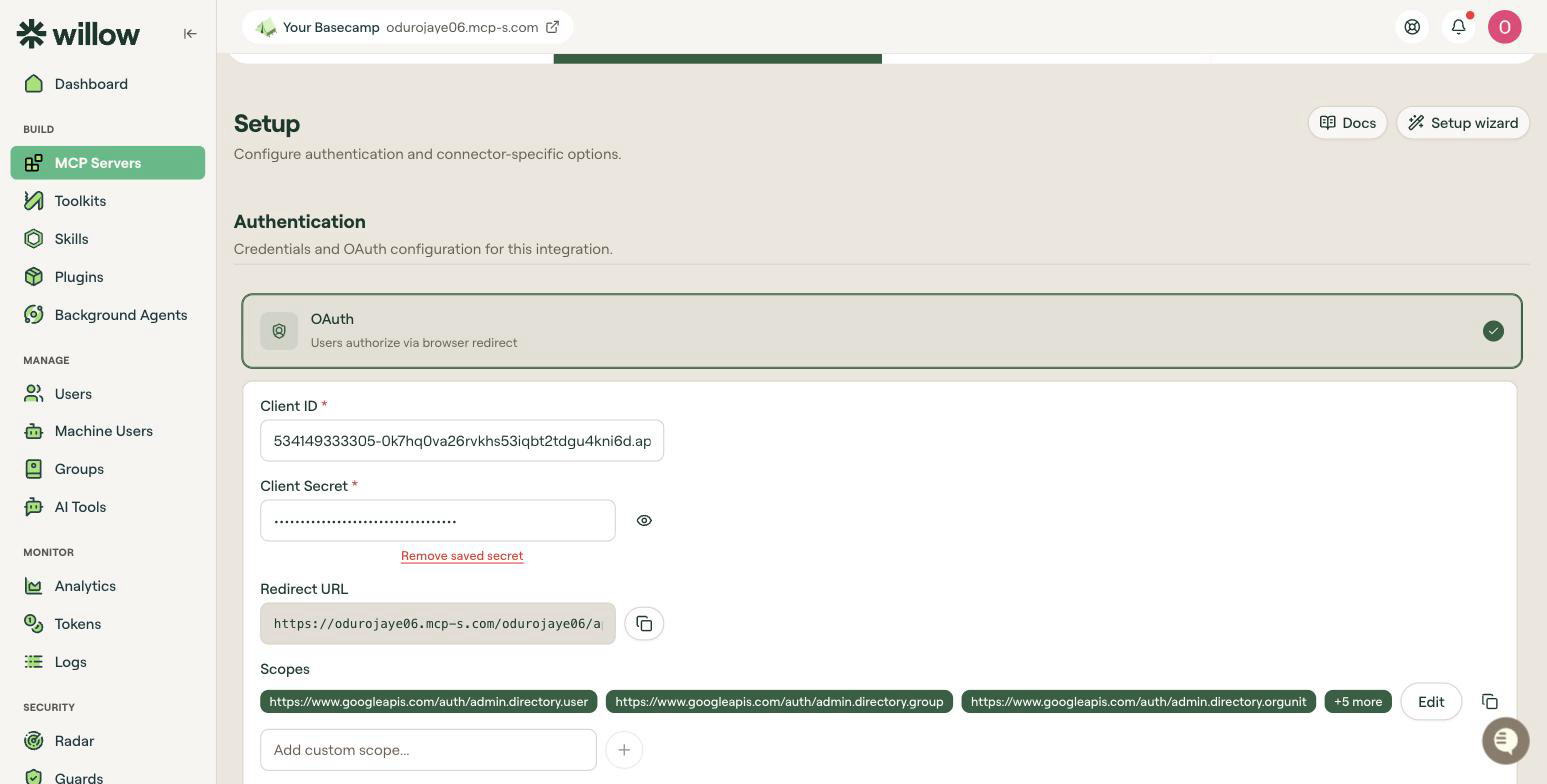
Open your Google connector in Willow and go to the Setup tab.
- Under Authentication, select OAuth to use your own Client ID and Client Secret.
- Paste the Client ID and Client Secret
- Confirm the Redirect URL shown here exactly matches the URI you registered in step 6
- Under Scopes, click Add and select the same scopes you configured in step 5
- Click Save Changes
Selecting a scope in Willow that you did not add in Google Cloud will fail at connect time, so keep the two lists identical.
Every connector in a Willow organization shares the same Redirect URL, so one Google OAuth client works for all of them. You do not need one client per connector. Paste the same Client ID and Secret into each connector, then select only the scopes it needs.
Select the narrowest scopes offered by the connector that meet your needs.
Willow's scope picker for this connector lists the eight default scopes plus admin.directory.group.member:
8. Authorize the connection
Click Check connection. It stays disabled until the credentials are saved.
Willow opens Google's consent window. It also shows an Authenticate your MCP dialog with the authorization URL and an Authenticate button in case your browser blocks the window. Complete the Google consent steps, then click I've authenticated.
An External app that requests sensitive or restricted scopes may show an unverified-app warning. If you are testing your own app, follow the available prompts to continue to consent. Publishing the app does not by itself complete verification.
If the consent window does not appear, use the Authenticate button in the dialog.
Authorize as a Workspace administrator. Google shows the requested scopes on the consent screen.
Test a read-only tool
To test the connection, go to the Tools tab, open the row menu for a read-only tool, and choose Test Tool → Run test. A successful run returns data from Google as JSON.
Use an existing resource that the authenticated account can access. A 401 response indicates an authentication problem; a 403 or 404 can also indicate missing permissions or an inaccessible resource, so an error alone does not confirm a working connection.
If a tool returns Tool blocked by organization's guardrails, check the matching Willow Guard. The response was blocked by a Guard; changing OAuth scopes will not fix that block.
For example, run List Users with this input:
{ "customer": "my_customer", "maxResults": 10 }
my_customer means the Workspace account of the administrator who authorized the connector. A successful run returns a users array.
Approving the app for your organization
Google Workspace admins can restrict which third-party apps may access organization data. When this restriction is on, users may see an access-blocked message naming their Workspace admin or an admin-policy error, even when the OAuth setup is correct.
A Workspace super admin fixes this in the Admin console. From the Admin console, go to Menu → Security → Access and data control → API controls, then click Manage App Access.
To add an app that is not listed yet:
- Click Configure new app
- Enter the app name or the Client ID from step 6, then click Search
- Select the app and click Continue
- Under Access to Google data, choose Specific Google data and allow the scopes your connector needs, including any required Google Sign-in scopes. Choose Trusted only if your organization intends to allow the app to request all Google services, including restricted services.
- Click Continue, then Finish
To change an app that is already listed, point to it and click Change access. To update several apps, select them and click Change access at the top. Use Select org units → Include organizations to choose which parts of your organization receive the change. Leave the top-level organization selected to apply it to everyone. Then confirm with Change access.
The access levels are Trusted, Limited, Specific Google data, and Blocked. Specific Google data permits the scopes you approve, including scopes for restricted services. Trusted permits access across all services.
Internal apps also need approval if your organization restricts unconfigured third-party apps. See Google's guide, Control which third-party & internal apps access Google Workspace data.
Available tools
The connector has 20 tools. At the default Medium Risk level Willow installs 18 and holds back the two high-risk tools, Revoke License and Remove Group Member.
Read-only
List Users, Get User, List Groups, Get Group, List Group Members, List Org Units, Get Org Unit, List ChromeOS Devices, List Mobile Devices, List Audit Activities, Get User Usage Report
Create and update
Create User, Update User, Suspend User, Assign License, Create Group, Add Group Member, Action Mobile Device
Revoke and remove
Revoke License and Remove Group Member, classified as high risk and excluded at Medium.
Publishing and verification
If your app is Internal, you do not need External app verification or a test-user list, and authorizations do not expire after seven days.
An External app starts in Testing. Only listed test users can connect, and refresh tokens expire after seven days. All eight default scopes are sensitive, so publishing an External app requires Google's OAuth verification. Submit it from the Verification Center.
Troubleshooting
| Symptom | Cause |
|---|---|
| Required scopes missing from the scope picker | A required API is not enabled in the selected project. See step 2. |
Error 400: redirect_uri_mismatch | The Redirect URI in the OAuth client does not exactly match Willow's Redirect URL. |
org_internal error | The app is Internal, but the user does not belong to the organization that owns the Google Cloud project. |
Error 403: access_denied: "Access blocked: <domain> has not completed the Google verification process… can only be accessed by developer-approved testers" | The app is External and in Testing, but the Google account is not in Test users. Add the account on the Audience page. This is a test-user error, not a Workspace admin approval error. |
| "Access blocked" that names your Workspace admin, or persists for an account already listed under Test users | Workspace admin has not trusted the app. See Approving the app for your organization. |
| Users have to reconnect every 7 days | App is External and still in Testing. Authorizations expire seven days after consent. |
| Make internal is greyed out | The project does not belong to a Google Cloud Organization |
| Publish app is greyed out, with "Your app's OAuth configuration is incomplete" | Branding is unfinished. Fill in the Branding page first. |
Tool call returns {"error":{"type":"Tool Error","message":"Tool blocked by organization's guardrails"}} | A Willow Guard blocked the response. Check Guards for the matching rule and result. |
| Symptom | Cause |
|---|---|
403 Not Authorized to access this resource/api | The authorizing account is not a Workspace admin, or its admin role lacks the privilege for that call. The OAuth scope is necessary but not sufficient. |
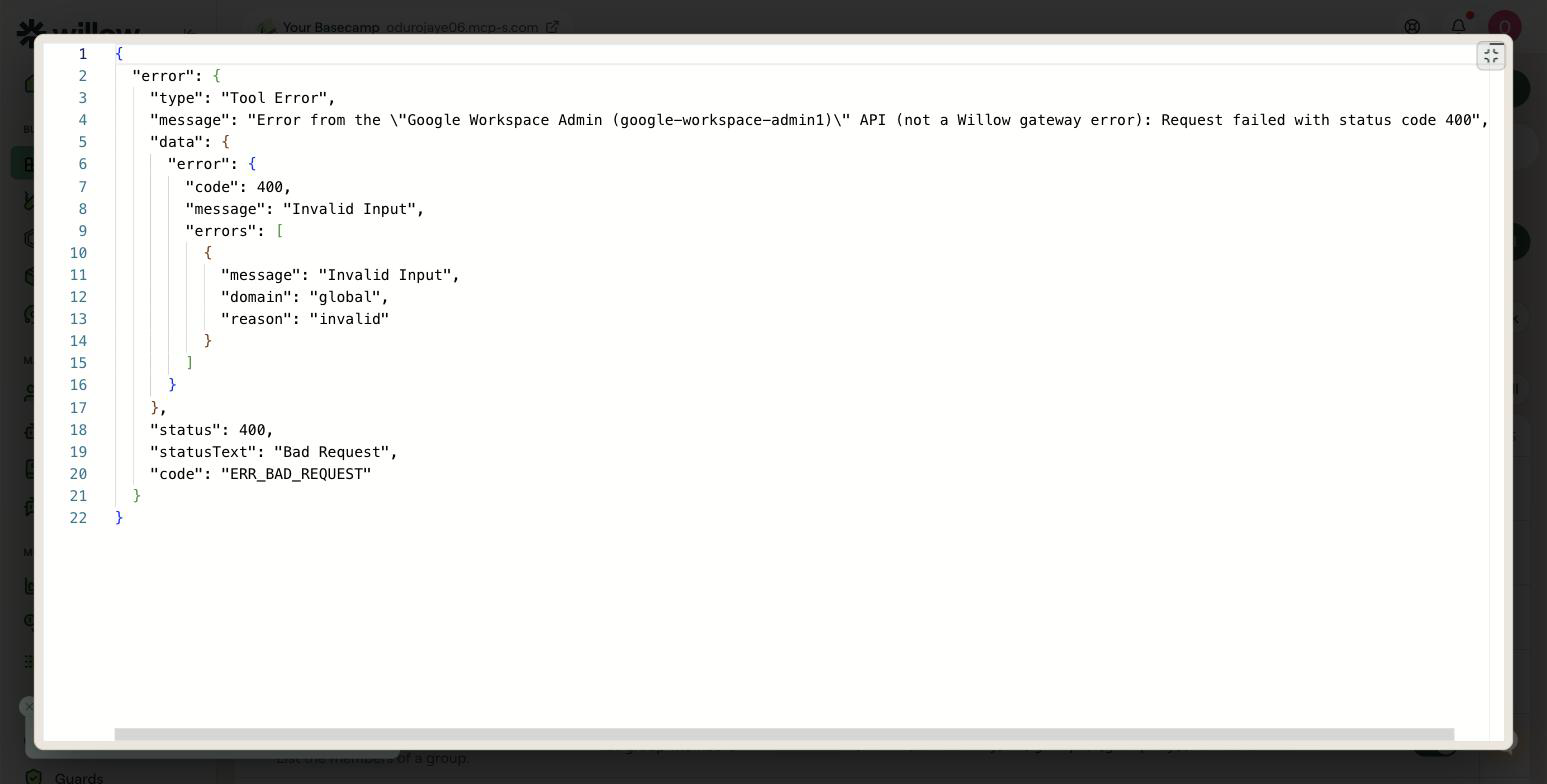
400 Invalid Input from List Users with customer: my_customer | The authorizing account does not belong to a Google Workspace organization, for example a personal Gmail account. Authorize with a Workspace administrator account. |
Admin SDK API has not been used in project ... before or it is disabled | Step 2 was skipped, or the credentials belong to a different Cloud project than the one where the API was enabled. |
Assign License or Revoke License fails with an API-disabled error | The Enterprise License Manager API is not enabled. See step 2. |
| A newly created user fails the next call | Google propagates user creation asynchronously and documents that immediately following mutations can fail. Retry after a short pause. |
The 400 Invalid Input response looks like this. Willow labels it as coming from the Google API, not from the Willow gateway:
Related
- Google Workspace: the productivity suite, Drive, Docs, Sheets, and Slides
- Configure authentication: connector auth modes and their fields
- Manage tools: enable, disable, and require approval per tool
- Guards: constrain the write tools at runtime