Atlassian — Official Rovo MCP Server
Connect Willow to Atlassian's official MCP server (https://mcp.atlassian.com/v1/mcp/authv2) to give your AI assistants access to Jira, Confluence and Compass.
Atlassian decides which tools may connect to its MCP server. Before anyone signs in, an Atlassian organization admin has to allow Willow in Atlassian Administration → Connectors → Atlassian MCP server. See Control Atlassian MCP server settings.
Prerequisites
- An Atlassian organization admin, for the one-time settings below
- An Atlassian Cloud site with Jira, Confluence or Compass
Configuration
Nothing to fill in. Willow connects to Atlassian's hosted endpoint over Streamable HTTP; the URL is pre-filled when you add the server.
If your Atlassian organization uses IP allowlisting, it applies to MCP traffic too: requests come from Willow's gateway, so its egress IPs must be allowed for Jira, Confluence or Compass. Otherwise tool calls fail with "You don't have permission to connect from this IP address."
Authentication
OAuth 2.1 (recommended)
People sign in with their own Atlassian account and act with their own permissions. Willow registers itself with Atlassian automatically — there is no OAuth app to create — but Atlassian only completes sign-in for domains your admin allows.
- Go to admin.atlassian.com and select your organization.
- Select Connectors, then Atlassian MCP server.
- Select Add domain and add Willow's callback URL — copy it from the Sign-in section of the setup page:
- SaaS:
https://{org}.withwillow.ai/{org}/api/auth/callback - On-prem:
{CONNECT_URL}/{org}/api/auth/callback
- SaaS:
- In Willow, choose Willow OAuth under Sign-in and click Set up.
Leaving Allow Atlassian supported domains on doesn't cover Willow — its domain has to be added.
API token
For a service account or automation that shouldn't sign in interactively. API tokens skip the domain list; they're limited by your IP allowlist and the token's own access.
- In Connectors → Atlassian MCP server → Authentication, turn API token on.
- Create a token at id.atlassian.com → Security → API tokens, ideally for a dedicated account with only the access the tools need.
- In Willow, choose API key under Sign-in:
- One shared — paste it once. Willow keeps it in the vault and sends it on every request. Use Basic and paste
email:api_token; Willow encodes it. - Each person's own — everyone adds their own token when they first connect.
- One shared — paste it once. Willow keeps it in the vault and sends it on every request. Use Basic and paste
Troubleshooting
"Your organization admin must authorize access from a domain to this site"
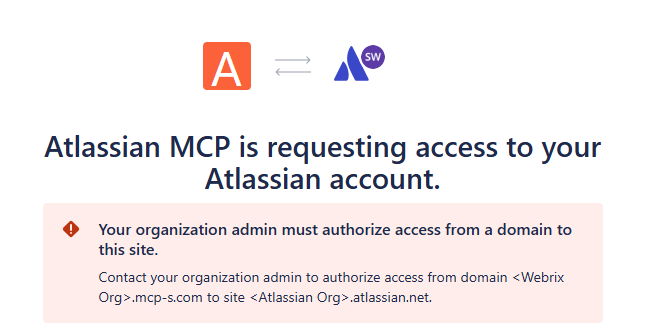
Willow's callback domain isn't allowed yet. Add it under Connectors → Atlassian MCP server → Add domain (see OAuth 2.1), then sign in again.
"You don't have permission to connect from this IP address"
Your IP allowlist blocks Willow's gateway. Add its egress IPs in Atlassian Administration. The consent screen can still appear for blocked IPs — only the tool calls fail.
An API token is rejected
Check that API token is turned on under Authentication, and that the token's account can see the Jira or Confluence content the tool asks for.
Notes
- The MCP server is published by Atlassian — Willow passes its tools through without changing them.
- Tools act with the signed-in person's Atlassian permissions (or the token's account). Use least privilege and review the audit log.
- For Willow's own Atlassian connector, see Atlassian (Built-in).