Tool Response Optimization
Tool Response Optimization shows tools without response mappings, ranked by token consumption. Use it to find tool outputs that are large, repetitive, or poorly shaped for the model.
Open Monitor > Tokens. On the Dashboard tab, select the Tool Responses card under Context health. The card shows the average tokens per call, and how many tools are over the recommended budget of 1.0K tokens per call.
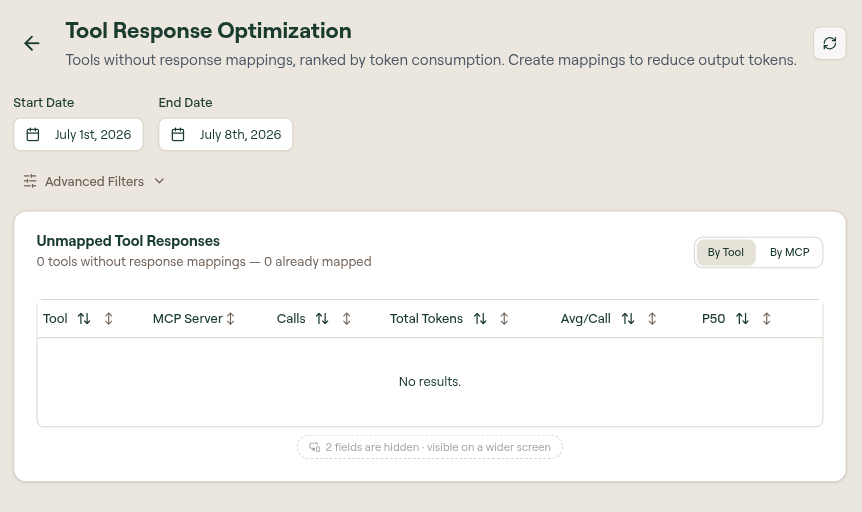
Filters
Use filters to narrow the table before deciding what to optimize.
| Filter | Use it to |
|---|---|
| Start Date / End Date | Analyze a specific usage window. |
| User | Focus on one user or team member. |
| AI Agent | Compare clients such as Cursor, Claude, or Codex. |
| MCP Server | Find response-heavy tools from one server. |
| Tool | Inspect a specific tool. |
The table can be grouped By Tool or By MCP.
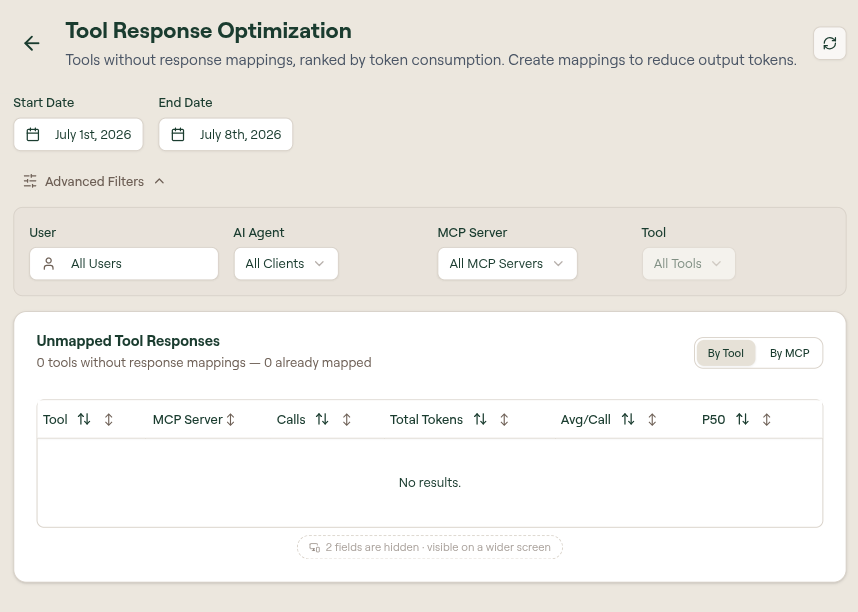
Table columns
| Column | Description |
|---|---|
| Tool | Tool name. |
| MCP Server | Server that exposed the tool. |
| Calls | Number of calls in the selected period. |
| Total Tokens | Total response tokens attributed to the tool. |
| Avg/Call | Average response tokens per call. |
| P50 / P95 / P99 | Percentile response sizes, useful for spotting occasional large outputs. |
Start with tools that have high Total Tokens and high Avg/Call. A tool with many small calls may be less urgent than a tool whose normal response is very large.
Reduce tool response tokens
Use one or more of these approaches:
- Add or tighten response mappings so the model receives only the fields it needs.
- Prefer summary fields over full records when the workflow does not need raw output.
- Limit list sizes or pagination defaults in the tool call.
- Use Output Format Optimization when a tool returns large structured data.
- Review the tool's schema and description in Manage Tools if users are calling it with overly broad arguments.
Empty states
If the table shows no results, Willow did not find unmapped response candidates for the selected period and filters. Widen the date range, remove filters, or wait until more tool calls are recorded.