Toolkit Context
Toolkit Context ranks toolkits by their context token footprint. Toolkits reduce initial context by exposing a smaller, workflow-specific set of tools instead of every tool from an MCP server.
Open Monitor > Tokens. On the Dashboard tab, select the Toolkits card under Context health. The card shows the total, and how many toolkits are over the recommended budget of 2.0K tokens per toolkit.
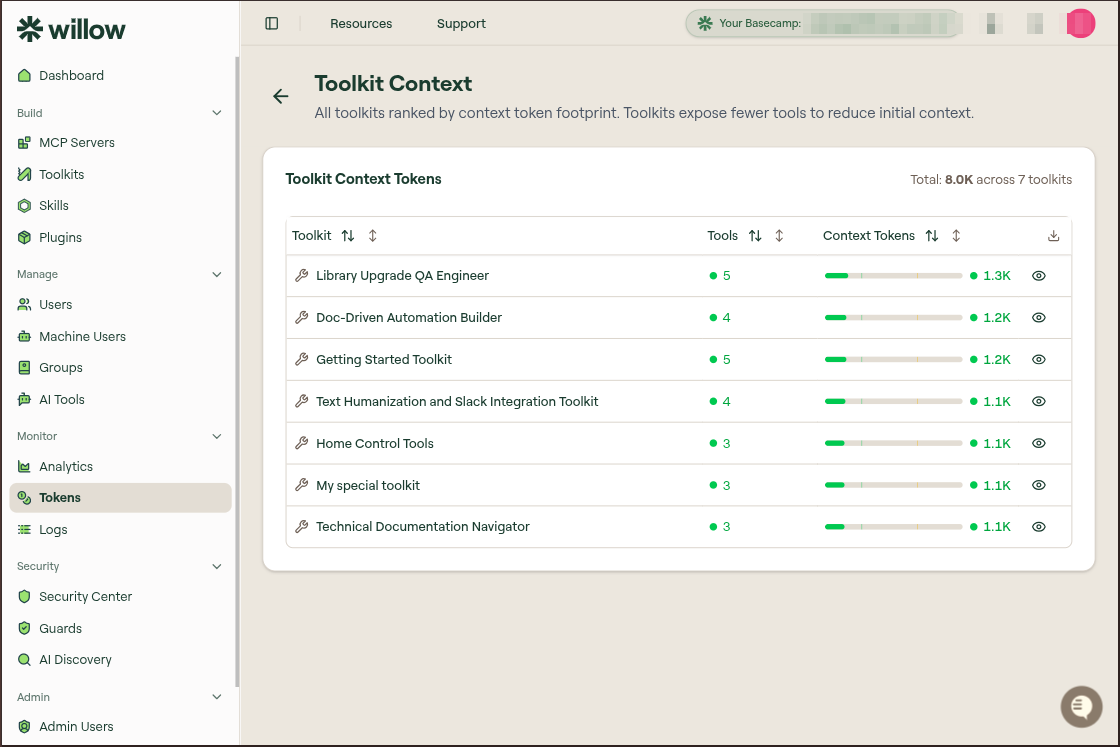
Table columns
| Column | Description |
|---|---|
| Toolkit | Toolkit name. |
| Tools | Number of tools exposed by the toolkit. |
| Context Tokens | Estimated context footprint for the toolkit. |
| View | Opens details for the toolkit context. |
| Download | Exports the table. |
The healthiest toolkit is usually not the smallest one. It is the one that exposes the minimum set of tools needed for a specific workflow.
Inspect a toolkit
Select the view icon on a toolkit row to open the detail drawer. The drawer lists the tools included in the toolkit and shows their description-token and schema-token estimates.
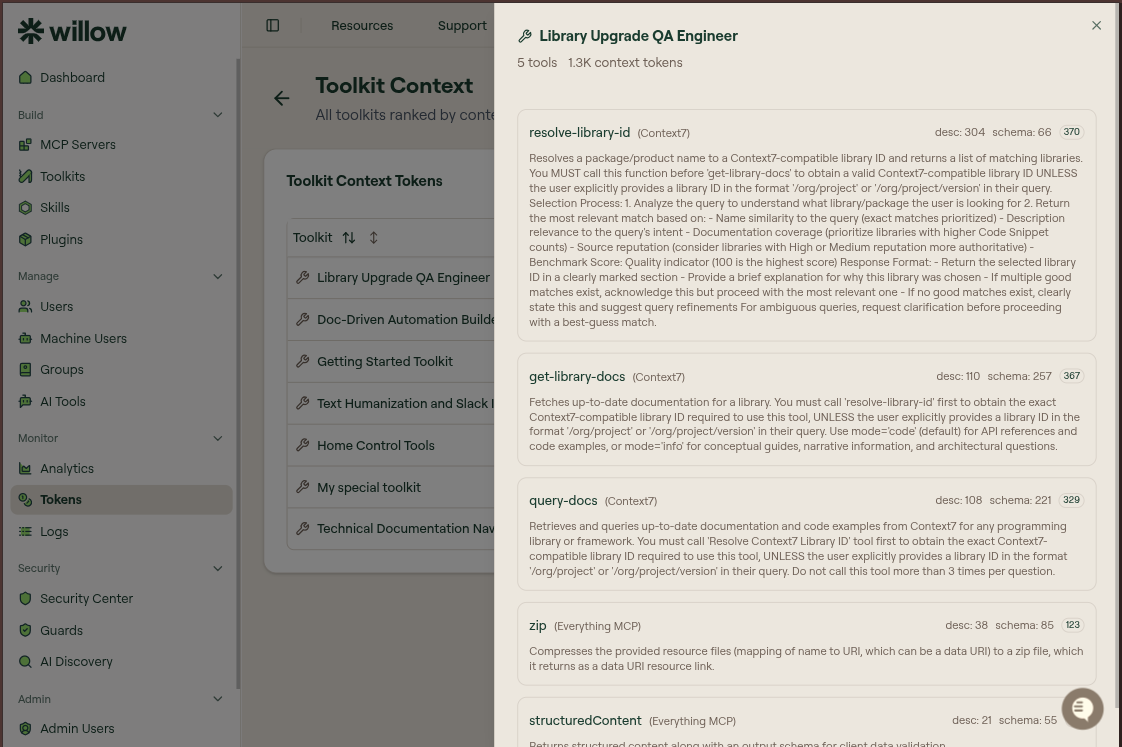
Use this view to check whether the toolkit includes tools that do not belong in the workflow or tools whose descriptions and schemas dominate the toolkit's context footprint.
When to create or change a toolkit
Create or adjust a toolkit when:
- one MCP server has a high context footprint
- users only need a small subset of that server's tools
- a workflow mixes tools from several MCP servers
- a broad toolkit is being assigned to users who only need one task-specific path
For example, instead of assigning all Slack tools to every user, create a toolkit that only includes the Slack tools needed for a support, incident, or documentation workflow.
Reduce toolkit context
- Open the highest-context toolkit.
- Review its included tools.
- Remove tools that are not required for the workflow.
- Split broad toolkits into smaller task-specific toolkits when needed.
- Assign the smaller toolkit to the groups or agents that need it.
If a toolkit still has high context after pruning, inspect the underlying MCP server in MCP Context. A small number of tools can still be expensive if their descriptions or schemas are large.