Some screenshots show mcp-s.com, which some existing organizations still use. New organizations use withwillow.ai. Copy the URLs shown in your own organization.
Usage Policies
Usage Policies stop a prompt before it is sent, so its cost is never spent at all. The other Token Optimization features make each session smaller. These two policies do something different: they stop prompts that would cost more than you want to pay.
Find the usage policies on Monitor > Tokens, on the Optimize view, below the recommended actions.
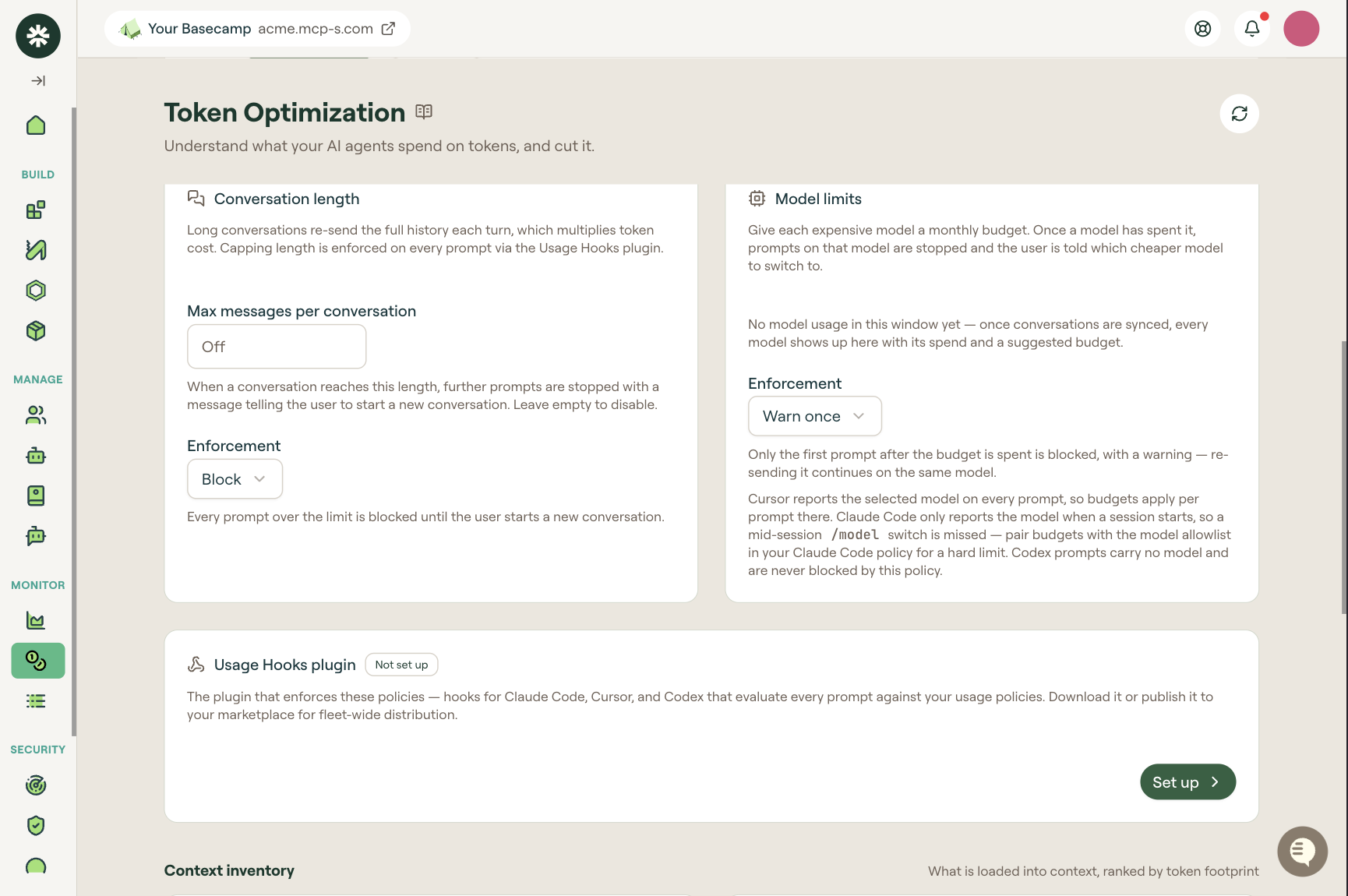
The Usage Hooks plugin is the component that applies both policies. If you save a policy but never deploy the plugin to your users' machines, nothing is stopped and nothing is limited. Your spending continues exactly as before.
Select Save policies after you edit either card. One Save policies button saves both cards.
Conversation length
Every new prompt in a conversation resends all the earlier messages, so a long conversation costs more with each prompt. Limiting the number of messages is a simple control, and it usually saves the most money.
| Field | What it does |
|---|---|
| Max messages per conversation | When a conversation reaches this number of messages, the plugin stops any further prompts. The user sees a message telling them to start a new conversation. Leave this field empty to turn the policy off. |
| Enforcement | Block: the plugin stops every prompt above the limit. The user must start a new conversation to continue. Warn once: the plugin stops the first prompt above the limit and shows a warning. If the user sends that same prompt again, the plugin allows it. |
Start with Warn once and a high limit. This lets you see how many conversations actually reach that limit. Move to Block once you know.
Model limits
Give each expensive model a monthly budget. When spending on a model reaches its budget, the plugin stops any further prompts that use that model. The user sees a message naming a cheaper model to switch to.
The card lists every model that appears in the conversation data Willow has received from Claude. For each model it shows the spend so far and a suggested budget. Until Claude sends that data, the card tells you that it has seen no model usage in the selected date range.
Enforcement offers the same two options:
| Option | What happens |
|---|---|
| Block | Once a model has reached its budget, the plugin stops every prompt that uses that model. |
| Warn once | The plugin stops one prompt: the first prompt sent after the model reaches its budget. It shows a warning with that stop. If the user sends the same prompt again, the prompt runs on the same model. |
What each client reports
A model limit only works if the client tells Willow which model a prompt is using. Not every client does this. The table below shows what each client reports:
| Client | What it reports |
|---|---|
| Cursor | Reports the selected model on every prompt, so budgets apply to every prompt. |
| Claude Code | Reports the model only at the moment a session starts. If the user runs /model to switch models during a session, Willow does not see the change, so the budget for the new model is not applied. |
| Codex | Codex prompts do not include a model name. This policy can never stop a Codex prompt. |
For Claude Code, use both controls together. The model allowlist in your Claude Code policy decides which models a user is allowed to run at all. The budget then tracks what those models cost and stops prompts once they reach the limit you set.
For Codex, model limits do not work. Use the conversation length policy instead.
Usage Hooks plugin
The Usage Hooks plugin is the component that applies both policies. It installs a hook in each of these three clients: Claude Code, Cursor, and Codex. Each hook checks a prompt against your usage policies before the client sends that prompt.
The card shows Not set up until you activate the plugin.
Activate and distribute it
- On the Optimize view, find the Usage Hooks plugin card and select Set up.
- Confirm Activate hooks. Willow creates the Usage Hooks plugin for your organization and then opens the page for that plugin.
- On the plugin page, choose which clients to enable: Claude Code, Cursor, or Codex.
- Download the plugin, or publish it to your marketplace so it reaches every machine.
Publish to the marketplace if you need to reach more than a few machines. See Managed marketplace and Package and publish a plugin. If you download the plugin instead, it applies only to the one machine you install it on.
The hook applies your policies on the user's own device. A user who removes the plugin is no longer limited by any policy, and their spending is no longer controlled. Distribute the plugin through your marketplace or through your MDM (mobile device management) system. Do not ask people to install it themselves.