Set up and check agent telemetry
To collect coding-agent activity in Runtime, enable collection in Willow and configure the agent's exporter or hooks on each device. You need admin access to the organization's collection settings and a device running the coding agent.
1. Open the collection controls
- Open Runtime in Willow Admin. For another deployment, use
/monitor/runtimeon your admin app's hostname. - Select Telemetry settings. On an empty page, Set up agent telemetry opens the same destination.
- In AI Discovery Settings, confirm that Agent telemetry is selected.
- Turn on the coding agents you want to collect: Claude Code, Codex, Cursor, or GitHub Copilot.
- Set Anonymize users according to whether the collected records should identify the reporting person.
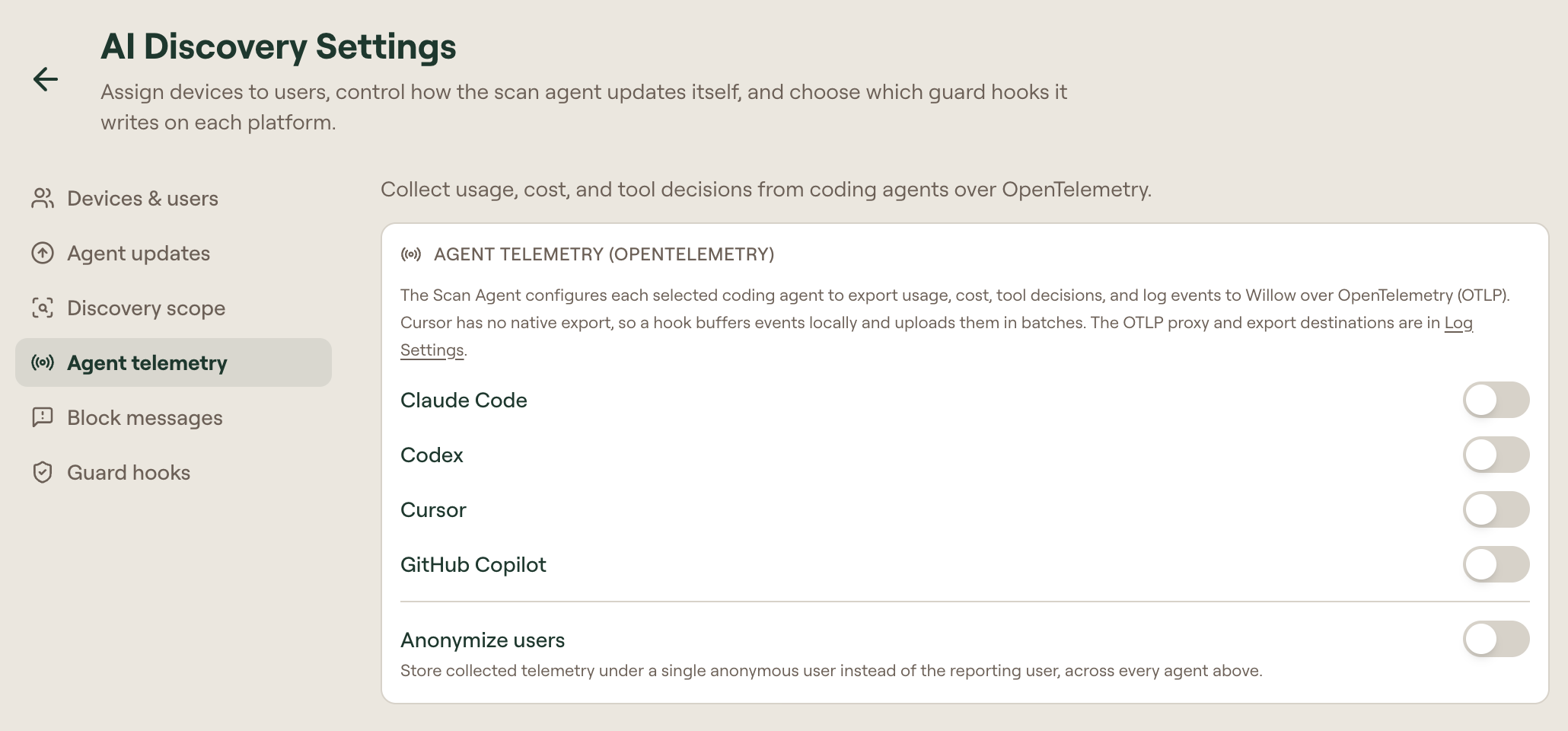
You can also open Admin > Settings, expand Log Settings, and select Edit on Collect Agent Telemetry (OpenTelemetry). Choose the agents in that dialog and select Save. Then configure the reporting device as described below.
2. Configure the reporting device
Choose the path that applies to the device:
| Device setup | Action |
|---|---|
| Willow Scan Agent is installed and connected to this organization | Let it collect the updated settings on its next scan. It configures the selected installed coding agents. Check the device's recent scan in Discover > Shadow AI > Devices. |
| You want the Scan Agent to manage the configuration | Install it on a test device or deploy it through MDM, using this organization's generated connection details. |
| You manage a native exporter yourself | Follow the agent's instructions in Analytics Data Sources, using the endpoint and authorization values shown for your organization. |
For Cursor, use the Scan Agent's hook-based collection. If Cursor collection is unavailable for your organization, contact Willow Support. If an agent already exports to another collector, use your existing collector or OTLP proxy to forward its events to Willow.
Restart the coding agent after its exporter or hook configuration changes.
3. Generate a recognizable event
- Start a new session in the configured coding agent.
- Ask it:
Reply with Runtime check complete. - Note the time, the coding agent, and the reporting user or device.
- If you are checking MCP coverage too, make one read-only call through an MCP server already approved for that agent and record its tool name.
Use the timestamp and source to find the event. Log Content controls prompt text, and Anonymize users controls user attribution.
4. Find the activity in Runtime
- Return to Runtime and select Last 24 hours.
- Leave All Users selected for the first check, then select Refresh.
- Open Sessions, Prompts, or Agent events, according to what the coding agent reports. In Prompts, use Telemetry for the exporter or Guard hooks for a hook evaluation.
- Match the time and source to the session you just created. Use Open in Logs where available to inspect the detailed record.
- If you made an MCP call, check Tool calls and MCP servers for that tool and its route classification.
Confirm that a new record appears for the session you just created. For an MCP call, check whether the route is Via gateway, Direct, or Unknown.
If the activity is missing
| Symptom | Check |
|---|---|
| No agent activity in this window | Widen the window to Last 7 days or Last 30 days, remove the user filter, and refresh. If old records appear, repeat the check against the new session's timestamp. |
| Gateway calls appear, but Overview reports no agent telemetry | Confirm the coding agent's collection switch, exporter or hook configuration, and organization connection values. Check that the Scan Agent has completed a recent scan, then restart the coding agent. |
| Device is absent or its scan is old | Follow the service status and log checks in Scan Agent reference. |
| Exporter is configured but Willow refuses its events | Confirm collection is on for that agent. See Analytics Data Sources troubleshooting. |
| Records appear only with All Users | Check the reporting identity and Anonymize users. Do not filter to a named user for anonymous records. |
| Metadata appears without the test prompt | Check Log Content, which controls whether records include prompt and response text. |
| Web AI activity is absent | Deploy and configure the Willow Guard browser extension. |