Distribute a Plugin
Once a plugin is built, this guide takes it from draft to installed in your developers' agents. For creating the plugin and its components, see Create a Plugin. For a guided end-to-end walkthrough, see the Package and Publish a Plugin tutorial.
Prerequisites
You need:
- admin access to Willow
- a plugin with at least one component
- to sync to GitHub: Plugin Settings configured with a marketplace name and a GitHub sync mechanism
Download for local testing
From the plugin edit page, select Download to export a zip formatted for a platform. Use this to test the plugin locally before publishing to the marketplace.
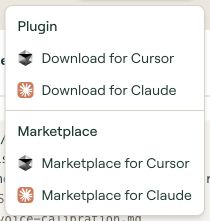
- Download for Cursor
- Download for Claude
The same menu has a Marketplace section with Marketplace for Cursor and Marketplace for Claude. Choose from the Plugin section when you want an individual plugin bundle.
Publish
A plugin must have status: active to appear in the marketplace. Draft plugins are visible only to admins.
To publish, either use Create & Publish when creating the plugin, or publish an existing draft from its row on the Plugins list.
Only organization-level plugins (no owner) are published. User-owned plugins remain private.
Let users install from the Connect portal
Published plugins can be offered to end users directly inside the Connect portal, without any GitHub sync or per-client setup. The Plugins page in the Connect sidebar lets users browse, search, and install published plugins into their coding agents in one click.
The Connect portal's Plugins page is on by default. Its visibility is controlled by the Plugins toggle under Sidebar Pages in End-User Settings; turning that off hides the page from everyone in the organization.
Your published organization plugins appear on that page. See the user guide, Install Plugins from Connect, for the end-user experience.
Target platforms
A plugin inherits the organization's default marketplace platforms from Plugin Settings. To target a different set for one plugin, turn on Override defaults in its Plugin Details and choose its target platforms. Organization defaults include Cursor, Claude, GitHub Copilot, Codex, and OpenCode. OpenCode receives a native config layout rather than a marketplace manifest.
Marketplace preview
Before syncing, use the Marketplace Preview tree on the plugin edit page to confirm the file structure Willow will generate. See The edit page.
Sync to GitHub
Publishing makes a plugin eligible for marketplace sync. Two mechanisms are available and can run side by side, configured in Plugin Settings:
- Managed (Willow-hosted): a private repo Willow maintains for you. See Managed Marketplace Sync.
- Custom (your GitHub): your own repository with configurable sync modes, branches, and webhooks. See GitHub Integration.
When sync is active, the Plugins list shows a status banner with the sync mode, target repository, and enabled platforms.
Install the marketplace in your agents
Once your plugins are synced to GitHub, follow the platform-specific guide to make them available to your developers:
- Cursor
- Claude Code
- Claude (Organization)
- GitHub Copilot
- Codex
- OpenCode: installs a native config layout rather than a marketplace manifest
Tips
- Wrap standalone MCP servers, skills, or toolkits in a plugin if you want them distributed through the marketplace.
- Enable auto-create in Plugin Settings to avoid manually wrapping every new entity.
- Use the marketplace preview to verify the file structure before syncing.
What to do next
- Package and Publish a Plugin: guided walkthrough
- Plugins: list columns, states, and settings
- Plugin Components Reference: every component type and field